Perkenalan
This manual provides essential information for setting up, operating, maintaining, and troubleshooting your Microsoft Surface Pro 3. The Surface Pro 3 is a versatile device designed to function as both a tablet and a laptop, powered by the Windows 10 operating system.
It features a 12-inch high-resolution screen, ample internal storage, dual HD cameras, and robust connectivity options, including a full-size USB 3.0 port. Its integrated kickstand allows for comfortable viewing in various positions, and the magnesium frame ensures a lightweight and durable design.
Informasi Keselamatan
- Jangan biarkan perangkat terkena suhu ekstrem, sinar matahari langsung, atau kelembapan tinggi.
- Hindari menjatuhkan atau membiarkan perangkat terkena benturan keras.
- Use only Microsoft-approved power adapters and accessories.
- Keep the device away from liquids. In case of liquid contact, power off immediately and seek professional assistance.
- Jangan mencoba membongkar atau memperbaiki perangkat sendiri. Hal ini dapat membatalkan garansi dan menyebabkan kerusakan.
- Ensure proper ventilation when using the device to prevent overheating.
Pengaturan
1. Unboxing dan Pemeriksaan Awal
Carefully remove the Surface Pro 3 and all accessories from the packaging. Inspect the device for any visible damage. Retain the packaging for future transport or service needs.
2. Menghidupkan dan Pengaturan Awal
- Connect the power supply to the Surface Pro 3 and a power outlet.
- Press the power button located on the top edge of the device.
- Follow the on-screen prompts to complete the Windows 10 initial setup, including language selection, network connection, and user account creation.
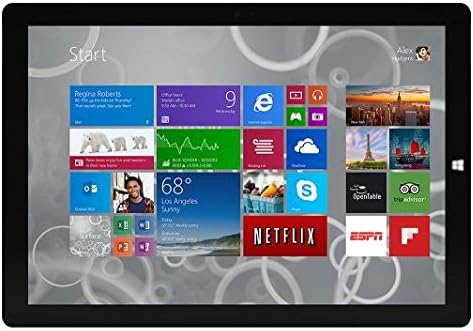
Figure 1: Windows 10 Start Screen during initial setup.
This image shows the Microsoft Surface Pro 3 screen displaying the Windows 10 Start menu, characterized by a grid of live tiles representing various applications and services. This is typically seen during the initial setup or when navigating the operating system.
3. Attaching Accessories (Sold Separately)
The Surface Pro 3 is compatible with various accessories, such as the Surface Type Cover keyboard and the Surface Pen, which are sold separately.
- Surface Type Cover: Align the magnetic connector of the Type Cover with the bottom edge of the Surface Pro 3 until it clicks into place.
- Surface Pen: The Surface Pen can be magnetically attached to the side of the Surface Pro 3 for storage. For initial pairing, follow the instructions provided with the pen.
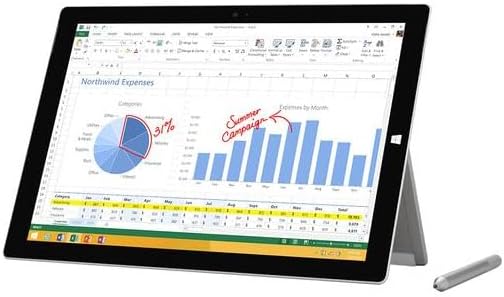
Figure 2: Surface Pro 3 with optional Surface Pen.
This image illustrates the Microsoft Surface Pro 3 in use, displaying an Excel spreadsheet on its screen. A Surface Pen is positioned next to the device, highlighting its compatibility for precise input and navigation.
4. Expanding Storage with a MicroSD Card
You can expand the internal storage of your Surface Pro 3 using a microSD card (sold separately).
- Locate the microSD card slot on the side of the Surface Pro 3, typically behind the kickstand.
- Masukkan kartu microSD ke dalam slot hingga berbunyi klik dan terpasang dengan benar.
- The device will automatically detect the card. You may need to format it if it's a new card or if prompted by the system.

Figure 3: MicroSD card slot.
This close-up image shows the microSD card slot on the side of the Microsoft Surface Pro 3, with a microSD card partially inserted, demonstrating how to expand the device's storage.
Petunjuk Pengoperasian
1. Navigating Windows 10
- Menu Mulai: Klik ikon Windows di pojok kiri bawah untuk mengakses aplikasi, pengaturan, dan opsi daya.
- Layar sentuh: Use gestures for navigation, zooming, and scrolling.
- Edge Browser: Utilize the pre-installed Edge browser for web browsing, which includes features for marking up web halaman.

Figure 4: Using the Surface Pro 3 for productivity.
This image depicts the Microsoft Surface Pro 3 in an active use scenario, showcasing a note-taking application open on its screen. The display features handwritten notes, diagrams, and sketches, illustrating the device's capability for creative and productive tasks.
2. Using the Integrated Kickstand
The multi-position kickstand allows you to adjust the viewing angle for optimal comfort, whether you are typing, watching videos, or drawing.
- Gently pull the kickstand out from the back of the device.
- Adjust it to your desired angle. The kickstand offers a wide range of positions for versatility.
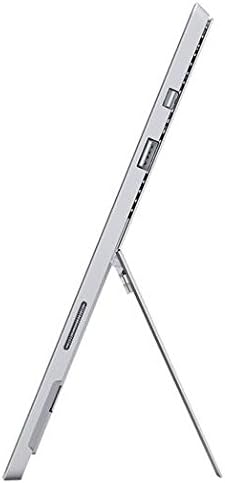
Figure 5: Adjustable kickstand.
Gambar ini memberikan sisi view of the Microsoft Surface Pro 3, clearly showing its integrated kickstand extended to support the device at an angle, demonstrating its versatile viewkemampuan ing.
3. Fungsionalitas Kamera
The Surface Pro 3 is equipped with 5.0MP front and rear cameras.
- Open the Camera application from the Start Menu.
- Switch between front and rear cameras as needed for photos or video calls.

Figure 6: Front camera.
This close-up image focuses on the front-facing camera and associated sensors located at the top edge of the Microsoft Surface Pro 3 screen.
4. Konektivitas
The full-size USB 3.0 port allows for connecting various peripherals and transferring data.
- Insert USB devices (e.g., flash drives, external hard drives, printers) into the USB 3.0 port.
- The device also supports Wi-Fi (802.11a/b/g/n/ac) for wireless internet connectivity.
Pemeliharaan
1. Cleaning Your Surface Pro 3
- Gunakan kain yang lembut dan tidak berbulu dampDibersihkan dengan air atau cairan pembersih layar yang dirancang khusus untuk elektronik.
- Hindari penggunaan bahan kimia keras, pembersih abrasif, atau semprotan aerosol.
- Gently wipe the screen and exterior surfaces.
2. Pembaruan Perangkat Lunak
Regularly check for and install Windows updates to ensure your device has the latest security patches and performance improvements.
- Pergi ke Pengaturan > Pembaruan & Keamanan > Pembaruan Windows.
- Klik "Periksa pembaruan" dan instal pembaruan yang tersedia.
3. Manajemen Penyimpanan
To maintain optimal performance, manage your device's storage space.
- Hapus hal-hal yang tidak perlu secara berkala. filedan aplikasi.
- Utilize cloud storage services or external drives for large files.
- Consider using the Disk Cleanup tool in Windows to remove temporary files.
Penyelesaian Masalah
This section addresses common issues you might encounter with your Surface Pro 3.
Perangkat Tidak Menyala
- Ensure the power supply is securely connected to both the device and a working power outlet.
- Coba stopkontak yang lain.
- Press and hold the power button for 10-15 seconds to perform a forced shutdown, then press it again to restart.
Masalah Konektivitas Wi-Fi
- Periksa apakah Wi-Fi diaktifkan di pengaturan Windows.
- Mulai ulang router Wi-Fi Anda.
- Lupakan jaringan dan sambungkan kembali, lalu masukkan kata sandi lagi.
- Jalankan Pemecah Masalah Jaringan Windows.
Kinerja Lambat
- Tutup aplikasi yang tidak diperlukan yang berjalan di latar belakang.
- Periksa dan instal pembaruan Windows yang tertunda.
- Pastikan Anda memiliki ruang penyimpanan kosong yang cukup.
- Lakukan pemindaian virus.
For more detailed troubleshooting or issues not covered here, please refer to the official Microsoft Support websitus atau hubungi layanan pelanggan.
Spesifikasi
| Fitur | Detil |
|---|---|
| Model | Microsoft Surface 1631 Pro 3 |
| Sistem Operasi | Jendela 10 |
| Ukuran Layar | 12 inci |
| Resolusi Layar | Ukuran 2160x1440 |
| Prosesor | Prosesor Intel Core i3 1.5GHz |
| RAM | 4 GB |
| Penyimpanan Internal | Penyimpanan Flash 128 GB |
| Koprosesor Grafis | Grafis Intel HD |
| Kamera | 5.0MP Front and Rear |
| Tipe Nirkabel | 802.11b, 802.11a, 802.11g |
| Pelabuhan | Full-size USB 3.0 |
| Berat Barang | 1.8 pon |
| Dimensi Produk | 11.5x0.36x7.93 inci |
| Warna | Perak |
Garansi dan Dukungan
Your Microsoft Surface Pro 3 comes with a standard manufacturer's warranty. For detailed warranty terms and conditions, please refer to the documentation included with your purchase or visit the official Microsoft support weblokasi.
For technical assistance, troubleshooting guides, driver downloads, and service requests, please visit the Dukungan Microsoft Surface halaman.


