1. Pendahuluan
Welcome to the user manual for your Brother MFC-L8690CDW. This device is a high-performance color laser multifunction printer designed for efficient printing, scanning, and copying. It features an automatic document feeder, A4 paper compatibility, and duplex printing capabilities, making it suitable for various office and home office environments.
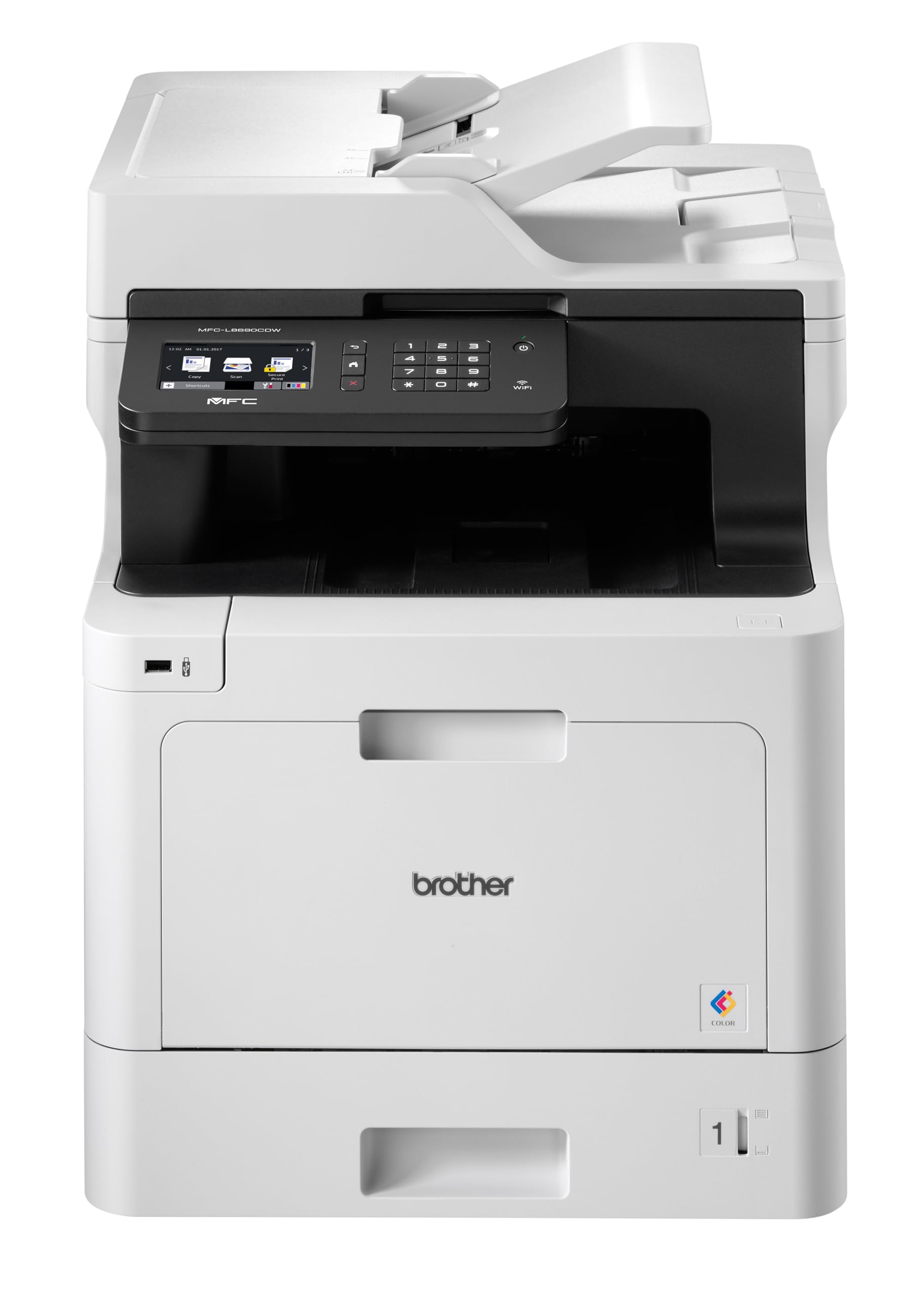
Depan view of the Brother MFC-L8690CDW color multifunction printer, showcasing desain dan panel kontrolnya yang ringkas.
2. Pengaturan
2.1 Pembongkaran dan Penempatan Awal
Carefully remove the printer from its packaging. Ensure all protective tapes and packing materials are removed from the exterior and interior of the device. Place the printer on a stable, level surface with adequate ventilation, away from direct sunlight or heat sources.
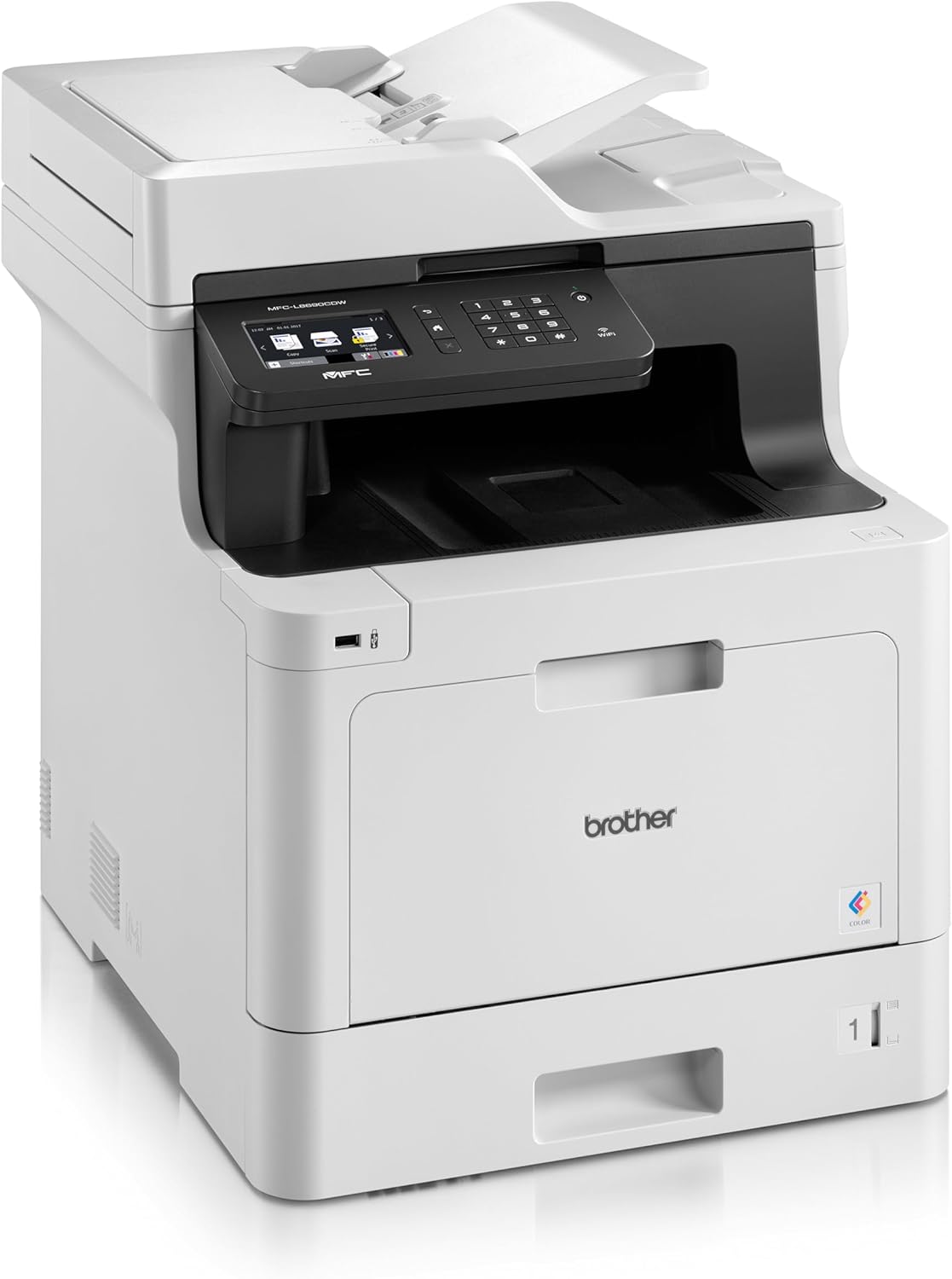
Depan view of the Brother MFC-L8690CDW, showing the control panel and paper output tray.
2.2 Sambungan Daya
Connect the power cord to the printer's power input and then to a grounded electrical outlet. Do not connect the printer to a power strip or surge protector during initial setup to avoid potential power issues.
2.3 Pemasangan Kartrid Toner
Open the front cover of the printer. Install the included toner cartridges into their respective color-coded slots. Ensure each cartridge clicks into place. Close the cover securely.
2.4 Pemuatan Kertas
Open the main paper tray. Load standard A4 paper (or other supported sizes) into the tray, ensuring the print side is facing down. Adjust the paper guides to fit the paper size snugly without bending the paper.

Samping view of the Brother MFC-L8690CDW printer, illustrating the paper input tray.
2.5 Instalasi Perangkat Lunak dan Driver
Insert the installation CD into your computer's CD-ROM drive or download the latest drivers and software from the official Brother support website. Follow the on-screen instructions to complete the installation for your operating system.
2.6 Koneksi Jaringan
The MFC-L8690CDW supports both wired (Ethernet) and wireless (Wi-Fi IEEE 802.11b/g/n) connections.
2.6.1 Koneksi Kabel
Connect an Ethernet cable from your router or network hub to the Ethernet port on the back of the printer.
2.6.2 Koneksi Nirkabel
Pada panel kontrol printer, navigasikan ke Pengaturan Jaringan, Kemudian Nirkabel. Select your Wi-Fi network from the list and enter the password when prompted.

Belakang view of the Brother MFC-L8690CDW printer, highlighting the power input, Ethernet port, and USB port.
3. Petunjuk Pengoperasian
3.1 Pencetakan Dasar
From your computer, open the document you wish to print. Select Mencetak from the application's menu. Choose Saudara MFC-L8690CDW as your printer. Adjust settings such as color/monochrome, duplex printing, and paper size as needed in the print dialog box. Click Mencetak to start the job.
3.2 Menyalin Dokumen
Place your document face down on the scanner glass or face up in the Automatic Document Feeder (ADF). On the printer's control panel, select Menyalin. Adjust settings like number of copies, color/monochrome, and reduction/enlargement. Press Awal untuk mulai menyalin.
3.3 Memindai Dokumen
Place your document on the scanner glass or in the ADF. On the printer's control panel, select Pindai. Choose your desired scan destination (e.g., computer, email, network folder). Adjust scan settings like resolution and file format. Press Awal to initiate the scan.
4. Pemeliharaan
4.1 Membersihkan Pencetak
Regularly clean the exterior of the printer with a soft, lint-free cloth. For the scanner glass, use a mild glass cleaner applied to a cloth, not directly to the glass, to avoid streaks or damage.
4.2 Mengganti Kartrid Toner
When a toner cartridge is low or empty, the printer's display will indicate which cartridge needs replacement. Open the front cover, remove the old cartridge, and insert a new Brother genuine toner cartridge. Ensure it is securely seated before closing the cover.
4.3 Mengatasi Macetnya Kertas
If a paper jam occurs, the printer display will show specific instructions and locations. Carefully open the indicated covers and gently pull out any jammed paper in the direction of the paper path. Avoid tearing the paper to prevent small pieces from remaining inside.
5. Penyelesaian masalah
5.1 Masalah Umum dan Solusinya
Printer Tidak Merespons: Check the power connection, USB/network cable, and ensure the printer is online. Restart both the printer and your computer.
Kualitas Cetak Buruk: Check toner levels. Perform a print quality test from the printer's menu. Clean the drum unit if necessary, following the instructions in the maintenance section.
Kertas Macet: Follow the on-screen instructions to locate and remove jammed paper. Ensure paper is loaded correctly, not creased, and within the specified weight limits.
Masalah Konektivitas Jaringan: Verify your Wi-Fi password or Ethernet cable connection. Restart your router and printer. Ensure printer firmware is up to date by checking the Brother support weblokasi.
6. Spesifikasi Teknis
| Fitur | Spesifikasi |
|---|---|
| Dimensi Produk | 10D x 48W x 50H sentimeter |
| Tipe Pengendali | Otomatis |
| Ukuran Media Maksimum | A4 |
| Konsumsi Daya | 680Watt |
| Komponen yang Termasuk | Brother Multifunction Laser MFC-L8690CDW Wifi Network |
| Jenis Media Cetak | Kertas (polos) |
| Jenis Pemindai | Pengumpan Dokumen Otomatis |
| Kapasitas Lembar Maksimum | 100 lembar |
| Kecepatan Salin Maksimum (Hitam & Putih) | 32 Halaman per menit |
| Perangkat yang Kompatibel | Komputer desktop |
| Resolusi Cetak Warna Maksimum | Resolusi 1200x1200dpi |
| Ukuran Lembar | 210 milimeter |
| Resolusi Cetak Hitam Putih Maksimum | Resolusi 1200x1200dpi |
| Jenis Garansi | Garansi Terbatas |
| Kedalaman Warna | 24 bpp |
| Pencetakan Dupleks | Ya |
| Ketersediaan Suku Cadang UE | 2 Tahun |
| Salinan Maksimum per Seri | 32 |
| Kekuatan | 3600 (Unit not specified) |
| Tipe Produk | Semua dalam satu |
| Sistem Operasi | Mac OS 10.15 Catalina (and compatible with other OS) |
| Koneksi | Bluetooth, Ethernet, Mini USB |
| Ingatan | 4 (Unit not specified) |
| Jumlah Port USB | 1 |
| Baterai | 1 baterai Lithium-ion diperlukan |
| Pembaruan Perangkat Lunak Dijamin Hingga | 13 April 2030 |
| Merek | Saudara laki-laki |
| Teknologi Konektivitas | Bahasa Indonesia: Bluetooth |
| Teknologi Percetakan | Laser |
| Warna | Beraneka warna |
| Nama Model | MFC L 8690 CDW |
| Keluaran Printer | Warna |
| Kecepatan Cetak Maksimum (Warna) | 10 Halaman per menit |
| Kecepatan Cetak Maksimum (Monokrom) | 10 Halaman per menit |
| Berat Barang | 19 Kilogram |
| ASIN | B072C463YX |
| Tanggal Pertama Tersedia | 8 April 2022 |
| Pabrikan | SAUDARA LAKI-LAKI |
7. Garansi dan Dukungan
7.1 Garansi Produk
This Brother MFC-L8690CDW printer comes with a limited warranty. Spare parts availability in the EU is guaranteed for 2 years from the date of purchase.
7.2 Pembaruan Perangkat Lunak
Software updates for this model are guaranteed until April 13, 2030, ensuring continued compatibility and security enhancements.
7.3 Dukungan Pelanggan
Untuk bantuan teknis, unduhan driver, dan dukungan lebih lanjut, silakan kunjungi official Brother support weblokasi or contact your local Brother customer service center. Have your model number (MFCL8690CDW) and serial number ready when contacting support.


