1. Pendahuluan
This manual provides instructions for the Apple TV (32GB, 4th Generation), a digital media player developed by Apple Inc. It allows users to access digital content from various sources, including streaming services, apps, and AirPlay from Apple devices. This guide covers setup, operation, maintenance, and troubleshooting to ensure optimal use of your device.
Apa yang ada di dalam kotak
- Apple TV (32GB, 4th generation)
- Kontrol Jarak Jauh Siri
- Kabel Listrik
- Lightning to USB Cable (for remote charging)
An HDMI cable (sold separately) is required to connect the Apple TV to your television.
2. Pengaturan
2.1 Connecting Your Apple TV
- Hubungkan Daya: Plug one end of the power cord into the power port on the back of the Apple TV and the other end into a power outlet.
- Hubungkan ke TV: Use an HDMI cable (not included) to connect the HDMI port on the back of the Apple TV to an HDMI input on your television. Note: Ensure the HDMI cable is fully engaged to prevent signal issues.
- Hubungkan ke Jaringan (Opsional): For a wired internet connection, connect an Ethernet cable from your router to the Ethernet port on the back of the Apple TV. For Wi-Fi, you will configure this during the on-screen setup.
- Nyalakan: Turn on your television and select the correct HDMI input. The Apple TV should power on automatically.

Gambar 2.1: Belakang view of the Apple TV showing the power, USB-C, HDMI, and Ethernet ports for connections.
2.2 Initial Setup with Siri Remote
- Pair Siri Remote: If the Siri Remote does not automatically pair, press and hold the Menu Dan Volume Naik tombol selama 5 detik.
- Bahasa dan Wilayah: Ikuti petunjuk di layar untuk memilih bahasa dan wilayah Anda.
- Quick Setup with iOS Device: If you have an iPhone or iPad, bring it close to the Apple TV when prompted. Your device will offer to transfer Wi-Fi settings and Apple ID information automatically.
- Pengaturan Manual: If not using an iOS device, manually select your Wi-Fi network and enter your Apple ID credentials using the Siri Remote.
- Pengaturan Lengkap: Continue following the on-screen prompts to enable location services, Siri, and other preferences.
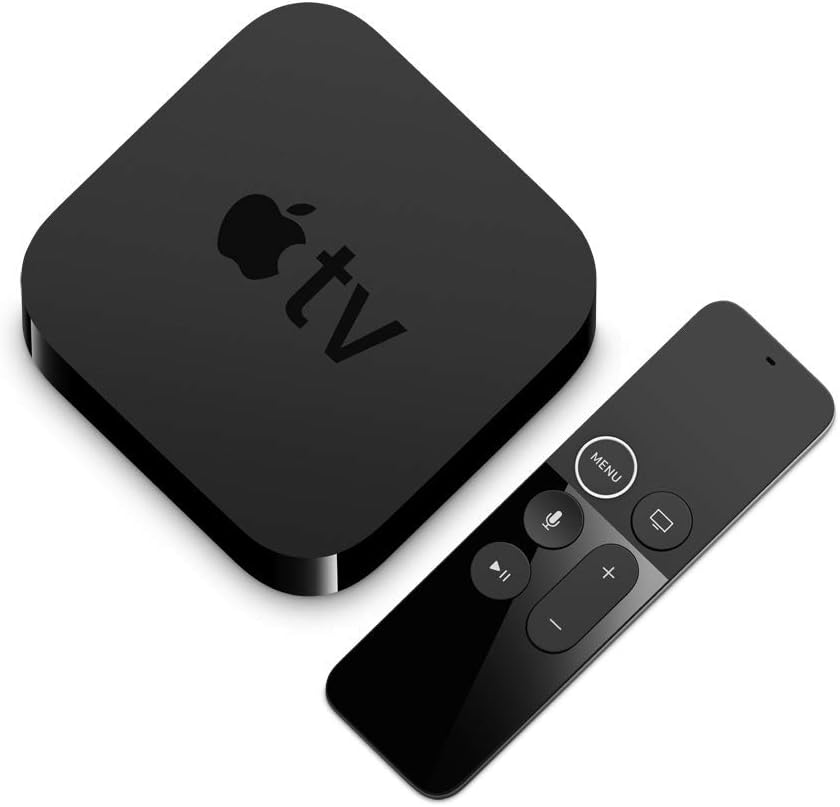
Gambar 2.2: The Apple TV unit and its accompanying Siri Remote, used for navigation and control.
3. Operating Your Apple TV
3.1 Siri Remote Functions
The Siri Remote features a touch surface for navigation and dedicated buttons for various functions:
- Permukaan Sentuh: Swipe to navigate, click to select.
- Tombol Menu: Go back to the previous screen or return to the Home screen (hold).
- TV/Home Button: Go to the TV app or Home screen (single press), open App Switcher (double press), or activate Control Center (hold).
- Siri Button: Press and hold to activate Siri for voice commands and search.
- Tombol Putar/Jeda: Kontrol pemutaran media.
- Tombol Volume: Control your TV's volume (requires TV setup).
3.2 Fitur Utama
- Video HD 1080p: Enjoy high-quality video content.
- Dolby Digital Plus 7.1 Surround Sound: Rasakan pengalaman audio yang imersif.
- Apple TV+ Access: Watch original stories from Apple TV+.
- Apple Arcade: Play groundbreaking games.
- AirPlay: Stream photos and videos from your iPhone or iPad to your TV.
- Kontrol Suara Siri: Pencarian untuk movies, shows, and games using voice commands.
4. Pemeliharaan
4.1 Cleaning Your Apple TV and Siri Remote
- Unplug the Apple TV from the power outlet before cleaning.
- Use a soft, lint-free cloth to wipe the exterior of the Apple TV and Siri Remote.
- Avoid using abrasive cleaners, solvents, or aerosol sprays, as these can damage the finish.
- Do not allow moisture to get into any openings.
4.2 Siri Remote Battery
The Siri Remote contains a rechargeable lithium-ion battery. To charge, connect the remote to a power source using the included Lightning to USB cable.
5. Penyelesaian masalah
5.1 No Picture or Signal
- Ensure the Apple TV is properly connected to power and turned on.
- Verify the HDMI cable is securely connected to both the Apple TV and your television. Try a different HDMI port on your TV or a different HDMI cable.
- Pastikan TV Anda telah diatur ke sumber input HDMI yang benar.
- Restart your Apple TV by unplugging it from power for 30 seconds, then plugging it back in.
5.2 Siri Remote Not Responding
- Ensure the remote is charged. Connect it to power using the Lightning to USB cable.
- Point the remote at the Apple TV and press any button.
- If the remote is still unresponsive, try re-pairing it by holding the Menu Dan Volume Naik tombol selama 5 detik.
- Restart the Apple TV (unplug and replug power).
5.3 Masalah Koneksi Jaringan
- Periksa router dan modem Anda untuk memastikan keduanya berfungsi dengan benar.
- For Wi-Fi, go to Pengaturan > Jaringan on your Apple TV to verify your connection and re-enter Wi-Fi password if necessary.
- For Ethernet, ensure the cable is securely connected.
- Restart your router, modem, and Apple TV.
6. Spesifikasi
| Nomor Model | MR912LL/A |
| Kapasitas Penyimpanan | 32 GB |
| Dimensi (T x L x D) | 1.4 inci x 3.9 inci x 3.9 inci (35mm x 98mm x 98mm) |
| Berat | 0.94 pon (425g) |
| Keluaran Video | HDMI1.4 dapat digunakan untuk menghubungkan komputer ke TV. |
| Resolusi Video | Hingga 1080p |
| Keluaran Audio | Dolby Digital Plus 7.1 surround sound |
| Konektivitas | 802.11ac Wi-Fi with MIMO, Ethernet, Bluetooth 4.0 |
| Pelabuhan | HDMI, Ethernet, USB-C (for service and support) |
| Siri Remote Battery | Baterai lithium-ion yang dapat diisi ulang |
Catatan: Spesifikasi dapat berubah tanpa pemberitahuan.
7. Informasi Garansi
Your Apple TV (32GB, 4th Generation) is covered by a one-year limited warranty from the date of original retail purchase. This warranty covers manufacturing defects in materials and workmanship. It does not cover damage caused by accidents, misuse, unauthorized modifications, or normal wear and tear.
For complete details regarding the warranty terms and conditions, please refer to the official Apple warranty documentation included with your product or visit the Apple Support weblokasi.
8. Dukungan
For additional assistance, technical support, or service, please contact Apple Support through the following resources:
- Dukungan online: Visit the official Apple Support weblokasi: dukungan.apple.com
- Forum Komunitas: Engage with other Apple users and experts: diskusi.apple.com
- Toko Apple: Kunjungi Apple Store resmi untuk mendapatkan bantuan langsung.
Please have your product's serial number ready when contacting support. The serial number can be found on the bottom of your Apple TV device or in the Settings menu on the device itself.