1. Pendahuluan
This manual provides detailed instructions for the setup, operation, and maintenance of your Waveshare 13.3-inch Capacitive Touch Screen LCD (V1). This display features a 1920x1080 resolution, HDMI input, IPS panel for wide viewing angles, and a durable toughened glass cover. Please read this manual thoroughly before using the product to ensure proper functionality and longevity.
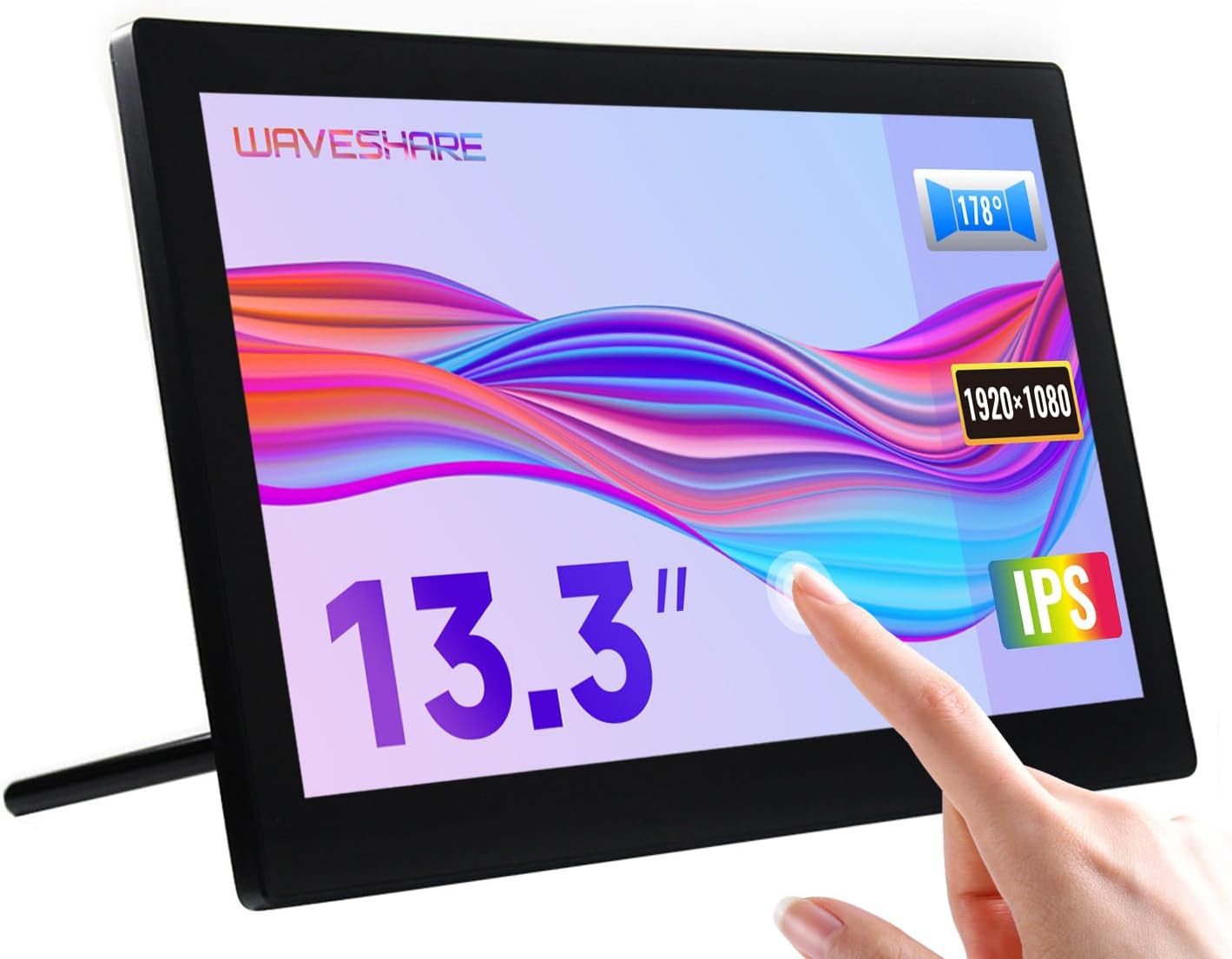
Image 1.1: The Waveshare 13.3-inch Capacitive Touch Screen LCD, showcasing its touch functionality and sleek design.
2. Informasi Keselamatan
- Pastikan voltase catu dayatage matches the product's requirements to prevent damage.
- Avoid exposing the display to extreme temperatures, humidity, or direct sunlight.
- Jangan membongkar unit. Serahkan semua servis kepada teknisi yang berkualifikasi.
- Keep the screen away from strong magnetic fields.
- Handle with care to avoid dropping or impacting the screen, especially the toughened glass panel.
3. Isi Paket
Verifikasi bahwa semua item ada dalam paket:
- Waveshare 13.3-inch HDMI LCD (H) Display
- Adaptor Daya
- Kabel HDMI
- USB-A to Micro-USB Cable (for touch functionality)
- User Manual (dokumen ini)
4. Produk Lebihview
4.1. Fitur
- 13.3-inch IPS panel with 1920x1080 resolution.
- Capacitive 10-point touch control (operating system dependent).
- Toughened glass panel with up to 6H hardness.
- HDMI and VGA display interfaces.
- Built-in Hi-Fi speakers and 3.5mm audio jack.
- Supports various devices including Raspberry Pi, Jetson Nano, PCs, and game consoles.
- Integrated case with a 75° back stand and VESA mounting holes (75x75mm).

Image 4.1: Detailed features and system compatibility of the display.
4.2. Komponen Fisik
The display includes various ports and control buttons:
- VGA Display Port: For video input via VGA.
- Port HDMI: For video input via HDMI.
- Jack Audio 3.5mm: Untuk keluaran audio.
- Touch Port (USB): For connecting the touch functionality to your device.
- Input Daya 12V: Untuk menghubungkan adaptor daya.
- Tombol Kembali: Power, direction controls, and Menu/Enter/Return buttons for OSD navigation.

Gambar 4.2: Belakang view of the display with ports and a Raspberry Pi connection exampsaya.
5. Petunjuk Penyiapan
5.1. Koneksi Awal
- Hubungkan Video: Use the provided HDMI cable to connect the display's HDMI port to your source device (e.g., Raspberry Pi, PC). If using VGA, connect a VGA cable.
- Connect Touch (USB): Connect the USB-A to Micro-USB cable from your source device's USB port to the display's Touch Port. This enables touch functionality.
- Hubungkan Daya: Plug the power adapter into the display's 12V Power Input, then connect it to a power outlet.
- Nyalakan: Press the power button on the back of the display. The screen should illuminate and display content from your source device.

Image 5.1: Display showing a Windows desktop after successful connection.
5.2. Koneksi Contohampsedikit
The display supports various connection configurations:
- Working with Raspberry Pi 4: Connect HDMI for video and USB for touch. Power the display with its 12V adapter.
- Working with Raspberry Pi Zero W: Requires additional mini HDMI adapter and USB cable. Connect mini HDMI for video and USB for touch. Power the display with its 12V adapter.
- Working with AI Computer Jetson Nano: Connect HDMI for video and USB for touch. Power the display with its 12V adapter.
- Working with Mini PC: Connect HDMI for video and USB for touch. Power the display with its 12V adapter.

Image 5.2: Visual guide for connecting the display to different devices.
6. Petunjuk Pengoperasian
6.1. Menu Tampilan di Layar (OSD)
The OSD menu allows you to adjust display settings such as brightness, contrast, and input source. Use the back buttons (direction controls and Menu/Enter/Return) to navigate and select options.
- Tekan tombol MENU untuk membuka menu OSD.
- Gunakan Arah tombol untuk menavigasi melalui pilihan menu.
- Tekan MENU again (or the designated Enter button) to select an option or confirm a setting.
- Gunakan Kembali Tombol untuk kembali atau keluar dari menu.
6.2. Displaying Content
Once connected and powered on, the display will automatically detect the active video input. Ensure your source device is outputting video to the selected HDMI or VGA port.

Image 6.1: The display showing multimedia content from a web peramban.
6.3. Kontrol Sentuh
The display features capacitive 10-point touch control. Ensure the USB touch cable is connected to your source device for touch functionality. Driver-free operation is supported on most compatible operating systems.

Image 6.2: Illustration of touch control and audio features.
6.4. Keluaran Audio
The display includes built-in Hi-Fi speakers for audio output. Alternatively, you can connect external speakers or headphones to the 3.5mm audio jack for private listening or higher quality audio.
7. Device & System Support
The Waveshare 13.3-inch display offers broad compatibility:
- Raspberry Pi: Supports all versions of Raspberry Pi.
- Supports Raspberry Pi OS, 10-point touch, driver free.
- Supports Ubuntu / Kali / WIN10 IoT, single point touch, driver free.
- Supports Retropie, driver free.
- Jetson Nano: Supports Ubuntu, single point touch, driver free.
- komputer: Supports Windows 11 / 10 / 8.1 / 8 / 7, 10-point touch, driver free.
- Konsol Game: Supports Xbox360, PS4, Switch (display and sound only).

Gambar 7.1: Selesaiview of supported devices and operating systems.
8. Pemeliharaan
- Membersihkan Layar: Gunakan kain lembut dan bebas serat untuk sedikit membersihkannya.ampBersihkan dengan air atau larutan pembersih layar. Hindari bahan kimia keras atau bahan abrasif.
- Perawatan Umum: Keep the display free from dust. When not in use for extended periods, consider covering it to prevent dust accumulation.
- Penyimpanan: Store the display in a cool, dry place, away from direct sunlight and extreme temperatures.
9. Penyelesaian masalah
| Masalah | Kemungkinan Penyebab | Larutan |
|---|---|---|
| Tidak ada tampilan/Layar hitam |
|
|
| Layar sentuh tidak berfungsi |
|
|
| Tidak ada audio |
|
|
10. Spesifikasi
| Fitur | Detil |
|---|---|
| Ukuran Layar | 13.3 inci |
| Resolusi | Resolusi 1920x1080 (FHD 1080p) |
| Panel Tampilan | Bahasa Inggris |
| Viewsudut ing | 178° |
| Tipe Sentuh | Capacitive, 10-point touch |
| Touch Panel Hardness | Up to 6H Toughened Glass |
| Tampilan Antarmuka | hdmi, vga |
| Keluaran Audio | Built-in Hi-Fi Speakers, 3.5mm Audio Jack |
| Masukan Daya | Tegangan DC 12V |
| Dimensi Produk (P x L x T) | 7.09 x 3.94 x 3.54 inci (180 x 100 x 90 mm kira-kira) |
| Berat Barang | 2.2 pon (sekitar 1 kg) |
| Bahan Penutup | Polikarbonat / ABS |

Image 10.1: Physical dimensions of the display.
11. Garansi dan Dukungan
Waveshare products are designed for reliability and performance. For warranty information, technical support, or further assistance, please visit the official Waveshare websitus atau hubungi layanan pelanggan mereka secara langsung. Simpan tanda terima pembelian Anda sebagai bukti pembelian untuk klaim garansi.
Official Waveshare Weblokasi: www.waveshare.com


