Perkenalan
This manual provides essential instructions for setting up, operating, maintaining, and troubleshooting your Microsoft Surface Pro 2017. The Surface Pro 2017 is a versatile 2-in-1 device designed to function as both a powerful laptop and a portable tablet, offering a seamless computing experience.
Please read this manual thoroughly to ensure proper use and to maximize the lifespan of your device. Keep this manual for future reference.
Apa yang ada di dalam kotak
Upon unboxing your Microsoft Surface Pro 2017, verify that all components are present:
- Microsoft Surface Pro 2017 device
- Adaptor Daya AC
Note: Additional accessories such as the Surface Pen, Type Cover, or Surface Dial are sold separately and may not be included with your device.
Pengaturan
1. Menyalakan dan Mengisi Daya Awal
- Hubungkan Adaptor Daya: Plug the AC power adapter into a wall outlet and then connect the magnetic charging connector to the charging port on your Surface Pro. The LED indicator on the connector will illuminate when charging.
- Nyalakan: Press and hold the power button located on the top edge of the device for a few seconds until the Microsoft logo appears on the screen.
2. Pengaturan Windows
Follow the on-screen prompts to complete the initial Windows setup. This process typically includes:
- Memilih wilayah dan bahasa Anda.
- Menghubungkan ke jaringan Wi-Fi.
- Menerima perjanjian lisensi.
- Membuat atau masuk dengan akun Microsoft.
- Setting up security features like Windows Hello (facial recognition) or a PIN.
3. Menghubungkan ke Wi-Fi
- During Windows setup, you will be prompted to connect to a network. Select your desired Wi-Fi network from the list and enter the password if required.
- If you need to connect later, go to Awal > Pengaturan > Jaringan & Internet > Wifi gratis. Turn Wi-Fi on, select your network, and click Menghubungkan.
Petunjuk Pengoperasian
Basic Device Orientation and Controls
The Surface Pro 2017 features a 12.3-inch PixelSense display with multi-touch support. Key physical controls include:
- Tombol Daya: Located on the top edge, used to turn the device on/off, sleep, or wake.
- Tombol Volume: Located on the side, used to adjust audio volume.
- Penyangga: Integrated on the back, allows for multiple viewsudut ing.
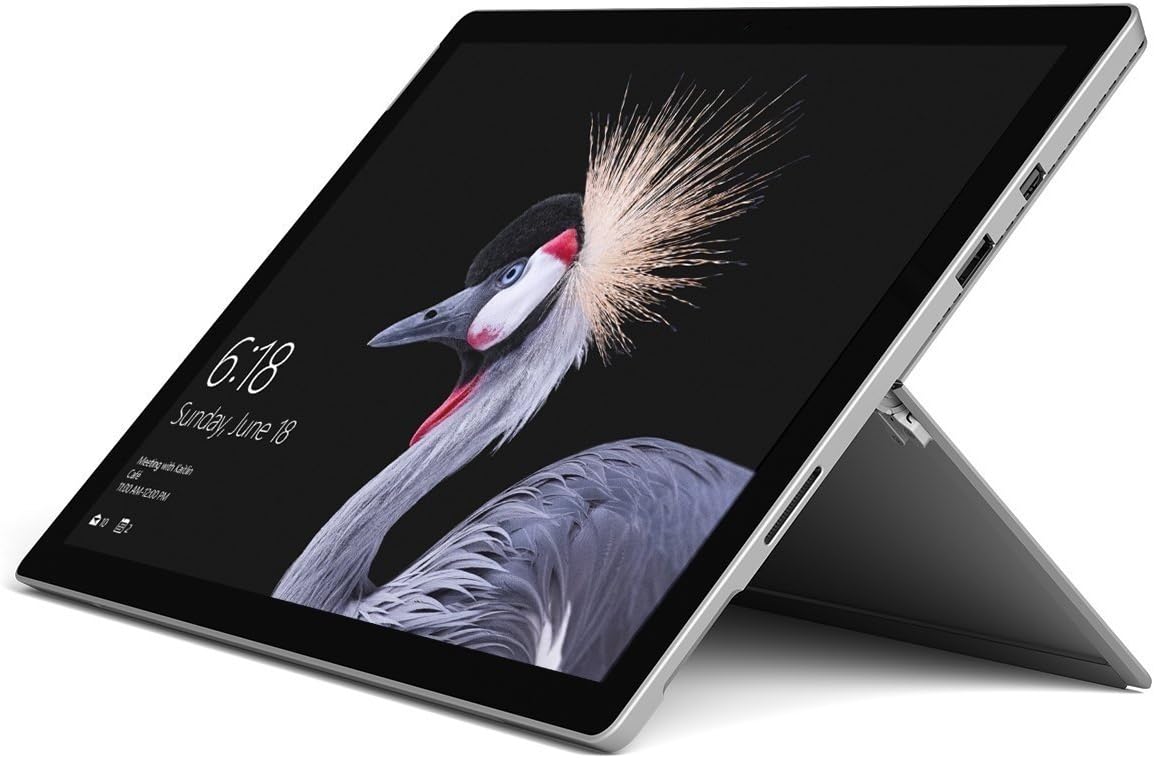
Image: Microsoft Surface Pro 2017 in laptop mode with its kickstand extended, showcasing the device's display.
Menggunakan Kickstand
The integrated kickstand allows you to position your Surface Pro at various angles for comfortable viewing, typing, or drawing. Gently pull the kickstand out from the back of the device until it reaches your desired angle.
Manajemen Daya
- Mode tidur: Briefly press the power button to put the Surface Pro into sleep mode. Press it again to wake the device.
- Menutup: Pergi ke Awal > Kekuatan > Menutup.
- Mulai ulang: Pergi ke Awal > Kekuatan > Mulai ulang.
Menghubungkan Periferal
The Surface Pro 2017 includes various ports for connecting external devices:
- Port USB 3.0: For connecting USB drives, keyboards, mice, and other compatible accessories.
- Port Layar Mini: Untuk menghubungkan ke monitor atau proyektor eksternal.
- Pembaca Kartu microSD: Untuk memperluas penyimpanan atau memindahkan barang files dari kartu memori.
- Port Sambungan Permukaan: For power and connecting to Surface Dock accessories.
- Jack Headphone 3.5mm: Untuk keluaran audio.
Bluetooth dapat digunakan untuk berbagai keperluan, seperti: To connect Bluetooth devices (e.g., headphones, mice), go to Awal > Pengaturan > Perangkat > Bluetooth & perangkat lainnya. Ensure Bluetooth is turned on, then select "Add Bluetooth or other device" and follow the pairing instructions.

Gambar: Sisi profile of the Microsoft Surface Pro 2017, highlighting the various ports available for connectivity.
Pemeliharaan
Cleaning Your Surface Pro
- Layar: Gunakan kain lembut dan bebas serat untuk sedikit membersihkannya.ampened with water or an approved screen cleaner. Avoid harsh chemicals or abrasive materials.
- Tubuh: Wipe the exterior with a soft, dry cloth. Do not allow liquids to enter openings.
- Pelabuhan: Keep ports free of dust and debris. Use compressed air carefully if needed, holding the can upright.
Perawatan Baterai
- Hindari suhu ekstrem karena dapat menurunkan masa pakai baterai.
- Untuk kesehatan baterai yang optimal, hindari terus-menerus mengosongkan baterai sepenuhnya atau membiarkannya terisi penuh 100% dalam waktu yang lama.
- Use only the official Microsoft AC power adapter or a compatible charger.
Pembaruan Perangkat Lunak
Regularly update your Windows operating system and device drivers to ensure optimal performance, security, and compatibility. Go to Awal > Pengaturan > Pembaruan & Keamanan > Pembaruan Windows untuk memeriksa dan menginstal pembaruan.
Penyelesaian Masalah
This section addresses common issues you might encounter with your Surface Pro 2017.
Device Will Not Turn On
- Pastikan perangkat terisi daya. Sambungkan adaptor daya dan tunggu beberapa menit sebelum mencoba menghidupkan perangkat.
- Perform a two-button shutdown: Press and hold the volume-up button and the power button simultaneously for at least 15 seconds, then release both. Wait 10 seconds, then press the power button again to turn on the Surface.
Screen Not Responding to Touch
- Mulai ulang perangkat.
- Pastikan layar bersih dan bebas dari kotoran.
- Check for available Windows updates, as driver updates can resolve touch issues.
Masalah Konektivitas Wi-Fi
- Pastikan Wi-Fi diaktifkan di Pengaturan > Jaringan & Internet > Wifi gratis.
- Restart your Surface Pro and your Wi-Fi router.
- Lupakan jaringan dan sambungkan kembali: Buka Pengaturan > Jaringan & Internet > Wifi gratis, click on your network, then Lupa. Reconnect and enter the password.
Spesifikasi
| Fitur | Spesifikasi |
|---|---|
| Nama Model | Permukaan Pro 2017 |
| Nomor Model Barang | tahun 7 tahun 30 |
| Ukuran Layar | 12.3 inci |
| Resolusi Layar | 2736 x 1824 piksel |
| Prosesor | Intel Core m3-7Y30 (1 GHz Intel_Mobile_CPU) |
| RAM | Memori DDR4 SDRAM 4 GB |
| Penyimpanan | SSD berkapasitas 128GB |
| Kartu Grafis | Terintegrasi (Intel) |
| Sistem Operasi | Jendela |
| Tipe Nirkabel | 802.11abg |
| Berat Barang | 1.89 pon |
| Dimensi Produk | 11.5x7.9x0.3 inci |
| Warna | Perak |
Garansi dan Dukungan
For detailed warranty information, please refer to the warranty card included with your purchase or visit the official Microsoft support websitus. Syarat dan ketentuan garansi dapat bervariasi tergantung wilayah dan penjual.
For technical support, driver downloads, and additional resources, please visit the official Microsoft Support weblokasi: support.microsoft.com/surface