1. Pendahuluan
This manual provides essential instructions for setting up, operating, and maintaining your PRITOM K7 7-inch Kids Tablet. Please read this guide thoroughly to ensure proper use and to maximize your child's learning and entertainment experience.
2. Apa yang ada di dalam kotak
- 1 x PRITOM 7-inch Tablet PC
- 1 x Pengisi Daya
- 1 x Panduan Pengguna
- 1 x Kabel USB
- 1 x Kabel OTG
- 1 x Film Layar
- 1 x Silicone Kid-Proof Case
3. Perangkat Berakhirview
The PRITOM K7 tablet is designed with a durable, kid-friendly silicone case that includes a built-in stand and handles for easy carrying and viewing. It features a 7-inch IPS HD display and dual cameras.
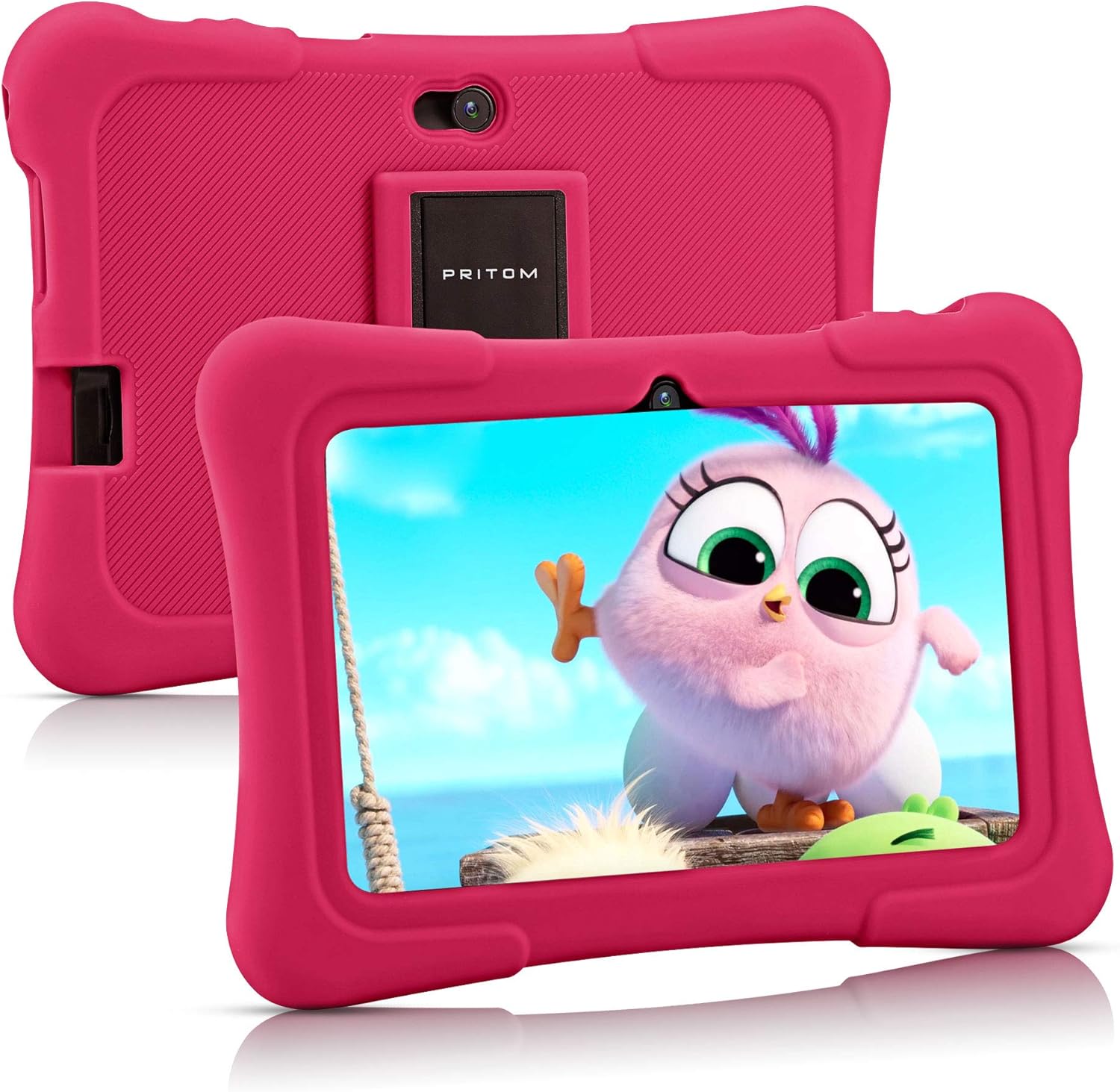
Image: PRITOM K7 7-inch Kids Tablet in its protective pink silicone case.

Image: Diagram illustrating the location of the power button, DC jack, Micro USB port, mic, 3.5mm earphone jack, volume buttons, Micro SD card slot, front camera, rear camera, and speaker.
4. Pengaturan
4.1 Penyalaan Awal
- Tekan dan tahan tombol Tombol Daya (located on the top edge) for a few seconds until the screen lights up.
- Ikuti petunjuk di layar untuk memilih bahasa dan wilayah Anda.
4.2 Menghubungkan ke Wi-Fi
- From the home screen, tap the Pengaturan ikon.
- Memilih Jaringan & Internet, Kemudian Wifi gratis.
- Beralih Wi-Fi On.
- Pilih jaringan Wi-Fi yang Anda inginkan dari daftar.
- Masukkan kata sandi jika diminta dan ketuk Menghubungkan.
4.3 Setting Up Parental Controls (iWawa Kids Software)
The PRITOM K7 comes with pre-installed iWawa Kid's software, offering a safe and controlled environment for children.
- Temukan dan ketuk sayaWawa ikon aplikasi di layar beranda.
- Follow the on-screen instructions to create a child profile. This typically involves setting up a password for parental access, defining screen time limits, and selecting age-appropriate content.
- Within the iWawa app, you can manage applications, set content filters, and monitor usage.

Image: The iWawa Kids Software interface, showing pre-installed educational and game applications.
5. Mengoperasikan Tablet
5.1 Navigasi
- Layar sentuh: Navigasi dengan mengetuk, menggesek, dan mencubit layar.
- Tombol Home: Kembali ke layar beranda utama.
- Tombol Kembali: Kembali ke layar sebelumnya.
- Tombol Aplikasi Terbaru: Menampilkan aplikasi yang baru saja digunakan.
5.2 Downloading Apps
Beyond the pre-installed iWawa apps, you can download additional applications from the Google Play Store.
- Exit the iWawa app (if active) by entering the parental password.
- Temukan dan ketuk Toko Google Play icon on the main Android home screen.
- Pencarian untuk desired apps and follow the on-screen instructions to download and install them.
Fungsi Kamera 5.3
The tablet features a front-facing and rear-facing camera for photos and videos.
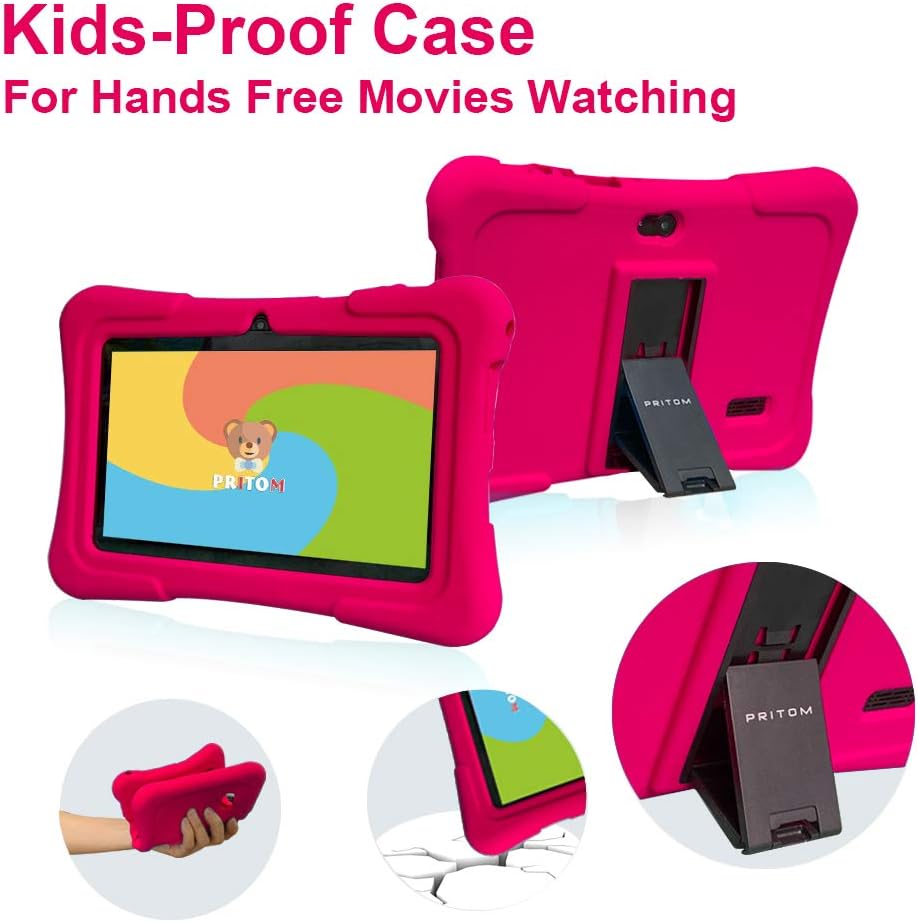
Image: The PRITOM K7 tablet displaying a family photo, highlighting its 7-inch IPS screen and camera capabilities.
- Ketuk Kamera app icon.
- Select between the front and rear camera using the toggle icon.
- Ketuk tombol rana untuk mengambil foto atau memulai/menghentikan perekaman video.
5.4 Pemutaran Media
The tablet supports various media formats for videos, music, and photos.
- Rekaman video: Use the pre-installed video player or download a third-party app from the Google Play Store.
- Musik: Use the Music app to play audio files.
- Foto: View images in the Gallery app.
Video: Sebuah overview of the PRITOM 7-inch Kids Tablet, demonstrating its features and functionality, including the user interface and protective case.
Video: A short demonstration of the kids tablet, showcasing its design and some interactive elements.
Video: A brief look at the PRITOM Kids Tablet, highlighting its 7-inch screen and 32GB storage capacity.
6. Pemeliharaan
6.1 Mengisi Baterai
Connect the provided charger to the tablet's DC jack or Micro USB port and plug it into a power outlet. The battery indicator on the screen will show charging status.
6.2 Manajemen Penyimpanan
The tablet has 32 GB of internal storage, expandable up to 512 GB using a Micro SD card.
- Locate the Micro SD card slot (refer to Device Overview diagram).
- Gently insert a compatible Micro SD card until it clicks into place.
- Untuk mengelola penyimpanan, buka Pengaturan > Penyimpanan.
6.3 Pembersihan
Use a soft, dry, lint-free cloth to clean the screen and exterior of the tablet. Avoid using harsh chemicals or abrasive materials.

Image: The PRITOM K7 tablet secured in its pink kid-proof silicone case, featuring a functional kickstand for hands-free viewing.
7. Penyelesaian masalah
- Tablet tidak menyala: Pastikan baterai terisi daya. Hubungkan pengisi daya dan coba lagi.
- Layar tidak responsif: Lakukan reset lunak dengan menekan tombol daya selama 10-15 detik.
- Masalah koneksi Wi-Fi: Check if Wi-Fi is enabled in settings. Restart your router and the tablet.
- Aplikasi mogok: Clear the app's cache (Settings > Apps > [App Name] > Storage > Clear Cache) or reinstall the app.
- Masalah kontrol orang tua: Verify the parental password and check settings within the iWawa app.
8. Spesifikasi
| Fitur | Detil |
|---|---|
| Ukuran Layar | 7 inci |
| Resolusi Layar | 1024x600 Pixels (IPS HD) |
| Sistem Operasi | Android 13 |
| Prosesor | Quad-Core (1.5 GHz Unisoc) |
| RAM | 2 GB SDRAM DDR3 |
| Penyimpanan Internal | 32 GB (dapat diperluas hingga 512 GB melalui Micro SD) |
| Kamera | Depan 2MP, Belakang 0.3MP |
| Konektivitas | WiFi (802.11bgn), Bluetooth |
| Daya Tahan Baterai | Average 3 years (device lifespan) |
| Berat Barang | 1.15 pon |
| Dimensi Produk | 8.3x5.9x0.7 inci |
9. Garansi dan Dukungan
For warranty information and customer support, please refer to the documentation included with your purchase or visit the official PRITOM websitus. Simpan bukti pembelian Anda untuk klaim garansi apa pun.


