1. Pendahuluan
The ISEEVY ISV-HCDW4 is a versatile WiFi H.265/H.264 video decoder designed to receive and decode network video streams, providing output via HDMI, VGA, and CVBS interfaces. It supports resolutions up to 4K@30P or 1080P@60P and is compatible with various streaming protocols including RTMP, SRT, RTSP, UDP, and HTTP. This manual provides detailed instructions for setting up, operating, and maintaining your video decoder.
2. Fitur
- Supports H.265/H.264 video decoding up to 3840x2160@30P or 1920x1080@60P.
- Compatible with RTMP, SRT, RTSP, UDP, and HTTP streaming protocols.
- Provides local video output through HDMI, VGA, and CVBS interfaces.
- Supports simultaneous decoding of 1 or 4 channels.
- Includes video rotation (90/180/270 degrees) and On-Screen Display (OSD) functions.
- FCC-ID: 2A7CO-ISV-HVCDW5.
3. Isi Paket
Harap verifikasi bahwa semua item ada dalam paket Anda:
- ISEEVY ISV-HCDW4 Video Decoder Unit
- Power Adapter with various international plugs (US, Korea, CHN, EU, UK, AUS standard)
- Panduan Pengguna
- Antena (2x)
4. Produk Lebihview
4.1 Tata Letak Perangkat
The following images illustrate the physical layout and ports of the ISEEVY ISV-HCDW4 Video Decoder.

Gambar 4.1: Depan dan belakang view of the ISEEVY ISV-HCDW4 Video Decoder, showing connectivity options and dual antennas for WiFi.
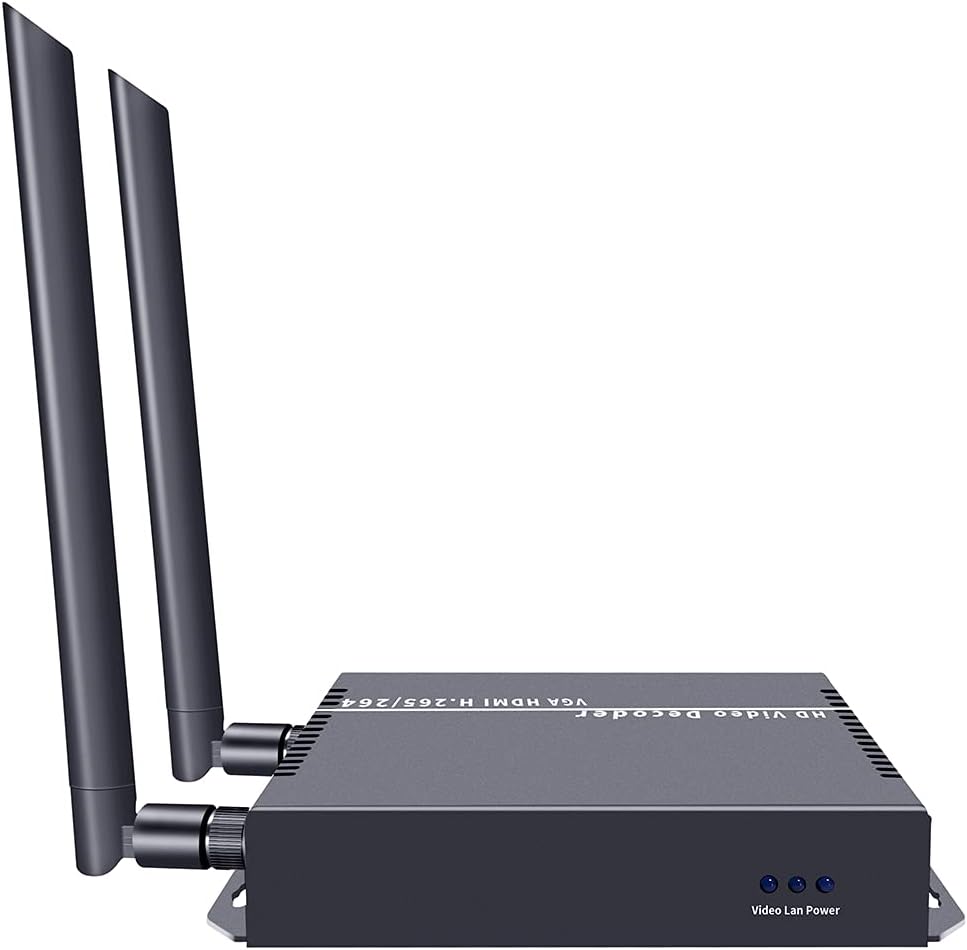
Gambar 4.2: Rinci view of the decoder's back panel, highlighting the Reset Audio button, CVBS, VGA, HDMI, LAN, and DC12V power input ports.

Gambar 4.3: Depan view of the decoder, showing the 'Video Lan Power' indicators.
5. Pengaturan
5.1 Basic Connection Diagram
Follow these steps to set up your ISEEVY ISV-HCDW4 Video Decoder:
- Connect the video source (e.g., camera, media player) to an ISEEVY Video Encoder (sold separately) via HDMI, SDI, or VGA.
- Connect the Video Encoder to your network router via a LAN cable.
- Connect the ISEEVY Video Decoder to the same network router via a LAN cable or WiFi.
- Connect the Video Decoder's HDMI, VGA, or CVBS output to your display device (monitor, TV, projector).
- Connect the included power adapter to the DC12V input on the decoder and plug it into a power outlet.

Figure 5.1: Diagram illustrating the typical system connections for the ISEEVY Video Decoder, showing an encoder feeding into a router, which then connects to multiple decoders and displays.

Figure 5.2: Multi-purpose connection diagram showing an encoder connected to a network switch, which then distributes the stream to a video decoder connected to a display, an NVR, and an STB.
6. Petunjuk Pengoperasian
6.1 Mengakses Web Antarmuka
To configure the decoder, access its web-antarmuka manajemen berbasis:
- Ensure your computer is connected to the same network as the decoder.
- Buka sebuah web peramban (misalnya, Chrome, Firefox).
- Enter the decoder's IP address in the address bar. The default IP address is typically 192.168.1.168, but it may vary or be assigned by DHCP. Refer to the device's OLED display or network tools for the current IP.
- Log in using the default credentials (if prompted).
6.2 Web Antarmuka Berakhirview
Itu web interface allows you to monitor status, configure decoding parameters, and manage system settings.

Gambar 6.1: Web interface screenshot showing the 'Status' page with system information and 'Address setting' for single channel decoding.

Gambar 6.2: Web interface screenshot showing the 'Address setting' page configured for 4-channel decoding, allowing individual stream addresses.

Gambar 6.3: Web interface screenshot displaying 'System output' settings (resolution, rotation, brightness, contrast, hue, saturation) and 'OSD setting' for on-screen display configuration.
6.3 Decoding Modes
The decoder supports various display modes for single or multiple streams:
Gambar 6.4: Contohamples of multiple stream display modes, including 1 Stream, Quarter Display, 3 Streams Top, 3 Streams Right, 3 Streams Left, and 3 Streams Bottom.
7. Pemeliharaan
- Keep the device in a cool, dry, and well-ventilated environment.
- Hindari memaparkan perangkat ke sinar matahari langsung, suhu tinggi, atau kelembapan tinggi.
- Bersihkan perangkat secara teratur dengan kain lembut dan kering. Jangan gunakan cairan pembersih atau aerosol.
- Ensure proper ventilation by not blocking the vents on the device.
- Periksa pembaruan firmware secara berkala melalui web interface to ensure optimal performance and access to new features.
8. Penyelesaian masalah
- Tidak Ada Keluaran Video:
- Check all cable connections (HDMI, VGA, CVBS, LAN).
- Ensure the decoder is powered on.
- Verify the input stream address in the web interface is correct and the encoder is sending data.
- Confirm the display device is set to the correct input source.
- Kualitas Video Buruk:
- Check network bandwidth and stability. Insufficient bandwidth can cause pixelation or dropped frames.
- Ensure the encoder is sending a high-quality stream.
- Adjust video output settings (resolution, brightness, contrast) in the web antarmuka.
- Tidak Dapat Mengakses Web Antarmuka:
- Verify the decoder's IP address and ensure your computer is on the same network segment.
- Check network cable connection to the decoder.
- Try resetting the decoder to factory defaults (refer to the device's reset button or web interface option).
- Masalah Audio:
- Ensure audio is enabled and correctly configured on both the encoder and decoder.
- Check audio connections to the display device.
9. Spesifikasi
| Fitur | Spesifikasi |
|---|---|
| Merek | iseevy |
| Nomor Model | ISV-HCDW4 |
| Kodek Video | H.265, H.264 (HEVC, MPEG4-AVC) |
| Max Decoding Resolution | 3840x2160@30P or 1920x1080@60P |
| Antarmuka Keluaran Video | HDMI, VGA, CVBS |
| Protokol yang Didukung | RTMP, SRT, RTSP, UDP, HTTP |
| Teknologi Konektivitas | Ethernet, HDMI, Wi-Fi |
| Berat Barang | 10.6 ons (sekitar 300g) |
| Dimensi Produk | 5.39 x 4.13 x 1.1 inci (sekitar 13.7 x 10.5 x 2.8 cm) |
| Masukan Daya | Tegangan DC12V |
10. Garansi dan Dukungan
This ISEEVY product comes with a standard manufacturer's warranty. For specific warranty terms, technical support, or service inquiries, please refer to the warranty card included in your package or visit the official ISEEVY websitus. Anda juga dapat menghubungi pengecer Anda untuk mendapatkan bantuan.


