1. Pendahuluan
Terima kasih sudah membeliasing the VIVIBRIGHT GP100UP LED Projector. This manual provides essential information for the safe and efficient operation of your device. Please read it thoroughly before use and retain it for future reference.
The VIVIBRIGHT GP100UP is an Android 6.0-based LED projector featuring built-in Wi-Fi and Bluetooth, designed for home theater and office presentations. It supports Full HD content and offers a bright projection experience.
2. Informasi Keselamatan
- Catu Daya: Gunakan hanya adaptor daya yang ditentukan. Pastikan volumetage cocok dengan catu daya lokal Anda.
- Ventilasi: Jangan halangi lubang ventilasi. Pastikan aliran udara di sekitar proyektor memadai untuk mencegah panas berlebih.
- Paparan Cairan: Jauhkan proyektor dari air atau cairan lainnya. Jangan mengoperasikannya dalam kondisi gelap.amp lingkungan.
- Pembersihan: Putuskan aliran listrik sebelum membersihkan. Gunakan kain lembut dan kering. Hindari penggunaan pembersih cair atau aerosol.
- Penyisipan Objek: Never insert objects of any kind into the projector openings as they may touch dangerous voltage poin atau bagian short-out.
- Pelayanan: Jangan mencoba untuk memperbaiki produk ini sendiri. Rujuk semua servis ke personel servis yang berkualifikasi.
- Perlindungan Mata: Jangan melihat langsung ke lensa proyektor saat lampuamp menyala. Cahaya terang dapat menyebabkan kerusakan mata.
3. Isi Paket
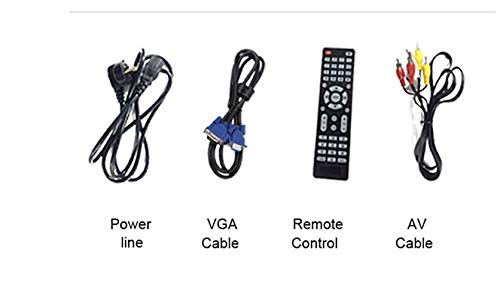
Verifikasi bahwa semua item yang tercantum di bawah ini disertakan dalam paket Anda:
- VIVIBRIGHT GP100UP Projector
- Kabel listrik
- Kabel VGA
- AV Kabel
- Kontrol Jarak Jauh
- User Manual (dokumen ini)
Gambar 3.1: Included accessories with the VIVIBRIGHT GP100UP projector, including power cable, VGA cable, remote control, and AV cable.
4. Produk Lebihview
4.1. Projector Dimensions
Gambar 4.1: Depan dan atas view of the VIVIBRIGHT GP100UP projector with approximate dimensions: 11 inches (length), 8.85 inches (width), and 4 inches (height).
4.2. Port Input/Output
The projector features various ports for connecting external devices:
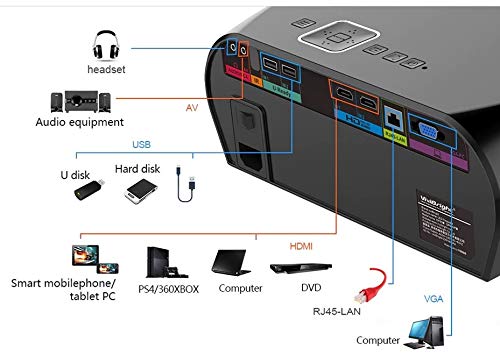
Gambar 4.2: Detailed diagram of the projector's rear panel, illustrating connectivity options including headset, audio equipment (AV), USB ports for U disk and hard disk, HDMI ports, RJ45-LAN, and VGA port.
- HDMI: Connect to Blu-ray players, gaming consoles, laptops, or other HDMI-enabled devices.
- Kabel USB: For connecting USB drives (U disk) or external hard drives.
- DARI: Untuk menghubungkan perangkat lama menggunakan video komposit dan audio stereo.
- VGA: For connecting to computers or laptops with a VGA output.
- RJ45-LAN: Untuk koneksi jaringan kabel.
- Jack Headphone: Untuk menghubungkan headphone atau speaker eksternal.
4.3. Kontrol Jarak Jauh
The included remote control allows for convenient operation of the projector.
Gambar 4.3: Remote control layout with key functions: ON/OFF, Volume Up/Down, OK, Menu, Home, Speed, Mute, Back, Mouse Mode, and the USB receiver.
- AKTIF/NONAKTIF: Power on or off the projector.
- Volumenya +/-: Sesuaikan volume audio.
- BAIK: Konfirmasi pilihan.
- Menu: Access projector settings.
- Rumah: Return to the main Android interface.
- Kembali: Kembali ke layar sebelumnya.
- Modus Tikus: Activate/deactivate air mouse function (if applicable).
- Bisu: Menonaktifkan atau mengaktifkan audio.
5. Pengaturan
5.1. Penempatan
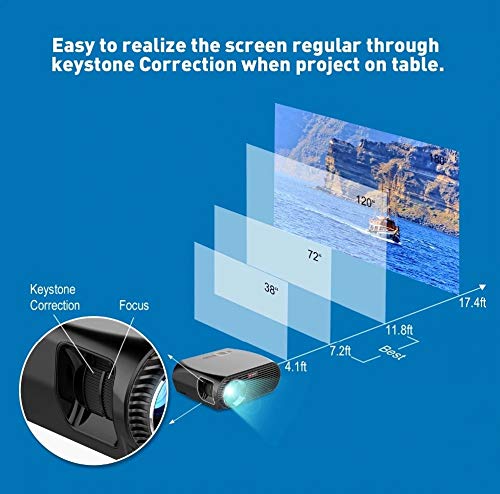
Place the projector on a stable, flat surface or mount it to the ceiling. Ensure there are no obstructions to the lens or ventilation ports. The optimal projection distance for a clear image is between 1 to 5 meters.
Gambar 5.1: Illustration of projection distances and corresponding screen sizes, along with the location of the keystone correction and focus rings on the projector.
- For a 72-inch screen, the recommended distance is approximately 7.2 feet (2.2 meters).
- For a 120-inch screen, the recommended distance is approximately 11.8 feet (3.6 meters).
5.2. Koneksi Daya
- Hubungkan kabel daya ke input daya proyektor.
- Sambungkan ujung lain kabel daya ke stopkontak listrik yang sesuai.
- Lampu indikator daya pada proyektor seharusnya menyala.
5.3. Fokus dan Koreksi Keystone
After powering on, adjust the image for clarity and proper geometry.
- Fokus: Putar cincin fokus di dekat lensa hingga gambar yang diproyeksikan tajam dan jelas.
- Koreksi Keystone: If the projected image appears trapezoidal (wider at the top or bottom), use the keystone correction ring or lever (usually located near the focus ring) to adjust the image until it is rectangular. The GP100UP supports +/- 15 degrees vertical keystone correction.
6. Petunjuk Pengoperasian
6.1. Initial Power On and Android Interface
Press the power button on the projector or remote control to turn on the device. The projector will boot into its Android 6.0 operating system interface.
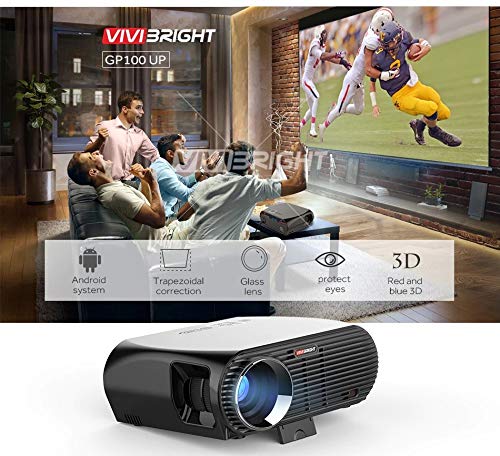
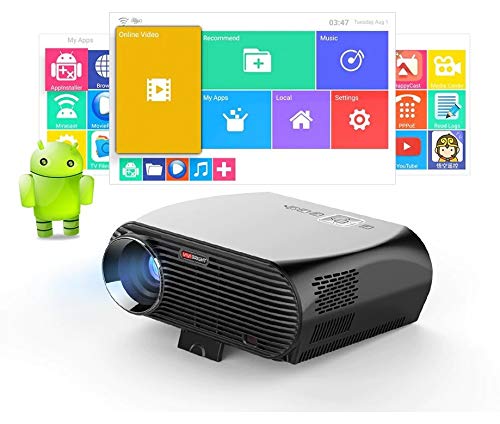
Gambar 6.1: The VIVIBRIGHT GP100UP projector in operation, highlighting its Android system capabilities and other features.
Navigate the Android interface using the remote control. You can access pre-installed applications, settings, and media files.
6.2. Menghubungkan Perangkat Eksternal
To project content from external sources:
- Connect your device (e.g., laptop, gaming console, USB drive) to the appropriate port on the projector (HDMI, USB, AV, VGA).
- On the projector's Android interface, navigate to the "Input Source" or "Source" option.
- Select the corresponding input source (e.g., HDMI1, USB, AV, VGA) to display content from your connected device.
6.3. Wireless Connectivity (Wi-Fi, Bluetooth, Screen Mirroring)
The GP100UP supports various wireless functions:
- Wifinya:
- Go to "Settings" on the Android interface.
- Pilih "Wi-Fi" dan nyalakan.
- Choose your desired network and enter the password to connect.
- Bluetooth dapat digunakan untuk berbagai keperluan, seperti:
- Go to "Settings" on the Android interface.
- Pilih "Bluetooth" dan aktifkan.
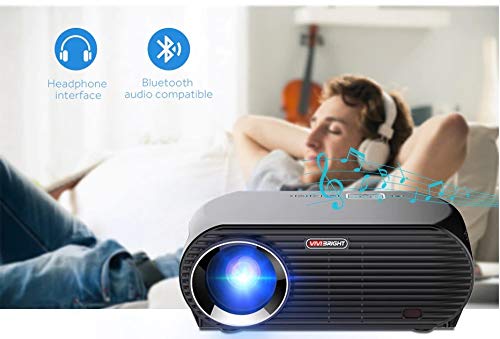
- Pair with Bluetooth audio devices like headphones or speakers.
Gambar 6.2: The projector's Bluetooth audio compatibility, allowing connection to wireless headphones or speakers.
- Screen Mirroring (Miracast/Airplay/DLNA):
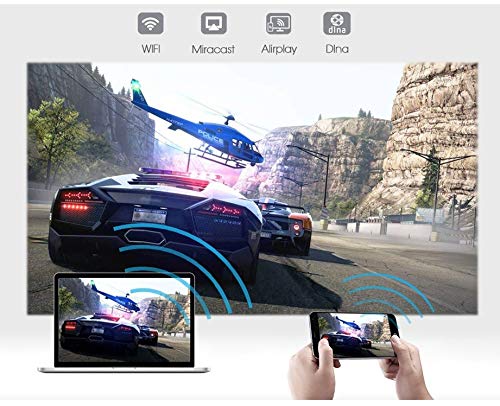
The projector supports mirroring content from compatible smartphones, tablets, and laptops via Wi-Fi, Miracast, Airplay, and DLNA.
- Pastikan perangkat Anda dan proyektor terhubung ke jaringan Wi-Fi yang sama.
- On the projector's Android interface, open the relevant screen mirroring application (e.g., Miracast, Airplay, DLNA).
- On your smartphone/tablet/laptop, activate its screen mirroring function (e.g., "Screen Mirroring," "Smart View," "Cast," "AirPlay").
- Pilih proyektor dari daftar perangkat yang tersedia untuk memulai pencermian layar.

Gambar 6.3: Wireless screen mirroring capabilities, enabling content from mobile devices and laptops to be displayed on the projector.
7. Pemeliharaan
7.1. Membersihkan Lensa
Gunakan kain lembut dan bebas serat yang dirancang khusus untuk lensa optik. Usap lensa dengan lembut untuk menghilangkan debu atau noda. Hindari penggunaan bahan abrasif atau bahan kimia keras.
7.2. Cleaning the Projector Casing
Lap bagian luar proyektor dengan kain kering yang lembut. Untuk noda membandel, gunakan sedikit kain kering.amp Kain lap dapat digunakan, diikuti dengan kain kering. Pastikan tidak ada cairan yang masuk ke lubang ventilasi.
7.3. Air Filter (if applicable)
While LED projectors typically have sealed optical engines, regularly check ventilation openings for dust accumulation. Use a soft brush or compressed air to clear any blockages.
8. Penyelesaian masalah
| Masalah | Kemungkinan Penyebab | Larutan |
|---|---|---|
| Tidak ada gambar yang ditampilkan |
|
|
| Gambar buram |
|
|
| Gambarnya berbentuk trapesium |
|
|
| Tidak ada suara |
|
|
| Masalah koneksi Wi-Fi/Bluetooth |
|
|
9. Spesifikasi
| Fitur | Detil |
|---|---|
| Nomor Model | GP100UP |
| Teknologi Tampilan | Layar LCD |
| Resolusi Asli | 1280x800dpi (WXGA) |
| Kecerahan | 3500 lumen cahaya |
| Rasio Kontras | Jam 1000-1 |
| Sumber Cahaya | DIPIMPIN |
| Sumber Cahaya Kehidupan | Not specified (typically 20,000+ hours for LED) |
| Jarak Proyeksi | 1-5m |
| Dimensi Proyeksi | 40-300 inches (Best image size: 72-120 inches) |
| Skala Layar | Jam 4:3/16:9 |
| Koreksi Keystone | Manual Correction, +/- 15 degrees (vertical) |
| Sistem | Android 6.0.1, CPU: Quad core ARM Cortex-A53 |
| Memori (RAM / ROM) | RAM: 1G / ROM: 8G |
| Konektivitas Nirkabel | Wi-Fi, Bluetooth, DLNA, Miracast, Airplay |
| Port Masukan | HDMI, USB, AV, VGA, RJ45-LAN |
| Catu Daya | Tegangan AC 90-240V, 50/60Hz |
| Konsumsi Daya | 140W |
| Dimensi (kira-kira) | Ukuran 37x30.5x15.9 cm |
| Berat (kira-kira) | 2.6 kg |
| Fungsi 3D | Red-blue 3D |
10. Garansi dan Dukungan
The VIVIBRIGHT GP100UP Projector comes with a Garansi 1 Tahun sejak tanggal pembelian. Garansi ini mencakup cacat produksi dalam penggunaan normal.
For technical support, warranty claims, or service inquiries, please contact your retailer or the official VIVIBRIGHT customer service channel. Please have your product model number (GP100UP) and proof of purchase ready when contacting support.


