1. Produk Lebihview
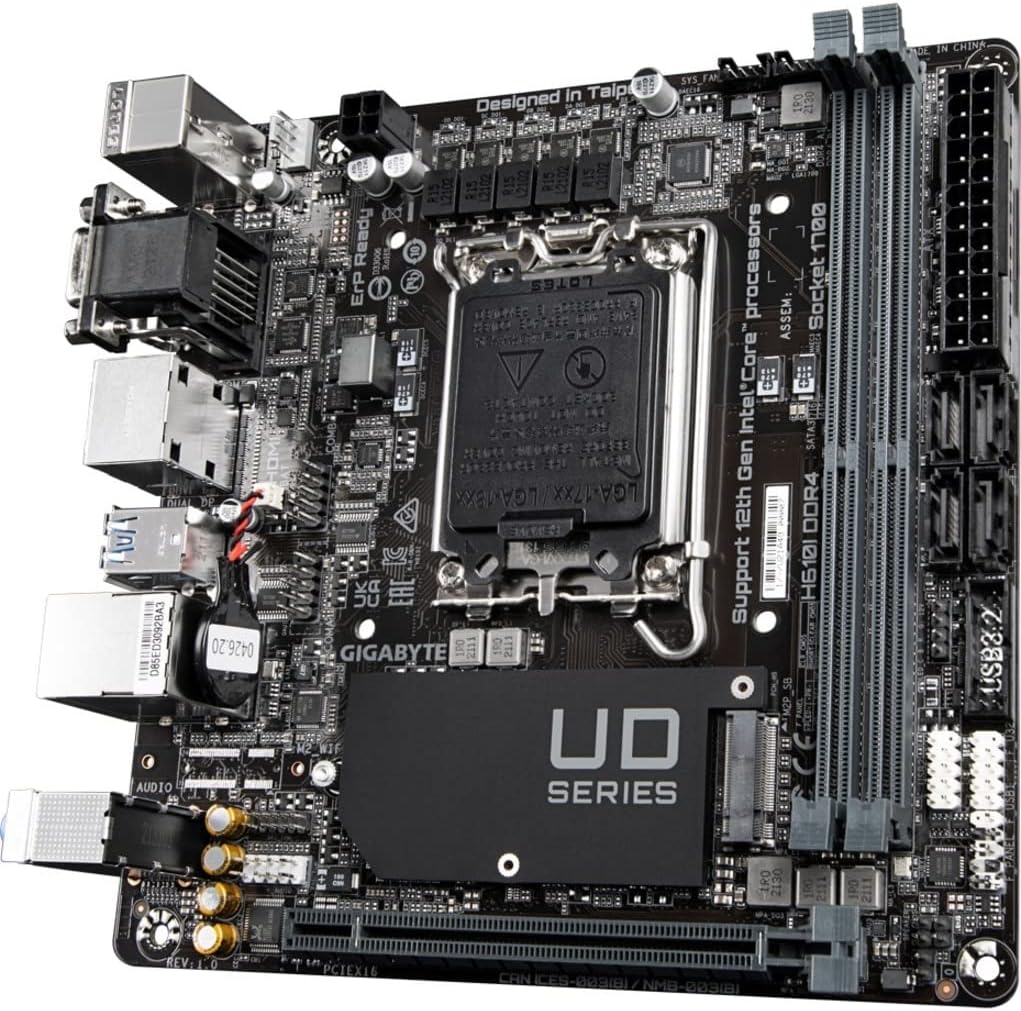
The GIGABYTE H610I DDR4 is a Mini-ITX motherboard designed to support 12th Generation Intel Core Series Processors. It offers a robust platform for building compact yet powerful systems, suitable for various applications from gaming to everyday computing. This motherboard integrates essential features for reliable performance and connectivity.
Fitur Utama:
- Soket Intel LGA 1700: Supports 12th Gen Intel Core Series Processors.
- Kompatibel dengan DDR4: Features Dual Channel Non-ECC Unbuffered DDR4 memory support with 2 DIMM slots.
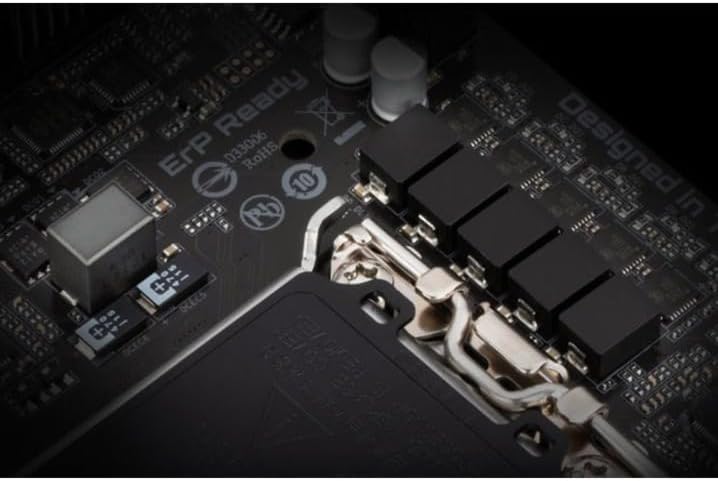
- Desain yang Menguasai Kekuatan: Equipped with a 4+1+1 Hybrid Digital VRM Design for stable power delivery.
- Konektivitas Tingkat Lanjut: Includes PCIe 4.0 support, a Single NVMe PCIe 3.0 x4 M.2 slot, and USB 3.2 Gen1 ports.
- Jaringan Cepat: Integrated Intel GbE LAN Chip for reliable wired network connections.
- Audio Dinamis: Features High Quality Audio Capacitors and Audio Noise Guard for enhanced sound experience.


2. Pengaturan dan Instalasi
Follow these steps for proper installation of your GIGABYTE H610I DDR4 motherboard and its components.
2.1 Memasang CPU
- Temukan soket CPU LGA 1700 pada motherboard.
- Buka tuas soket CPU dan lepaskan penutup pelindungnya.
- Carefully align your 12th Gen Intel Core processor with the socket, ensuring the notches on the CPU match the keys on the socket.
- Letakkan CPU ke dalam soket dengan hati-hati tanpa menggunakan tenaga berlebihan.
- Tutup tuas soket CPU untuk mengamankan prosesor.

2.2 Installing DDR4 Memory
- Temukan dua slot DIMM DDR4 pada motherboard.
- Buka klip di kedua ujung slot DIMM.
- Sejajarkan takik pada modul memori DDR4 dengan kunci di slot DIMM.
- Masukkan modul memori dengan kuat ke dalam slot hingga klip terkunci pada tempatnya.
2.3 Installing NVMe M.2 SSD
- Locate the single NVMe PCIe 3.0 x4 M.2 slot.
- Remove the M.2 screw and standoff from the motherboard.
- Masukkan SSD M.2 ke dalam slot dengan posisi miring.
- Tekan perlahan SSD M.2 ke bawah dan kencangkan dengan sekrup dan penahan.
2.4 Koneksi Daya
- Hubungkan konektor daya utama ATX 24-pin dari catu daya Anda ke header yang sesuai pada motherboard.
- Connect the 8-pin CPU power connector (or 4-pin if applicable) to the CPU power header.
2.5 Panel Depan dan Koneksi Perangkat Tambahan
Connect your case's front panel headers (power button, reset button, USB, audio) to the corresponding pins on the motherboard. Refer to your case manual for specific pin layouts. Connect peripherals such as USB devices, display cables, and network cables to the rear I/O ports.
3. Petunjuk Pengoperasian
3.1 Initial Boot-up and BIOS/UEFI Setup
- Setelah merakit semua komponen, sambungkan monitor, keyboard, dan mouse Anda.
- Power on your system. During the boot process, press the MENGHAPUS Tekan tombol berulang kali untuk masuk ke utilitas pengaturan BIOS/UEFI.
- In the BIOS/UEFI, you can configure boot order, system time, and other advanced settings. Save changes and exit to continue booting into your operating system installer.
3.2 Instalasi Driver
After installing your operating system, install the necessary drivers for the motherboard components. These typically include chipset drivers, LAN drivers, audio drivers, and any other peripheral drivers. Drivers can usually be found on the GIGABYTE official websitus untuk model motherboard spesifik Anda.
4. Pemeliharaan
4.1 Pembersihan
Bersihkan bagian dalam komputer Anda secara teratur untuk mencegah penumpukan debu, yang dapat menyebabkan panas berlebih dan penurunan kinerja. Gunakan udara bertekanan untuk menghilangkan debu dari kipas, heatsink, dan komponen lainnya. Pastikan sistem dimatikan dan dicabut dari sumber listrik sebelum membersihkan.
4.2 Pembaruan BIOS/UEFI
Periksa GIGABYTE secara berkala website for BIOS/UEFI updates. Updates can improve system stability, add support for new hardware, or fix bugs. Follow the instructions provided by GIGABYTE carefully when performing a BIOS/UEFI update to avoid system damage.
5. Penyelesaian masalah
Bagian ini membahas masalah umum yang mungkin Anda temui dengan motherboard Anda.
5.1 Tidak Ada Output Tampilan
- Periksa Koneksi Monitor: Ensure your monitor is correctly connected to the graphics card or motherboard's integrated graphics port and is powered on.
- Verify RAM Installation: Reseat the DDR4 memory modules firmly in their slots. Incorrectly seated RAM is a common cause of no display.
- Daya CPU: Confirm the 8-pin (or 4-pin) CPU power connector is securely plugged into the motherboard.
- Kartu Grafis: If using a dedicated graphics card, ensure it is properly seated in the PCIe slot and has all necessary power cables connected.
- Bent CPU Pins: Carefully inspect the CPU socket for any bent pins. If found, contact GIGABYTE support.
5.2 System Unresponsive / Does Not Boot
- Catu Daya: Ensure the power supply is connected to the motherboard (24-pin ATX and CPU power) and is switched on.
- Hapus CMOS: Try clearing the CMOS (Complementary Metal-Oxide-Semiconductor) settings. This can usually be done by removing the CMOS battery for a few minutes or using a dedicated jumper on the motherboard.
- Minimal Boot Configuration: Disconnect all non-essential peripherals and components (e.g., extra storage drives, expansion cards) and attempt to boot with only the CPU, one RAM stick, and the graphics card (if no integrated graphics).
5.3 RAM Slot Malfunction
- If one of the two DDR4 RAM slots is not functioning, try testing each RAM stick individually in each slot to isolate the faulty component (RAM stick or motherboard slot).
- Ensure the RAM is compatible with the motherboard's specifications (DDR4, Non-ECC Unbuffered).
6. Spesifikasi Teknis
| Fitur | Spesifikasi |
|---|---|
| Merek | Bahasa Indonesia: GIGABYTE |
| Nama Model | H610I DDR4 |
| Soket CPU | LGA1700 |
| Prosesor yang Kompatibel | 12th Gen Intel Core Series Processors |
| Jenis Chipset | Intel H610 |
| Teknologi Memori RAM | DDR4 (Dual Channel Non-ECC Unbuffered) |
| Slot memori | 2 DIMM |
| Kecepatan Jam Memori | Hingga 3200MHz |
| Slot PCIe | PCIe 4.0 |
| Slot M.2 | 1 x NVMe PCIe 3.0 x4 M.2 |
| Port USB | USB 3.2 Gen1, USB 2.0 |
| Bahasa Indonesia: Bahasa Lokal | Chip LAN Intel GbE |
| Suara | Kapasitor Audio Berkualitas Tinggi dan Pelindung Kebisingan Audio |
| Faktor Bentuk | Mini ITX |
| Dimensi Produk | 8.74x7.09x2.56 inci |
| Berat Barang | 1.3 pon |
7. Video Produk
7.1 Video Demonstrasi Produk
This video provides a brief demonstration of the GIGABYTE H610I DDR4 Mini-ITX Motherboard, showcasing its physical features and design. (Duration: 0:35)
7.2 Produk Lebih dariview Video
Seorang pejabat atasview video detailing the features and benefits of the GIGABYTE H610I DDR4 Mini-ITX Motherboard. (Duration: 0:52)
8. Garansi dan Dukungan
8.1 Informasi Garansi
GIGABYTE products are covered by a limited warranty. The specific terms and duration of the warranty may vary by region and product type. Please refer to the warranty card included with your product or visit the official GIGABYTE websitus untuk informasi garansi rinci.
8.2 Dukungan Teknis
Untuk bantuan teknis, unduhan driver, atau informasi produk lebih lanjut, silakan kunjungi dukungan resmi GIGABYTE. webDi situs ini, Anda dapat menemukan FAQ, panduan pemecahan masalah, dan informasi kontak untuk layanan pelanggan.
GIGABYTE Resmi Weblokasi: www.gigabyte.com