1. Pendahuluan
Manual ini memberikan informasi penting untuk menyiapkan, mengoperasikan, dan memelihara peralatan Anda. ViewSonic VX2776-SH 27-inch Full HD IPS monitor. Please read these instructions carefully before using the product.
Itu ViewSonic VX2776-SH monitor features a 27-inch (68.58 cm) Full HD (1920x1080) IPS display, offering vibrant colors and wide viewing angles. It includes SuperClear IPS Technology, a sleek frameless design, and a 75Hz refresh rate for smooth visuals. Eye-care technologies such as Flicker-Free and a Blue Light Filter are integrated to reduce eye strain. Connectivity options include HDMI and VGA inputs.

Gambar 1: ViewSonic VX2776-SH Monitor Overview dengan Fitur Utama
2. Isi Paket
Verifikasi bahwa semua item ada dalam paket:
- ViewSonic VX2776-SH Monitor x1
- 3-pin Power Plug (IEC C13 / CEE22) x1
- Kabel HDMI (v1.4; Pria-Pria) x1
3. Petunjuk Penyiapan
3.1. Perakitan Dudukan
Untuk merakit dudukan monitor:
- Letakkan monitor dengan hati-hati menghadap ke bawah pada permukaan yang lembut dan bersih untuk mencegah goresan.
- Align the triangular base with the stand neck.
- Pasang alas ke leher menggunakan sekrup yang disediakan.
- Attach the assembled stand to the back of the monitor by aligning the mounting points and securing it firmly.
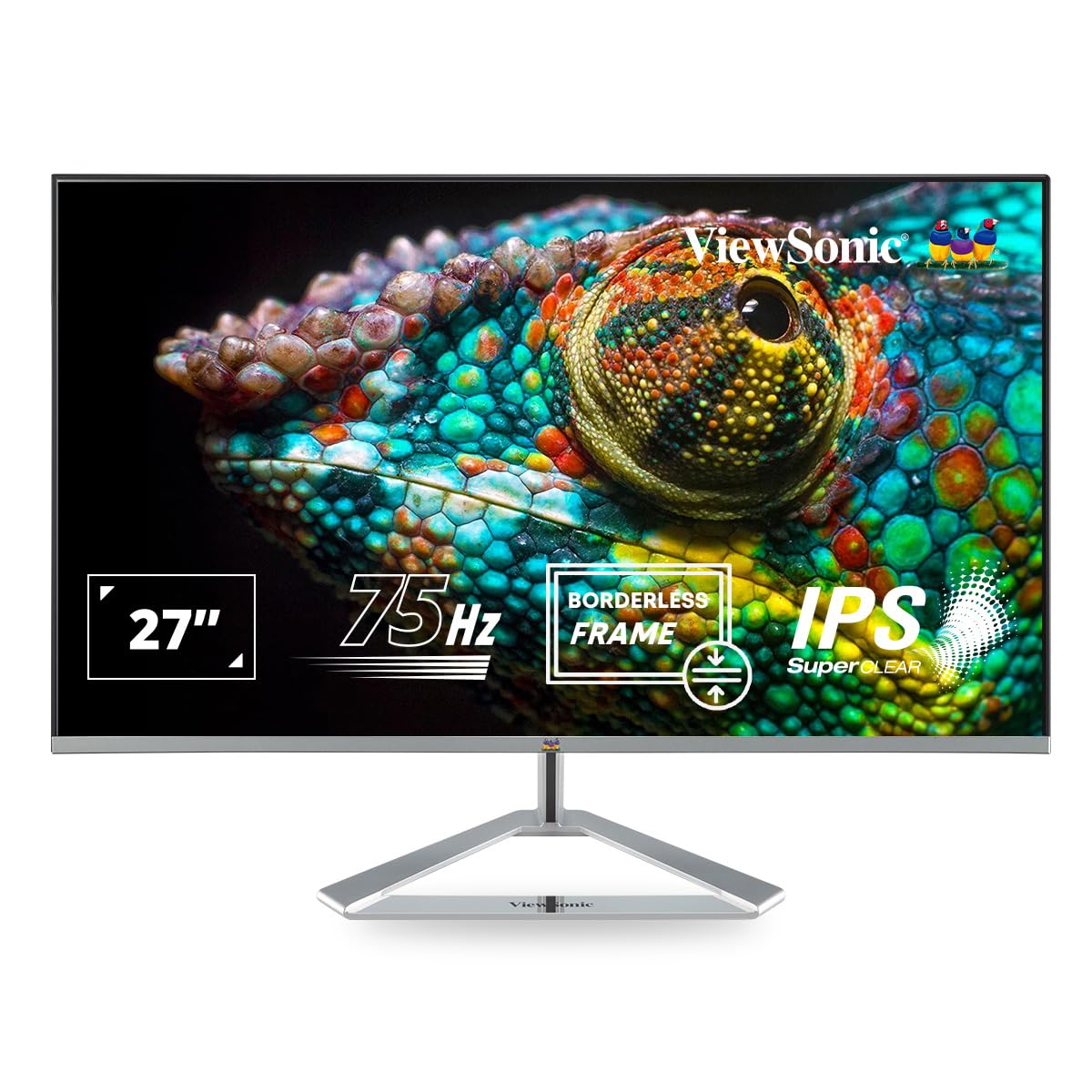
Figure 2: Monitor with Assembled Triangular Stand
3.2. Menghubungkan Monitor
Pastikan monitor dan komputer Anda dalam keadaan mati sebelum melakukan penyambungan apa pun.
- Sambungan Daya: Hubungkan kabel daya ke input daya monitor dan kemudian ke stopkontak.
- Koneksi Video: Connect one end of the HDMI cable (or VGA cable) to the corresponding port on your computer's graphics card and the other end to an HDMI or VGA input port on the monitor. The monitor supports dual HDMI inputs.
- Keluaran Audio (Opsional): If you are using external speakers or headphones, connect them to the monitor's audio out port.

Figure 3: Monitor Connectivity Ports (HDMI, VGA)
3.3. VESA Wall Mount (Optional)
The monitor is VESA mount compatible (100x100mm). To mount the monitor on a wall or monitor arm, remove the stand and attach the VESA-compatible bracket (not included) to the mounting holes on the back of the monitor.

Figure 4: VESA Mounting Area on Monitor Back
4. Petunjuk Pengoperasian
4.1. Daya Hidup/Mati
Tekan tombol daya yang terletak di sisi kanan bawah monitor untuk menyalakan atau mematikannya. Lampu indikator daya akan menyala saat monitor menyala.
4.2. Menu Tampilan di Layar (OSD)
The OSD menu allows you to adjust various display settings. Use the buttons located on the bottom right of the monitor to navigate the menu:
- Press a button to activate the OSD menu.
- Gunakan tombol navigasi untuk berpindah antar opsi.
- Tekan tombol pilih untuk mengkonfirmasi pilihan.
- Tekan tombol keluar untuk menutup menu OSD.
4.3. ViewPengaturan Mode
ViewMode provides optimized presets for different screen applications. These presets adjust gamma curve, color temperature, contrast, and brightness to enhance your viewpengalaman ing.
- Permainan: Optimized for gaming visuals.
- Film: Enhanced for video playback.
- Web: Suitable for general web menjelajah.
- Teks: Ideal for reading documents, reducing eye strain.
- Mono: Menampilkan konten dalam skala abu-abu.

Gambar 5: ViewMode Optimized Settings
4.4. Teknologi Perawatan Mata
The monitor incorporates eye-care features to promote comfortable viewing during extended use:
- Bebas kedip: Eliminates screen flickering, which can cause eye strain and fatigue.
- Filter Cahaya Biru: Reduces harmful blue light emissions, helping to protect your eyes.

Figure 6: Flicker-Free Technology

Figure 7: Blue Light Filter
4.5. Mode Hemat
Eco Mode helps reduce power consumption and prolong the monitor's lifespan. You can enable or disable this feature through the OSD menu.

Figure 8: Eco Mode Functionality
5. Pemeliharaan
To ensure optimal performance and longevity of your monitor:
- Membersihkan Layar: Usap layar secara perlahan menggunakan kain lembut bebas serat. Untuk noda membandel, dampen the cloth with a mild, non-abrasive screen cleaner. Do not spray cleaner directly onto the screen.
- Membersihkan Casing: Gunakan kain lembut dan kering untuk membersihkan monitor.asing. Hindari penggunaan deterjen kuat atau pembersih abrasif.
- Ventilasi: Pastikan lubang ventilasi pada monitor tidak terhalang untuk mencegah panas berlebih.
- Matikan: Selalu matikan monitor saat tidak digunakan dalam waktu lama.
6. Penyelesaian masalah
Jika Anda mengalami masalah dengan monitor Anda, lihat solusi umum berikut:
| Masalah | Solusi yang mungkin |
|---|---|
| Tidak ada gambar di layar |
|
| Gambarnya buram atau terdistorsi |
|
| Tidak ada suara dari speaker/headphone eksternal. |
|
| LED indikator daya monitor mati. |
|
7. Spesifikasi
| Fitur | Detil |
|---|---|
| Nomor Model | VX2776-SH |
| Ukuran Layar | 27 inci (68.58 cm) |
| Jenis Panel | Bahasa Inggris |
| Resolusi Asli | 1920x1080 (HD Penuh) |
| Tingkat Penyegaran | frekuensi 75Hz |
| Rasio Aspek | 16:9 |
| Konektivitas | 2x HDMI (v1.4), 1x VGA |
| Fitur Perawatan Mata | Filter Cahaya Biru Bebas Kedip |
| Kompatibel dengan VESA Mount | Ukuran 100x100mm |
| Dimensi Produk (P x L x T) | Ukuran 61.4x18.4x44.3 cm |
| Berat Barang | 4 kg |
8. Garansi dan Dukungan
For warranty information and technical support, please refer to the warranty card included with your product or visit the official ViewSonik websitus. Anda juga dapat menghubungi ViewSonic customer service for assistance with product registration, troubleshooting, and service inquiries.


