1. Pendahuluan
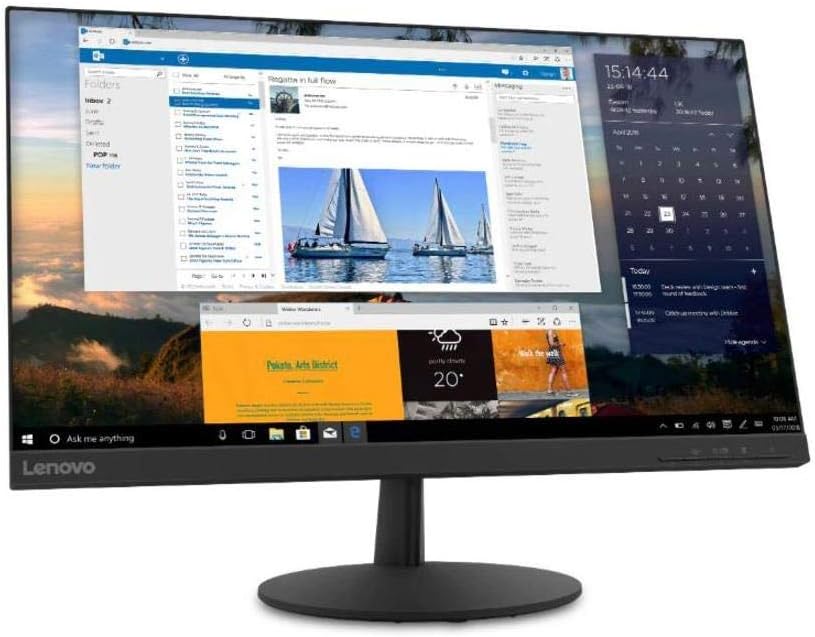
This manual provides essential information for setting up, operating, and maintaining your Lenovo L24q-30 23.8-inch QHD monitor. The L24q-30 is designed to deliver a superior visual experience with its QHD (2560 x 1440) resolution, IPS panel, and >99% sRGB color gamut. It features AMD FreeSync technology, a 75Hz refresh rate, and a 4ms response time for smooth visuals. The monitor is TüV Eye Comfort certified, reducing blue light and flicker for extended viewing comfort. Connectivity options include HDMI 1.4 and DisplayPort 1.2, along with a 3.5mm audio output.
2. Informasi Keselamatan
Please read this section carefully before using your monitor to ensure safe and proper operation.
- Selalu letakkan monitor di permukaan yang stabil dan rata untuk mencegahnya jatuh.
- Pastikan ventilasi di sekitar monitor baik. Jangan halangi lubang ventilasi.
- Gunakan hanya adaptor daya dan kabel yang disertakan dengan monitor.
- Jangan biarkan monitor terkena hujan atau kelembapan untuk menghindari sengatan listrik.
- Cabut monitor dari stopkontak sebelum membersihkan.
- Hindari menyentuh layar dengan benda tajam.
- If any unusual smoke, noise, or odor occurs, immediately unplug the monitor and contact customer support.
3. Isi Paket
Verifikasi bahwa semua item ada dalam paket Anda:
- Lenovo L24q-30 Monitor
- Alas Dudukan Monitor
- Leher Dudukan Monitor
- Kabel listrik
- Kabel HDMI
- Quick Setup Guide / Warranty Card
4. Pengaturan
4.1 Merakit Dudukan Monitor
- Carefully remove the monitor from its packaging, placing it face down on a soft, clean cloth to protect the screen.
- Pasangkan leher dudukan ke panel monitor dengan menyelaraskan tab dan mendorong hingga terkunci pada tempatnya.
- Pasangkan dudukan dudukan ke leher dudukan. Amankan dengan sekrup penahan yang terletak di bagian bawah dudukan.
- Gently lift the assembled monitor and place it upright on a stable surface.

Gambar 4.1: Sisi view of the monitor with the stand attached, showing its slim profile.
4.2 Menghubungkan Kabel
Refer to the image below for port locations on the back of the monitor.
Gambar 4.2: Belakang view of the monitor, highlighting the power input, HDMI, DisplayPort, and audio output ports.
- Sambungan Daya: Sambungkan kabel daya ke port input daya monitor, lalu colokkan ujung lainnya ke stopkontak listrik yang memiliki ground.
- Koneksi Video:
- For HDMI: Connect one end of the HDMI cable to the monitor's HDMI port and the other end to the HDMI output port on your computer.
- For DisplayPort: Connect one end of the DisplayPort cable to the monitor's DisplayPort and the other end to the DisplayPort output on your computer.
- Keluaran Audio (Opsional): If you wish to connect external speakers or headphones directly to the monitor, plug them into the 3.5mm audio out port.
4.3 Penyalaan Awal
Press the power button located on the front or bottom bezel of the monitor. The power indicator light will illuminate. If no image appears, ensure all cables are securely connected and your computer is powered on.
5. Mengoperasikan Monitor
5.1 Kontrol Tampilan di Layar (OSD)
The monitor features control buttons, typically located on the bottom right bezel, to access and navigate the On-Screen Display (OSD) menu. These buttons allow you to adjust various monitor settings.
- Tombol Daya: Menyalakan atau mematikan monitor.
- Tombol Menu: Membuka menu OSD.
- Tombol Navigasi (Atas/Bawah/Kiri/Kanan): Digunakan untuk menavigasi opsi menu dan menyesuaikan nilai.
- Tombol Enter/Pilih: Mengkonfirmasi pilihan atau masuk ke submenu.
- Tombol Keluar: Exits the current menu or returns to the previous level.
5.2 Menyesuaikan Pengaturan
Untuk menyesuaikan pengaturan monitor:
- Tekan tombol Menu tombol untuk membuka OSD.
- Use the navigation buttons to select a category (e.g., Picture, Color, Input).
- Tekan Masuk / Pilih to enter the category.
- Use navigation buttons to adjust values (e.g., Brightness, Contrast, Color Temperature) or select sub-options.
- Tekan Masuk / Pilih untuk mengonfirmasi perubahan.
- Tekan KELUAR untuk meninggalkan menu OSD.
5.3 Activating AMD FreeSync
To utilize AMD FreeSync technology, ensure your graphics card supports FreeSync and that it is enabled in your graphics card's control panel. Then, navigate to the OSD menu on your monitor, typically under a 'Gaming' or 'Display' section, and enable the FreeSync option.
5.4 Adjusting Refresh Rate
The monitor supports a 75Hz refresh rate. To set this, you may need to adjust the display settings within your operating system (e.g., Windows Display Settings or macOS System Preferences) after connecting the monitor. Select the highest available refresh rate for optimal performance.
6. Pemeliharaan
6.1 Membersihkan Monitor
- Layar: Usap layar secara perlahan dengan kain lembut bebas serat. Untuk noda membandel, usap layar dengan lembut.ampBasahi kain dengan air atau cairan pembersih layar tanpa amonia dan alkohol. Jangan menyemprotkan cairan pembersih langsung ke layar.
- Casing: Gunakan kain lembut dan kering untuk membersihkan monitor casing. Hindari pembersih atau pelarut yang bersifat abrasif.
- Selalu cabut monitor sebelum membersihkan.
6.2 Penyimpanan
If storing the monitor for an extended period, disconnect all cables and pack it in its original packaging if possible. Store in a cool, dry place away from direct sunlight and extreme temperatures.
7. Penyelesaian masalah
Jika Anda mengalami masalah dengan monitor Anda, lihat masalah umum dan solusi berikut:
| Masalah | Solusi yang mungkin |
|---|---|
| Tidak ada daya / Lampu LED daya mati | Ensure the power cable is securely connected to both the monitor and the electrical outlet. Check the power outlet with another device. |
| Tidak ada gambar / Pesan "Tidak ada sinyal" | Verify the video cable (HDMI/DisplayPort) is securely connected to both the monitor and the computer. Ensure the correct input source is selected in the OSD menu. Check if the computer is powered on and not in sleep mode. |
| Gambarnya buram atau terdistorsi | Ensure the monitor's native resolution (2560x1440) is selected in your computer's display settings. Adjust brightness, contrast, and sharpness settings in the OSD menu. |
| Layar berkedip | Check the video cable for damage or loose connections. Ensure the refresh rate is set correctly (75Hz). Disable FreeSync temporarily to see if it resolves the issue. |
| Warna salah | Adjust color settings (Color Temperature, Gamma) in the OSD menu. Reset color settings to factory defaults. |
8. Spesifikasi
| Fitur | Detil |
|---|---|
| Nama Model | Lenovo L24q-30 |
| Ukuran Layar | 23.8 inci |
| Jenis Panel | IPS (Pengalihan Dalam Pesawat) |
| Resolusi | Resolusi QHD (2560x1440) |
| Rasio Aspek | 16:9 |
| Tingkat Penyegaran | 75Hz |
| Waktu Respon | 4 md |
| Gamut Warna | > 99% sRGB |
| Rasio Kontras Dinamis | 3 juta:1 |
| Viewsudut ing | 178 ° (H/V) |
| Konektivitas | 1x HDMI 1.4, 1x DisplayPort 1.2, 1x Output Audio (3.5mm) |
| Kompatibilitas Pemasangan VESA | Ukuran 100 x 100 mm |
| Eye Comfort Certification | TüV Rheinland Eye Comfort |
| Dimensi (dengan dudukan) | Approx. 21 x 38 x 49 inches (W x D x H) - Note: These dimensions may refer to packaging. Refer to product documentation for exact monitor dimensions. |
| Berat (dengan dudukan) | Approx. 1 pound - Note: This weight appears to be incorrect for a monitor. Refer to product documentation for exact weight. |
| Warna | Hitam |
9. Garansi dan Dukungan
For detailed warranty information, please refer to the warranty card included in your product package or visit the official Lenovo support website. The warranty covers manufacturing defects under normal use conditions.
For technical support, driver downloads, or service inquiries, please visit the Lenovo Support website or contact their customer service department. Have your monitor's model number (L24q-30) and serial number ready when contacting support.
Dukungan Lenovo Weblokasi: dukungan.lenovo.com