Perkenalan
Welcome to the TECWARE Spectre 75 Mechanical Gaming Keyboard user manual. This guide provides detailed instructions for setting up, operating, maintaining, and troubleshooting your new keyboard. The Spectre 75 is designed for an enhanced gaming and typing experience with its customizable LCD screen, tri-mode wireless connectivity, gasket mount design, and hot-swappable switches.
This video provides an introduction to the TECWARE Spectre 75 Mechanical Gaming Keyboard, highlighting its key features and design.
Isi Paket
- TECWARE Spectre 75 Mechanical Gaming Keyboard
- Kabel USB-C
- Dongle Nirkabel 2.4GHz
- Alat Penarik Tutup Tombol/Sakelar
- Sakelar Cadangan (4x)
- Spacebar Silencer Pad (not pre-installed)
Pengaturan
Opsi Konektivitas
The TECWARE Spectre 75 offers three modes of connectivity:
- Nirkabel 2.4GHz: For low-latency gaming.
- Bluetooth 5.0: For connecting to up to 3 devices simultaneously.
- Kabel USB-C: For a direct, stable connection and charging.

This image illustrates the three connectivity options available for the keyboard: 2.4GHz wireless via a dongle, Bluetooth 5.0, and a detachable USB-C wired connection.
Koneksi Awal
- Select your desired connection mode using the switch located on the back of the keyboard (2.4G or BT). For wired mode, simply connect the USB-C cable.
- For 2.4GHz wireless, insert the USB dongle into an available USB port on your computer.
- For Bluetooth, ensure Bluetooth is enabled on your device and search for "Spectre 75" in your device's Bluetooth settings to pair.
- The keyboard is powered by a 4000mAh battery, providing up to 400 hours of continuous use with LEDs off.

This image displays the underside of the keyboard, highlighting the storage compartment for the 2.4GHz wireless dongle and the adjustable feet for ergonomic positioning.
Petunjuk Pengoperasian
Customizable LCD Screen and Multi-Function Knob
The keyboard features a 1.14" TFT-LCD smart display and a multi-function rotary knob for enhanced control and information display.
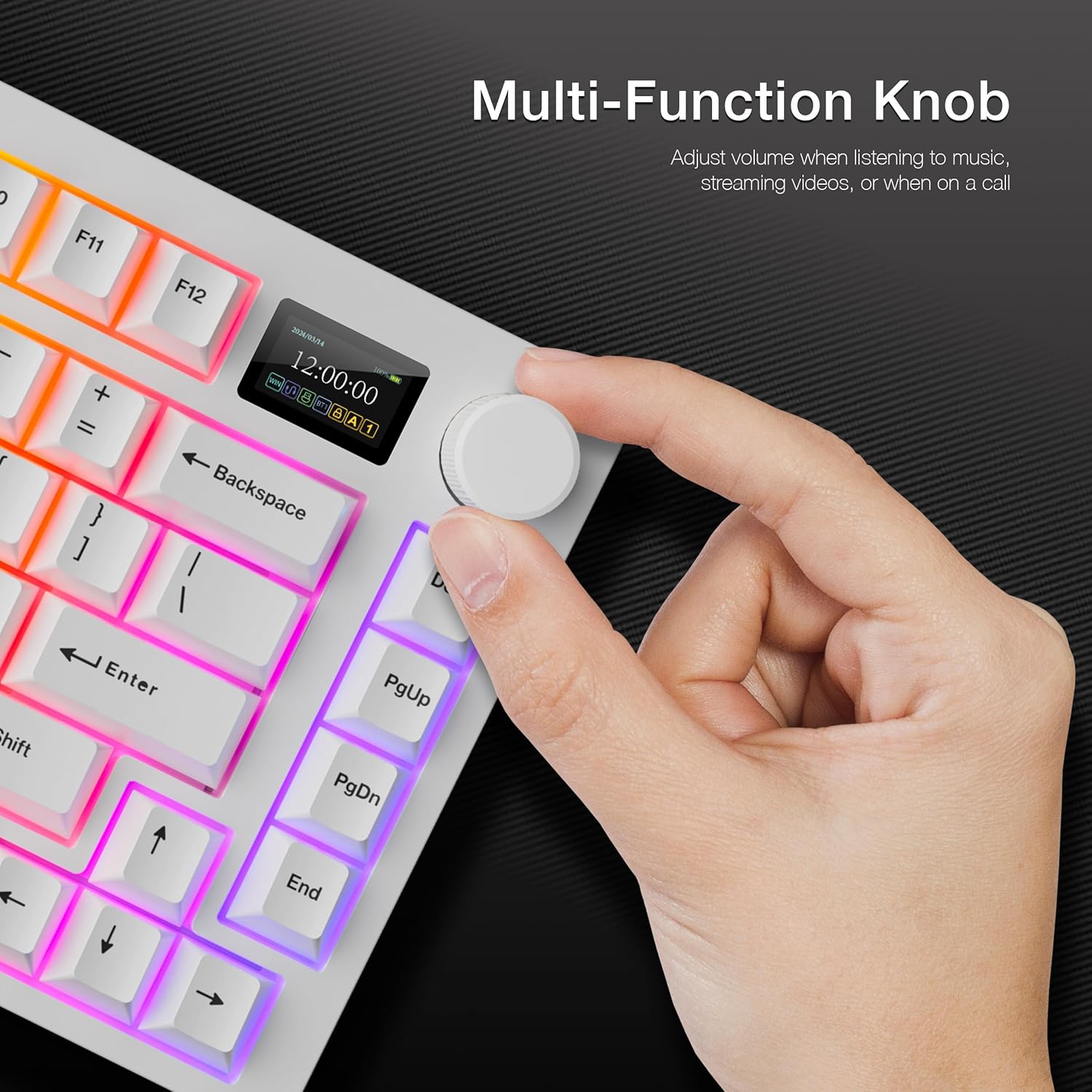
This image shows a hand interacting with the multi-function knob, which controls various settings and display modes on the integrated LCD screen.
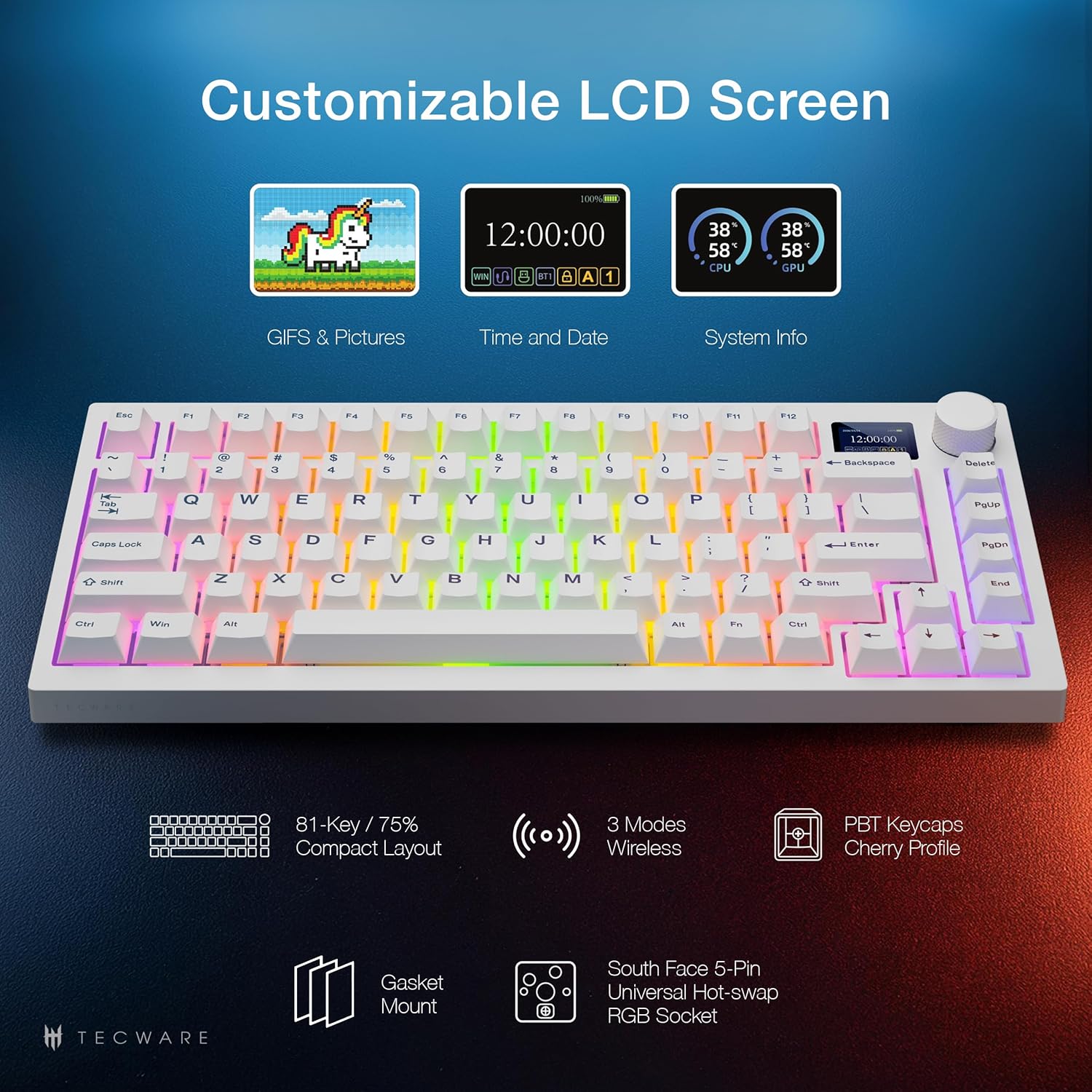
This image highlights the versatility of the customizable LCD screen, capable of displaying custom GIFs, time and date, and real-time system information such as CPU and GPU temperatures.
Fungsi Tombol:
- Mode Switch (LCD or Volume): Press and hold the knob for 3 seconds to toggle between LCD display mode and Volume control mode.
- Modus LCD:
- Rotate Left/Right: Navigate through the LCD menu (e.g., Config, Brightness, Volume, System, GIF Display, Effects, Color, CPU/GPU).
- Press Down: Confirm selection.
- Modus Volume:
- Turn: Adjust volume.
- Press: Mute and unmute audio.

This image displays the dedicated software interface, allowing users to customize RGB lighting effects and upload custom GIFs to the LCD screen.
This video demonstrates the functionality of the customizable LCD screen and the multi-function knob, showcasing how to navigate menus and adjust settings directly from the keyboard.
Pencahayaan RGB
The keyboard features 16.8 million color RGB illumination with customizable per-key RGB lighting and 18 preset lighting modes. It also includes 3-zone RGB illumination for keys, underglow, and the volume wheel.

This image illustrates the extensive RGB lighting capabilities of the keyboard, featuring 16.8 million colors and various customizable effects across different zones.
Lighting effects can be toggled and customized via the LCD screen menu or through the dedicated software.
Sakelar yang Dapat Ditukar Saat Panas
The Spectre 75 comes with factory pre-lubed Tecware Candy Red linear switches. Its universal 5-pin hot-swappable sockets with South-Facing LEDs ensure compatibility with a wide range of enthusiast switches and Cherry-profile keycaps without interference.

This image shows the hot-swappable PCB design, allowing for easy replacement of switches. It also highlights the south-facing LEDs for better keycap compatibility and the durable PBT keycaps.
This video provides a step-by-step guide on how to replace switches on your TECWARE Spectre 75 keyboard using the included keycap/switch puller tool.
Gasket Mount Design
The keyboard features a gasket-mounted structure with multi-layer sound dampening foam. This design isolates the plate from the case, reducing hollow sounds and vibrations, resulting in a flexible typing feel and a "creamy" and "thocky" sound profile.

This diagram visually explains the internal layers of the keyboard, showcasing the gasket mount and sound-dampening materials that contribute to its unique typing feel and acoustics.
This video provides a sound test of the TECWARE Spectre 75 keyboard, demonstrating the "creamy" and "thocky" acoustics achieved through its gasket mount design and pre-lubed switches.
Spacebar Silencer Pad Installation
The keyboard includes a spacebar silencer pad for users who prefer a quieter spacebar sound. This pad is not pre-installed.
This video demonstrates the process of installing the spacebar silencer pad to reduce the sound of the spacebar key.
Pemeliharaan
Membersihkan Papan Ketik Anda
Untuk menjaga performa dan tampilan optimal, bersihkan keyboard Anda secara teratur:
- Gunakan kain lembut dan kering untuk membersihkan tombol dan sasis.
- For deeper cleaning, remove keycaps using the included keycap puller and use compressed air to clear debris from between switches.
- Hindari penggunaan bahan kimia keras atau bahan abrasif.
LCD Screen Protector Replacement
If the LCD screen protector becomes scratched or damaged, it can be replaced.
This video guides you through the process of replacing the LCD screen protector on your keyboard.
Penyelesaian Masalah
- Papan ketik tidak merespons:
- Ensure the USB-C cable is securely connected or the 2.4GHz dongle is properly inserted.
- Check the connectivity switch on the back of the keyboard to ensure the correct mode (2.4G, BT, or Wired) is selected.
- For Bluetooth, ensure the keyboard is paired and within range of your device.
- Check battery level; recharge if necessary.
- Layar LCD tidak menampilkan:
- Pastikan keyboard dihidupkan.
- Check the LCD mode via the multi-function knob.
- If using custom GIFs, ensure they are correctly uploaded via the software.
- Masalah pencahayaan RGB:
- Adjust lighting effects and brightness using the multi-function knob or dedicated software.
- Ensure the software is up-to-date.
- Kunci tidak terdaftar:
- If a specific key is not working, the switch may need to be replaced. Refer to the "Hot-Swappable Switches" section for instructions.
- Pastikan tombol-tombol keyboard terpasang dengan benar.
Spesifikasi
| Fitur | Detil |
|---|---|
| Dimensi Produk | 13.04x5.74x1.51 inci |
| Berat Barang | 2.03 pon |
| Pabrikan | PERANGKAT TEKNIK |
| Baterai | Diperlukan 1 baterai Lithium Ion (termasuk) |
| Teknologi Konektivitas | Bluetooth, USB-A, Wi-Fi (2.4GHz) |
| Deskripsi Papan Ketik | Mekanis |
| Fitur Khusus | Dedicated Software Support, Gasket Mount + Multi-layered Dampening, Hot-Swappable, South-facing LEDs, Volume Roller, Customizable LCD Screen |
| Bahan | Logam, Plastik |
| Komponen yang Termasuk | Papan ketik |
| Nama Model | 75 momok |
| Sumber Daya | Bertenaga Baterai |
Garansi dan Dukungan
For warranty information and technical support, please refer to the official TECWARE websitus web atau hubungi layanan pelanggan mereka. Simpan bukti pembelian Anda untuk klaim garansi.
Official TECWARE Weblokasi: www.tecware.co


