Perkenalan
This manual provides essential information for setting up, operating, maintaining, and troubleshooting your SYSTEMTREFF PC AMD Ryzen 7 5700G. Please read this manual thoroughly before using your new computer to ensure proper functionality and longevity.

Gambar: Sisi depan view of the SYSTEMTREFF PC, showcasing its transparent side panel and illuminated internal components.
Panduan Pengaturan
Follow these steps to set up your SYSTEMTREFF PC.
1. Unboxing dan Penempatan
- Keluarkan PC dari kemasannya dengan hati-hati. Simpan semua bahan kemasan untuk pengangkutan atau servis di masa mendatang.
- Place the PC on a stable, flat surface with adequate ventilation. Ensure there is sufficient space around the computer for airflow, especially at the front, rear, and top vents.
- Avoid placing the PC near heat sources, in direct sunlight, or in areas with excessive dust or humidity.

Gambar: Berbagai macam views of the PC case illustrating its physical dimensions for proper placement.
2. Menghubungkan Periferal
Connect your monitor, keyboard, mouse, and other devices to the appropriate ports.
- Memantau: Connect your monitor to the HDMI or DVI-D port on the rear of the PC. Ensure the cable is securely fastened.
- Keyboard dan Mouse: Connect your USB keyboard and mouse to any available USB ports (USB 2.0 or USB 3.0/3.2). PS/2 ports are also available for compatible devices.
- Suara: Connect speakers or headphones to the audio output jack (green) and a microphone to the microphone input jack (pink) on the rear or front panel.
- Jaringan: For a wired connection, connect an Ethernet cable from your router to the RJ45 LAN port on the rear. For wireless connectivity, ensure the included USB Wi-Fi stick is connected.
- Kekuatan: Connect the power cable to the power supply unit (PSU) at the rear of the PC, then plug the other end into a grounded electrical outlet.

Gambar: Detail view of the available front and rear ports for connecting various peripherals.
Petunjuk Pengoperasian
1. Booting Pertama dan Pengaturan Awal
- After connecting all peripherals, press the power button located on the top front of the PC.
- The system will boot into Windows 10 Pro. Follow the on-screen instructions to complete the initial Windows setup, including region, language, and user account creation.
- Drivers for all components are pre-installed, ensuring a plug-and-play experience.
2. Penggunaan Dasar
- Daya Hidup/Mati: Tekan tombol daya untuk menghidupkan. Untuk mematikan, klik tombol Mulai di Windows, lalu pilih Daya > Matikan.
- Mulai ulang: Untuk memulai ulang sistem, klik tombol Mulai, lalu pilih Daya > Mulai Ulang.
- Mode tidur: Untuk mengaktifkan mode tidur pada sistem, klik tombol Mulai, lalu pilih Daya > Tidur.
- Konektivitas: The PC supports Wi-Fi and Bluetooth for wireless connections. Use the Windows settings to connect to wireless networks or pair Bluetooth devices.

Gambar: Examples of typical usage scenarios for the PC, including productivity, entertainment, and gaming.
Pemeliharaan
Regular maintenance helps ensure the optimal performance and longevity of your PC.
1. Pembersihan
- Luar: Gunakan yang lembut, damp Gunakan kain untuk membersihkan bagian luar casing. Hindari pembersih yang bersifat abrasif.
- Debu: Periodically clean dust from the vents and fans using compressed air. Ensure the PC is powered off and unplugged before cleaning. The case features a mesh front and side panel for improved airflow and dust filtration.

Image: Features of the PC case designed for efficient cooling and maintenance access.
2. Pembaruan Perangkat Lunak
- Periksa dan instal pembaruan Windows secara berkala untuk memastikan stabilitas dan keamanan sistem.
- Keep your graphics drivers updated for optimal performance, especially for gaming and multimedia applications.
Penyelesaian Masalah
Bagian ini membahas masalah umum yang mungkin Anda temui.
Tidak Ada Daya
- Pastikan kabel daya terhubung dengan aman ke PC dan stopkontak listrik.
- Verify that the power switch on the back of the power supply unit (PSU) is in the 'On' position.
- Uji stopkontak tersebut dengan perangkat lain untuk memastikan fungsinya.
Tidak ada tampilan di monitor.
- Check that the monitor is powered on and its video cable is securely connected to the PC's HDMI or DVI-D port.
- Ensure the monitor input source is correctly selected (e.g., HDMI 1, DVI).
- If you have multiple display outputs, try connecting to a different port.
Sistem Melambat atau Macet
- Tutup aplikasi yang tidak diperlukan yang berjalan di latar belakang.
- Check for sufficient free space on your drives, especially the C: drive (SSD).
- Jalankan pemindaian virus untuk memeriksa keberadaan malware.
- Ensure the PC has adequate ventilation and is not overheating.
Spesifikasi
Detailed technical specifications of your SYSTEMTREFF PC.
| Komponen | Spesifikasi |
|---|---|
| Prosesor | AMD Ryzen 7 5700G (8 Cores, up to 4.6 GHz Turbo) |
| Grafik | Integrated AMD Radeon RX Vega 8 (4GB, 2000 MHz, DirectX 12.1) |
| RAM | 32GB DDR4 3200 MHz |
| Penyimpanan | 1TB M.2 NVMe SSD + 2TB HDD |
| Sistem Operasi | Windows 10 Pro (64-bit, pre-installed) |
| Catu Daya | 500Watt |
| Konektivitas | Wi-Fi, Bluetooth, Gigabit LAN (RJ45) |
| Port Depan | 1x USB 3.0, 2x USB 2.0, Audio In/Out |
| Port Belakang | HDMI 4K HD, DVI-D, PS/2, 4x USB 3.2, 2x USB 2.0, HD 7.1 Sound, RJ45 LAN |
| Dimensi (T x L x D) | Ukuran 45x20.5x38.5 cm |
| Berat | 12 kg |

Image: Visual summary of the PC's core performance components.


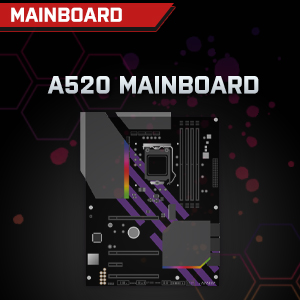

Image: Individual component representations for CPU, RAM, Graphics, Storage, Mainboard, and Power Supply.
Garansi dan Dukungan
SYSTEMTREFF is committed to providing excellent customer service.
- Garansi Pabrik: Your SYSTEMTREFF PC comes with a 36-month (3-year) manufacturer's warranty. This warranty covers defects in materials and workmanship under normal use.
- Kontrol Kualitas: All individually assembled PCs undergo a quality control check before shipment.
- Pengembalian: In case of issues, SYSTEMTREFF offers free returns.
- Hubungi Dukungan: For technical assistance, warranty claims, or any other inquiries, please contact SYSTEMTREFF customer support. Contact details can typically be found on the manufacturer's official websitus web atau dokumentasi yang disertakan dengan pembelian Anda.

Image: Information regarding warranty, ease of setup, and customer support availability.


