1. Pendahuluan
This manual provides essential information for the safe and efficient use of your Amazon Fire HD 10 tablet (2021 release). Please read it thoroughly before operating your device.
Fitur Utama
- Fast and Responsive: Powered by an octa-core processor and 3 GB RAM, offering 50% more RAM than the previous generation.
- Baterai Tahan Lama: Up to 12 hours of battery life for reading, browsing, video, and music.
- Tampilan Jelas: 10.1-inch 1080p Full HD display, 10% brighter than the previous generation, with over 2 million pixels.
- Ample Penyimpanan: Available with 32 GB or 64 GB internal storage, expandable up to 1 TB with a microSD card (sold separately).
- Kompatibilitas Aplikasi: Access to popular apps like Netflix, Facebook, Disney+, Instagram, TikTok, and more via Amazon’s Appstore.
- Alat Produktivitas: Supports apps like Microsoft Office, OneNote, and Dropbox for enhanced productivity.
- Desain Tahan Lama: Thinner and lighter than the previous generation, with a screen strengthened by aluminosilicate glass.
- Fungsi Layar Terpisah: Allows two compatible apps to be open side-by-side for multitasking.
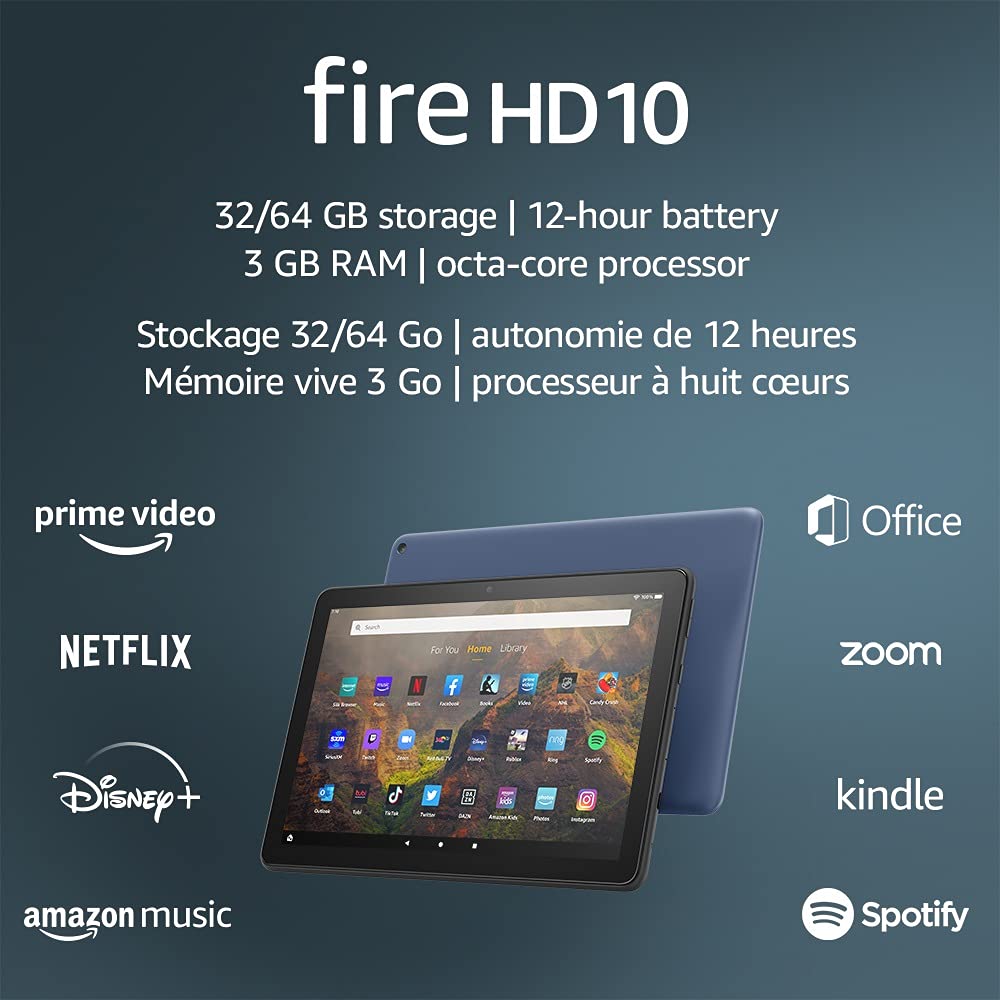
Image 1.1: The Amazon Fire HD 10 tablet highlighting its 32/64 GB storage, 12-hour battery, 3 GB RAM, and octa-core processor, alongside logos of supported applications such as Prime Video, Netflix, Disney+, Amazon Music, Office, Zoom, Kindle, and Spotify.
2. Pengaturan
2.1 Unboxing dan Pengisian Awal
Upon receiving your Fire HD 10 tablet, carefully remove all components from the packaging. Before first use, it is recommended to fully charge the device.
- Connect the provided USB-C (2.0) cable to the tablet's USB-C port.
- Plug the other end of the USB-C cable into the 9W power adapter.
- Hubungkan adaptor daya ke stopkontak di dinding.
- A full charge from 0% to 100% typically takes approximately 4 hours while the device is in standby mode.
2.2 Menghidupkan/Mematikan
- Untuk menghidupkan: Tekan dan tahan tombol daya yang terletak di sisi tablet hingga logo Amazon muncul di layar.
- Untuk mematikan: Press and hold the power button until a power options menu appears. Select 'Power Off'.
- Untuk Memulai Ulang: From the power options menu, select 'Restart'.
Konektivitas Wi-Fi 2.3
To access online content and services, connect your Fire HD 10 to a Wi-Fi network.
- From the Home screen, swipe down from the top to open the Quick Settings panel.
- Ketuk ikon Wi-Fi.
- Pilih jaringan Wi-Fi yang Anda inginkan dari daftar jaringan yang tersedia.
- If prompted, enter the network password and tap 'Connect'.
- The tablet supports 2.4 GHz and 5.0 GHz networks. Ad-hoc (peer-to-peer) Wi-Fi networks are not supported.
2.4 Pengaturan Akun
During the initial setup process, you will be guided to register your Fire HD 10 to an Amazon account. This is necessary to download apps, access Amazon content, and utilize cloud services.
- Follow the on-screen prompts to sign in with an existing Amazon account or create a new one.
- Ensure your account details are accurate for full functionality.
3. Petunjuk Pengoperasian
3.1 Menavigasi Antarmuka
The Fire HD 10 tablet features a touch-sensitive display for interaction.
- Mengetuk: Untuk memilih item, membuka aplikasi, atau mengaktifkan tombol.
- Geser: To scroll through pages, lists, or switch between home screens.
- Cubit untuk Memperbesar: To zoom in or out on images, web pages, or documents.
- Tekan lama: Untuk mengakses menu kontekstual atau memindahkan ikon aplikasi.
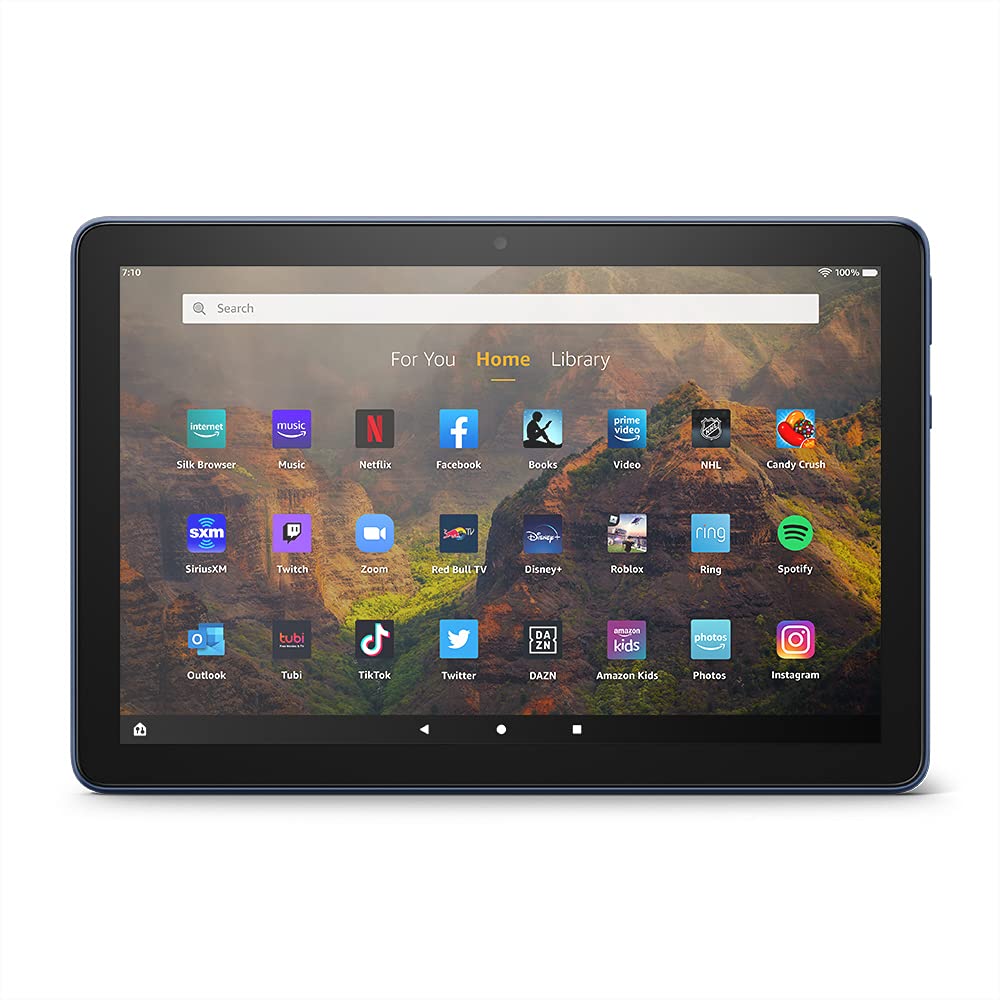
Image 3.1: The Amazon Fire HD 10 tablet's home screen, showcasing a grid of application icons including Silk Browser, Music, Netflix, Facebook, Books, Video, NHL, Candy Crush, SiriusXM, Twitch, Zoom, Red Bull TV, Disney+, Roblox, Ring, Spotify, Outlook, Tubi, TikTok, Twitter, DAZN, Amazon Kids, Photos, and Instagram
3.2 Menggunakan Aplikasi
Applications can be downloaded from the Amazon Appstore. Google Play is not supported.
- Tap an app icon on the Home screen to launch it.
- To find new apps, open the 'Appstore' application.
- Some apps may require a subscription for full access.

Image 3.2: A collage of content available on the Amazon Fire HD 10 tablet, featuring book covers like 'The Silent Patient', Amazon Original series and movies such as 'The Wilds', 'Coming to America', 'The Expanse', 'Dune', 'Hanna', 'One Night in Miami', 'Sound of Metal', 'The Marvelous Mrs. Maisel', 'Upload', and 'The Boys', alongside social media app logos for TikTok, Facebook, and Twitter.
3.3 Split Screen Multitasking
The Fire HD 10 supports split screen functionality, allowing two compatible applications to run side-by-side.
- Buka aplikasi pertama yang ingin Anda gunakan.
- Swipe up from the bottom of the screen to reveal the navigation bar.
- Tekan lama ikon aplikasi pertama di daftar aplikasi terbaru. view.
- Select 'Split Screen' from the options.
- Choose a second compatible app from your recent apps or app drawer to fill the other half of the screen.

Image 3.3: The Amazon Fire HD 10 tablet, shown with an optional Bluetooth keyboard case, demonstrating its split-screen capability. Two applications are open simultaneously: a calendar app on the left and a messaging app on the right, illustrating enhanced productivity.
3.4 Penggunaan Kamera
The tablet is equipped with a 2 MP front-facing camera and a 5 MP rear-facing camera, both capable of 720p HD video recording.
- Open the 'Camera' app from your Home screen or app drawer.
- Ketuk tombol rana untuk mengambil foto.
- Beralih antara kamera depan dan belakang menggunakan ikon sakelar kamera.
- Pilih mode video untuk merekam video.
3.5 Audio dan Bluetooth
The Fire HD 10 includes dual integrated speakers and a 3.5 mm stereo jack for headphones. It also supports Bluetooth 5.0 LE.
- Connect wired headphones or external speakers via the 3.5 mm jack.
- To pair Bluetooth devices (headphones, speakers, microphones, LE accessories):
- Go to 'Settings' > 'Connected Devices' > 'Bluetooth'.
- Pastikan Bluetooth dihidupkan.
- Select your device from the list of available devices and follow pairing instructions.
3.6 Manajemen Penyimpanan
Your Fire HD 10 comes with either 32 GB or 64 GB of internal storage. You can expand this by up to 1 TB using a microSD card.
- To insert a microSD card: Locate the microSD slot on the side of the tablet, open the cover, and gently insert the card until it clicks into place.
- Manage storage by going to 'Settings' > 'Storage'. Here you can view usage and move compatible apps or media to the microSD card.
4. Pemeliharaan
4.1 Perawatan Baterai
- Avoid exposing the tablet to extreme temperatures, as this can degrade battery performance.
- Untuk masa pakai baterai yang optimal, hindari sering menguras baterai sepenuhnya atau membiarkannya terisi penuh 100% dalam waktu yang lama.
- Use only the provided 9W power adapter and USB-C cable for charging.
4.2 Membersihkan Perangkat
- Turn off the tablet before cleaning.
- Gunakan kain lembut dan bebas serat untuk menyeka layar dan bodi dengan lembut.
- Untuk noda membandel, sedikit dampen the cloth with water. Avoid using harsh chemicals, abrasive cleaners, or aerosol sprays.
4.3 Pembaruan Perangkat Lunak
Amazon periodically releases software updates to improve performance and add new features. Ensure your device is connected to Wi-Fi to receive these updates.
- Updates are typically downloaded and installed automatically.
- You can manually check for updates by going to 'Settings' > 'Device Options' > 'System Updates'.
5. Penyelesaian masalah
5.1 Perangkat Tidak Merespons
- If the device is frozen or unresponsive, press and hold the power button for approximately 20 seconds to force a restart.
- Ensure the device has sufficient battery charge. Connect it to the charger and try powering it on again.
5.2 Masalah Koneksi Wi-Fi
- Verify that Wi-Fi is enabled in Quick Settings or 'Settings' > 'Wireless'.
- Pastikan Anda berada dalam jangkauan router Wi-Fi Anda.
- Mulai ulang router dan modem Wi-Fi Anda.
- Forget the network in 'Settings' > 'Wireless' and reconnect, re-entering the password if necessary.
5.3 Aplikasi Mengalami Crash atau Tidak Memuat
- Tutup dan buka kembali aplikasi.
- Clear the app's cache: Go to 'Settings' > 'Apps & Games' > 'Manage All Applications', select the problematic app, and tap 'Clear Cache'.
- Pastikan perangkat lunak tablet Anda sudah diperbarui.
- Jika masalah berlanjut, pertimbangkan untuk menghapus dan menginstal ulang aplikasi tersebut.
5.4 Daya Tahan Baterai Pendek
- Kurangi kecerahan layar.
- Tutup aplikasi yang tidak digunakan yang berjalan di latar belakang.
- Matikan Wi-Fi atau Bluetooth saat tidak digunakan.
- Batasi penggunaan data latar belakang untuk aplikasi.
- Check 'Settings' > 'Battery' to identify apps consuming the most power.
6. Spesifikasi
| Fitur | Detil |
|---|---|
| Generasi | Generasi ke-11, rilis 2021 |
| Menampilkan | Layar 10.1 inci 1080p (1920 x 1200) yang brilian dengan lebih dari 2 juta piksel (224 ppi). Layar diperkuat dengan kaca aluminosilikat. |
| Ukuran | 247 mm x 166 mm x 9.2 mm |
| Berat | 465 gram (Ukuran dan berat sebenarnya dapat bervariasi) |
| CPU & RAM | Octa-core 2.0 GHz dengan RAM 3 GB |
| Penyimpanan | 32 GB (24.2 GB available) or 64 GB (55.0 GB available) internal storage. Expandable up to 1 TB with microSD card. |
| Daya Tahan Baterai | Up to 12 hours of mixed usage (reading, web, video, music). Varies by settings and usage. |
| Waktu Pengisian Daya | Approx. 4 hours (0-100%) with provided 9W adapter in standby. |
| Konektivitas WiFi | Supports 2.4 GHz and 5.0 GHz networks. Does not support ad-hoc networks. |
| Pelabuhan | USB-C (2.0) for charging, microSD slot for external storage. |
| Suara | 3.5 mm stereo jack, dual integrated speakers, external volume controls. |
| Sensor | Akselerometer, sensor cahaya sekitar. |
| Spesifikasi Kamera | 2 MP front-facing, 5 MP rear-facing cameras with 720p HD video recording. |
| Mikrofon | 2 mikrofon internal. |
| Layanan Lokasi | Location-based services via WiFi. |
| Warna yang tersedia | Black, Denim. |
| Bahasa Indonesia: Bluetooth | Built-in Bluetooth 5.0 LE with A2DP support for stereo headphones, speakers, microphone, and LE accessories. |
6.1 Fitur Aksesibilitas
The Fire HD 10 tablet includes various accessibility features to assist users. These can be accessed via 'Settings' > 'Accessibility'.
- SuaraView Pembaca layar: Memberikan umpan balik lisan untuk pengguna yang tunanetra atau memiliki gangguan penglihatan.
- Pembesar Layar: Memungkinkan pengguna untuk memperbesar/memperkecil dan menggeser layar.
- Beralih Akses: Enables interaction for users with motor impairments via compatible Bluetooth devices.
- Kindle Baca Keras: Alexa dapat membacakan buku Kindle dengan lantang.
- Pengaturan tampilan: Includes options for Closed Captioning, Font Size, Display Size, High Contrast Text, Color Inversion, Color Correction, and Convert Stereo to Mono audio. (Note: Captions are not available for all content.)
7. Garansi dan Dukungan
7.1 Informasi Garansi
Your Amazon Fire HD 10 tablet comes with a 1-year limited warranty and service. Optional 1-year, 2-year, and 3-year extended warranties are available for purchase separately for customers in Canada.
Use of the Fire HD 10 tablet is subject to Amazon's Conditions of Use and associated terms.
7.2 Termasuk dalam Kotak
The following items are included with your Fire HD 10 tablet:
- Tablet Fire HD 10
- Kabel USB-C (2.0)
- Adaptor daya 9W
- Panduan Memulai Cepat
7.3 Dukungan Lebih Lanjut
For additional assistance, please visit the Amazon Device Support website or contact Amazon Customer Service.


