1. Pendahuluan dan Selesaiview
The Docooler JINGSHA X99-8D3 is a high-performance ATX gaming motherboard designed for LGA2011 V3 processors. It features four-channel DDR3 memory support, an M.2 NVME slot for high-speed storage, and multiple PCI-E expansion slots, making it suitable for demanding computing tasks and gaming setups. This manual will guide you through the installation, configuration, and maintenance of your motherboard.
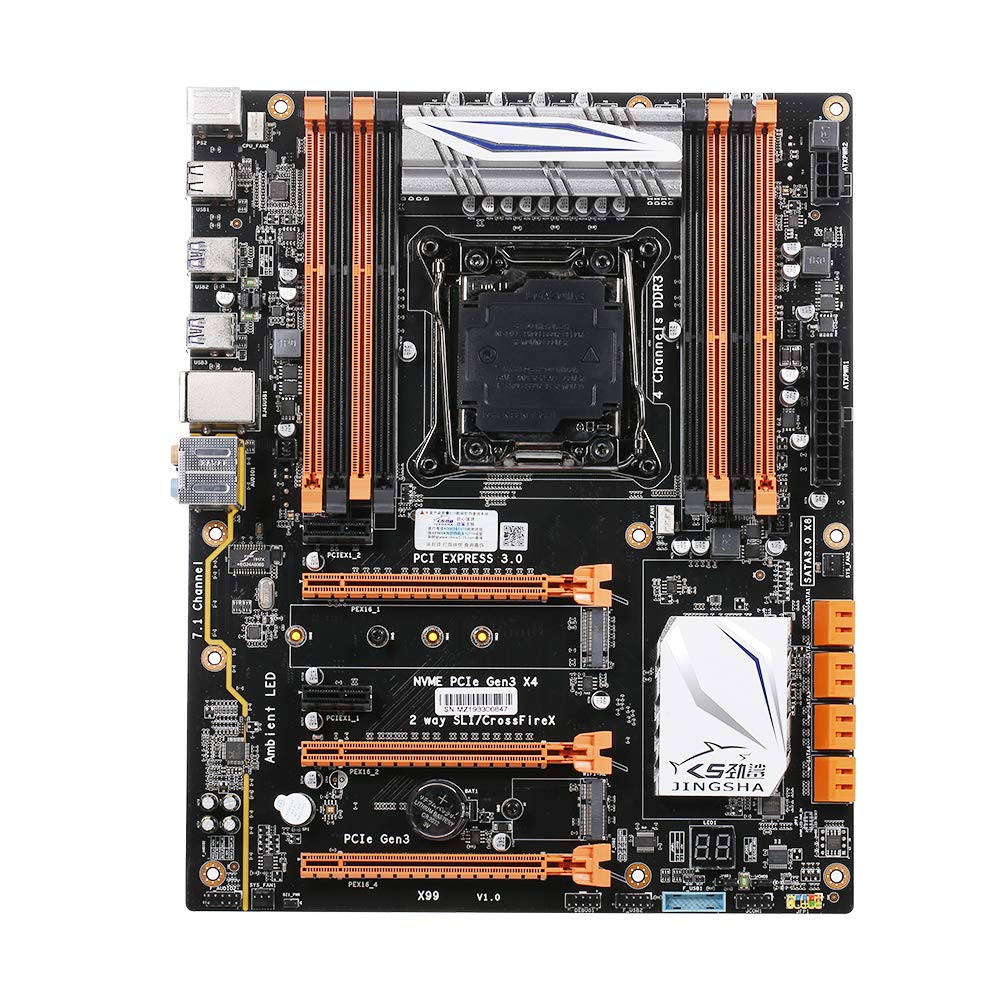
Gambar 1.1: Atas-bawah view of the Docooler JINGSHA X99-8D3 Motherboard, showcasing its layout with CPU socket, RAM slots, and various expansion slots.
2. Fitur Utama
- M.2 NVME Support: Equipped with an M.2 hard disk port, supporting high-speed PCI-E NVME X4 for optimal operating system and application driver performance.
- Quad-Channel DDR3 Memory: Features 8 DDR3 memory slots across 4 channels, significantly improving capacity and performance, supporting up to 256GB.
- Digital Diagnostic Card: Integrated digital diagnostic card automatically tests hardware devices to ensure proper operation and assist in troubleshooting.
- Multiple PCI-E Expansion Slots: Provides 3 PCI-E expanded slots, configurable as X16/X8 to handle various workloads and multi-GPU setups.
- Konstruksi Tahan Lama: Built with a 10-layer PCB and high-quality capacitors for enhanced stability and heat resistance.

Figure 2.1: Diagram illustrating the six core technologies and features of the motherboard, including 4-channel DDR3*8, M.2 hard disk interface, digital diagnostic card, 7.1 channel audio, SATA3.0*8 interface, and Crossfire support.
3. Isi Paket
Harap verifikasi bahwa semua item yang tercantum di bawah ini ada dalam paket Anda:
- 1x Docooler JINGSHA X99-8D3 Motherboard
- 1x Kabel SATA
- 1x I/O Baffle (Backplate)
- 1x CPU Fan Board
- A bag of screws
4. Spesifikasi
| Fitur | Spesifikasi |
|---|---|
| Model | X99-8D3 |
| Faktor Bentuk | ATX |
| Graphic Slot | PCIE3.0 16X*3 |
| Kartu Jaringan | Kartu Jaringan Gigabit |
| Saluran Audio | 7.1 Saluran |
| CPU Type Support | LGA2011 V3 (2629V3/2649V3/2669V3/2678V3/2696V3/2676V3/2673V3) |
| Lapisan PCB | 10 Lapisan |
| Slot Memori | DDR3*8 |
| Kapasitas Memori Maksimum | 256 GB |
| Antarmuka SATA | SATA3.0*8, M.2 NVME |
| PS/2 Interface | Mouse / Keyboard |
| Catu Daya | 8 PIN*1, 24 PIN*1 |
| Antarmuka USB | USB3.0*6, USB2.0*6 |
| Antarmuka yang Diperluas | PCIE 1X*2, M.2 WIFI*1 |
| Ukuran Barang | 30.2 x 24.4 cm (11.89 x 9.61 inci) |
| Berat Barang | 930.5 gram (32.82 ons) |

Gambar 4.1: Rinci view of the motherboard's rear I/O panel, showing PS/2 ports, USB 2.0, USB 3.0, Gigabit Network Port, and 7.1 Audio Ports.
5. Pengaturan dan Instalasi
Sebelum memulai instalasi, pastikan sistem Anda dimatikan dan dicabut dari stopkontak. Pegang motherboard di bagian tepinya untuk menghindari pelepasan muatan statis.
5.1 Memasang CPU
- Locate the LGA2011 V3 CPU socket on the motherboard.
- Gently push down the CPU retention lever and swing it open.
- Align the triangular mark on your CPU with the corresponding mark on the socket. Carefully place the CPU into the socket without forcing it.
- Tutup tuas pengunci untuk mengamankan CPU.
- Oleskan lapisan pasta termal yang tipis dan merata di bagian atas CPU.
- Install the CPU cooler according to its manufacturer's instructions, ensuring proper contact and pressure.

Gambar 5.1: Tampilan jarak dekat view of the LGA2011 V3 CPU socket on the motherboard, ready for CPU installation.
5.2 Installing RAM Modules
- Buka klip di kedua ujung slot memori DDR3.
- Align the notch on the RAM module with the key in the memory slot.
- Tekan dengan kuat kedua ujung modul RAM hingga klip terkunci pada tempatnya, sehingga modul terpasang dengan aman.
- For optimal performance, install RAM modules in matching pairs across the four channels as indicated in the motherboard manual or silkscreen.

Gambar 5.2: View of the eight DDR3 RAM slots on the motherboard, showing their arrangement for quad-channel memory configuration.
5.3 Installing Storage Devices (M.2 NVME & SATA)
- M.2 NVME SSD: Locate the M.2 slot. Insert the M.2 SSD at an angle into the slot, then gently push it down and secure it with the provided screw.
- Drive SATA: Connect your SATA SSDs or HDDs to the SATA 3.0 ports using SATA data cables. Ensure the power supply SATA power connectors are also attached to the drives.

Figure 5.3: Close-up of the M.2 interface on the motherboard, highlighting its position and the PCI-E Gen3 X4 connection for high-speed data transfer.
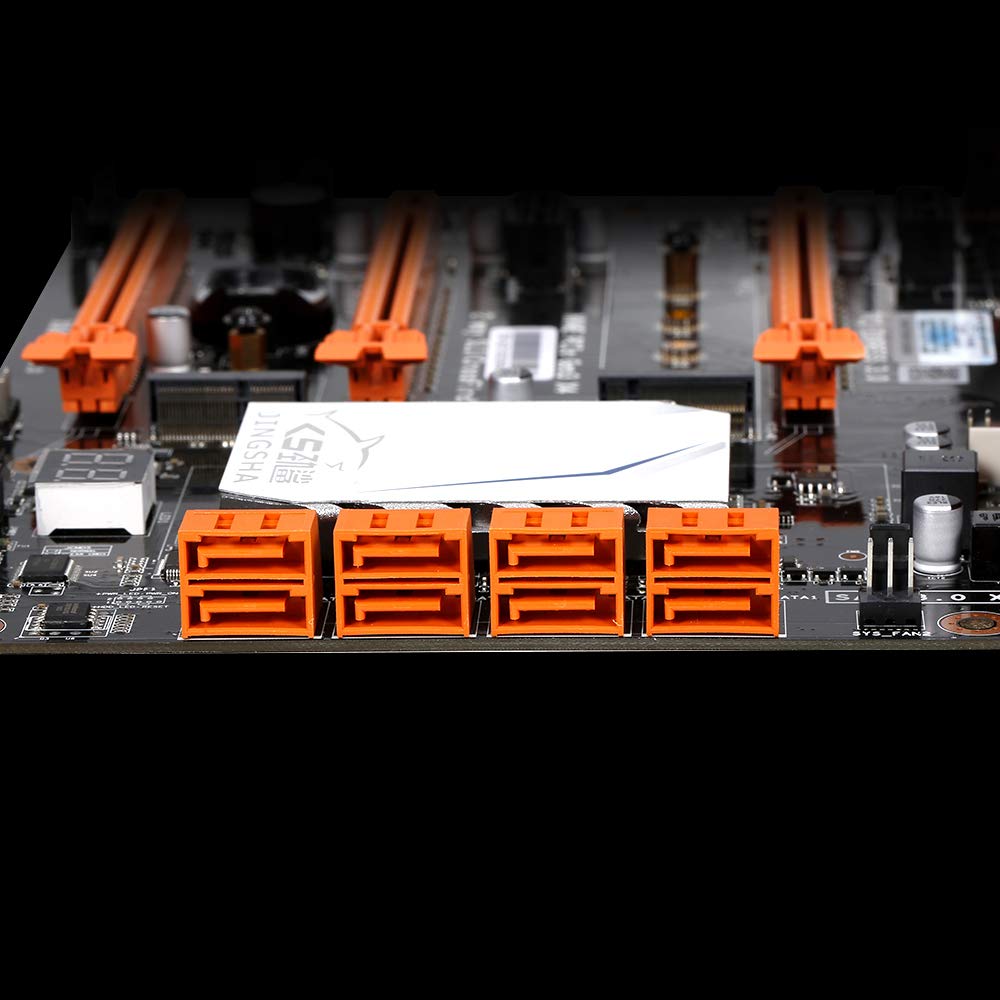
Gambar 5.4: View of the eight orange SATA 3.0 ports on the motherboard, providing ample connectivity for storage devices.
5.4 Menghubungkan Catu Daya
- Connect the 24-pin ATX power connector from your power supply unit (PSU) to the corresponding port on the motherboard.
- Connect the 8-pin CPU power connector (EPS12V) from your PSU to the 8-pin port near the CPU socket.
5.5 Memasang Kartu Ekspansi (PCIe)
- Locate the desired PCI-E 3.0 x16 or x1 slots.
- Lepaskan penutup slot ekspansi yang sesuai dari casing PC Anda.
- Align the expansion card with the slot and press down firmly until it is fully seated. Secure the card with a screw to the case.

Gambar 5.5: Sudut view of the motherboard, highlighting the three PCI Express 3.0 x16 slots and the smaller PCIe x1 slots, ready for graphics cards and other expansion cards.
6. Mengoperasikan Motherboard
6.1 Booting Pertama dan Pengaturan BIOS
- Setelah merakit semua komponen, sambungkan monitor, keyboard, dan mouse Anda.
- Power on your system. During the initial boot sequence, repeatedly press the MENGHAPUS or F2 key (common for JINGSHA motherboards) to enter the BIOS/UEFI setup utility.
- Di BIOS, pastikan semua komponen yang terpasang (CPU, RAM, penyimpanan) terdeteksi dengan benar.
- Konfigurasikan urutan boot untuk memprioritaskan media instalasi sistem operasi Anda (USB drive atau DVD).
- Simpan perubahan dan keluar dari BIOS. Sistem akan memulai ulang.
6.2 Instalasi Sistem Operasi
Follow the instructions provided with your operating system (e.g., Windows, Linux) to complete the installation process. Ensure you install all necessary drivers for the motherboard's chipsets, network, audio, and other components from the manufacturer's website or included driver disc.
7. Pemeliharaan
Perawatan yang tepat memastikan umur panjang dan kestabilan pengoperasian motherboard Anda.
- Penghilangan Debu: Bersihkan debu dari motherboard dan komponen secara teratur menggunakan udara bertekanan. Pastikan sistem dimatikan dan dicabut sebelum membersihkan.
- Pembaruan BIOS: Periodically check the Docooler or JINGSHA official website for BIOS updates. BIOS updates can improve compatibility, stability, and performance. Follow update instructions carefully to avoid damaging the motherboard.
- Pembaruan Driver: Selalu perbarui driver sistem Anda untuk memastikan kinerja optimal dan kompatibilitas dengan perangkat lunak dan perangkat keras baru.
- Kondisi Lingkungan: Operate the motherboard in a well-ventilated environment with stable temperature and humidity to prevent overheating and component degradation.
8. Penyelesaian masalah
Bagian ini membahas masalah umum yang mungkin Anda temui.
8.1 Tidak Ada Daya / Tidak Bisa Booting
- Pastikan konektor daya ATX 24-pin dan CPU 8-pin terpasang dengan benar ke motherboard.
- Check if the power supply unit (PSU) is switched on and connected to a working power outlet.
- Verify that the front panel power button cable is correctly connected to the motherboard's header.
8.2 Tidak Ada Output Tampilan
- Ensure your graphics card (if dedicated) is properly seated in its PCI-E slot and has all necessary power cables connected.
- Check that your monitor cable is securely connected to the graphics card or motherboard (if integrated graphics are used, though X99 typically requires a dedicated GPU).
- Try reseating your RAM modules. Incorrectly seated RAM is a common cause of no display.
8.3 POST Code Display (Digital Diagnostic Card)
The motherboard is equipped with a digital diagnostic card (POST code display) that shows a two-digit code during boot-up. Refer to the motherboard's detailed technical documentation (often available on the manufacturer's website) for a list of POST codes and their meanings. This can help pinpoint the exact component causing a boot failure.

Gambar 8.1: Tampilan jarak dekat view showing the integrated digital diagnostic card (POST code display) on the motherboard, which assists in identifying hardware issues during boot.
9. Garansi dan Dukungan
For warranty information and technical support, please refer to the documentation provided with your purchase or visit the official Docooler or JINGSHA websitus. Simpan bukti pembelian Anda untuk klaim garansi.


