Perkenalan
This manual provides essential information for setting up, operating, and maintaining your Amazon Fire TV 4-Series 50-inch 4K UHD Smart TV. The Fire TV 4-Series brings vivid 4K Ultra HD, HDR 10, HLG, and Dolby Digital Plus support, offering a clearer and more vibrant picture than 1080p Full HD. Enjoy access to over 1.5 million movies and TV episodes from various streaming services, along with live TV, video games, and music. The integrated Fire TV platform continuously updates with new Alexa skills, features, smart home capabilities, and voice functionality.

Gambar: Depan view of the Amazon Fire TV 4-Series 50-inch 4K UHD Smart TV, showcasinberkat bezel dan layarnya yang tipis.
Apa yang ada di dalam kotak
Buka kemasan kotak dengan hati-hati dan pastikan semua komponen ada:
- Fire TV 4-Series 50-inch Television
- Alexa Voice Remote yang Disempurnakan
- Kabel Listrik
- 2 Baterai AAA (untuk remote)
- 4 Sekrup (untuk pemasangan dudukan)
- Meja TV (2 kaki)
- Panduan Memulai Cepat

Image: All components included in the Amazon Fire TV 4-Series package, laid out for inspection.
Pengaturan
1. Attaching the TV Stand or Wall Mounting
The TV is designed to be lightweight for easier handling. For the 50-inch model, one person can typically unbox it, but for larger sizes, two people are recommended. The TV stand legs attach easily to the bottom of the television.
- Letakkan TV dengan layar menghadap ke bawah dengan hati-hati pada permukaan yang lembut dan bersih untuk mencegah goresan.
- Sejajarkan setiap kaki dudukan dengan slot yang sesuai di bagian bawah TV.
- Amankan setiap kaki dengan sekrup yang disediakan.
Alternatively, for wall mounting, the TV supports a VESA Wall Mount Standard of 300 mm x 300 mm. Ensure you use a compatible wall mount (sold separately) and follow its installation instructions carefully.

Image: Visual guide to the TV components and stand assembly.
2. Menghubungkan Periferal
Connect your external devices such as cable boxes, gaming consoles, or sound systems to the appropriate ports on the back and side of the TV. The TV features 3 HDMI 2.0 ports and 1 HDMI 2.1 port with eARC, 1 USB port, 1 Ethernet port, and a Digital Optical Audio Port.

Gambar: Detail view port konektivitas TV.
3. Pengaktifan Awal dan Pengaturan Jaringan
- Sambungkan kabel daya ke TV, lalu ke stopkontak di dinding.
- Insert the two AAA batteries into the Alexa Voice Remote Enhanced.
- Tekan tombol daya pada remote untuk menghidupkan TV.
- Follow the on-screen prompts to select your language and connect to your Wi-Fi network. You can also use an Ethernet cable for a wired connection.
- The TV may download and install software updates. This process can take 10-15 minutes. Allow it to complete without interruption.
- Masuk dengan akun Amazon Anda. Jika Anda belum memiliki akun, Anda akan diminta untuk membuatnya.
- Configure any desired parental controls or additional channel subscriptions.
Mengoperasikan TV
Navigasi Dasar
Use the Alexa Voice Remote Enhanced to navigate the Fire TV interface. The remote features a directional pad for menu navigation, a select button, and dedicated buttons for Home, Back, Menu, and various streaming services.
Using Alexa Voice Remote Enhanced
The included Alexa Voice Remote Enhanced allows you to control your TV and access content using voice commands. Press and hold the Alexa button on the remote, then speak your command. You can ask Alexa to:
- Find and launch movies, TV shows, and apps.
- Mengontrol pemutaran (putar, jeda, maju cepat, mundur).
- Adjust TV settings like volume and input source.
- Check weather, sports scores, and other information.
- Kontrol perangkat rumah pintar yang kompatibel.
The remote can also control certain functions, such as power and volume, on a wide range of compatible IR-enabled devices, soundbars, and A/V receivers. Note that certain functions may not be available on all IR-enabled devices.
Mengakses Konten
The Fire TV interface provides access to a vast library of streaming content. Subscription fees may apply for certain services.

Gambar: Examples of streaming services available on Fire TV.
Konektivitas
The Amazon Fire TV 4-Series offers various connectivity options for your home entertainment system:
- Port HDMI: 3 HDMI 2.0 ports and 1 HDMI 2.1 port with eARC for high-definition audio and video connections.
- Eternet: 1 Ethernet port for a stable wired internet connection.
- Kabel USB: 1 USB port for connecting external storage or other USB devices.
- Keluaran Audio Optik Digital: Untuk menghubungkan ke soundbar atau penerima audio.
- Konektivitas Nirkabel: Supports Wi-Fi for wireless internet access.
- Bluetooth dapat digunakan untuk berbagai keperluan, seperti: Bluetooth 5.0 for connecting compatible accessories like headphones.
Spesifikasi
| Fitur | Spesifikasi |
|---|---|
| Resolusi | Resolusi 3840x2160 (4K UHD) |
| Rentang Dinamis Tinggi (HDR) | HDR 10, HLG |
| Jenis Lampu Latar | LED langsung |
| Tingkat Penyegaran | 60Hz |
| Ukuran Layar | 50 inci (49.5 inci) viewmampu) |
| Port HDMI | 3 HDMI 2.0 + 1 HDMI 2.1 dengan eARC |
| Pelabuhan Ethernet | 1 |
| Port USB | 1 |
| Dukungan Audio | Dolby Digital Plus dengan passthrough audio berkode Dolby |
| Kekuatan Audio | 8W + 8W |
| Sistem Operasi | Sistem Operasi Fire TV |
| Ukuran Produk (tanpa dudukan) | Ukuran 44.2” x 25.6” x 3.5” |
| Berat (tanpa dudukan) | 20.6 pon |
| Standar Pemasangan Dinding VESA | Ukuran 300 x 300 mm |
| Nomor SKU | 4K50N400A |
| Konektivitas | Wi-Fi or Ethernet, Bluetooth 5.0 |
| Alexa Voice Remote Enhanced Compatibility | Fire TV 2-Series, Fire TV 4-Series, Fire TV Omni Series, Fire TV Omni QLED Series, Fire TV Cube (3rd Gen) |
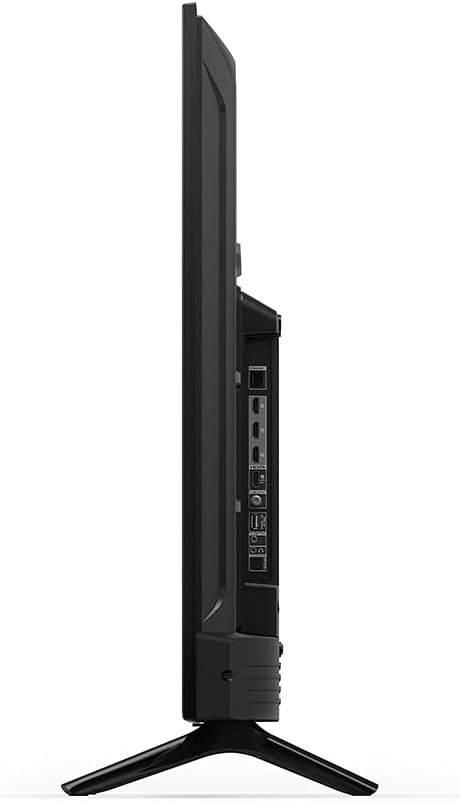
Gambar: Sisi profile of the TV, highlighting its slimness.
Gambar: Belakang view of the TV, illustrating the VESA mounting pattern.
Pemeliharaan
Membersihkan TV
- Selalu cabut kabel TV sebelum membersihkan.
- Gunakan kain yang lembut, kering, dan tidak berbulu untuk menyeka layar dan kabinet dengan lembut.
- Untuk noda membandel di layar, usap perlahan.ampBasahi kain dengan air atau larutan pembersih layar yang dirancang khusus untuk elektronik. Jangan menyemprotkan cairan langsung ke layar.
- Hindari penggunaan pembersih abrasif, lilin, atau pelarut karena dapat merusak lapisan akhir.
Pembaruan Perangkat Lunak
Your Fire TV will periodically receive software security updates to improve performance and add new features. Ensure your TV is connected to the internet to receive these updates automatically. You can also check for updates manually through the TV's settings menu.
Penyelesaian Masalah
Jika Anda mengalami masalah dengan Fire TV Anda, lihat solusi umum berikut:
- Tidak Ada Daya: Pastikan kabel daya terpasang dengan benar ke TV dan stopkontak yang berfungsi. Coba stopkontak lain.
- Tidak Ada Gambar/Suara: Verify that the correct input source is selected. Check all cable connections (HDMI, audio) are secure. Restart the TV by unplugging it for 30 seconds and plugging it back in.
- Jarak Jauh Tidak Merespons: Replace the AAA batteries in the Alexa Voice Remote Enhanced. Ensure there are no obstructions between the remote and the TV. Re-pair the remote if necessary (hold Home button for 10 seconds).
- Masalah Konektivitas Jaringan: Check your Wi-Fi router and modem. Restart your network equipment. Ensure the TV is within range of your Wi-Fi signal or that the Ethernet cable is properly connected.
- Alexa Tidak Merespons: Ensure the remote batteries are fresh. Press and hold the Alexa button firmly when speaking. Check your internet connection.
For more detailed troubleshooting or persistent issues, refer to the online support resources for Fire TV.
Garansi dan Dukungan
Informasi Garansi
Your Amazon Fire TV 4-Series 50-inch includes a 1-year limited warranty and service. Optional 3-Year and 4-Year Extended Warranties are available for U.S. customers and can be purchased separately. Use of Fire TV is subject to the terms found on the official Amazon weblokasi.
Dukungan Pelanggan
For additional support, frequently asked questions, or to manage your device, please visit the official Amazon Fire TV support pages online. You can find information specific to your device by visiting the 'Manage Your Content and Devices' section on Amazon.