1. Pendahuluan
Thank you for choosing the IROAD X5 Dash Cam. This device is designed to record your driving journey in Full HD, providing crucial evidence in case of an incident. It features front and rear cameras, Wi-Fi connectivity for smartphone access, a G-Sensor for impact detection, and advanced driver assistance systems (ADAS). Please read this manual carefully before installation and operation to ensure proper use and optimal performance.

Figure 1: IROAD X5 Dash Cam (Front and Rear Units)
2. Produk Lebihview
2.1 Isi Paket
- Unit Utama (Kamera Depan)
- Kamera Belakang
- Dongle Wi-Fi
- IROAD Genuine 16GB MicroSD Card
- Mounting Bracket
- Constant Power Cable (3m)
- Rear Camera Connection Cable (6m)
- Instruksi Manual (dokumen ini)
- Spare Double-sided Tape
2.2 Fitur Utama
- Dual Full HD Recording: Front and rear cameras record in 1920x1080P at 30fps.
- Lebar Viewsudut: bidang 140° view for both front and rear cameras.
- Sensor G: 3-axis acceleration sensor for automatic impact detection and event recording.
- Konektivitas Wi-Fi: Connect to your smartphone via Wi-Fi for live view, pemutaran, dan penyesuaian pengaturan.
- ADAS (Sistem Bantuan Pengemudi Tingkat Lanjut): Includes Lane Departure Warning, Front Vehicle Departure Warning, and Forward Collision Warning.
- Various Recording Modes: Continuous, Impact, Parking, and Motion Detection recording.
- Penglihatan Malam: Enhanced recording quality in low-light conditions.
- Rekaman Audio: On/Off selectable.
3. Pengaturan
3.1 Cara Memasukkan Kartu MicroSD
- Pastikan dashcam dalam keadaan mati.
- Cari slot kartu MicroSD pada unit utama.
- Insert the provided 16GB MicroSD card into the slot until it clicks into place. Ensure the correct orientation.
3.2 Pemasangan Kamera Depan
- Bersihkan area kaca depan tempat Anda akan memasang kamera.
- Attach the mounting bracket to the front camera.
- Peel off the protective film from the double-sided tape on the bracket.
- Mount the front camera on the windshield, ideally behind the rearview cermin, memastikan kejernihan view of the road. Press firmly for secure adhesion.

Figure 2: IROAD X5 Front Camera
3.3 Pemasangan Kamera Belakang
- Clean the rear window area.
- Attach the rear camera to the rear window using the double-sided tape, ensuring a clear view.
- Connect the rear camera to the main unit using the provided 6m rear camera connection cable. Route the cable neatly along the vehicle's interior trim.
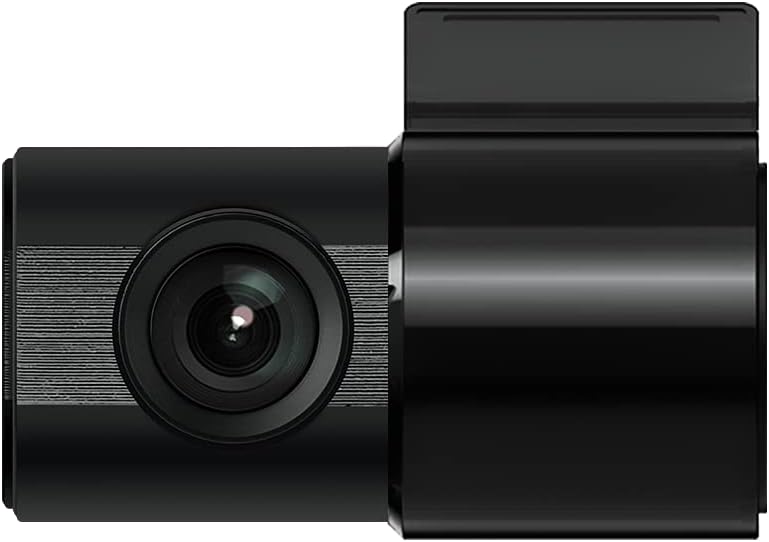
Figure 3: IROAD X5 Rear Camera
3.4 Sambungan Daya
- Connect the constant power cable to the main unit's power input port.
- Connect the other end of the power cable to your vehicle's power source (e.g., OBDII port for general and hybrid vehicles, if using the optional OBDII power cable, or fuse box for constant power). Consult a professional for hardwiring if unsure.
3.5 Wi-Fi Dongle Connection (Optional)
If your model requires an external Wi-Fi dongle, insert it into the designated USB port on the main unit. This enables Wi-Fi connectivity for smartphone app control.
4. Petunjuk Pengoperasian
4.1 Pengaktifan/Penonaktifan Daya Otomatis
The IROAD X5 Dash Cam will automatically power on and begin recording when your vehicle's ignition is turned on. It will power off automatically when the ignition is turned off.
4.2 Mode Perekaman
- Perekaman Berkelanjutan: The dash cam continuously records while driving. Older files are overwritten by new ones when the MicroSD card is full.
- Rekaman Dampak: When the G-Sensor detects a sudden impact or collision, the dash cam automatically saves the current recording segment as an event file, mencegahnya agar tidak ditimpa.
- Rekaman Parkir: When the vehicle is parked and the ignition is off, the dash cam enters parking mode. It records events triggered by motion detection or impacts.
- Rekaman Deteksi Gerakan: In parking mode, the camera records when motion is detected in its field of view.
4.3 ADAS Functions
The IROAD X5 includes Advanced Driver Assistance Systems to enhance driving safety:
- Lane Departure Warning (LDWS): Memberi peringatan jika kendaraan Anda keluar dari jalurnya.
- Peringatan Keberangkatan Kendaraan Depan (FVDW): Notifies you when the vehicle in front starts moving from a stop.
- Forward Collision Warning (FCWS): Warns you of a potential collision with a vehicle ahead.
These features can be configured via the IROAD smartphone application.
4.4 Rekaman Audio
Audio recording is enabled by default. You can toggle this feature on or off through the IROAD smartphone application settings.
4.5 Using the IROAD App (Wi-Fi)
- Unduh aplikasi "IROAD" dari toko aplikasi ponsel pintar Anda.
- Nyalakan kamera dasbor.
- On your smartphone, go to Wi-Fi settings and connect to the IROAD dash cam's Wi-Fi network (SSID and password can be found in the app or on the device label).
- Open the IROAD app to access live view, recorded videos, and adjust settings.
5. Pemeliharaan
5.1 Manajemen Kartu MicroSD
It is recommended to format the MicroSD card regularly (e.g., once a month) to maintain optimal recording performance and prevent data corruption. This can be done through the IROAD smartphone app or by removing the card and formatting it on a computer.
5.2 Membersihkan Lensa
Periodically clean the front and rear camera lenses with a soft, dry cloth to ensure clear video quality. Avoid using abrasive cleaners.
5.3 Pembaruan Firmware
Check the official IROAD website or the IROAD app for available firmware updates. Keeping your dash cam's firmware up-to-date ensures the latest features and bug fixes.
6. Penyelesaian masalah
| Masalah | Kemungkinan Penyebab / Solusi |
|---|---|
| Kamera dasbor tidak menyala. | Check power cable connection. Ensure vehicle ignition is on. Verify fuse in power cable or vehicle's fuse box. |
| No recording or recording stops. | MicroSD card may be full or corrupted. Format the MicroSD card. Ensure the card is inserted correctly. |
| Masalah koneksi Wi-Fi. | Ensure Wi-Fi dongle is properly connected (if applicable). Restart the dash cam and your smartphone. Check Wi-Fi settings on your phone. |
| Kualitas video buruk. | Clean camera lenses. Ensure protective film is removed from lenses. Check recording resolution settings in the app. |
| ADAS warnings are inaccurate. | Ensure the camera is properly calibrated and mounted centrally. Environmental factors (heavy rain, fog) can affect performance. |
7. Spesifikasi
| Fitur | Spesifikasi |
|---|---|
| Bidang View (Depan belakang) | 140° |
| Resolution (Front/Rear) | Full HD 1920x1080P |
| Frame Rate (Front/Rear) | 30fps |
| Merekam Mode | Continuous, Impact, Parking, Motion Detection |
| Fitur ADAS | Lane Departure Warning, Front Vehicle Departure Warning, Forward Collision Warning |
| Sensor G | Sensor Akselerasi 3-sumbu |
| Rekaman Audio | On/Off selectable |
| Konsumsi Daya | 2.6W |
| Suhu Operasional | -30°C hingga 75°C |
| Media Rekaman | Kartu MicroSD (16GB termasuk) |
| Dimensi Unit Utama | Ukuran 90x40x30mm |
| Unit Berat Utama | 60 gram |
| Konektivitas | Wifi gratis |
| Jenis Tampilan | LCD (4 inch, if applicable, though product description implies no screen on main unit) |
| Metode Pemasangan | Perekat |
8. Garansi dan Dukungan
For warranty information, technical support, or service inquiries, please refer to the warranty card included with your product or visit the official IROAD websitus. Simpan struk pembelian Anda sebagai bukti pembelian untuk klaim garansi.