1. Pendahuluan
This manual provides detailed instructions for the setup, operation, and maintenance of your Bytech BYMCWC101BLK PC Web Camera. Please read this manual thoroughly before using the product to ensure proper functionality and longevity.
2. Isi Paket
Verifikasi bahwa semua item yang tercantum di bawah ini disertakan dalam paket produk Anda:
- Komputer Bytech BYMCWC101BLK Web Kamera
- User Manual (dokumen ini)
- Kabel USB Terintegrasi
3. Pengaturan
Follow these steps to set up your Bytech BYMCWC101BLK PC Web Kamera:
- Penempatan: Posisikan webcam on top of your computer monitor, laptop screen, or a flat surface. The adjustable clip allows for secure attachment.
- Hubungkan ke Komputer: Hubungkan kabel USB terintegrasi dari webcam ke port USB yang tersedia di komputer Anda.
- Instalasi Driver: Itu webcam is typically plug-and-play. Your operating system (Windows, macOS, Linux) should automatically detect and install the necessary drivers. Wait for the installation to complete.
- Verifikasi: Open a video conferencing application (e.g., Zoom, Skype, Microsoft Teams) or your computer's camera application to confirm the webkamera dikenali dan menampilkan video.
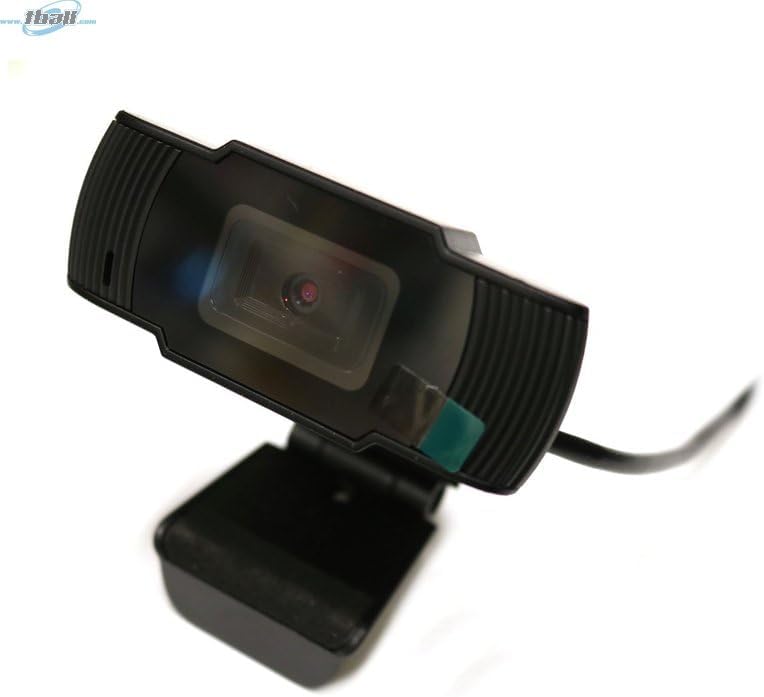
Image: The Bytech BYMCWC101BLK PC Web Camera securely mounted on top of a computer monitor, demonstrating its adjustable clip design.
4. Petunjuk Pengoperasian
Once installed, the Bytech BYMCWC101BLK PC Web Camera can be used with various applications:
- Konferensi Video: Select the Bytech webcam as your video input device within your preferred video conferencing software (e.g., Zoom, Skype, Google Meet).
- Mengalir: For live streaming platforms, configure the webcam as your primary video source in your streaming software (e.g., OBS Studio).
- Rekaman: Gunakan aplikasi kamera bawaan komputer Anda atau perangkat lunak pihak ketiga untuk merekam video.
- Kinerja Cahaya Rendah: Itu webcam features BSI CMOS photo sensor technology and is designed to perform effectively in low-light conditions, providing clear video even with limited ambient lighting.
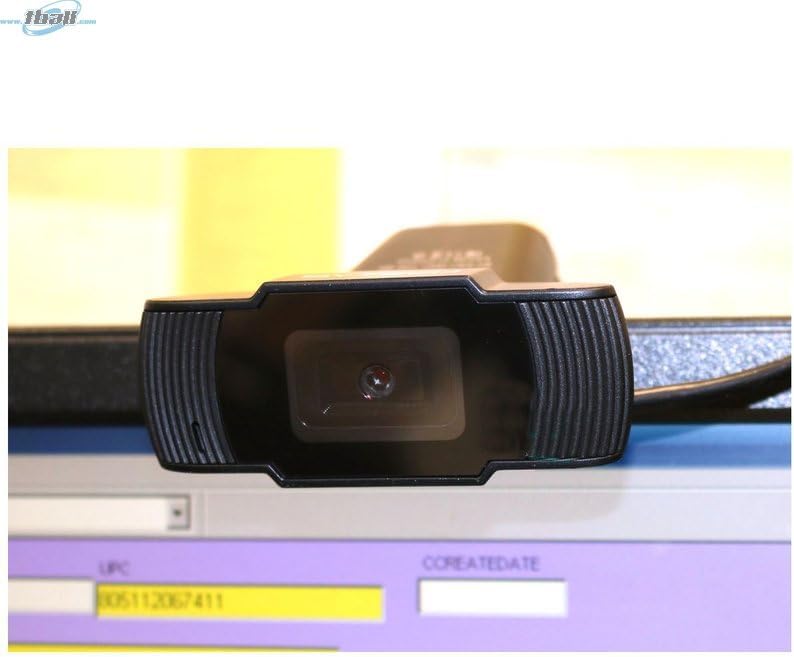
Gambar: Close-up view of the Bytech BYMCWC101BLK PC Web Camera's lens, highlighting its design and integrated privacy cover (if applicable, otherwise just lens).
5. Pemeliharaan
To ensure optimal performance and extend the lifespan of your webkamera:
- Pembersihan: Usap lensa dengan lembut menggunakan kain lembut yang tidak berbulu. Hindari penggunaan bahan kimia keras atau bahan abrasif.
- Penyimpanan: Saat tidak digunakan, simpan webcam in a clean, dry environment away from direct sunlight and extreme temperatures.
- Perawatan Kabel: Jangan menekuk atau menjepit kabel USB secara berlebihan.
6. Penyelesaian masalah
Jika Anda mengalami masalah dengan webcam, lihat masalah umum dan solusi berikut:
- Tidak ada gambar/video:
- Pastikan kabel USB terhubung dengan aman ke kedua webkamera dan komputer Anda.
- Coba hubungkan webkamera ke port USB yang berbeda.
- Hidupkan ulang komputer Anda.
- Check your application settings to ensure the Bytech webcam is selected as the video input device.
- Kualitas Video Buruk:
- Pastikan pencahayaan yang memadai di lingkungan Anda.
- Bersihkan weblensa kamera dengan kain lembut.
- Check your application's video settings for resolution and frame rate.
- Mikrofon Tidak Berfungsi (jika berlaku):
- Verifikasi bahwa webcam's microphone is selected as the audio input device in your computer's sound settings and within your application.
- Ensure the microphone is not muted in your system or application.
7. Spesifikasi
| Fitur | Detil |
|---|---|
| Nama Model | BYMCWC101BLK |
| Merek | Bytek |
| Teknologi Konektivitas | USB |
| Teknologi Sensor Foto | BSI CMOS |
| Format Pengambilan Video | MP4 |
| Fitur Khusus | Cahaya Rendah |
| Warna | Hitam |
| Berat Barang | 4.9 ons |
| Dimensi Paket | 7.76x4.65x2.44 inci |
8. Garansi dan Dukungan
For warranty information or technical support, please refer to the documentation included with your purchase or contact your retailer. Keep your proof of purchase for warranty claims.


