1. Pendahuluan
This manual provides comprehensive instructions for the safe and efficient use of your MARKLIFE P50 Portable Bluetooth Thermal Label Printer. Please read this manual thoroughly before operating the device and retain it for future reference.
2. Informasi Keselamatan
- Jangan membongkar, memperbaiki, atau memodifikasi perangkat.
- Jauhkan perangkat dari air, kelembapan, dan suhu tinggi.
- Use only MARKLIFE approved labels and accessories.
- Hindari menyentuh kepala cetak segera setelah mencetak, karena mungkin masih panas.
- Jauhkan dari jangkauan anak-anak.
3. Isi Paket
Verifikasi bahwa semua item ada dalam paket Anda:
- Pencetak Label MARKLIFE P50
- 3 Rolls of Labels (2x 1.57"x1.18" white gap labels, 1x 2"x2" circle gap label)
- Kabel Pengisian Daya USB-C
- User Manual (dokumen ini)
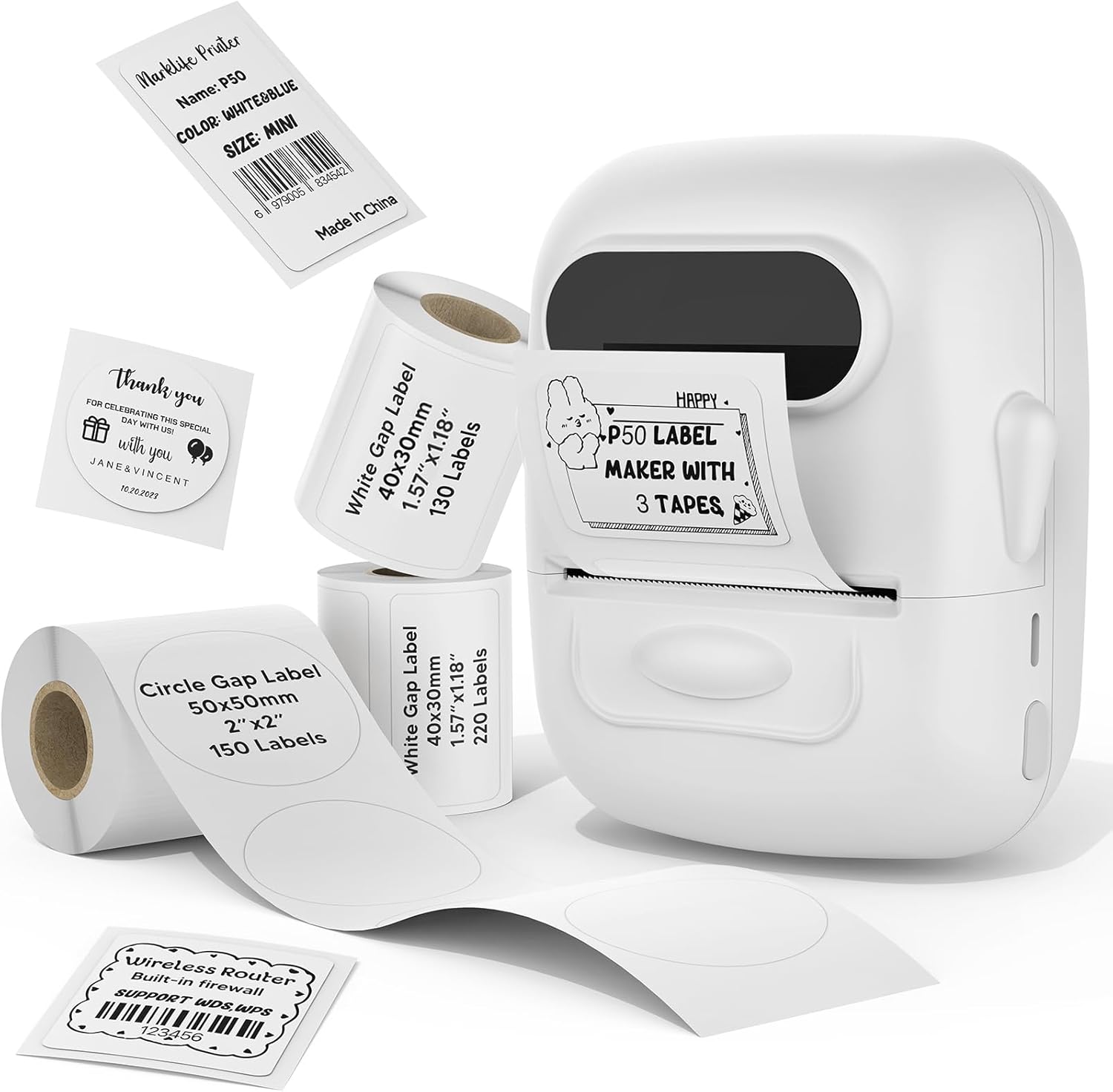
Image: MARKLIFE P50 Label Printer and various label rolls included in the package.
4. Produk Lebihview
The MARKLIFE P50 is a compact, portable thermal label printer designed for various labeling needs. It connects wirelessly via Bluetooth to your smartphone or tablet and can also connect to a Windows PC via USB. It utilizes thermal printing technology, requiring no ink, and supports black and white printing only.

Image: The MARKLIFE P50 printer being placed into a handbag, highlighting its portable design and built-in 1200mAh battery with Type-C charging.
5. Pengaturan
5.1 Mengisi Daya Perangkat
Before first use, fully charge the printer using the provided USB-C cable and a compatible power adapter (not included). The charging indicator light will show the charging status.
5.2 Memuat Label
- Buka penutup kompartemen label.
- Insert the label roll with the printing surface facing upwards.
- Ensure the label edge is aligned and extends slightly out of the printer slot.
- Close the cover firmly. The printer will automatically detect the label type and size.

Image: Illustration of label loading and compatible label widths (0.59 to 2.24 inches) for the P50 printer.
5.3 App Installation and Bluetooth Pairing (for Mobile Devices)
- Download the "Marklife" app from your device's app store (iOS or Android).
- Turn on the P50 printer.
- Aktifkan Bluetooth di ponsel cerdas atau tablet Anda.
- Open the Marklife app and follow the on-screen instructions to connect to your P50 printer. The app will typically detect the printer automatically.
5.4 PC Connection (for Windows)
For Windows PC connectivity, download the official software from the MARKLIFE website. Connect the printer to your PC using the USB-C cable. The software will guide you through the printing process.

Image: The P50 label printer connected to both a laptop and a smartphone, illustrating its support for mobile and PC devices.
6. Operasi
6.1 Basic Printing (via App)
- Ensure the printer is powered on and connected to the Marklife app.
- Select a template or create a new label design within the app.
- Enter your desired text, add images, barcodes, or QR codes.
- Adjust print settings (e.g., quantity, density) as needed.
- Tap the "Print" button in the app to initiate printing.

Image: Various label applications, such as clothing tags with barcodes, handmade soap labels, and price tags for baked goods, demonstrating the printer's versatility.
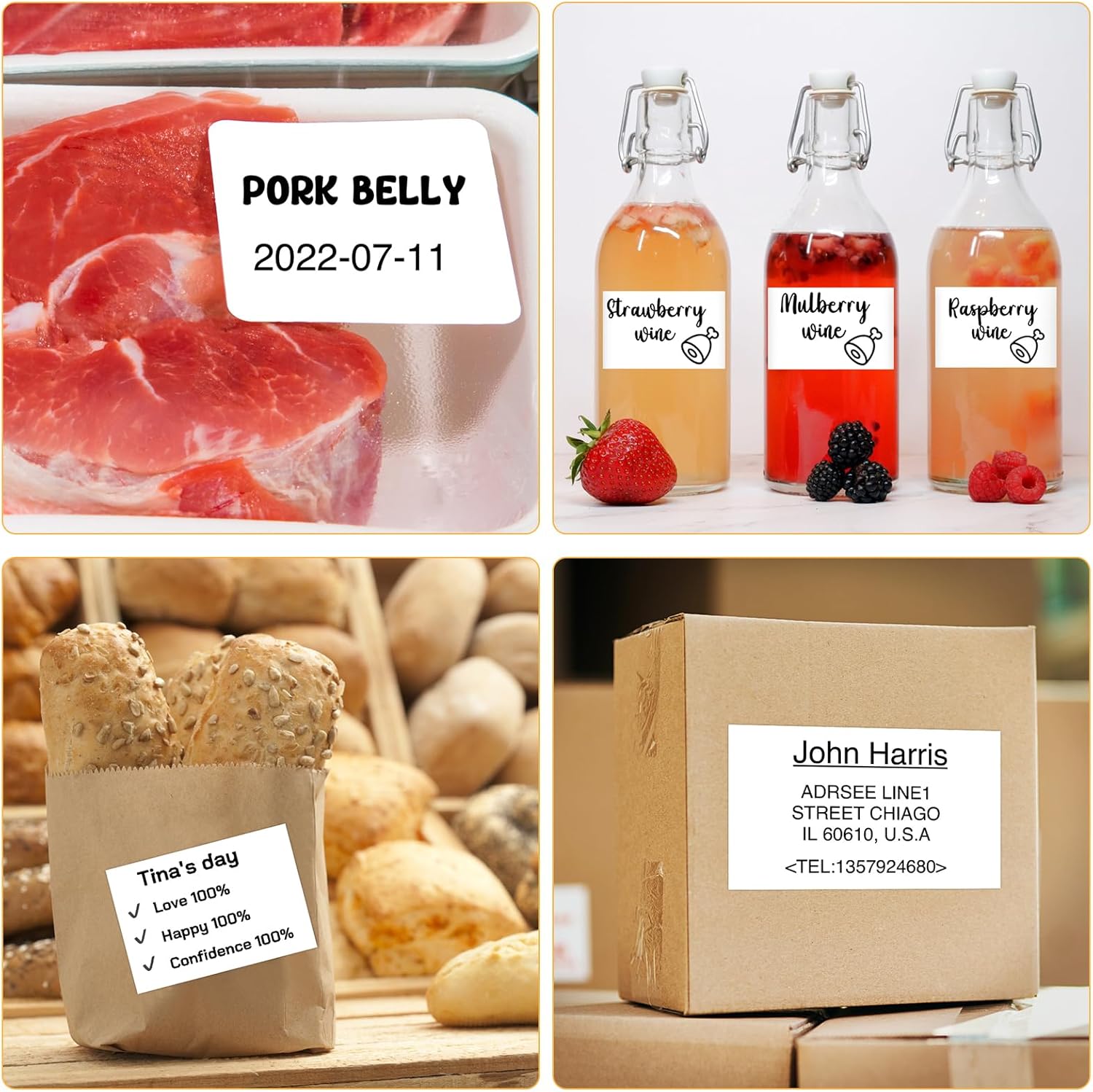
Gambar: Examples of labels for food items (pork belly, beverages) and a shipping address label, showcasing different label content possibilities.
6.2 Pencetakan Berkelompok
The Marklife app supports batch printing for multiple copies of the same label or sequential labels. Refer to the app's specific instructions for detailed steps on batch printing functionality.

Image: The MARKLIFE P50 printer actively printing multiple barcode labels in a batch, demonstrating stable printing over a long duration.
7. Pemeliharaan
- Membersihkan Kepala Cetak: Gunakan kain yang lembut dan tidak berbulu secara tipis dampened with alcohol to gently wipe the print head. Ensure the printer is off and cooled down before cleaning.
- Membersihkan Bagian Luar: Wipe the printer's exterior with a soft, dry cloth. Do not use harsh chemicals.
- Penyimpanan Label: Store label rolls in a cool, dry place away from direct sunlight to preserve their quality.
8. Penyelesaian masalah
| Masalah | Kemungkinan Penyebab | Larutan |
|---|---|---|
| Printer tidak menyala | Masalah baterai atau daya lemah | Charge the printer using the USB-C cable. |
| Tidak dapat terhubung melalui Bluetooth | Bluetooth off, app issue, or printer not discoverable | Ensure Bluetooth is enabled on your device. Restart the printer and the app. Try re-pairing. |
| Kualitas cetak buruk | Dirty print head, incorrect label loading, or low print density setting | Clean the print head. Re-load labels correctly. Adjust print density in the app. |
| Label tidak terumpan dengan benar | Improper label loading or label jam | Open the cover, re-seat the label roll, ensuring it's aligned. Clear any jammed labels. |
9. Spesifikasi
| Fitur | Detil |
|---|---|
| Model | Bagian 50 |
| Teknologi Percetakan | Panas |
| Konektivitas | Bluetooth, USB |
| Perangkat yang Kompatibel | Android, iOS, Windows PC |
| Ukuran Media Maks | 2 inci (57mm) |
| Print Width Range | 0.59" - 2.24" (15 mm - 57 mm) |
| Keluaran Printer | Monokrom (Hitam & Putih) |
| Baterai | Built-in 1200mAh (rechargeable) |
| Port Pengisian Daya | USB Tipe C |
| Dimensi Produk | 4"P x 3"L x 2"T (kurang lebih) |
| Berat Barang | 6 ons (kira-kira) |
10. Garansi dan Dukungan
The MARKLIFE P50 Label Printer comes with a limited warranty. For warranty details, technical support, or customer service inquiries, please refer to the official MARKLIFE webKunjungi situs web mereka atau hubungi layanan pelanggan mereka secara langsung. Simpan struk pembelian Anda sebagai bukti pembelian.
Pabrikan: KEHIDUPAN TANDA


