1. Produk Lebihview
The ProtoArc K100-A is an ultra-slim wireless Bluetooth keyboard specifically designed for Mac devices. It features a full-size layout with a numeric keypad, responsive scissor-switch keys for quiet typing, and adjustable white LED backlighting. This keyboard supports connection to up to three devices simultaneously, allowing for seamless switching between your MacBook, iMac, iPad, or iPhone. Its built-in rechargeable battery ensures long-lasting use.

Image: The ProtoArc K100-A keyboard connected to a MacBook, iPad, and iPhone, showcasing. kemampuannya untuk digunakan di berbagai perangkat.
2. Isi Paket
- ProtoArc K100-A Papan Ketik Bluetooth dengan Lampu Latar
- Kabel Pengisian Daya USB-C
- User Manual (dokumen ini)
3. Memulai
3.1 Mengisi Daya Keyboard
Before first use, fully charge the keyboard. Connect the provided USB-C charging cable to the keyboard's Type-C port and the other end to a USB power source (e.g., computer USB port, USB wall adapter). A full charge takes approximately 4-5 hours. The built-in 1200mAh lithium-ion battery provides a standby time of 3-4 months.

Image: The keyboard's Type-C charging port with the charging cable inserted.
3.2 Daya Hidup/Mati
Locate the power switch on the side or back of the keyboard. Slide it to the "ON" position to power on the keyboard. Slide it to "OFF" when not in use to conserve battery.
4. Koneksi Bluetooth
The ProtoArc K100-A keyboard supports connection to three different devices via Bluetooth. Follow these steps to pair your devices:
- Pastikan keyboard dihidupkan.
- Press and hold one of the Bluetooth channel keys (BT1, BT2, atau BT3) selama 3-5 detik hingga lampu indikator yang sesuai berkedip cepat. Ini menandakan keyboard sedang dalam mode berpasangan.
- On your Mac device (MacBook, iMac, iPad, iPhone), go to Pengaturan Sistem (atau Preferensi SistemBahasa Indonesia: Bahasa Indonesia: Bluetooth.
- Nyalakan Bluetooth dan cari perangkat yang tersedia.
- Pilih "ProtoArc K100-Adari daftar perangkat.
- Follow any on-screen prompts to complete the pairing process. The indicator light will stop flashing and remain solid for a few seconds, then turn off, indicating successful pairing.
- Ulangi langkah-langkah ini untuk maksimal dua perangkat tambahan menggunakan tombol saluran Bluetooth lainnya.

Image: The dedicated Bluetooth channel keys (BT1, BT2, BT3) on the keyboard.
4.1 Beralih Antar Perangkat
Untuk beralih antar perangkat yang terhubung, cukup tekan tombol saluran Bluetooth yang sesuai (BT1, BT2, atau BT3) once. The keyboard will connect to the selected device within a few seconds.
5. Petunjuk Pengoperasian
5.1 Kontrol Lampu Latar
The keyboard features soft white LED backlighting with three adjustable brightness levels (low, medium, high). To adjust the backlight brightness, press the backlight key (often indicated by a sun icon or similar) located on the top right of the keyboard. Pressing it repeatedly cycles through the brightness levels and turns the backlight off.

Image: The keyboard with its white adjustable backlight at different brightness levels.
5.2 Tombol Pintasan
The keyboard includes 12 shortcut keys for enhanced productivity on Mac devices. These keys provide quick access to functions such as brightness adjustment, mission control, media playback, volume control, and more. Refer to the key labels for specific functions.

Image: Detail of the keyboard's silent scissor-switch keys, designed for quiet and responsive typing.
6. Pemeliharaan dan Perawatan
- Keep the keyboard clean by wiping it with a soft, dry cloth. Avoid using harsh chemicals or abrasive materials.
- Jangan biarkan keyboard terkena suhu ekstrem, kelembapan, atau sinar matahari langsung.
- Avoid spilling liquids on the keyboard. If a spill occurs, immediately power off the keyboard and allow it to dry completely before use.
- When not in use for extended periods, power off the keyboard to preserve battery life.
- The keyboard automatically enters sleep mode after 30 minutes of inactivity to save power. Press any key to wake it up.
7. Penyelesaian masalah
- Keyboard not connecting/disconnecting frequently:
- Pastikan keyboard terisi penuh.
- Verify Bluetooth is enabled on your device and the keyboard is within range (up to 10 meters).
- Coba pasangkan kembali keyboard dengan perangkat Anda.
- Pastikan tidak ada sinyal nirkabel kuat lainnya yang mengganggu.
- Keys not responding or delayed response:
- Periksa level baterai dan isi daya jika perlu.
- Pastikan keyboard terhubung dengan benar melalui Bluetooth.
- If the keyboard has entered sleep mode, press any key and wait a few seconds for it to reconnect.
- Lampu latar tidak berfungsi:
- Pastikan keyboard dihidupkan.
- Press the backlight key to cycle through brightness levels and turn it on.
- If the battery is very low, the backlight may not function to conserve power. Charge the keyboard.
8. Spesifikasi
| Nomor Model | K100-A |
| Merek | ProtoArc |
| Teknologi Konektivitas | Bahasa Indonesia: Bluetooth |
| Perangkat yang Kompatibel | Mac OS 12.2 or higher (MacBook, MacBook Pro, MacBook Air, iMac, iMac Pro, Mac Pro/Mini, iPad, iPhone) |
| Fitur Khusus | Backlit, Rechargeable, Multi-Device Connection (3 devices) |
| Kapasitas Baterai | 1200mAh Lithium-ion |
| Waktu Pengisian Daya | 4-5 jam |
| Waktu Siaga | 90-120 hari |
| Dimensi Produk | 16.79" P x 4.78" L x 0.57" T |
| Berat Barang | 1.59 pon |
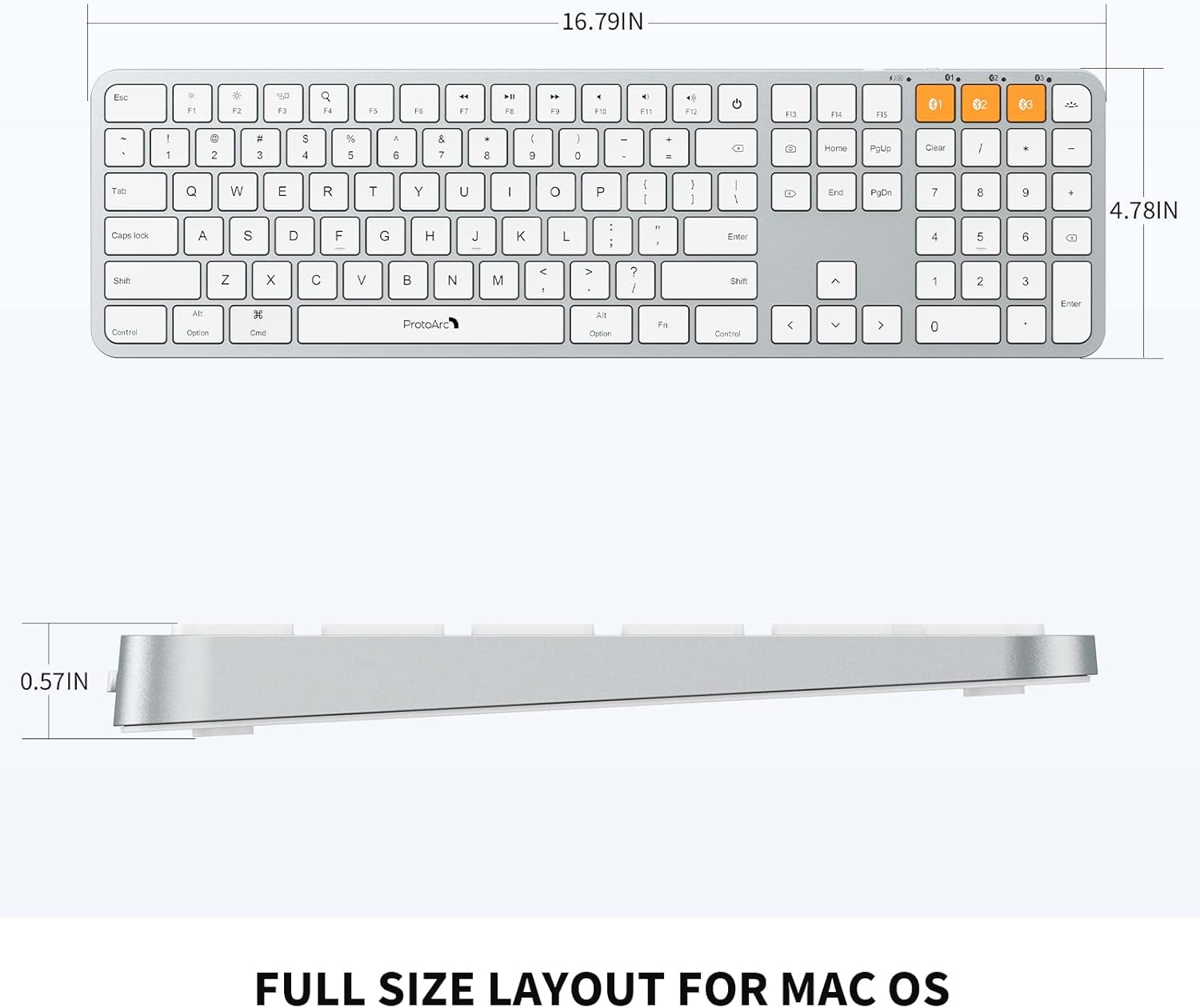
Image: Dimensional diagram of the ProtoArc K100-A keyboard.
9. Garansi dan Dukungan
Untuk informasi garansi dan dukungan teknis, silakan merujuk ke situs resmi ProtoArc. websitus web atau hubungi layanan pelanggan mereka secara langsung. Simpan struk pembelian Anda untuk klaim garansi.


