Produk Selesaiview
The AirTies Air 4930 is a high-performance dual-band concurrent Access Point (AP) designed to extend Wi-Fi coverage and enhance network reliability within your home. It supports MU-MIMO technology and advanced AirTies features to provide high-speed data transmission for real-time video and other demanding applications. This device establishes a coordinated multi-AP Wi-Fi Network, creating a seamless mesh system.
Fitur utama meliputi:
- 2500Mbps (2200Mbps AC + 300Mbps N) dual band concurrent operation.
- Support for MU-MIMO technology for efficient data handling with multiple devices.
- Establishes a multi-AP Wi-Fi Network for extended and reliable coverage.
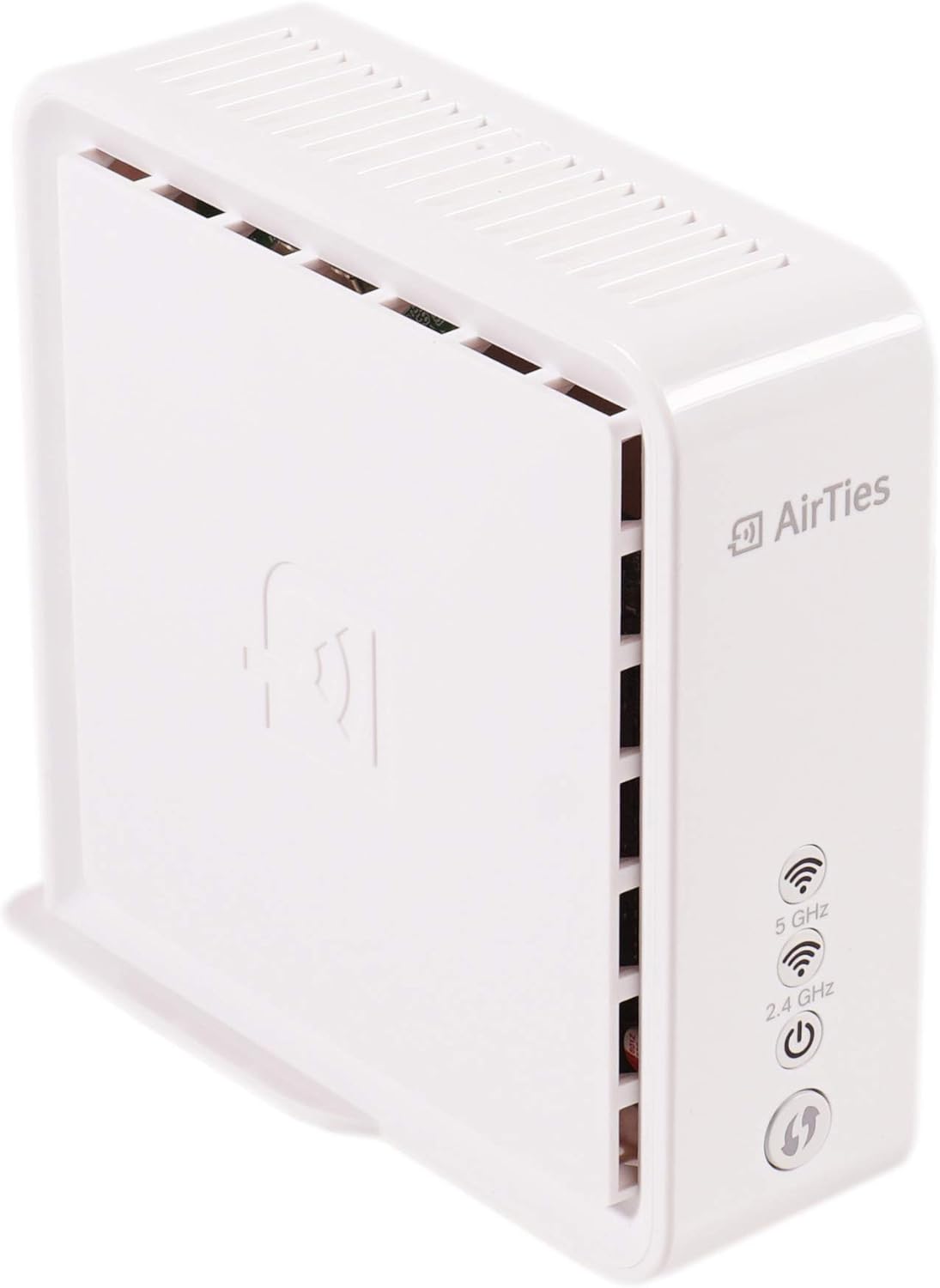
Gambar 1: Depan view of the AirTies Air 4930 Smart Wireless Mesh Extender. The device is white with the AirTies logo on the front and indicators for 5 GHz, 2.4 GHz, and power status.
Physical Components and Indicators
Familiarize yourself with the various ports, buttons, and LED indicators on your AirTies Air 4930 device.

Figure 2: Diagram illustrating the front and rear components of the AirTies Air 4930. On the front, from top to bottom, are the Wireless 5 GHz Status LED, Wireless 2.4 GHz Status LED, Power On/Off Status LED, and WPS Button. On the rear, from top to bottom, are two Gigabit Ethernet Ports, Power On/Off Button, External Power Supply port, and Reset Button.
Indikator LED:
- Wireless 5 GHz Status LED: Menunjukkan status pita Wi-Fi 5 GHz.
- Wireless 2.4 GHz Status LED: Menunjukkan status pita Wi-Fi 2.4 GHz.
- Power On/Off Status LED: Indicates if the device is powered on or off.
Rear Ports and Buttons:
- Gigabit Ethernet Ports (x2): For wired connections to devices or your main router.
- Tombol Daya Hidup/Mati: Untuk menghidupkan atau mematikan perangkat.
- Catu Daya Eksternal: Port untuk menghubungkan adaptor daya.
- Tombol Reset: Digunakan untuk mengembalikan perangkat ke pengaturan default pabrik.
Panduan Pengaturan
Follow these steps to set up your AirTies Air 4930 Smart Wireless Mesh Extender.
- Buka kemasan Perangkat: Carefully remove the AirTies Air 4930 and its power adapter from the packaging.
- Penempatan: Choose a central location in your home, ideally halfway between your main router and the area where you need improved Wi-Fi coverage. Avoid placing it near large metal objects, concrete walls, or other electronic devices that may cause interference.
- Hubungkan Daya: Connect the power adapter to the "External Power Supply" port on the back of the Air 4930, then plug the adapter into a power outlet. The Power On/Off Status LED should illuminate.
- Initial Connection (Optional - for wired setup): If you plan to use a wired backhaul or configure via a wired connection, connect an Ethernet cable from one of the Gigabit Ethernet Ports on the Air 4930 to your main router or a computer.
- Mesh Pairing:
- For existing AirTies Mesh networks: Press the WPS button on your existing AirTies mesh device (e.g., your main AirTies router) for 2-3 seconds.
- Within two minutes, press the WPS button on your new AirTies Air 4930 for 2-3 seconds.
- The LEDs on both devices will flash as they attempt to pair. Once successfully paired, the 5 GHz and 2.4 GHz LEDs on the Air 4930 should turn solid, indicating a strong connection.
- Verifikasi Koneksi: Check the LED indicators on the Air 4930. Solid 5 GHz and 2.4 GHz LEDs indicate a successful connection to your network. If they are blinking or off, refer to the Troubleshooting section.
Petunjuk Pengoperasian
Menghubungkan Perangkat:
- Koneksi Nirkabel: Devices within the extended Wi-Fi range will automatically connect to the strongest signal from your AirTies mesh network. Use your existing Wi-Fi network name (SSID) and password.
- Koneksi Kabel: For devices requiring a stable wired connection (e.g., smart TVs, gaming consoles, desktop computers), connect an Ethernet cable from the device to one of the Gigabit Ethernet Ports on the Air 4930.
LED Status Meanings:
| DIPIMPIN | Status | Arti |
|---|---|---|
| Kekuatan | Hijau Padat | Perangkat dalam keadaan menyala dan beroperasi normal. |
| Kekuatan | Mati | Perangkat dimatikan atau tidak menerima daya. |
| 5 GHz / 2.4 GHz | Hijau Padat | Wi-Fi band is active and connected to the mesh network. |
| 5 GHz / 2.4 GHz | Berkedip Hijau | Attempting to connect or data activity. |
| 5 GHz / 2.4 GHz | Mati | Wi-Fi band is inactive or not connected. |
Pemeliharaan
- Pembersihan: Use a soft, dry cloth to clean the exterior of the device. Do not use liquid cleaners or aerosol sprays. Ensure the device is unplugged before cleaning.
- Ventilasi: Ensure the ventilation slots on the device are not blocked. Proper airflow is essential to prevent overheating.
- Pembaruan Firmware: AirTies devices often receive automatic firmware updates to improve performance and security. Ensure your main AirTies router is connected to the internet to facilitate these updates for all mesh devices.
- Memulai ulang: If you experience network issues, a simple restart of the Air 4930 (by unplugging and replugging the power adapter, or using the Power On/Off button) can often resolve minor problems.
Penyelesaian Masalah
Masalah Umum dan Solusinya:
- No Power LED / Device Not Turning On:
Larutan: Ensure the power adapter is securely connected to both the device and a working power outlet. Try a different outlet. Verify the power button on the back is in the 'On' position.
- 5 GHz / 2.4 GHz LEDs are Off or Blinking Continuously:
Larutan: This indicates a problem with the mesh connection. Ensure the Air 4930 is within range of your main AirTies router or another mesh extender. Try moving the device closer. Re-attempt the WPS pairing process as described in the Setup Guide. If issues persist, try resetting the device.
- Poor Wi-Fi Performance / Slow Speeds:
Larutan: Check the placement of the Air 4930. It should be centrally located and not obstructed. Ensure there are no sources of interference nearby (e.g., microwaves, cordless phones). Consider if too many devices are connected to the network. A restart of the Air 4930 and your main router may help.
- Tidak dapat terhubung ke jaringan Wi-Fi:
Larutan: Verify you are using the correct Wi-Fi network name (SSID) and password. Ensure the Air 4930 is successfully connected to your mesh network (solid 5 GHz and 2.4 GHz LEDs). Restart your client device (phone, laptop, etc.).
- Cara Mereset Perangkat:
Larutan: With the device powered on, use a paperclip or a similar pointed object to press and hold the 'Reset' button on the back of the device for approximately 10 seconds. Release the button when the LEDs flash. The device will restart with factory default settings. You will need to re-pair it with your mesh network after a reset.
Spesifikasi
| Fitur | Detil |
|---|---|
| Model | Udara 4930 |
| Merek | Tali Pengikat Udara |
| Kecepatan Transfer Data | Up to 2500 Mbps (2200Mbps AC + 300Mbps N) |
| Antarmuka Perangkat Keras | 802.11ac/b/g/n |
| Protokol Tautan Data | IEEE 802.11n, IEEE 802.11ac |
| Perangkat yang Kompatibel | Laptop, Ponsel Pintar, Tablet |
| Fitur | Dual band concurrent AP, MU-MIMO, Multi-AP Wi-Fi Network |
| Berat Barang | 15 ons |
| Negara Asal | Cina |
| UPC | 657768400681 |
Informasi Garansi
This AirTies Air 4930 device is sold as a "Renewed" product. Warranty terms for renewed products may vary. Please refer to the specific warranty information provided by the seller at the time of purchase or contact the seller directly for details regarding coverage and duration.
Typically, renewed products come with a limited warranty from the seller or a third-party refurbisher. Keep your proof of purchase for any warranty claims.
Dukungan Pelanggan
For technical assistance, troubleshooting beyond this manual, or warranty inquiries, please contact the seller from whom you purchased this "Renewed" AirTies Air 4930 device. Their contact information should be available on your purchase receipt or order details.
For general information about AirTies products, you may visit the official AirTies websitus tersebut, meskipun dukungan khusus untuk unit yang diperbarui biasanya ditangani oleh pengecer.


