1. Pendahuluan
This manual provides essential instructions for setting up, operating, maintaining, and troubleshooting your Google Pixel 7 Pro GE2AE smartphone. Please read this guide thoroughly to ensure proper use and to maximize your device's capabilities.

Image: Google Pixel 7 Pro smartphone.
2. Apa yang ada di dalam kotak
Upon unboxing your Google Pixel 7 Pro, verify that the following items are included:
- Ponsel pintar Google Pixel 7 Pro
- Adaptor Daya
- Alat Ejektor Baki SIM
- Kabel USB (USB-C ke USB-C)
Note: As a renewed product, accessories may be generic but are fully functional.
3. Pengaturan
3.1. Masukkan Kartu SIM
- Temukan tempat kartu SIM di sisi Pixel 7 Pro Anda.
- Masukkan alat pelepas baki SIM ke dalam lubang kecil di samping baki dan tekan dengan kuat hingga baki keluar.
- Masukkan kartu nano-SIM Anda ke dalam baki dengan kontak emas menghadap ke bawah.
- Masukkan kembali baki SIM ke dalam telepon dengan hati-hati.
3.2. Menghidupkan dan Pengaturan Awal
- Press and hold the Power button (located on the right side) until the Google logo appears.
- Ikuti petunjuk di layar untuk memilih bahasa Anda, terhubung ke jaringan Wi-Fi, dan menyetujui syarat dan ketentuan.
- Masuk dengan Akun Google Anda atau buat yang baru. Ini penting untuk mengakses layanan Google dan Play Store.
- Transfer data from an old device (optional) or set up as a new device.
- Set up security features such as fingerprint unlock or face unlock.
4. Mengoperasikan Perangkat Anda
4.1. Navigasi Dasar
- Layar Beranda: Geser ke atas dari bawah untuk mengakses laci aplikasi. Geser ke kiri atau kanan untuk bernavigasi antar layar beranda.
- Notifikasi & Pengaturan Cepat: Geser ke bawah dari atas layar untuk view notifikasi dan akses pengaturan cepat.
- Melakukan banyak tugas sekaligus: Geser ke atas dari bawah dan tahan untuk view Aplikasi terbaru. Geser ke kiri atau kanan untuk beralih di antara aplikasi, atau geser ke atas pada aplikasi untuk menutupnya.
- Gerakan Punggung: Swipe inward from the left or right edge of the screen to go back.
4.2. Fitur Kamera
The Pixel 7 Pro features an advanced camera system with a telephoto lens and various modes:
- Fokus Makro: Automatically engages when you get close to a subject, allowing for detailed close-up shots.
- Efek Buram Sinematik: Adds a shallow depth of field effect to videos, blurring the background for a professional look.
- Penglihatan Malam: Meningkatkan kualitas foto yang diambil dalam kondisi cahaya rendah.
- Hilangkan Buram Foto: Improves blurry photos using Google Tensor G2 processing.
4.3. Manajemen Baterai
The Pixel 7 Pro is equipped with a 5000 mAh battery. To optimize battery life:
- Aktifkan Baterai Adaptif di Pengaturan > Baterai.
- Kurangi kecerahan layar atau aktifkan Kecerahan Adaptif.
- Limit background app activity for less frequently used applications.
- Use Battery Saver mode when battery is low.
5. Pemeliharaan
5.1. Membersihkan Perangkat Anda
- Gunakan kain lembut dan tidak berbulu untuk membersihkan layar dan badan.
- Hindari bahan abrasif atau bahan kimia keras.
- Untuk noda membandel, sedikit dampen kain dengan air.
5.2. Pembaruan Perangkat Lunak
Periksa dan instal pembaruan perangkat lunak secara berkala untuk memastikan perangkat Anda memiliki fitur terbaru, tambalan keamanan, dan peningkatan kinerja. Buka Pengaturan > Sistem > Pembaruan sistem.
5.3. Perawatan Baterai
Untuk memperpanjang masa pakai baterai, hindari suhu ekstrem dan jangan biarkan perangkat terisi penuh atau kosong sepenuhnya dalam waktu yang lama.
6. Penyelesaian masalah
6.1. Masalah Umum
- Perangkat Tidak Merespons: Tekan dan tahan tombol Daya selama sekitar 30 detik untuk memaksa memulai ulang.
- Connectivity Problems (Wi-Fi/5G): Try toggling Wi-Fi or cellular data off and on. Restart your device. For Wi-Fi, forget the network and reconnect.
- Aplikasi mogok: Bersihkan cache dan data aplikasi di Pengaturan > Aplikasi. Jika masalah berlanjut, copot pemasangan dan pasang kembali aplikasi.
- Baterai Terkuras dengan Cepat: Review battery usage in Settings > Battery to identify apps consuming excessive power. Adjust settings as needed.
6.2. Reset Pabrik
Jika Anda mengalami masalah yang terus berlanjut, pengaturan ulang pabrik mungkin dapat menyelesaikannya. Peringatan: This will erase all data on your device. Back up important information before proceeding. Go to Settings > System > Reset options > Erase all data (factory reset).
7. Spesifikasi
| Fitur | Detil |
|---|---|
| Nama Model | Google Pixel 7 Pro |
| Sistem Operasi | Bahasa Indonesia: Android |
| Ukuran Layar | 6.7 inci |
| Resolusi | Ukuran 3120x1440 |
| Tingkat Penyegaran | 120Hz |
| RAM | 8 GB |
| Penyimpanan Internal | 128 GB |
| Teknologi Seluler | 5G |
| Operator Nirkabel | T-Mobile (Terkunci) |
| Peringkat Daya Baterai | 5000 Miliamp Jam |
| Waktu Bicara Telepon | 31 Jam |
| Teknologi Konektivitas | Wi-Fi, GPS |
| Fitur Kamera Lainnya | Front, Rear (with Telephoto lens, Macro Focus, Cinematic Blur) |
| Soket Audio | Tidak ada jack headphone |
| Faktor Bentuk | Telepon pintar |
| Warna | Batu Obsidian |
8. Product Condition (Renewed)
This Google Pixel 7 Pro is an Amazon Renewed product. All Amazon Renewed products are fully functional and come with generic or original accessories and packaging. The condition of renewed products is categorized as follows:
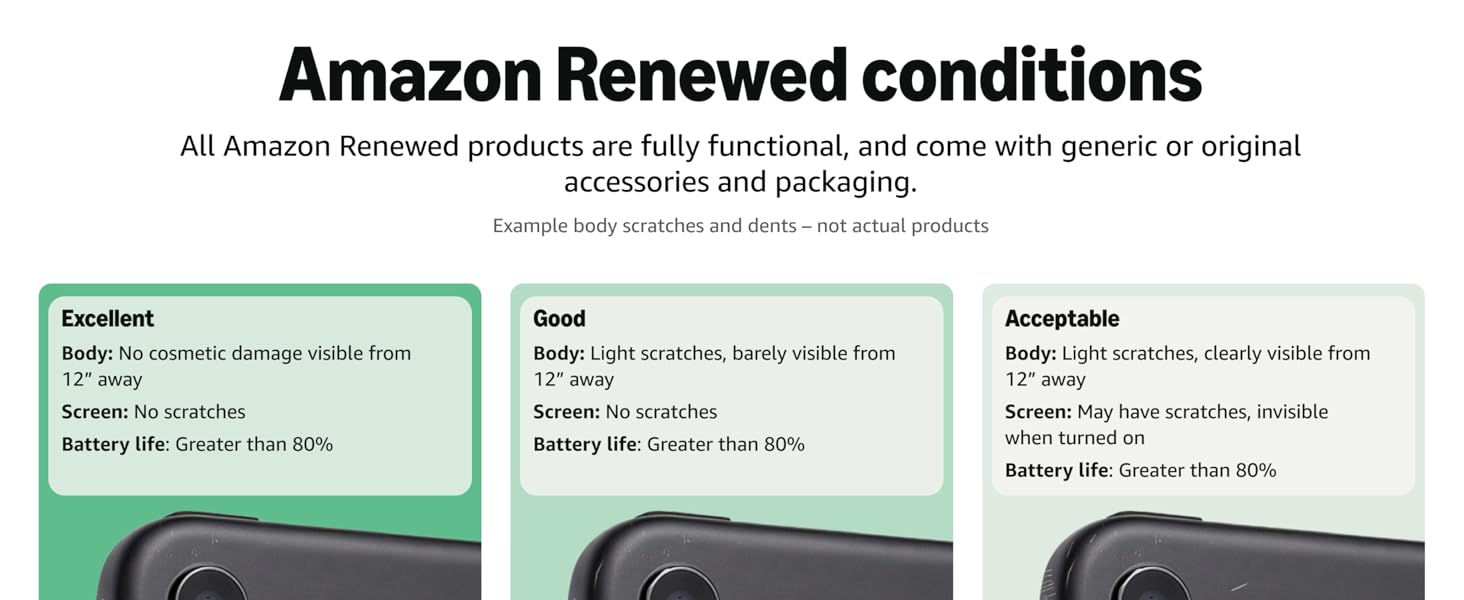
Image: Amazon Renewed conditions for electronic devices.
- Luar biasa: No cosmetic damage visible from 12 inches away. Screen has no scratches. Battery life is greater than 80%.
- Bagus: Light scratches, barely visible from 12 inches away. Screen has no scratches. Battery life is greater than 80%.
- Dapat diterima: Light scratches, clearly visible from 12 inches away. Screen may have scratches, invisible when turned on. Battery life is greater than 80%.
9. Garansi dan Dukungan
For information regarding warranty coverage for your renewed Google Pixel 7 Pro, please refer to the documentation provided at the time of purchase or contact the seller directly. For technical support and further assistance with your Google Pixel device, visit the official Google Support weblokasi.


