Perkenalan
This manual provides essential instructions for setting up, operating, maintaining, and troubleshooting your new Tesla 65-inch 4K UHD Smart TV (Model 65E635SUS). Please read this manual thoroughly before using the television to ensure proper operation and to maximize your viewpengalaman. Simpan manual ini untuk referensi di masa mendatang.
Informasi Keselamatan Penting: Selalu ikuti tindakan pencegahan keselamatan dasar saat menggunakan produk ini untuk mengurangi risiko kebakaran, sengatan listrik, dan cedera. Jangan mencoba memperbaiki produk ini sendiri. Serahkan semua perbaikan kepada personel servis yang berkualifikasi.
1. Pengaturan
1.1 Membuka Kemasan dan Memeriksa Isi
Keluarkan TV dari kemasannya dengan hati-hati. Pastikan semua komponen ada:
- Tesla 65-inch 4K UHD Smart TV
- Kontrol Jarak Jauh
- Baterai AAA untuk Kontrol Jarak Jauh
- Meja TV (2 buah)
- Sekrup untuk Dudukan TV
- Kabel Listrik
- User Manual (dokumen ini)

Gambar 1.1: Depan view of the Tesla 65-inch Smart TV with its stand.
1.2 Memasang Dudukan TV
- Letakkan TV menghadap ke bawah pada permukaan yang lembut dan datar untuk mencegah kerusakan layar.
- Sejajarkan setiap bagian dudukan dengan slot yang sesuai di bagian bawah TV.
- Amankan setiap bagian dudukan dengan sekrup yang tersedia. Pastikan sekrup terpasang dengan kuat.

Gambar 1.2: Belakang view of the TV, illustrating the stand attachment points.
Catatan: If you plan to wall-mount the TV, refer to the wall-mount kit instructions (sold separately) and skip this step. Ensure proper ventilation when wall-mounting.
1.3 Menghubungkan Daya
Sambungkan kabel daya ke input daya TV, lalu ke stopkontak dinding. TV akan masuk ke mode siaga.
1.4 Pengaturan Awal
Saat pertama kali dinyalakan, TV akan memandu Anda melalui proses pengaturan awal:
- Pemilihan Bahasa: Pilih bahasa pilihan Anda.
- Koneksi jaringan: Hubungkan ke jaringan Wi-Fi Anda atau gunakan kabel Ethernet untuk koneksi berkabel.
- Masuk Akun Google: Sign in with your Google account to access Google Play Store, Google Assistant, and other Android TV features.
- Pemindaian Saluran: Lakukan pemindaian untuk saluran TV yang tersedia jika Anda menggunakan antena atau koneksi kabel.
- Pengaturan Privasi: Review dan menyesuaikan pengaturan privasi sesuai keinginan.
2. Petunjuk Pengoperasian
2.1 Kendali Jarak Jauh Berakhirview
The provided remote control allows you to navigate the TV's features. Insert the AAA batteries into the remote control before use.

Image 2.1: Bluetooth remote control for the Tesla Smart TV.
- Tombol Daya: Menghidupkan atau mematikan TV (mode siaga).
- Papan Navigasi (Atas/Bawah/Kiri/Kanan/OK): Menavigasi menu dan memilih item.
- Tombol Kembali: Kembali ke layar sebelumnya.
- Tombol Home: Mengakses layar beranda Android TV.
- Volume Naik/Turun: Menyesuaikan tingkat volume.
- Tombol Bisu: Membisukan atau mengaktifkan suara.
- Tombol Asisten Google: Mengaktifkan kontrol suara.
- Tombol Pintasan Aplikasi: Akses langsung ke layanan streaming populer (misalnya, Netflix, YouTube).
2.2 Android TV 11 Interface Navigation
The Android TV 11 interface provides access to apps, settings, and content. Use the navigation pad on your remote to move through the home screen.
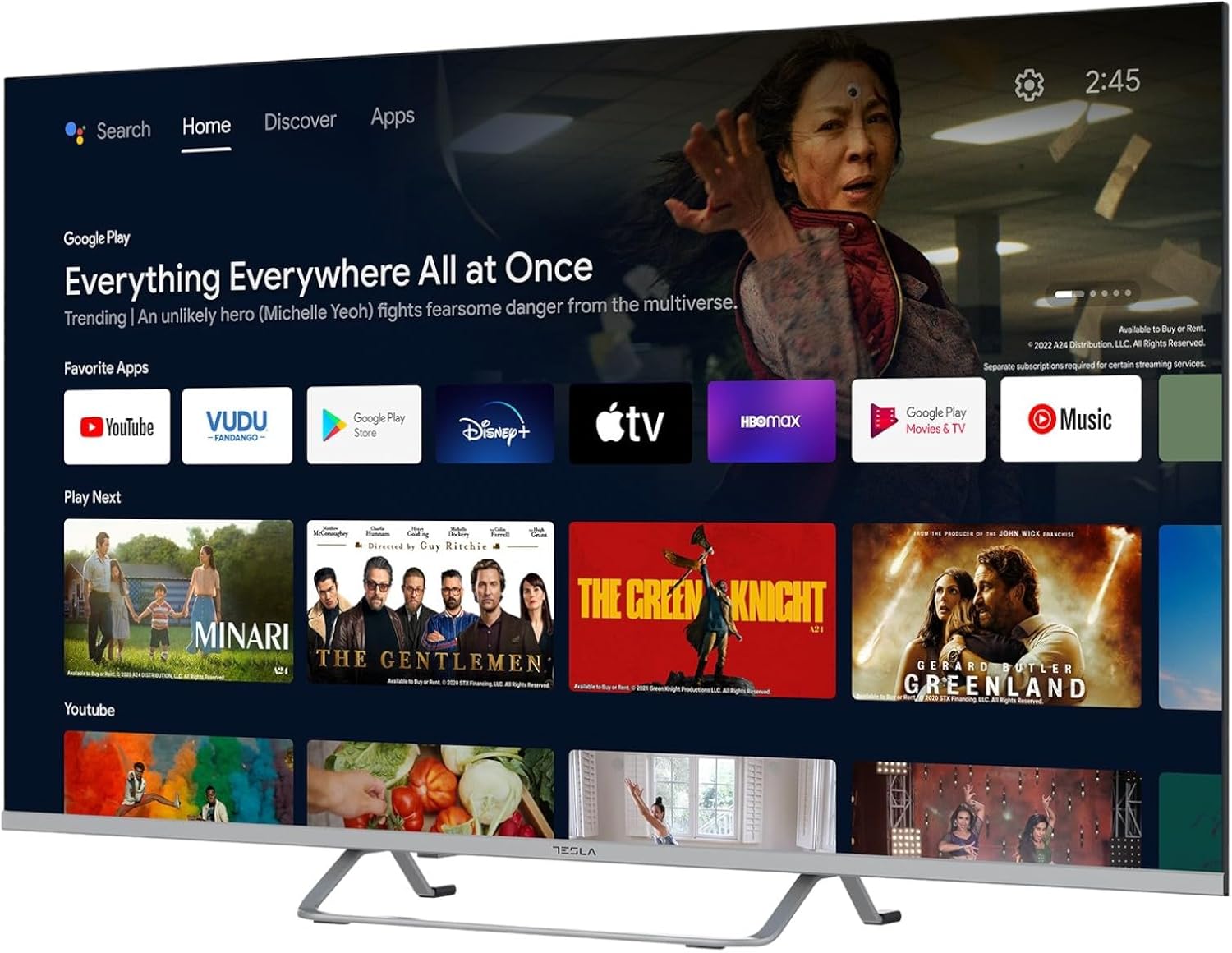
Image 2.2: The Android TV 11 home screen, displaying various applications and content suggestions.
- Layar Beranda: Displays recommended content, installed apps, and input sources.
- Bagian Aplikasi: Akses semua aplikasi yang terpasang.
- Pengaturan: Configure TV settings, network, accounts, and device preferences.
2.3 Menggunakan Google Assistant
Press the Google Assistant button on your remote and speak into the microphone to control your TV, search for content, get information, and more.
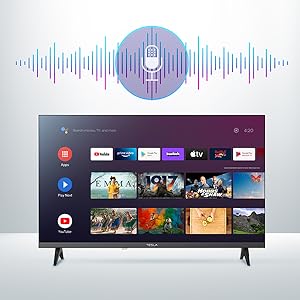
Image 2.3: Visual representation of Google Assistant activation on the TV screen.
Exampdaftar perintah:
- "Buka Netflix"
- "Pencarian untuk film aksi"
- "Bagaimana cuacanya?"
- "Naikkan volume"
2.4 Chromecast Bawaan
Use Chromecast built-in to cast content from your compatible smartphone, tablet, or computer directly to your TV. Ensure your device is connected to the same Wi-Fi network as the TV.

Image 2.4: A smartphone casting content to the TV via Chromecast.
2.5 Menghubungkan Perangkat Eksternal
Your TV offers multiple connectivity options:
- Port HDMI (x4): Hubungkan pemutar Blu-ray, konsol game, set-top box, dll.
- Port USB (x2): Hubungkan drive USB untuk pemutaran media atau keyboard/mouse eksternal.
- Ethernet (LAN): Untuk koneksi internet kabel.
- Wifinya: Untuk koneksi internet nirkabel.
- Bluetooth dapat digunakan untuk berbagai keperluan, seperti: Hubungkan headphone nirkabel, speaker, atau perangkat Bluetooth lainnya.

Gambar 2.5: Sisi profile of the TV, highlighting accessible ports.
2.6 Pengaturan Gambar dan Suara
Access the TV's settings menu to customize picture and sound options.
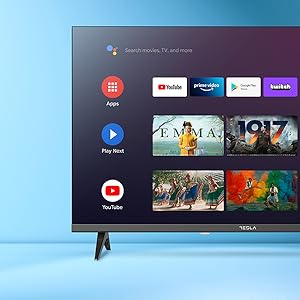
Gambar 2.6: Contohample of the TV's settings menu for customization.
- Mode Gambar: Select from Standard, Vivid, Sport, Movie, Game, or User (custom) modes. Adjust brightness, contrast, color, and sharpness.
- HDR10: The TV supports HDR10 for enhanced contrast and color with compatible content.
- Mode Suara: Choose from Standard, Music, Movie, Sport, or User (custom) modes. Use the equalizer to fine-tune audio frequencies.
- Pembicara: The TV features 2 x 12W speakers.
3. Pemeliharaan
3.1 Membersihkan TV
- Layar: Usap layar secara perlahan dengan kain lembut bebas serat. Untuk noda membandel, usap layar dengan lembut.ampBasahi kain dengan air atau pembersih layar khusus. Jangan pernah menyemprotkan pembersih langsung ke layar.
- Tubuh: Lap bodi TV dengan kain lembut dan kering. Hindari penggunaan pembersih atau pelarut abrasif.
- Selalu cabut TV dari stopkontak sebelum membersihkan.
3.2 Pembaruan Perangkat Lunak
Your Tesla Smart TV may receive software updates to improve performance and add new features. Ensure your TV is connected to the internet to receive these updates automatically or check for them manually in the settings menu.
4. Penyelesaian masalah
Sebelum menghubungi dukungan, coba solusi berikut untuk masalah umum:
| Masalah | Solusi yang mungkin |
|---|---|
| Tidak ada daya | Check if the power cord is securely connected to the TV and the wall outlet. Ensure the outlet is working. |
| Tidak ada gambar, tetapi ada suara | Pastikan sumber input yang benar telah dipilih. Periksa sambungan kabel ke perangkat eksternal. Coba mulai ulang TV. |
| Tidak ada suara, tetapi gambar ada | Periksa level volume dan pastikan TV tidak dalam mode bisu. Verifikasi pengaturan audio dan koneksi speaker eksternal jika ada. |
| Kontrol jarak jauh tidak berfungsi | Ganti baterai. Pastikan tidak ada penghalang antara remote dan TV. Pasangkan ulang remote Bluetooth jika perlu (lihat pengaturan TV). |
| Masalah koneksi jaringan | Restart your router and modem. Check Wi-Fi password. Try a wired Ethernet connection if possible. |
| Aplikasi berjalan lambat atau mengalami kerusakan. | Close unused apps. Clear app cache (Settings > Apps > [App Name] > Clear cache). Restart the TV. |
5. Spesifikasi
| Fitur | Detil |
|---|---|
| Merek | Bahasa Indonesia: TESLA |
| Nomor Model | 65E635SUS |
| Ukuran Layar | 65 Inci (165 cm) |
| Teknologi Tampilan | DIPIMPIN |
| Resolusi | Resolusi 4K (3840x2160) |
| Tingkat Penyegaran | 60Hz |
| Sistem Operasi | TV Android 11 |
| Fitur Khusus | High Dynamic Range (HDR10), Google Play, Chromecast Built-in, Google Assistant, Personalized Surround Sound |
| Konektivitas | Wi-Fi, Bluetooth, Ethernet (LAN) |
| Port HDMI | 4 |
| Port USB | 2 |
| Keluaran Audio | Pembicara 2x12W |
| Dimensi Produk (dengan dudukan) | 25D x 25W x 144.5H cm (approximate) |
6. Garansi dan Dukungan
For warranty information, please refer to the warranty card included with your product or visit the official Tesla websitus. Simpan bukti pembelian Anda untuk klaim garansi.
For technical support or service inquiries, please contact Tesla customer service through their official channels. Contact details can typically be found on the manufacturer's websitus atau dalam kemasan produk.