Perkenalan
The Cisco Headset 721 is a wireless on-ear Bluetooth headset designed for professional use, offering comfort and advanced features for communication and collaboration. This manual provides comprehensive instructions for its setup, operation, and maintenance.
Apa yang ada di dalam kotak
Verifikasi bahwa semua item ada dalam paket:
- Cisco Headset 721 (Single On-Ear Headset)
- Adaptor Bluetooth HD USB-A
- Dudukan Pengisian Daya
- Kabel Pengisian USB-A
- Soft Protective Case
- Ear Cushions (pre-installed or spare)
- Headband (integrated)

Image: The Cisco Headset 721 shown alongside its soft protective case, highlighting its portability.
Pengaturan
1. Mengisi Daya Headset
Before initial use, fully charge the headset. The headset has a battery life of approximately 23 hours of talk time.
- Connect the USB-A charging cable to the charging stand.
- Connect the other end of the USB-A charging cable to a powered USB port (e.g., computer, wall adapter).
- Place the headset onto the charging stand, ensuring proper alignment. The LED indicator on the headset will show charging status.
2. Menghubungkan melalui Bluetooth
The headset can connect wirelessly to two devices simultaneously via Bluetooth.
- Nyalakan: Press and hold the Power button on the headset until the LED indicator flashes.
- Mode Penyandingan: With the headset powered on, press and hold the Bluetooth button until the LED indicator flashes blue and red alternately. This indicates pairing mode.
- Pemasangan Perangkat: On your device (e.g., smartphone, laptop), go to Bluetooth settings and select "Cisco Headset 721" from the list of available devices.
- Konfirmasi: LED pada headset akan menyala biru terang saat berhasil dipasangkan.
3. Connecting with USB-A HD Bluetooth Adapter
For optimal performance and integration with Cisco applications, use the provided USB-A HD Bluetooth Adapter.
- Plug the USB-A HD Bluetooth Adapter into an available USB-A port on your computer.
- The adapter will automatically attempt to pair with your Cisco Headset 721. The LED on the adapter will indicate connection status.
- Ensure your headset is in pairing mode if it does not connect automatically.
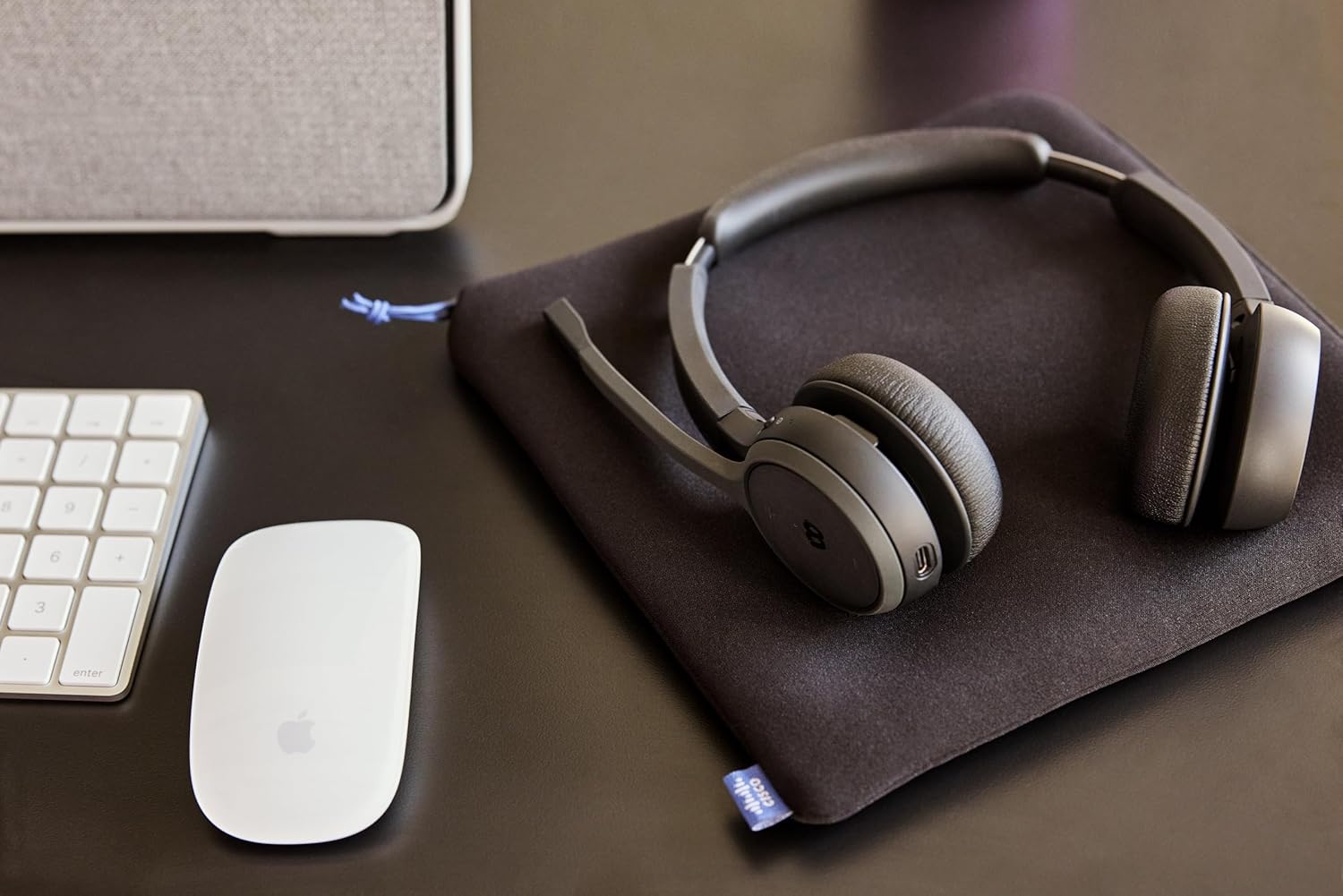
Image: The Cisco Headset 721, USB-A adapter, and charging stand arranged on a desk, illustrating a typical setup.
4. Adjusting the Microphone Boom Arm
The microphone boom arm rotates 276 degrees for optimal placement and features a flip-to-mute function.
- Position the microphone approximately two finger-widths from the corner of your mouth for clear audio.
- To mute the microphone, flip the boom arm upwards. Flip it down to unmute.
Petunjuk Pengoperasian
Kontrol di Telinga
The headset features intuitive on-ear controls for managing calls and media.
- Volume Naik/Turun: Use the dedicated volume buttons to adjust audio levels.
- Menjawab/Mengakhiri Panggilan: Press the Call button once to answer an incoming call or end an active call.
- Bisukan/Aktifkan suara: In addition to the flip-to-mute boom arm, a dedicated mute button may be present for quick toggling.
- Putar/Jeda Media: Press the Call button once to play or pause media playback.
- Trek Berikutnya / Sebelumnya: Use specific media control buttons if available, or double-press/triple-press the Call button (refer to specific model documentation for exact functionality).
Webex Button Integration
Yang berdedikasi Webex button provides seamless integration with Cisco Webex applications.
- Bergabung Webex Pertemuan: Tekan tombol Webex button to quickly join an active or scheduled Webmantan pertemuan.
- Webex Control: The button may also provide quick access to other Webex-specific functions depending on the application version.
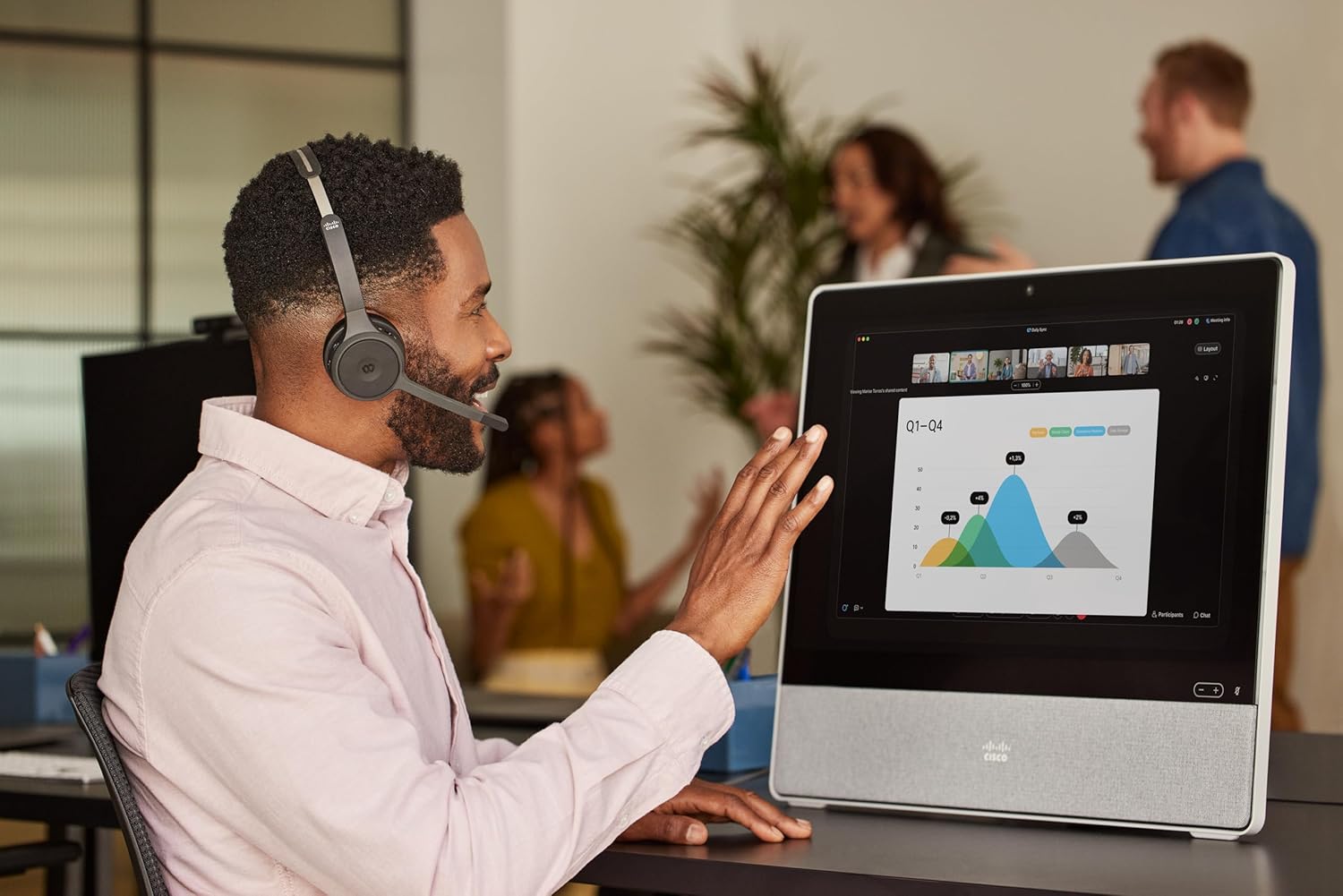
Image: A person wearing the Cisco Headset 721 while engaged in a video conference on a large display, demonstrating its use in a professional setting.
AI Voice-Activated Microphones
The headset features AI voice-activated microphones designed to minimize background noise, ensuring clear communication.
- These microphones automatically focus on your voice and suppress ambient sounds.
- No specific user action is required for this feature; it operates automatically.
Pemasangan Multipoint
The headset supports multipoint pairing, allowing it to be connected to two Bluetooth devices simultaneously.
- Once paired with two devices, the headset can seamlessly switch between them for calls or media.
- Misalnyaample, you can be connected to your laptop for a video conference and your smartphone for incoming calls.
Pemeliharaan
Membersihkan Headset
Regular cleaning helps maintain the headset's hygiene and performance.
- Gunakan kain lembut, kering, dan bebas serat untuk menyeka permukaan headset.
- Untuk bantalan telinga, usap perlahan dengan kain yang sedikit kering.amp cloth (water only) and allow to air dry completely before use.
- Hindari penggunaan bahan kimia keras, pelarut, atau bahan abrasif.
Penyimpanan
When not in use, store the headset properly to protect it from damage.
- Use the provided soft protective case for storage and transport.
- Simpan di tempat sejuk dan kering, jauh dari sinar matahari langsung dan suhu ekstrem.
Penyelesaian Masalah
Masalah Umum dan Solusinya
| Masalah | Larutan |
|---|---|
| Headset tidak menyala. | Ensure the headset is fully charged. Connect it to the charging stand and check the LED indicator. |
| Tidak dapat dipasangkan dengan perangkat. | Ensure the headset is in pairing mode (LED flashing blue/red). Check your device's Bluetooth settings. Try restarting both the headset and the device. |
| Tidak ada audio atau kualitas audionya buruk. | Check the volume levels on both the headset and the connected device. Ensure the headset is selected as the audio output device. Move closer to the connected device to avoid interference. |
| Mikrofon tidak berfungsi. | Ensure the microphone boom arm is flipped down (unmuted). Check microphone settings on your connected device/application (e.g., Webex). |
| Webex button not responding. | Ensure the headset is properly connected to a device running the Webex application. Verify that the Webex application is up to date. |
Spesifikasi
| Fitur | Detil |
|---|---|
| Nomor Model | HS-WL-721-BUNAS-C |
| Teknologi Konektivitas | Nirkabel (Bluetooth) |
| Versi Bluetooth | 4.0 |
| Jangkauan Bluetooth | 10 Meter |
| Penempatan Telinga | Di Telinga |
| Faktor Bentuk | Di Telinga |
| Kontrol Kebisingan | Passive Noise Cancellation, Sound Isolation |
| Daya Tahan Baterai | 23 Jam (Waktu Bicara) |
| Jenis Kontrol | Call Control, Button, App |
| Fitur Khusus | Adjustable Headband, Fast Charging, Lightweight, Multipoint Pairing, Noise Isolation |
| Perangkat yang Kompatibel | Ponsel, Komputer Desktop, Laptop, Tablet |
| Berat Barang | 0.12 Kilogram (4.2 ons) |
| Bahan | Aluminum, Stainless Steel, Leather or Faux Leather, Memory Foam |
| Komponen yang Termasuk | Cable, Charging Station, Ear Cushions, Headband, Protective Case |
Garansi dan Dukungan
The Cisco Headset 721 comes with a Two-Year Limited Liability Warranty, memastikan ketenangan pikiran terkait cacat produksi dan masalah kinerja.
For technical support, warranty claims, or further assistance, please visit the official Cisco support website or contact your Cisco product provider. Ensure you have your product model number (HS-WL-721-BUNAS-C) and proof of purchase available.
Paket Perlindungan Opsional
Additional protection plans may be available for extended coverage:
- Rencana Perlindungan 2 Tahun: Memperpanjang cakupan hingga 24 bulan.
- Rencana Perlindungan 3 Tahun: Memperpanjang cakupan hingga 36 bulan.
- Perlindungan Lengkap: Paket berlangganan bulanan yang mencakup pembelian yang memenuhi syarat di masa lalu dan masa mendatang.
Please refer to the terms and conditions of these plans for full details.


