Perkenalan
This manual provides detailed instructions for the setup, operation, and maintenance of your Prechen 10.1 inch Portable Touchscreen Monitor, Model HD-101. Please read this manual thoroughly before using the device to ensure proper functionality and to prevent damage.
Fitur Produk
- Portable Touchscreen: This 10.1-inch monitor is compact and lightweight, designed for portability. The touchscreen functionality allows for intuitive navigation and interaction, enhancing productivity on the go.
- High-Resolution IPS Display: Features a 1920x1200 resolution with a 16:10 aspect ratio, delivering clear and vibrant visuals. IPS technology provides wide viewing angles and accurate color reproduction, suitable for various applications.
- Konektivitas Serbaguna: Equipped with HDMI and USB-C ports, offering flexible connection options. It can be easily connected to Windows PCs, laptops, and gaming consoles like Xbox. Note: USB-C is for touch functionality and power.
- Speaker Terintegrasi: Built-in speakers provide clear and dynamic audio, eliminating the need for external speakers during media consumption, gaming, or virtual meetings.
- Kompatibel dengan Dudukan VESA: The monitor supports VESA mounting standards, allowing for attachment to compatible stands or arms for customized workspace setups and comfortable viewsudut ing.
Pengaturan
Isi Paket
Verifikasi bahwa semua item ada dalam paket:
- Prechen 10.1 inch Portable Touchscreen Monitor
- Kabel HDMI
- Kabel USB-C ke USB-C
- USB-A to USB-C Cable (for power/touch)
- Adaptor Daya
- User Manual (dokumen ini)
Menghubungkan Monitor
- Sambungan Daya: Connect the provided power adapter to the DC Power Port on the monitor and plug it into a power outlet. Alternatively, if your device supports power delivery, connect a USB-C to USB-C cable to the USB-C (Power & Touch) port for both power and signal.
- Koneksi Video:
- HDMI: Connect one end of the HDMI cable to the HDMI port on the monitor and the other end to the HDMI output of your computer or device.
- USB-C (DisplayPort Alternate Mode): If your device supports DisplayPort Alternate Mode over USB-C, connect a USB-C to USB-C cable to the USB-C (Power & Touch) port on the monitor and your device. This single cable can provide video, power, and touch functionality.
- Fungsi Sentuh: For touch functionality, ensure the USB-C (Power & Touch) port is connected to your device. If using HDMI for video, you will also need to connect a USB-A to USB-C cable from your device's USB-A port to the monitor's USB-C (Power & Touch) port.
- Keluaran Audio: If you wish to use external headphones or speakers, connect them to the 3.5mm Audio Port on the monitor.
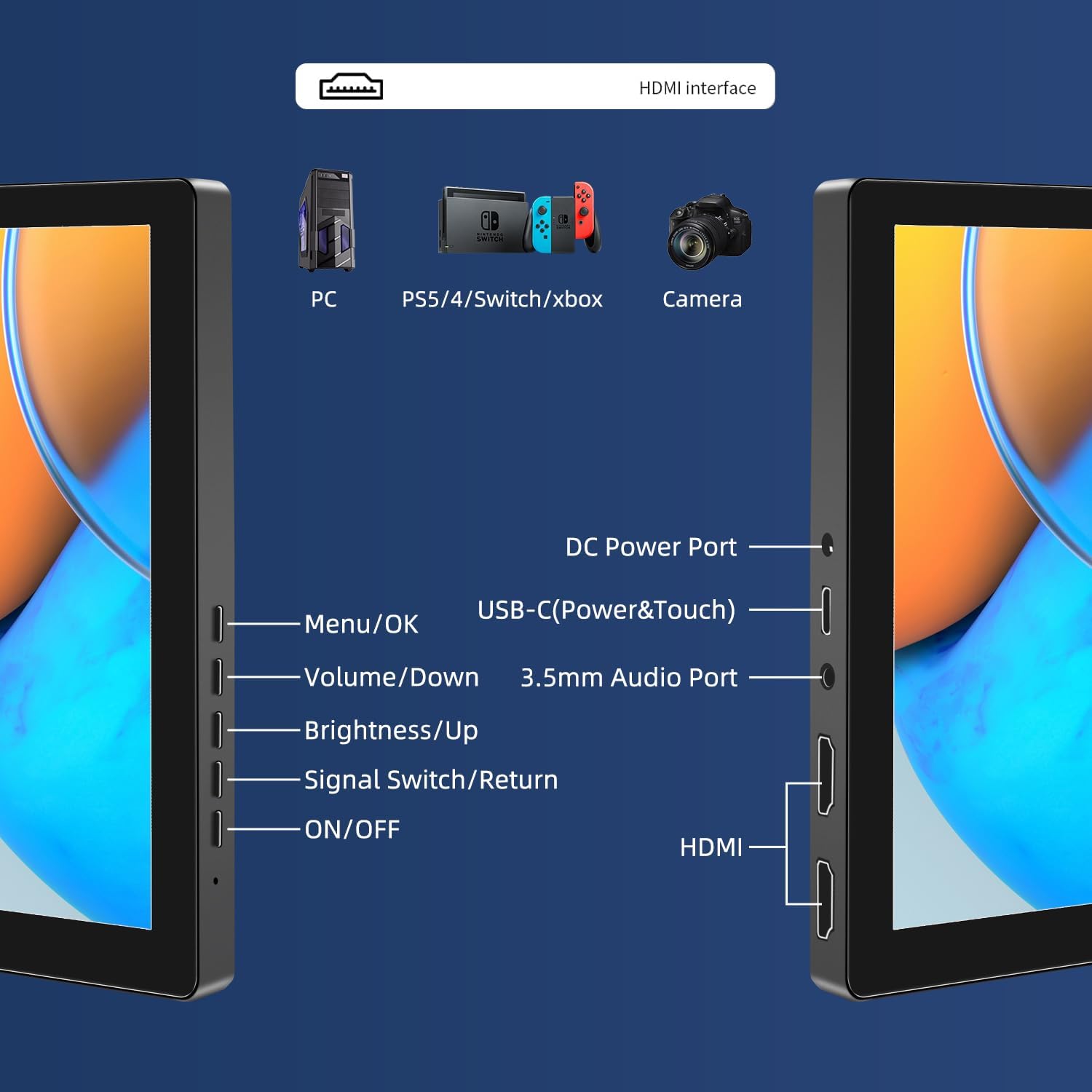
Gambar: Lebih dariview of the monitor's ports including DC Power, USB-C (Power & Touch), 3.5mm Audio, HDMI, and control buttons.
Petunjuk Pengoperasian
Menyalakan/Mematikan
- To power on the monitor, press the AKTIF/NONAKTIF tombol.
- Untuk mematikan, tekan dan tahan AKTIF/NONAKTIF button for a few seconds until the screen turns off.
Menggunakan Menu On-Screen Display (OSD)
Menu OSD memungkinkan Anda untuk menyesuaikan berbagai pengaturan tampilan.
- Tekan tombol Menu/Oke untuk membuka menu OSD.
- Gunakan Volume/Turun Dan Kecerahan/Naik tombol untuk menavigasi melalui pilihan menu.
- Tekan Menu/Oke untuk memilih opsi atau mengonfirmasi pengaturan.
- Tekan tombol Signal Switch/Return Tombol untuk kembali ke menu sebelumnya atau keluar dari OSD.
Menyesuaikan Mode Tampilan
The monitor supports multiple display modes when connected to a computer:
- Modus Duplikat: Displays the same content on both your primary screen and the portable monitor.
- Perpanjang Mode: Memperluas desktop Anda ke kedua layar, memberikan ruang kerja yang lebih luas.
- Mode Layar Kedua: Hanya menggunakan monitor portabel sebagai layar.
These modes are typically configured through your operating system's display settings (e.g., Windows Display Settings, macOS System Preferences).
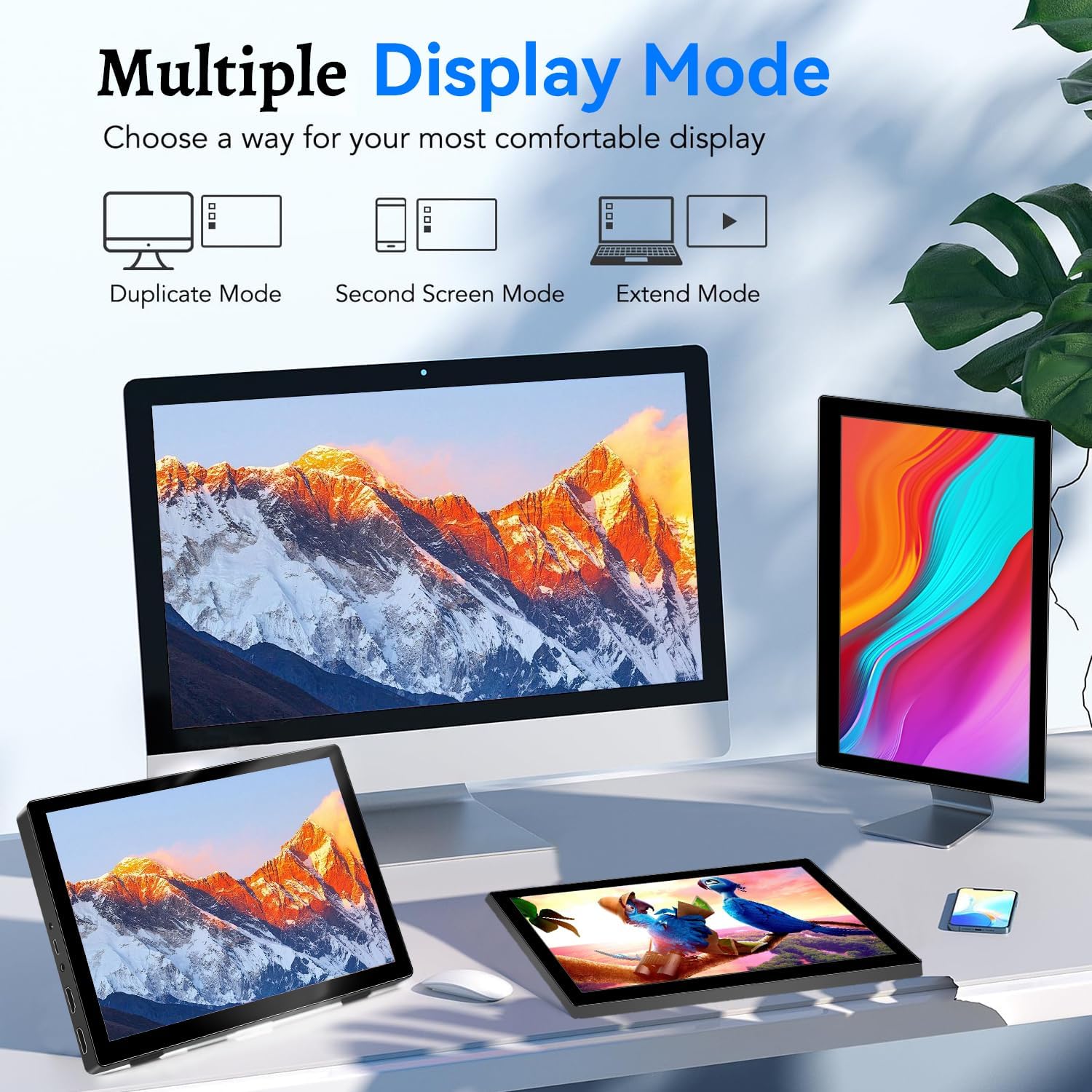
Image: Visual representation of Duplicate, Second Screen, and Extend display modes.
Using Touchscreen Functionality
The monitor supports 10-point touchscreen technology. Ensure the USB-C (Power & Touch) port is correctly connected to your device for touch input to function.

Gambar: Examples of 10-point touchscreen gestures for interaction.
Pemeliharaan
- Membersihkan Layar: Gunakan kain lembut dan bebas serat untuk sedikit membersihkannya.ampBersihkan dengan air atau cairan pembersih layar yang tidak abrasif. Jangan menyemprotkan cairan pembersih langsung ke layar.
- Membersihkan Casing: Bersihkan monitor casinBersihkan dengan kain lembut dan kering. Hindari penggunaan deterjen atau pelarut yang kuat.
- Penyimpanan: Saat tidak digunakan, simpan monitor di tempat yang sejuk dan kering, jauh dari sinar matahari langsung dan suhu ekstrem.
- Penanganan: Avoid dropping or subjecting the monitor to strong impacts. Do not place heavy objects on top of the monitor.
Penyelesaian Masalah
| Masalah | Kemungkinan Penyebab | Larutan |
|---|---|---|
| Tidak ada tampilan/Layar hitam |
|
|
| Layar sentuh tidak merespons |
|
|
| Tidak ada suara dari speaker |
|
|
| Image quality issues (blurry, distorted) |
|
|
Spesifikasi
| Fitur | Detil |
|---|---|
| Merek | Bahasa Inggris |
| Nomor Model | HD-101 |
| Ukuran Layar | 10.1 inci |
| Resolusi | 1920 x 1200 (UXGA Wide) |
| Rasio Aspek | 16:10 |
| Jenis Panel | Bahasa Inggris |
| Tingkat Penyegaran | 60Hz |
| Waktu Respon | 1 md |
| Konektivitas | 1x HDMI, 1x USB-C (Power & Touch), 1x 3.5mm Audio Jack, 1x DC Power Port |
| Dimensi (P x L x T) | Ukuran 21.8x15.8x1.4 cm |
| Berat | 990 gram |
| Pabrikan | Shenzhen Kenowa Electronics Co., LTD |
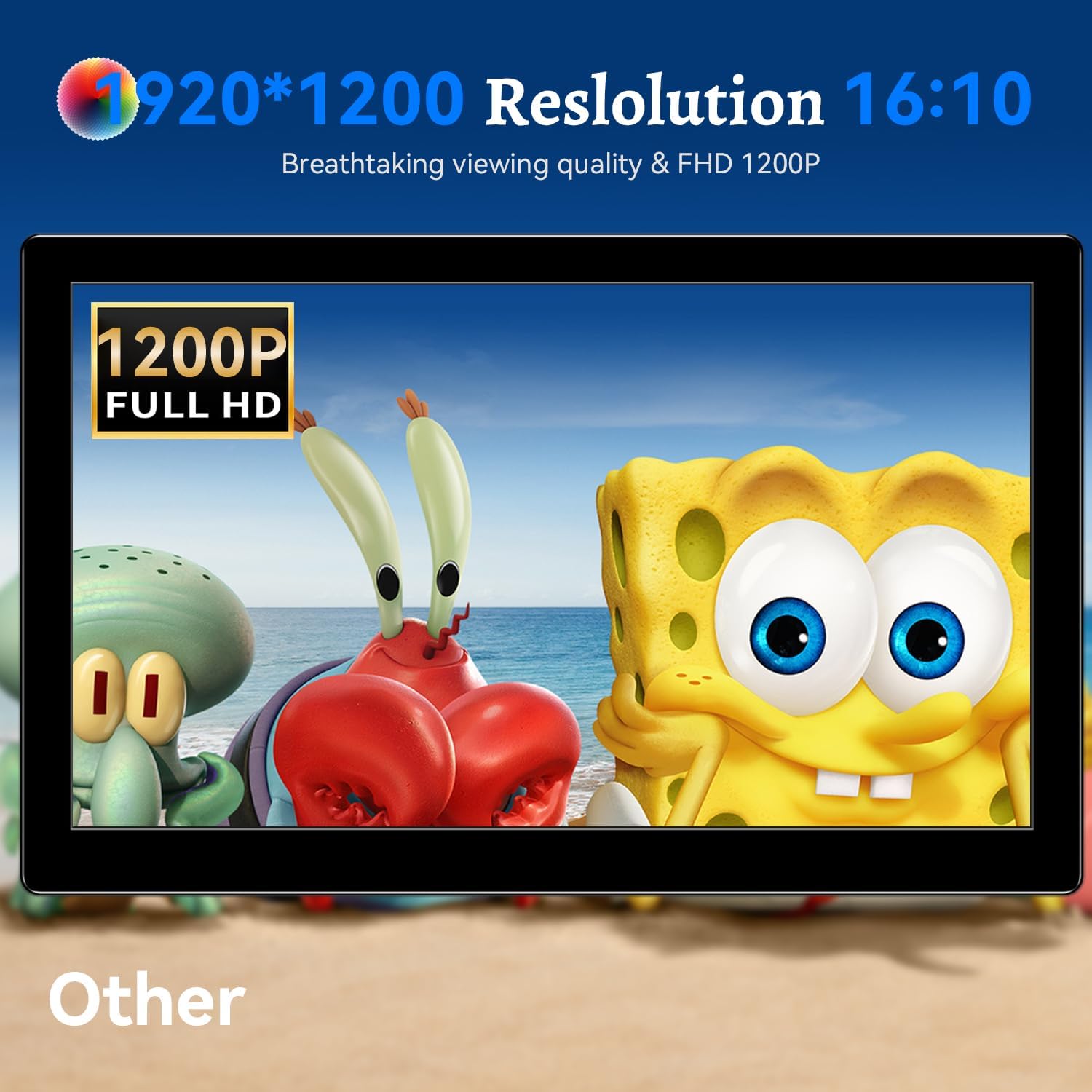
Gambar: Monitor menampilkanasing its 1920x1200 Full HD resolution.

Image: The monitor's IPS panel offering wide viewing angles and rich colors.
Garansi dan Dukungan
For warranty information and technical support, please refer to the warranty card included with your product or contact Prechen customer service through their official website. Please have your model number (HD-101) and purchase details ready when contacting support.


