1. Pendahuluan
This manual provides detailed instructions for the setup, operation, and maintenance of your KTC 32-Inch 2K QHD IPS Monitor, model H32T13. Please read this manual thoroughly before using the monitor to ensure proper functionality and to prevent damage.
The KTC H32T13 monitor features a 32-inch IPS panel with 2K QHD (2560x1440) resolution, a 100Hz refresh rate, and support for FreeSync/G-Sync technologies. It is designed for both office productivity and gaming, offering vibrant colors, wide viewing angles, and eye-care features.
2. Apa yang ada di dalam kotak
Verifikasi bahwa semua komponen ada dalam paket:
- KTC 32-Inch 2K QHD IPS Monitor (H32T13)
- Dudukan Monitor (Alas dan Leher)
- Kabel HDMI
- Kabel Listrik
- Adaptor Daya
- Obeng
- User Manual (dokumen ini)

Image: Contents of the KTC H32T13 monitor package.
3. Produk Lebihview
The KTC H32T13 monitor is designed for a superior visual experience. Key features include:
- 32-inch QHD (2560x1440) IPS Panel: Delivers crisp, detailed images with accurate colors and wide viewsudut ing.
- Kecepatan Penyegaran 100Hz: Provides smoother motion for gaming and fast-paced content.
- FreeSync/G-Sync Compatibility: Mengurangi efek screen tearing dan stuttering untuk pengalaman bermain game yang lancar.
- Dukungan HDR: Enhances contrast and color for more realistic visuals.
- Teknologi Perawatan Mata: Features Flicker-Free and Low Blue Light modes to reduce eye strain during prolonged use.
- Konektivitas Serbaguna: Equipped with multiple HDMI 2.0 and DisplayPort 1.4 inputs.
- Desain Ergonomis: Offers tilt adjustment and VESA mount compatibility for flexible positioning.
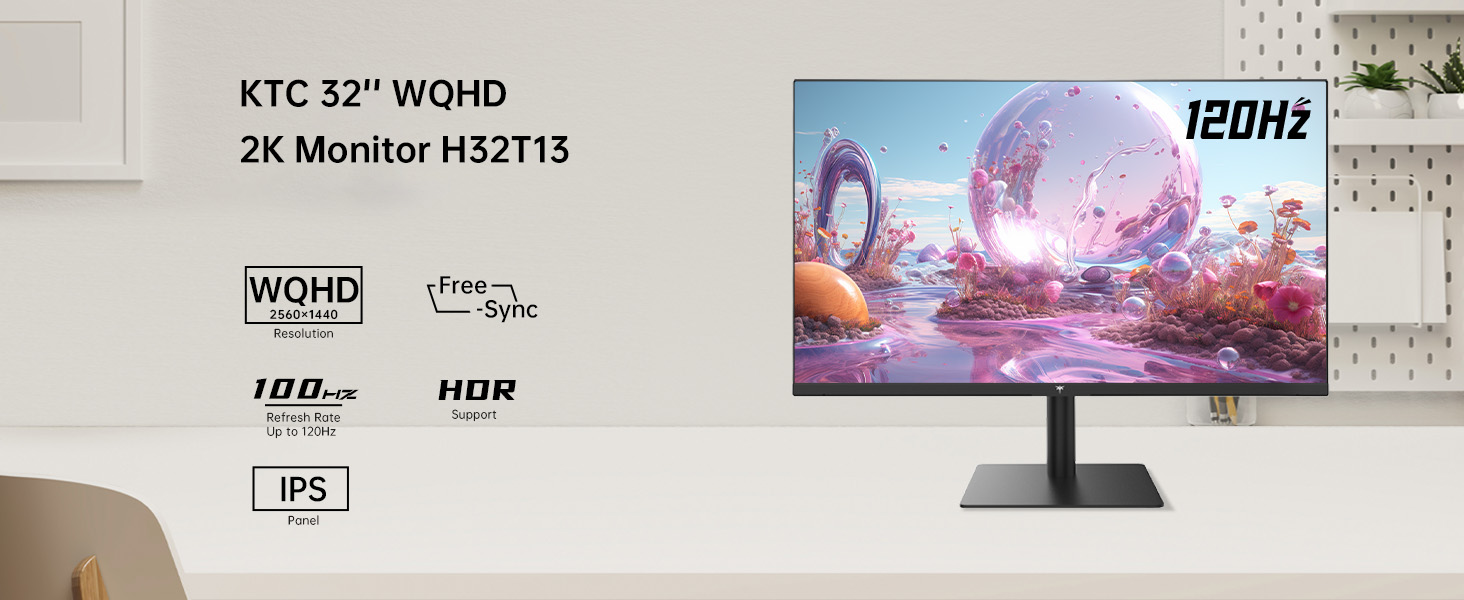
Image: KTC H32T13 monitor showcasing its key display technologies.

Image: The 32-inch screen size of the KTC H32T13 monitor.
4. Pengaturan
4.1 Merakit Stand
- Keluarkan komponen monitor dan dudukan secara hati-hati dari kemasannya.
- Attach the stand neck to the monitor panel using the provided screws and screwdriver.
- Kencangkan alas penyangga ke leher penyangga.
- Letakkan monitor yang sudah dirakit pada permukaan yang stabil dan datar.
4.2 Dudukan VESA (Opsional)
The monitor supports VESA 100mm x 100mm mounting. If you wish to use a VESA-compatible arm or wall mount (not included), remove the stand and attach the VESA mount according to its instructions.

Gambar: Belakang view of the monitor with VESA 100x100mm mounting points.
4.3 Menghubungkan ke Komputer
- Pastikan monitor dan komputer Anda dalam keadaan mati.
- Connect one end of the provided HDMI cable to an HDMI port on your computer's graphics card.
- Connect the other end of the HDMI cable to one of the HDMI 2.0 ports on the monitor. Alternatively, use a DisplayPort cable to connect to a DP 1.4 port for higher refresh rates and FreeSync/G-Sync functionality.
- Connect the power adapter to the monitor's DC input and then plug the power cord into a power outlet.
- Nyalakan komputer Anda, lalu nyalakan monitor.

Image: Monitor connectivity ports (DC, HDMI 1, HDMI 2, DP 1).
5. Petunjuk Pengoperasian
5.1 Daya Hidup/Mati
Tekan tombol daya yang terletak pada monitor untuk menghidupkan atau mematikannya. Lampu indikator daya akan menyala saat monitor aktif.
5.2 Pemilihan Sumber Input
Use the OSD (On-Screen Display) menu buttons to navigate and select your desired input source (HDMI 1, HDMI 2, or DisplayPort).
5.3 Menyesuaikan Pengaturan Tampilan (Menu OSD)
The OSD menu allows you to customize various display settings. Typically, buttons are located on the back or bottom of the monitor. Refer to the quick start guide for specific button functions.
- Kecerahan/Kontras: Sesuaikan kecerahan keseluruhan dan rasio kontras.
- Pengaturan Warna: Modify color temperature, gamma, and individual RGB levels. The monitor supports 1.07 billion colors and 103% sRGB.
- Mode Gambar: Pilih dari mode preset yang dioptimalkan untuk berbagai konten (misalnya, Standar, Game, Film, Teks).
- Kecepatan Penyegaran: The monitor supports up to 100Hz. Ensure your graphics card settings are configured to match.
- FreeSync/G-Sync: Enable this feature in the OSD menu and your graphics card control panel for adaptive synchronization.
- Eye Care Modes: Activate Flicker-Free and Low Blue Light modes to reduce eye strain.
- HDR: Enable HDR for compatible content and devices.

Image: Monitor displaying enhanced colors and brightness with HDR enabled.

Image: Visual comparison of FreeSync/G-Sync enabled and disabled, demonstrating smoother gameplay.

Image: IPS panel advantages in brightness and color over VA panels.
5.4 Penyesuaian Fisik
The monitor stand allows for tilt adjustment from -5° to 15° to optimize your viewsudut.

Image: Monitor tilt adjustment range and eye care features.
Video: Selesaiview of the KTC 2K IPS Office Monitor, highlighting its features and suitability for office use. This video demonstrates the monitor's visual quality and design.
6. Pemeliharaan
6.1 Membersihkan Monitor
- Selalu matikan monitor dan cabut kabel daya sebelum membersihkan.
- Gunakan kain yang lembut dan tidak berbulu secara tipis dampdibersihkan dengan air atau pembersih layar yang lembut dan tidak bersifat abrasif.
- Wipe the screen gently to remove dust and smudges. Avoid applying direct pressure to the screen.
- Jangan gunakan alkohol, pembersih berbahan dasar amonia, atau bahan abrasif, karena dapat merusak permukaan layar.
- Bersihkan monitor casing dengan kain lembut dan kering.
6.2 Penyimpanan
Jika menyimpan monitor untuk jangka waktu yang lama, pastikan monitor dimatikan, dicabut dari stopkontak, dan disimpan di tempat yang sejuk dan kering, terhindar dari sinar matahari langsung dan suhu ekstrem. Gunakan kemasan asli jika tersedia untuk perlindungan terbaik.
7. Penyelesaian masalah
| Masalah | Kemungkinan Penyebab | Larutan |
|---|---|---|
| Tidak ada gambar di layar | Monitor not powered on; Incorrect input source; Loose video cable; Computer in sleep mode. | Ensure power is connected and monitor is on. Select correct input source. Check video cable connections. Wake up computer. |
| Gambarnya buram atau terdistorsi | Incorrect resolution; Faulty video cable; Graphics driver issues. | Set display resolution to 2560x1440. Try a different video cable. Update graphics drivers. |
| Layar berkedip atau robek | Refresh rate mismatch; FreeSync/G-Sync not enabled or incompatible. | Ensure refresh rate is set to 100Hz. Enable FreeSync/G-Sync in monitor OSD and graphics card settings. Use DisplayPort for FreeSync/G-Sync. |
| Tidak ada suara dari headphone | Headphones not connected properly; Audio output not set to monitor. | Check headphone connection. Set monitor as default audio output in your computer's sound settings. |
| Tombol tidak merespons | Penguncian OSD diaktifkan; Gangguan perangkat lunak sementara. | Check if OSD lock is active (refer to quick start guide). Power cycle the monitor. |
8. Spesifikasi
| Fitur | Detil |
|---|---|
| Nomor Model | H32T13 |
| Ukuran Layar | 32 inci |
| Jenis Panel | Bahasa Inggris |
| Resolusi | 2560 x 1440 (QHD Wide 1440p) |
| Rasio Aspek | 16:9 |
| Tingkat Penyegaran | frekuensi 100Hz |
| Kecerahan | 350 Candela (typ.) |
| Gamut Warna | Warna RGB 103% |
| Kedalaman Warna | 1.07 Miliar Warna |
| Dukungan HDR | Ya |
| Sinkronisasi Adaptif | FreeSync/G-Sync Compatible |
| Konektivitas | 2x HDMI 2.0, 1x DisplayPort 1.4 |
| Penyesuaian Kemiringan | -5° hingga 15° |
| Dudukan VESA | Ukuran 100 x 100 mm |
| Fitur Perawatan Mata | Flicker-Free, Eye Protection Mode (Low Blue Light) |
| Dimensi Produk | 5.31x32.48x21.2 inci |
| Berat Barang | 18.81 pon |
9. Garansi dan Dukungan
9.1 Informasi Garansi
KTC products are covered by a limited warranty. Please refer to the warranty card included in your product packaging or visit the official KTC webSitus ini untuk syarat dan ketentuan garansi yang terperinci. Simpan bukti pembelian Anda untuk klaim garansi.
9.2 Dukungan Pelanggan
For technical assistance, troubleshooting not covered in this manual, or warranty inquiries, please contact KTC customer support through the following channels:
- Dukungan online: Visit the KTC official website for FAQs, driver downloads, and support contact forms.
- Dukungan Email: Refer to your warranty card or the KTC webKunjungi situs ini untuk mendapatkan alamat email dukungan yang sesuai.
- Dukungan Amazon: If purchased via Amazon, you can contact the seller directly through your Amazon order history for assistance.
Image: Steps to contact KTC customer support via Amazon.


