Perkenalan
Thank you for choosing the Digihome SMART 4K LED TV. This manual provides essential information for setting up, operating, and maintaining your new television. Featuring a 55-inch 4K Ultra HD display with HDR technology, built-in SMART apps, and Freeview Play, your TV offers a comprehensive entertainment experience. Please read this manual thoroughly before using your TV to ensure proper operation and safety.
1. Pengaturan
1.1 Membongkar
Carefully remove the TV and all accessories from the packaging. Retain the packaging for future transport or if servicing is required. Ensure all components listed below are present:
- Digihome 55" 4K LED TV
- Kontrol Jarak Jauh
- Kabel listrik
- TV Stand Components (if not pre-assembled)
- User Manual (dokumen ini)
1.2 Perakitan Dudukan (Opsional)
If your TV requires stand assembly, follow these steps:
- Letakkan TV menghadap ke bawah pada permukaan yang lembut dan datar untuk mencegah kerusakan layar.
- Sejajarkan komponen dudukan dengan lubang pemasangan di bagian bawah TV.
- Kencangkan dudukan menggunakan sekrup yang tersedia. Jangan terlalu kencang.
Alternatively, the TV can be wall-mounted using a compatible VESA wall mount (sold separately). Refer to the wall mount's instructions for installation.
1.3 Menghubungkan Daya
Plug the power cable firmly into the TV's power input, then plug the other end into a suitable wall socket. The TV will enter standby mode.
1.4 Menghubungkan Perangkat Eksternal
Your Digihome TV offers multiple connectivity options:
- HDMI: For connecting Blu-ray players, game consoles, set-top boxes, etc. Your TV supports multiple HDMI inputs.
- Antenna/Aerial: Connect a terrestrial antenna cable for Freeview saluran.
- Kabel USB: Untuk menghubungkan perangkat penyimpanan USB untuk memutar media.
- Ethernet (LAN): Untuk koneksi internet kabel.
- Keluaran Audio Optik: For connecting to a soundbar or home cinema system.
Ensure all cables are securely connected before powering on the TV.
1.5 Panduan Pengaturan Awal
Saat pertama kali dinyalakan, TV akan memandu Anda melalui panduan pengaturan awal:
- Pemilihan Bahasa: Pilih bahasa pilihan Anda.
- Wilayah/Negara: Select your region for correct channel tuning.
- Pengaturan jaringan: Connect to your Wi-Fi network or use a wired Ethernet connection. This is essential for Smart TV features and Freeview Bermain.
- Pemindaian Saluran: The TV will automatically scan for available Freeview channels. This may take several minutes.
- Syarat & Ketentuan: Accept the terms and conditions to proceed with Smart TV features.
2. Mengoperasikan TV Anda
2.1 Kendali Jarak Jauh Berakhirview
The included remote control allows full navigation and control of your Digihome TV. Familiarize yourself with the button layout for easy operation.
2.2 Fungsi Dasar
- Kekuatan: Press the power button on the remote to turn the TV on or off (standby mode).
- Volume: Gunakan VOL +/- tombol untuk mengatur volume.
- Saluran: Gunakan CH +/- tombol untuk mengubah saluran.
- Bisu: Tekan tombol BISU untuk menonaktifkan audio sementara.
- Sumber/Masukan: Tekan tombol SUMBER button to select input sources (HDMI 1, HDMI 2, TV, etc.).
2.3 Smart TV Features and Freeview Bermain
Your Digihome TV comes equipped with a range of Smart TV applications and Freeview Play functionality. To access these features, ensure your TV is connected to the internet.
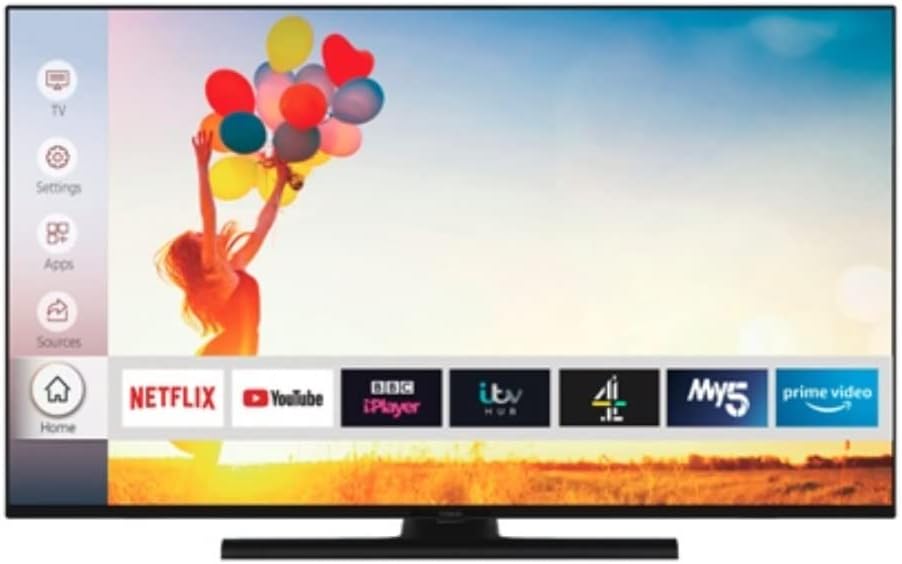
Image: The Digihome Smart TV home screen, displaying a user-friendly interface with quick access to popular streaming applications such as Netflix, YouTube, BBC iPlayer, ITV Hub, My5, and Prime Video. A navigation menu is visible on the left side, including options for TV, Settings, Apps, and Sources.
- Mengakses Aplikasi: Tekan tombol RUMAH or CERDAS button on your remote to open the Smart TV portal. Here you can find pre-installed apps like Netflix, YouTube, BBC iPlayer, ITV Hub, My5, and Prime Video.
- Bebasview Bermain: Bebasview Play combines live TV with catch-up services from BBC iPlayer, ITV Hub, All 4, My5, and UKTV Play. You can scroll back through the TV guide to watch programmes you've missed.
- Menjelajah internet: A web browser may be available for general internet surfing.
2.4 Menu Pengaturan
Tekan tombol MENU or PENGATURAN button on your remote to access the TV's settings. Here you can adjust:
- Pengaturan Gambar: Brightness, Contrast, Colour, Sharpness, Picture Mode (Standard, Dynamic, Movie, etc.), HDR settings.
- Pengaturan Suara: Volume, Sound Mode (Standard, Music, Movie, etc.), Equalizer, Digital Audio Out.
- Pengaturan Saluran: Channel Scan, Channel List, Parental Control.
- Pengaturan Jaringan: Wi-Fi connection, Wired connection, Network status.
- Pengaturan Sistem: Language, Time, Sleep Timer, Software Update, Factory Reset.
3. Pemeliharaan
3.1 Membersihkan TV Anda
Untuk menjaga tampilan dan kinerja TV Anda:
- Layar: Usap layar secara perlahan menggunakan kain lembut, kering, dan bebas serat. Untuk noda membandel, usap layar dengan lembut.ampen the cloth with water or a screen-specific cleaning solution (do not spray directly onto the screen). Avoid using abrasive cleaners or solvents.
- Badan TV: Bersihkan rangka dan dudukan TV dengan kain lembut dan kering.
- Selalu cabut TV dari stopkontak sebelum membersihkan.
3.2 Pembaruan Perangkat Lunak
Your TV may receive software updates to improve performance and add new features. It is recommended to keep your TV connected to the internet to receive these updates automatically. You can also check for updates manually via the System Settings menu.
4. Penyelesaian masalah
Jika Anda mengalami masalah dengan TV Anda, silakan lihat masalah dan solusi umum berikut sebelum menghubungi dukungan.
| Masalah | Kemungkinan Penyebab / Solusi |
|---|---|
| Tidak Ada Daya | Ensure the power cable is securely plugged into the TV and the wall outlet. Check if the wall outlet is working. Try pressing the power button on the TV itself. |
| Tidak Ada Gambar / Tidak Ada Suara | Check the selected input source (e.g., HDMI 1, TV). Ensure external devices are powered on and connected correctly. For TV channels, perform a channel scan. Check volume levels and mute status. |
| Kualitas Gambar Buruk | Check antenna connection for Freeview. For external devices, ensure high-quality cables are used. Adjust picture settings (brightness, contrast, sharpness). |
| Smart Features Not Working / No Internet | Check network cable or Wi-Fi connection. Restart your router/modem. Re-enter Wi-Fi password in TV settings. Ensure network settings are correct. |
| Kendali Jarak Jauh Tidak Merespons | Periksa dan ganti baterai. Pastikan tidak ada penghalang antara remote dan sensor IR TV. |
Jika masalah masih berlanjut setelah mencoba solusi-solusi ini, silakan merujuk ke bagian Dukungan.
5. Spesifikasi
Key technical specifications for the Digihome PTDR55UHDS7 55" 4K LED TV:
| Nama Model | PTDR55UHDS7 |
| Ukuran Layar | 55 inci |
| Teknologi Tampilan | DIPIMPIN |
| Resolusi | Resolusi 4K Ultra HD (3840x2160) |
| Dukungan HDR | Ya |
| Layanan Internet yang Didukung | Bebasview Play, SMART apps (Netflix, YouTube, etc.) |
| Teknologi Konektivitas | HDMI, USB, Ethernet (LAN), Wi-Fi |
| Rasio Aspek | 16:9 |
| Komponen yang Termasuk | Kontrol Jarak Jauh |
| Dimensi Produk (P x L x T) | 124 x 24 x 75 cm (dengan dudukan) |
| Pabrikan | Digihome |
6. Garansi dan Dukungan
This product is sold as a "Renewed" item. For specific warranty information, please refer to the terms and conditions provided by the seller at the time of purchase. Typically, renewed products come with a limited warranty from the seller or a third-party refurbisher.
For technical support, troubleshooting assistance beyond this manual, or warranty claims, please contact the seller or the Amazon Renewed support channel through which you purchased this product. Have your purchase details and the TV's model number (PTDR55UHDS7) ready when contacting support.


