1. Pendahuluan
The Phomemo M950 Label Maker is a versatile, portable thermal label printer designed for both home and office use. It offers dual printing modes: direct input via its integrated keyboard and wireless printing via Bluetooth connection to a mobile application. This device utilizes thermal printing technology, eliminating the need for ink cartridges, and supports various label tape types for diverse labeling needs.
2. Informasi Keselamatan
- Jauhkan perangkat dari air dan kelembapan tinggi untuk mencegah sengatan listrik atau kerusakan.
- Jangan membongkar atau mencoba memperbaiki sendiri perangkat ini. Hubungi dukungan pelanggan untuk bantuan.
- Use only Phomemo-approved label tapes to ensure optimal performance and prevent damage to the print head.
- Jauhkan dari jangkauan anak-anak.
- Hindari memaparkan perangkat ke sinar matahari langsung atau suhu ekstrim.
- Charge the device using a compatible Type-C USB power adapter.
3. Isi Paket
Please check the package contents upon unboxing. If any items are missing or damaged, contact your retailer or Phomemo customer support.
- Pembuat Label Phomemo M950
- 12mm Label Tape Roll (pre-installed or included separately)
- Kabel Pengisi Daya USB Type-C
- User Manual (dokumen ini)
4. Produk Lebihview
Familiarize yourself with the components of your Phomemo M950 Label Maker.

Image: Phomemo M950 Label Maker showing its main features including no ink, one-touch key, keyboard editing, app editing, 203 DPI resolution, backlight support, Type-C recharge, and built-in cutter.
Fitur Utama:
- Masukan Papan Ketik: Integrated QWERTY keyboard for direct label creation.
- Konektivitas Bluetooth: Connects to smartphones for advanced label design via the Phomemo app.
- Pencetakan Termal: No ink required, uses thermal label tapes.
- Layar dengan lampu latar: Memastikan visibilitas dalam kondisi cahaya redup.
- Pemotong Bawaan: For clean and precise label cutting.
- Baterai Isi Ulang: Integrated 1200mAh battery, rechargeable via Type-C port.
5. Pengaturan
5.1. Mengisi Daya Perangkat
Before first use, fully charge the label maker.
- Connect the provided USB Type-C cable to the charging port on the side of the label maker.
- Hubungkan ujung kabel lainnya ke adaptor daya USB yang kompatibel (tidak termasuk) atau port USB komputer.
- Lampu indikator pengisian daya akan menunjukkan status pengisian daya. Setelah terisi penuh, indikator akan berubah atau mati.

Image: Phomemo M950 Label Maker highlighting the Type-C charging port and its compact dimensions.
5.2. Memasang Pita Label
Ensure the device is powered off before loading or replacing tape.
- Open the tape compartment cover located on the top or back of the device.
- Insert the label tape roll with the label side facing up, ensuring it sits securely in the compartment.
- Feed the end of the label tape through the tape guide until it protrudes slightly from the output slot.
- Close the tape compartment cover firmly.
5.3. Menghidupkan/Mematikan
Press and hold the Power button (usually marked with a power symbol) for a few seconds to turn the device on or off.
6. Petunjuk Pengoperasian
The Phomemo M950 offers two primary methods for creating labels.

Image: Phomemo M950 Label Maker illustrating the two usage modes: direct printing from the keyboard and printing via a mobile device using the 'Print Master' app.
6.1. Keyboard Printing
This mode allows you to create labels directly on the device without needing a smartphone.
- Nyalakan: Turn on the label maker. The screen will illuminate.
- Ketik Teks: Use the QWERTY keyboard to type your desired label text. The text will appear on the display.
- Sesuaikan: Use the function keys (e.g., 'Fn', 'Shift', 'Symbol', 'Caps', 'Accent') to access various customization options such as font styles, sizes, symbols, and borders. The device supports multiple languages, borders, and symbols.
- Praview: Use the 'Preview' button to see how your label will look before printing.
- Mencetak: Press the 'Print' button to print the label. The built-in cutter will automatically cut the label after printing.

Image: Phomemo M950 Label Maker showcasing its extensive features including support for 23+ languages, 103+ borders, and 790+ symbols and icons for label customization.
6.2. Bluetooth App Printing
For more advanced design options, connect your label maker to the 'Print Master' mobile app.
- Unduh Aplikasi: Download the 'Print Master' app from your mobile device's app store (App Store for iOS, Google Play for Android).
- Aktifkan Bluetooth: Ensure Bluetooth is enabled on your mobile device and the Phomemo M950.
- Menghubungkan: Open the 'Print Master' app and follow the on-screen instructions to connect to your M950 label maker via Bluetooth.
- Label Desain: Use the app's interface to design your label. The app offers massive templates, additional fonts, borders, and icons.
- Mencetak: Once your design is complete, tap the print icon in the app to send the label to the M950 for printing.

Image: Phomemo M950 Label Maker demonstrating the use of the 'Print Master' app with numerous templates, 270+ borders, 110+ fonts, 1500 icons, and 14+ languages for creative label design.
6.3. Menyesuaikan Kepadatan Cetak
For optimal print quality, especially with ribbon tapes, adjust the print density.
- Press the 'Fn' key, then select 'Pinter Densities' (Printer Densities).
- Choose 'High' for clearer prints, particularly when using ribbon tapes.

Image: Step-by-step guide on how to set the print density to 'High' on the Phomemo M950 Label Maker for clear prints, especially for ribbon tapes.
7. Pemeliharaan
7.1. Membersihkan Kepala Cetak
Regular cleaning ensures consistent print quality.
- Turn off the label maker and open the tape compartment.
- Gently wipe the print head with a soft, lint-free cloth dampdengan isopropil alkohol.
- Biarkan kepala cetak mengering sepenuhnya sebelum menutup kompartemen dan menghidupkan perangkat.
7.2. Tape Storage
Store label tapes in a cool, dry place away from direct sunlight to preserve their quality and adhesive properties.
8. Penyelesaian masalah
If you encounter issues with your Phomemo M950, refer to the following common problems and solutions.
| Masalah | Kemungkinan Penyebab | Larutan |
|---|---|---|
| Tidak ada daya | Baterai lemah; Perangkat mati | Charge the device; Press and hold power button to turn on. |
| Kualitas cetak buruk | Print head dirty; Incorrect print density; Low battery | Clean print head; Adjust print density to 'High'; Charge device. |
| Label not feeding | Tape incorrectly loaded; Tape jammed; Out of tape | Re-load tape correctly; Clear any jams; Replace tape roll. |
| Kegagalan koneksi Bluetooth | Bluetooth off; Device not paired; App issue | Ensure Bluetooth is on for both devices; Re-pair in app; Restart app/device. |
| Pemotong tidak berfungsi | Tape jammed; Cutter mechanism obstructed | Clear any tape jams; Ensure no debris is blocking the cutter. |
9. Spesifikasi
| Fitur | Detil |
|---|---|
| Nama Model | Pesawat M950 |
| Merek | Phomemo |
| Teknologi Percetakan | Panas |
| Teknologi Konektivitas | Bluetooth, Keyboard |
| Keluaran Printer | Satu warna |
| Resolusi Cetak Maksimum | 203dpi |
| Ukuran Media Maks | Ukuran 12mm * 4000mm |
| Perangkat yang Kompatibel | Ponsel Pintar |
| Kekuatan | 10 Watt |
| Jenis Baterai | Litium-ion 1200mAh bawaan |
| Port Pengisian Daya | USB Tipe-C |
| Dimensi Produk | Ukuran 15.2x5.4x11.2 cm |
| Berat Barang | 490 gram |
| Warna | Putih |
| Fitur Khusus | Portable, Backlight Screen, Built-in Cutter |
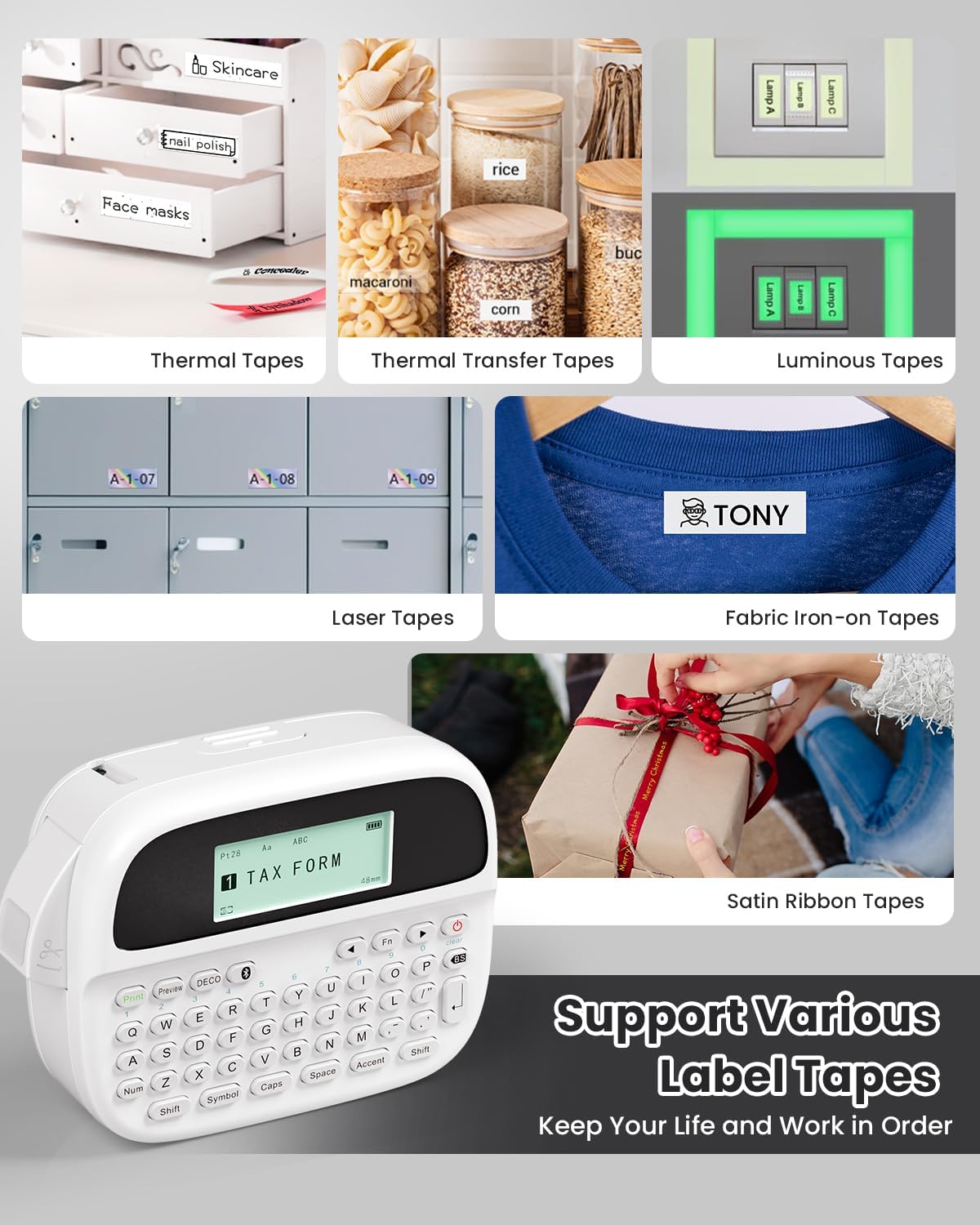
Image: Phomemo M950 Label Maker supporting various label tape types including Thermal, Thermal Transfer, Luminous, Laser, Fabric Iron-on, and Satin Ribbon tapes.

Image: Phomemo M950 Label Maker demonstrating its backlight screen feature, allowing for comfortable use even at night.
10. Garansi dan Dukungan
For warranty information, technical support, or service inquiries, please refer to the official Phomemo websitus atau hubungi layanan pelanggan mereka secara langsung. Simpan tanda terima pembelian Anda sebagai bukti pembelian untuk klaim garansi.
Phomemo Official Weblokasi: Visit Phomemo Store


