1. Pendahuluan
Thank you for choosing the COCOCAM 5MP Indoor Security Camera. This device is designed to provide reliable surveillance for your indoor spaces, offering high-resolution video, advanced motion detection, two-way audio communication, and flexible storage options. This manual will guide you through the installation, operation, and maintenance of your new security camera to ensure optimal performance and peace of mind.
2. Isi Paket
Silakan periksa paket untuk item berikut:
- COCOCAM 5MP Indoor Security Camera (Model: PK323)
- Adaptor Daya
- Kabel USB
- Aksesori Pemasangan (Sekrup, Sumbat Dinding)
- Panduan Pengguna (Dokumen ini)
Gambar: Depan view of the COCOCAM Security Camera retail box.
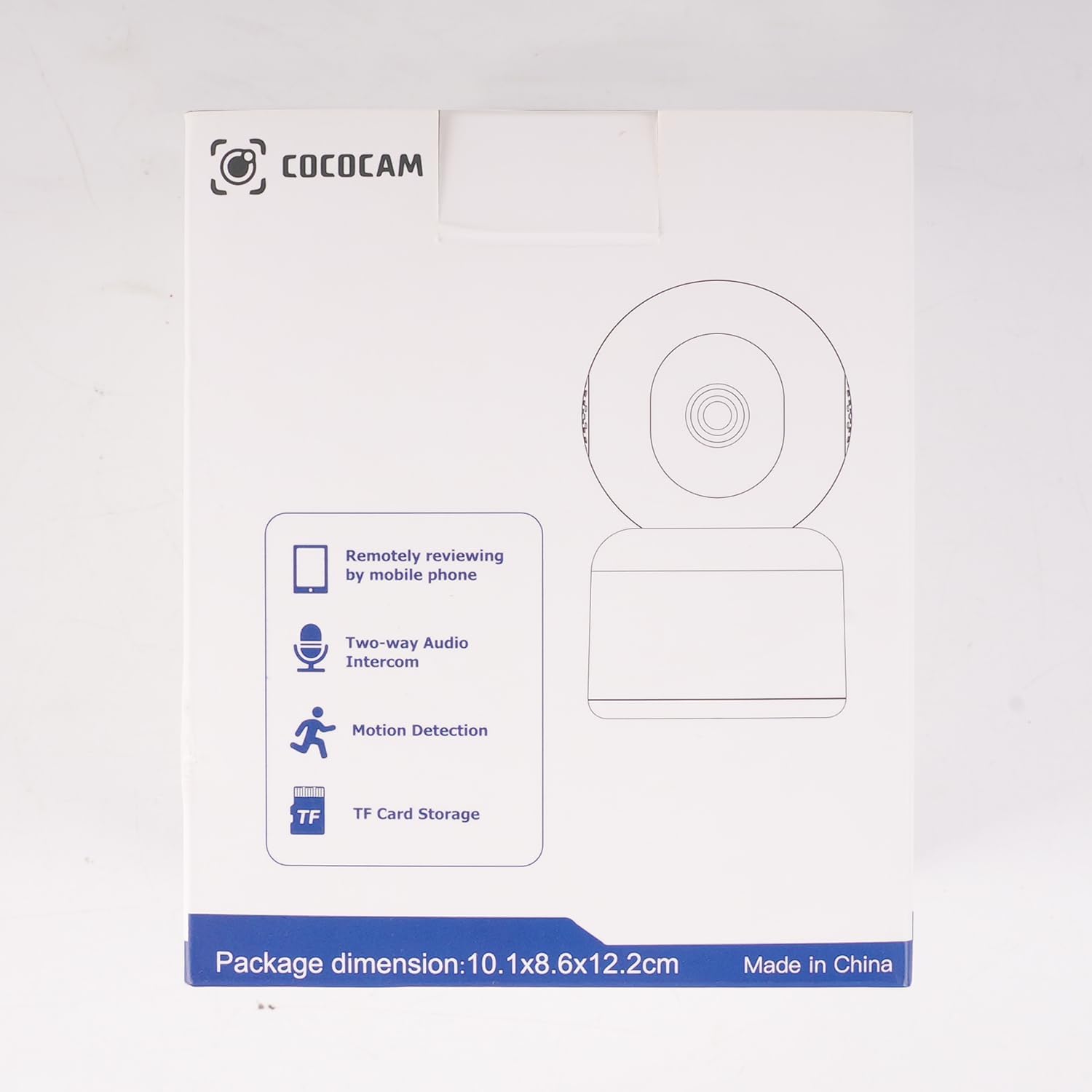
Gambar: Samping view of the COCOCAM Security Camera retail box highlighting features like remote viewing, two-way audio, motion detection, and TF card storage.
3. Produk Lebihview
The COCOCAM PK323 is a versatile indoor security camera designed for comprehensive monitoring. It features a compact design and robust capabilities.
Fitur Utama:
- Resolusi 5MP: Menangkap makanan dengan jelas dan detailtage.
- Pan & Tilt: 355° horizontal pan and 80° vertical tilt for wide coverage.
- Wi-Fi Dual-Band: Supports both 2.4GHz and 5GHz Wi-Fi networks for stable connection.
- Audio Dua Arah: Mikrofon dan speaker internal untuk komunikasi waktu nyata.
- Deteksi Gerakan AI & Pelacakan Otomatis: Intelligently detects human and pet movement and tracks the subject.
- HD IR Night Vision: Provides clear video monitoring even in low-light conditions, visible up to 15 meters (50 ft).
- Penyimpanan Fleksibel: Supports local TF card storage (up to 128GB) and cloud storage options.
- Integrasi Alexa: Works with Amazon Alexa for voice control and live view pada perangkat yang kompatibel.
Komponen Fisik:
- Lensa Kamera: Main video capture component.
- LED IR: Lampu inframerah untuk penglihatan malam.
- Mikropon: Untuk masukan audio.
- Pembicara: Untuk keluaran audio (audio dua arah).
- Pelabuhan Daya: Untuk menghubungkan adaptor daya.
- Tombol Reset: Used for resetting the camera to factory settings.
- Slot Kartu TF: For inserting a microSD card for local storage.

Image: The COCOCAM 5MP Indoor Camera alongside a smartphone displaying its live video feed, highlighting its 5MP and dual-band Wi-Fi capabilities.
4. Panduan Pengaturan
Follow these steps to set up your COCOCAM security camera:
4.1 Unduh Aplikasi
- Pencarian untuk itu "CloudEdge" app in your smartphone's app store (App Store for iOS or Google Play Store for Android).
- Unduh dan instal aplikasinya.
- Daftar untuk membuat akun baru atau masuk jika Anda sudah punya.
4.2 Nyalakan Kamera
- Connect the provided USB cable to the camera's power port and the power adapter.
- Hubungkan adaptor daya ke stopkontak di dinding.
- Wait for the camera to power on. You will hear a prompt indicating it's ready for setup.
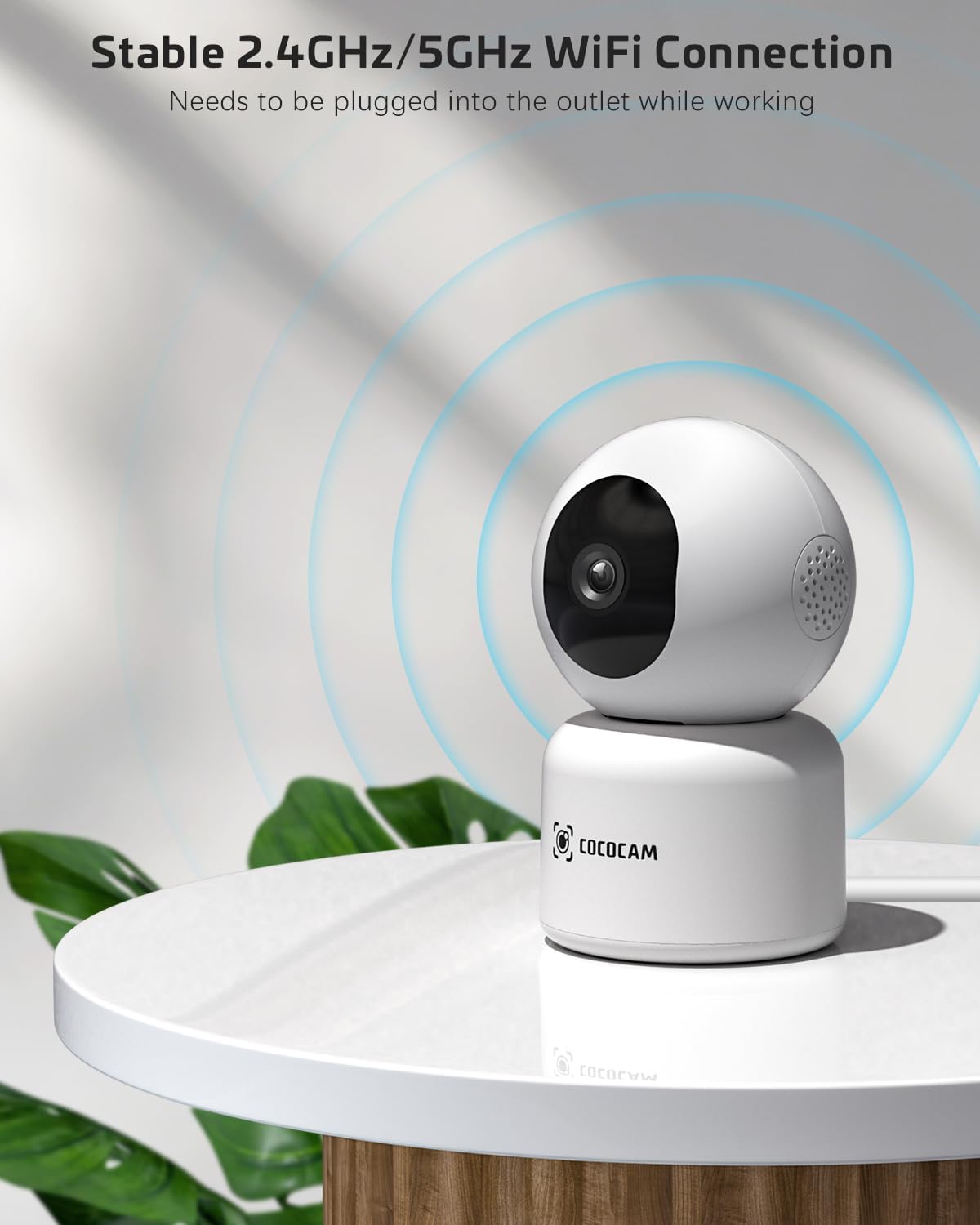
Image: The COCOCAM camera plugged into an outlet, illustrating its stable 2.4GHz/5GHz Wi-Fi connection capability.
4.3 Hubungkan ke Wi-Fi
- Open the CloudEdge app.
- Tap the "+" icon or "Add Device" to add a new camera.
- Select your camera model from the list (e.g., Smart Camera or PTZ Camera).
- Follow the on-screen instructions to connect the camera to your Wi-Fi network. Ensure your phone is connected to the same Wi-Fi network (2.4GHz or 5GHz).
- The app will display a QR code. Hold your phone's screen in front of the camera lens (approx. 15-20 cm or 6-8 inches away) until you hear a confirmation sound from the camera.
- Once connected, the camera's indicator light will turn solid blue, and you will receive a "Connection successful" message in the app.

Image: A sequence of screenshots from the CloudEdge app demonstrating the step-by-step process for setting up and connecting the camera to a Wi-Fi network.
4.4 Install TF Card (Optional)
If you wish to use local storage, insert a TF (microSD) card (up to 128GB) into the camera's TF card slot. Ensure the camera is powered off before inserting or removing the card. Format the card through the app settings after insertion for proper functionality.
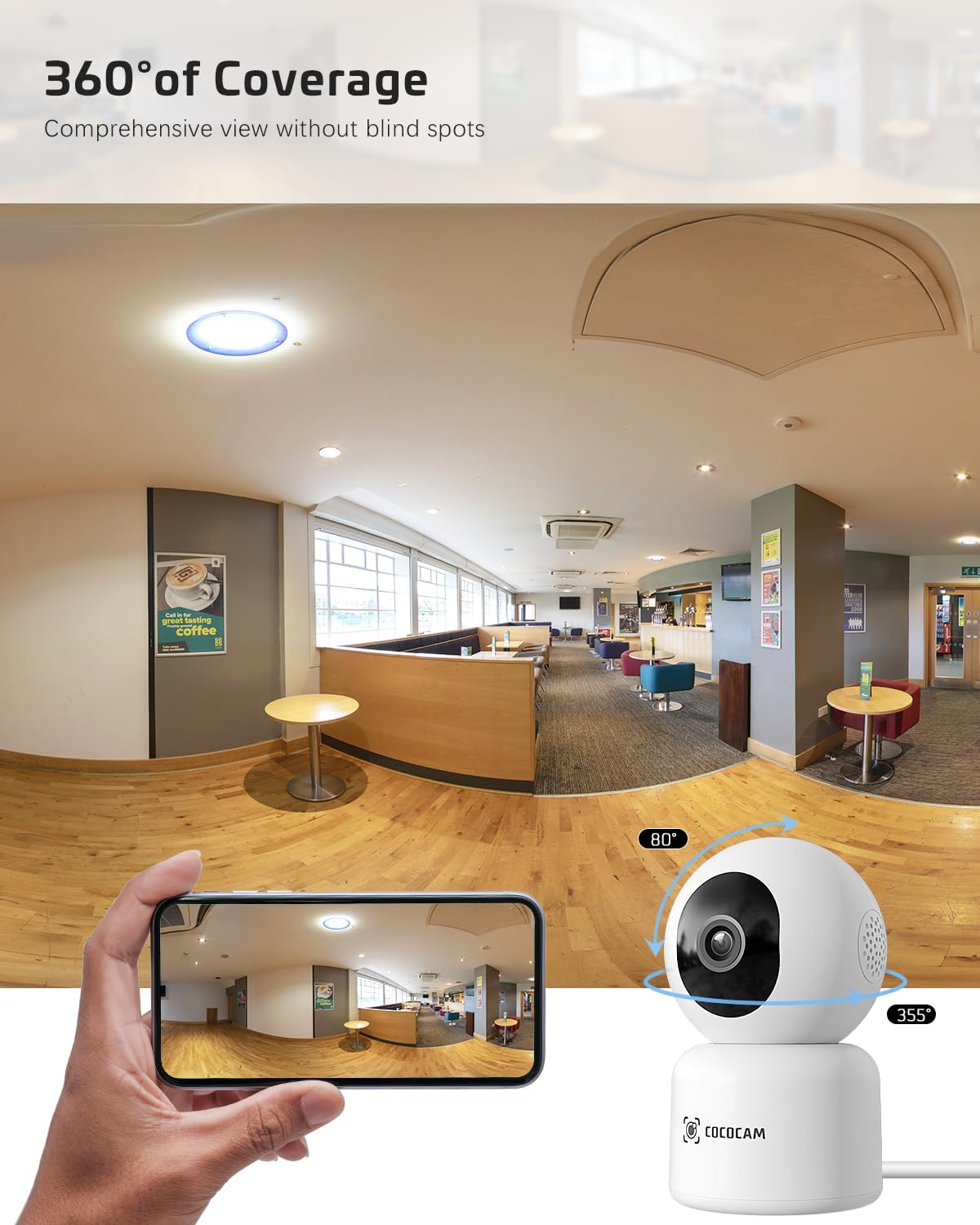
Image: The COCOCAM camera with icons representing cloud storage and TF card storage, emphasizing its safe and stable storage options.
5. Petunjuk Pengoperasian
Once set up, you can utilize the camera's features via the CloudEdge app.
5.1 Langsung View & Rekaman
- Buka aplikasi CloudEdge dan pilih kamera Anda dari daftar perangkat untuk mengakses tayangan langsung. view.
- You can manually record video or capture screenshots directly from the live view antarmuka.
- The camera supports 24/7 continuous recording to a TF card or cloud storage (subscription may apply for extended cloud features).
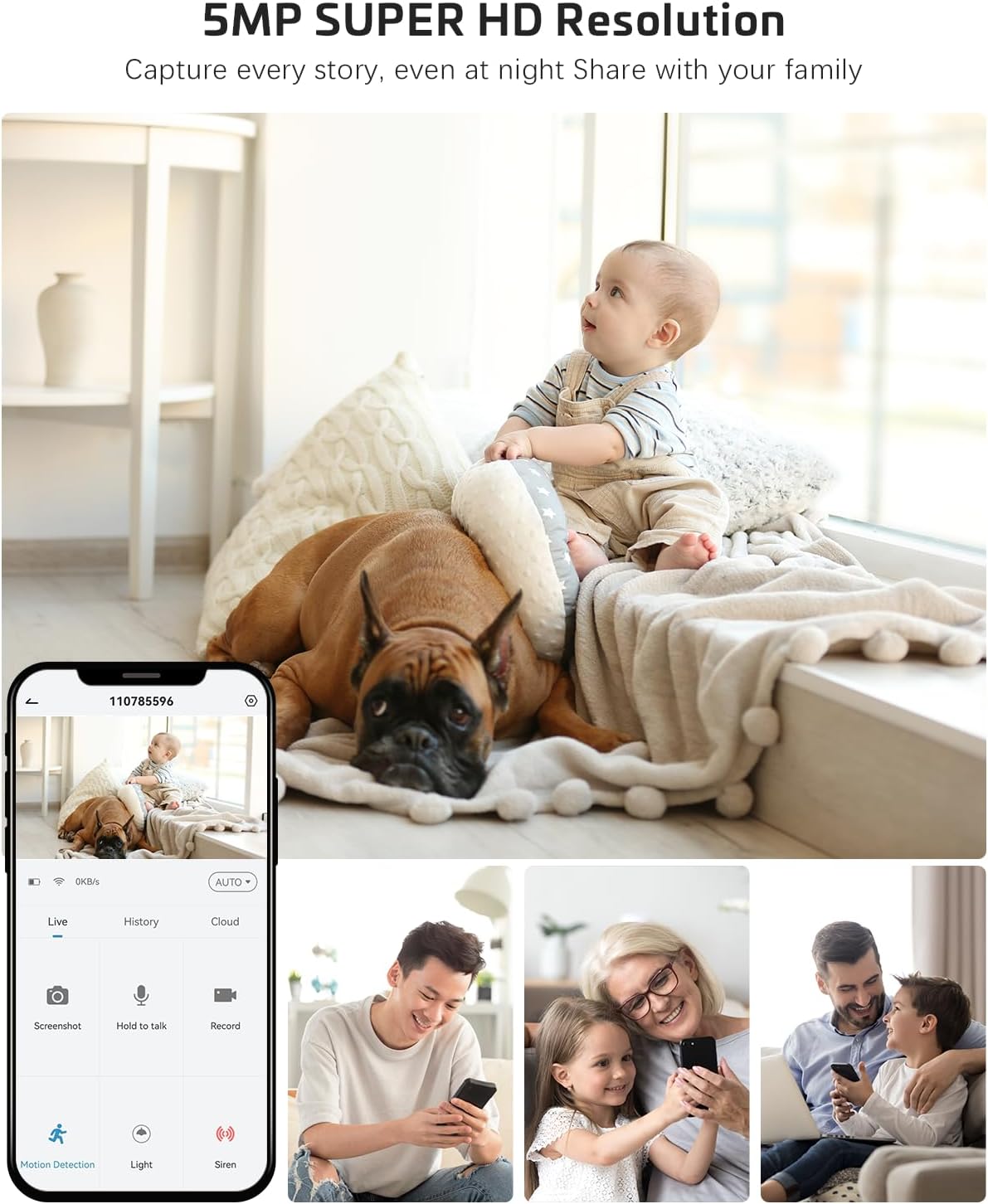
Image: The COCOCAM camera app interface displaying a live view of a baby and dog, with options for screenshot, hold to talk, record, and motion detection, alongside images of family members sharing access.
5.2 Audio Dua Arah
- Dari siaran langsung viewKetuk ikon mikrofon untuk mengaktifkan audio dua arah.
- Press and hold the talk button to speak through the camera's speaker. Release to listen.
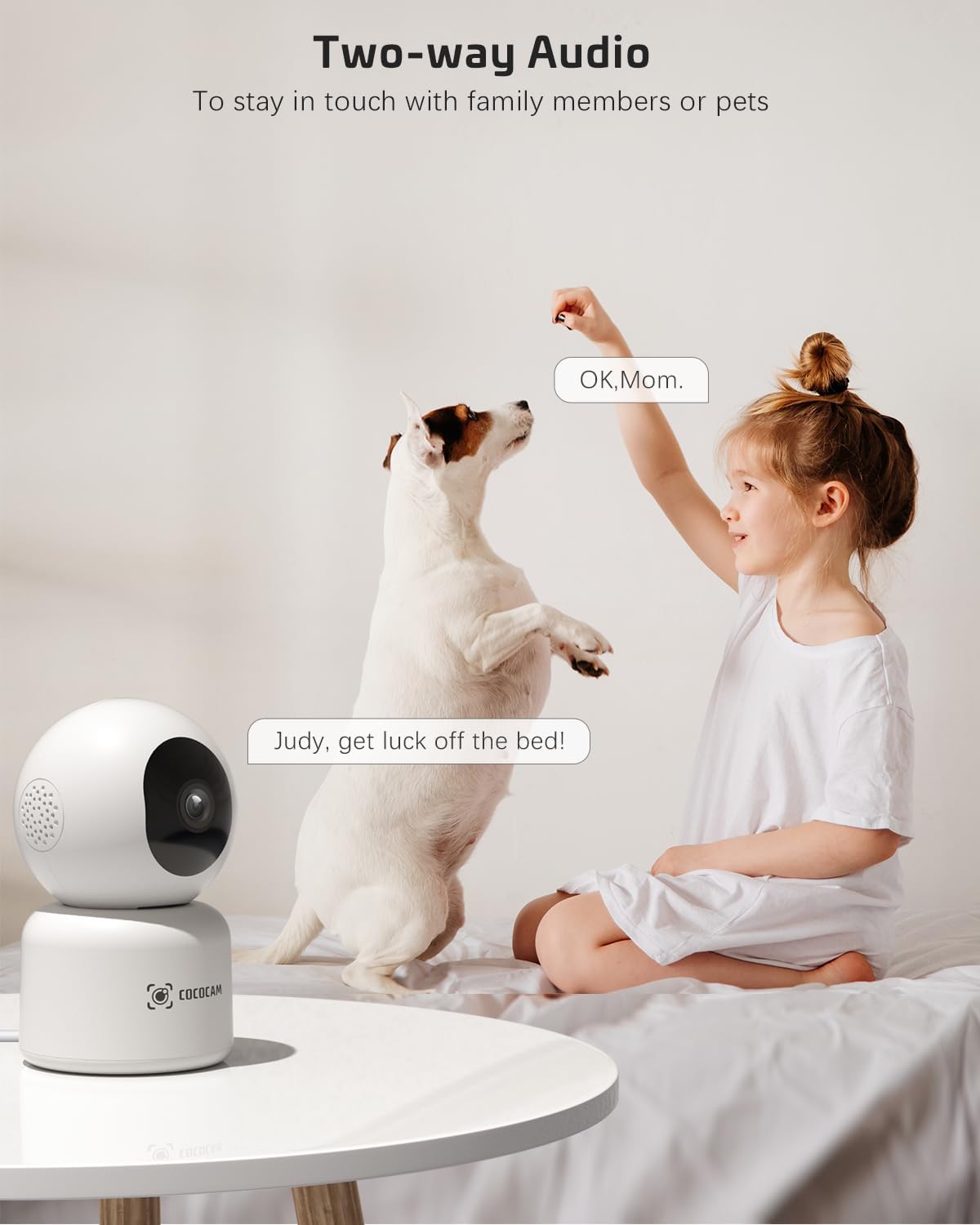
Image: A child and a dog interacting, illustrating the two-way audio feature of the COCOCAM camera, allowing communication with family members or pets.
5.3 Geser, Miringkan, dan Perbesar (PTZ)
- Di siaran langsung view screen, use the directional controls to pan the camera horizontally (355°) and tilt it vertically (80°).
- Pinch to zoom in or out on the video feed.
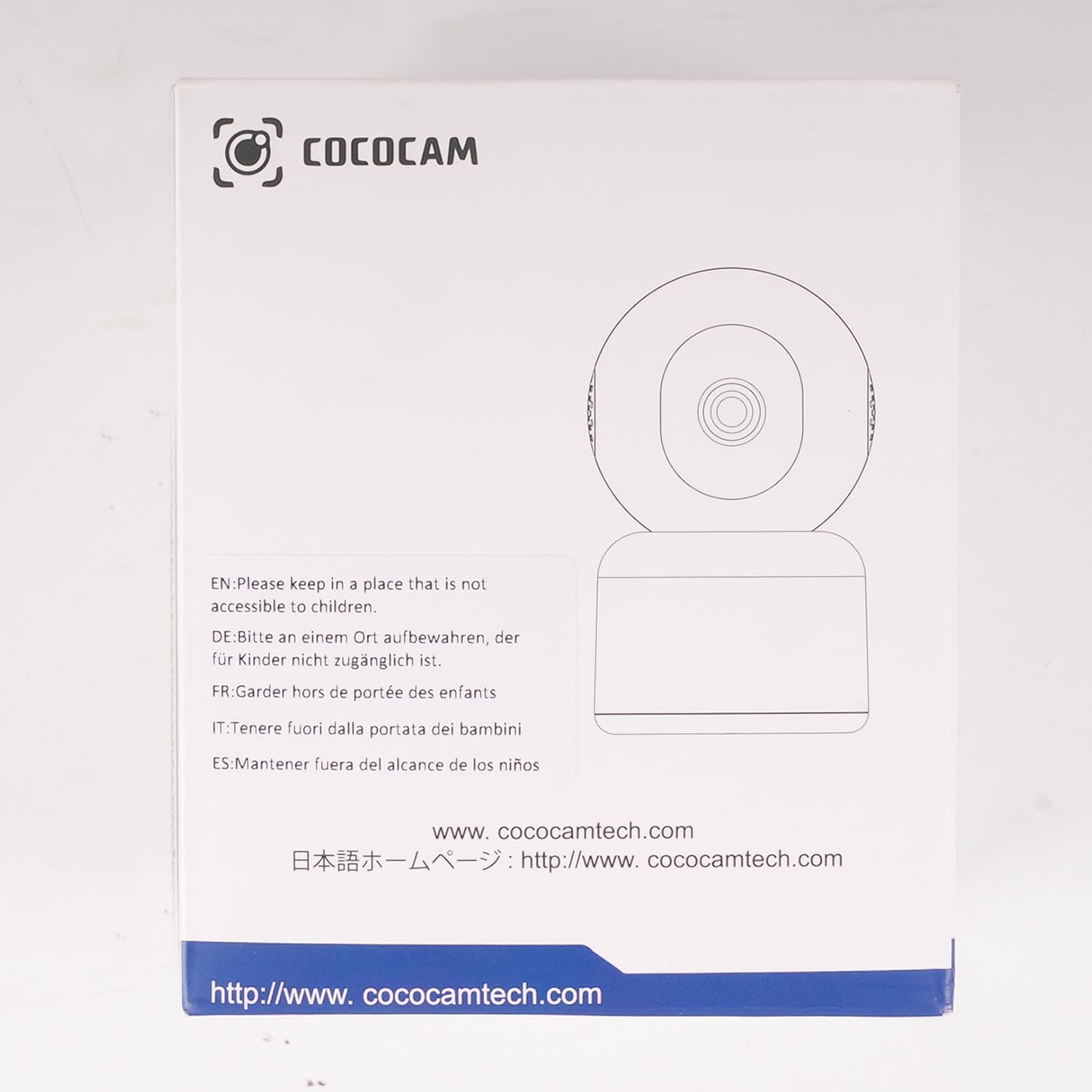
Image: The COCOCAM camera demonstrating its 360° coverage capability, providing a comprehensive view without blind spots, with a smartphone displaying the panoramic view.
5.4 AI Motion Detection & Auto Tracking
- Enable motion detection in the app settings. You can adjust sensitivity (Low, Medium, High) and set specific detection zones.
- The camera will send real-time alerts to your phone when motion is detected.
- With auto-tracking enabled, the camera will automatically follow detected movement within its field of view.
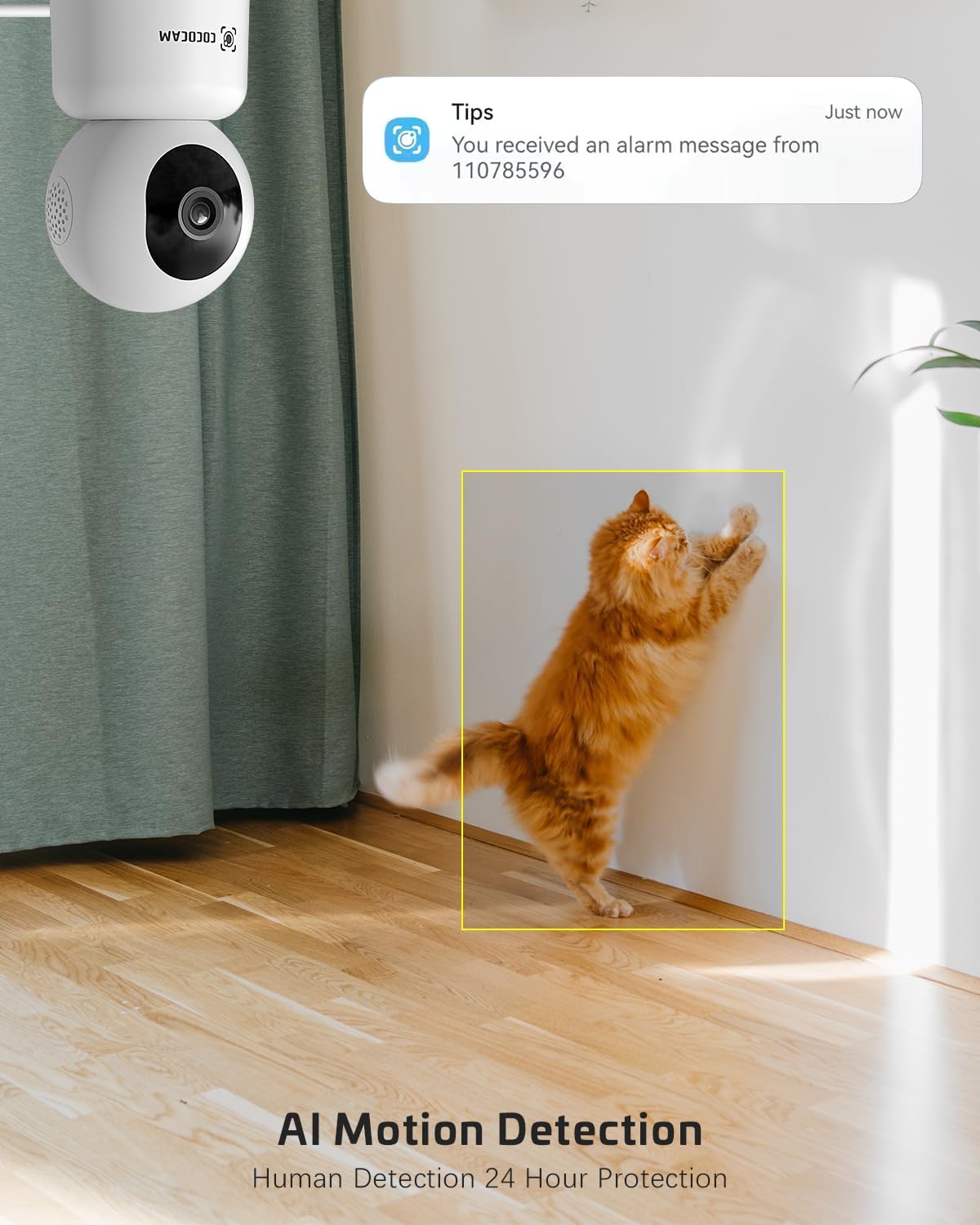
Image: The COCOCAM security camera detecting motion, with a notification pop-up on a phone screen, demonstrating its AI motion detection capabilities for human and pet activity.

Image: A screenshot of the CloudEdge app's motion detection settings, showing options to enable/disable motion detection, adjust sensitivity, set recording time, alarm interval, alert plan, and alarm area.
5.5 HD IR Night Vision
- Kamera secara otomatis beralih ke modus penglihatan malam dalam kondisi cahaya redup.
- Infrared LEDs provide clear black-and-white video up to 15 meters (50 ft) in complete darkness.
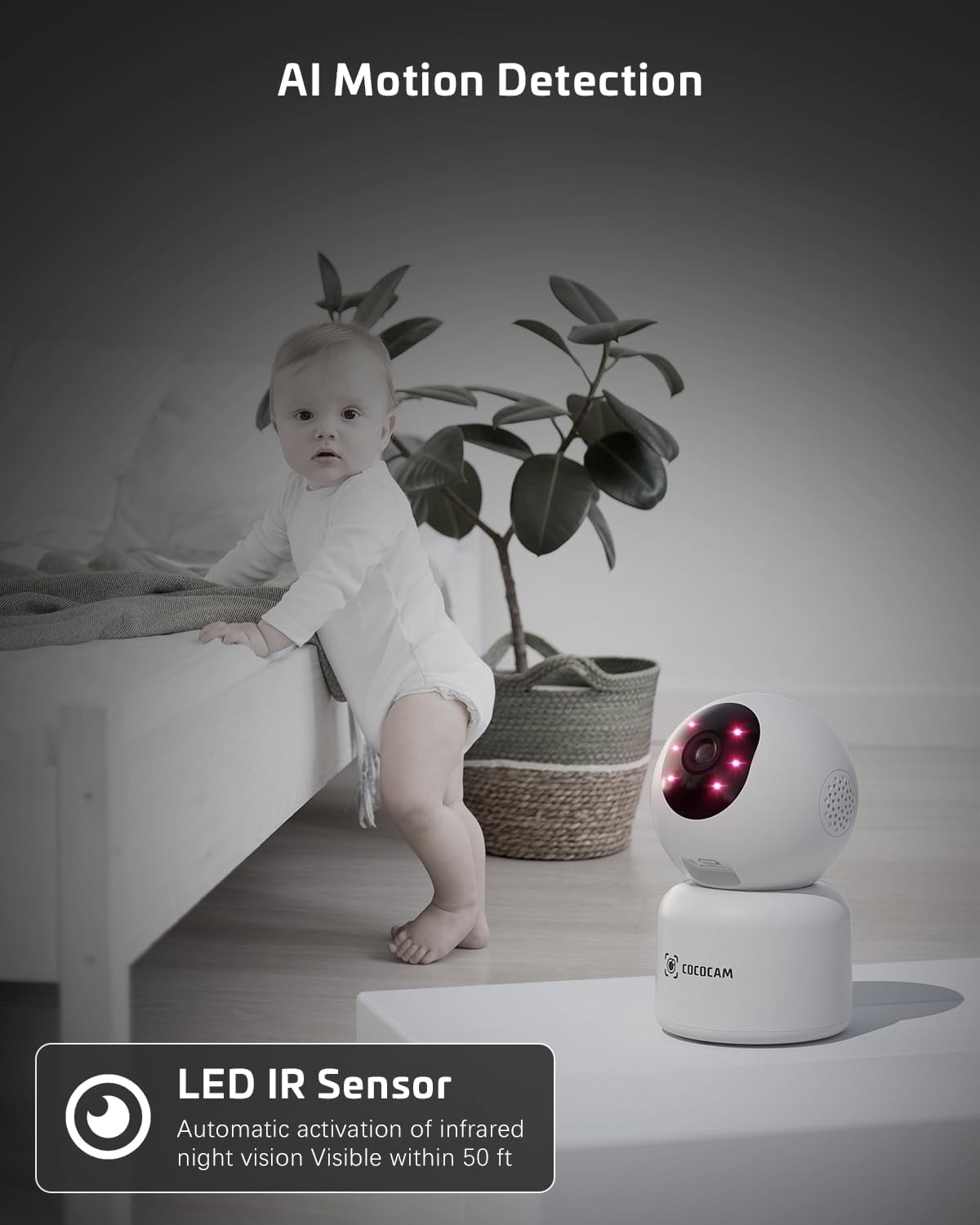
Image: The COCOCAM camera with its infrared LEDs active, providing clear night vision in a dimly lit room, suitable for monitoring a baby.
5.6 Berbagi Kamera
- You can share access to your camera's live feed with family members or trusted individuals through the CloudEdge app.
- Go to the camera settings and find the "Share Device" option to invite others.

Image: Multiple family members viewing the camera feed on various devices (smartphone, tablet, laptop), illustrating the multi-user sharing feature.
5.7 Works with Alexa
- Integrate your COCOCAM camera with Amazon Alexa for convenient voice control.
- Enable the CloudEdge skill in the Alexa app and link your accounts.
- You can then use voice commands like "Alexa, show me the front door" (if named accordingly) to view the live feed on compatible Echo Show devices.

Image: An Amazon Echo Show device displaying the live feed from the COCOCAM camera, demonstrating its compatibility with Alexa for voice-controlled viewing.
6. Pemeliharaan
To ensure the longevity and optimal performance of your COCOCAM camera, follow these maintenance tips:
- Pembersihan: Usap lensa dan bodi kamera dengan lembut menggunakan kain lembut dan kering. Hindari penggunaan bahan kimia keras atau pembersih abrasif.
- Penempatan: Pastikan kamera ditempatkan di lokasi yang stabil, jauh dari sinar matahari langsung, suhu ekstrem, dan kelembapan tinggi.
- Pembaruan Firmware: Regularly check the CloudEdge app for available firmware updates to ensure your camera has the latest features and security enhancements.
- Catu Daya: Gunakan hanya adaptor daya asli yang disertakan dengan kamera.
7. Penyelesaian masalah
If you encounter issues with your COCOCAM camera, refer to the following common problems and solutions:
| Masalah | Kemungkinan Penyebab | Larutan |
|---|---|---|
| Kamera offline | Tidak ada daya, Wi-Fi terputus, sinyal Wi-Fi lemah. | Check power connection. Restart camera and router. Ensure camera is within Wi-Fi range. Reconnect camera in app. |
| Tidak dapat terhubung ke Wi-Fi | Incorrect Wi-Fi password, wrong Wi-Fi band (only 2.4GHz/5GHz supported), too far from router. | Verify Wi-Fi password. Ensure you are connecting to a 2.4GHz or 5GHz network. Move camera closer to router. Reset camera and try again. |
| Kualitas gambar buruk | Lensa kotor, pencahayaan tidak memadai, masalah lebar pita jaringan. | Clean the camera lens. Ensure adequate lighting or check night vision settings. Check your internet speed. |
| Peringatan gerakan tidak diterima | Motion detection disabled, app notifications off, incorrect sensitivity settings. | Enable motion detection in app. Check phone notification settings for CloudEdge app. Adjust motion detection sensitivity. |
| TF card not recording | Card full, card not formatted, faulty card. | Format the TF card in the app. Replace with a new TF card if necessary. Ensure continuous recording is enabled. |
8. Spesifikasi
| Fitur | Spesifikasi |
|---|---|
| Model | PK323 |
| Resolusi Pengambilan Video | 5MP (1440p) |
| Jangkauan Pan/Tilt | Panci 355°, Kemiringan 80° |
| Komunikasi Nirkabel | Bluetooth, Wi-Fi (2.4GHz/5GHz) |
| Rentang Penglihatan Malam | 15 Meter (50 kaki) |
| Opsi Penyimpanan | Kartu TF (hingga 128GB), Penyimpanan Cloud |
| Sumber Daya | Mesin Cuci Kabel Listrik (5 Volt, 3 Watt) |
| Bahan | Akrilonitril Butadiena Stirena (ABS) |
| Dimensi Barang (P x L x T) | Ukuran 7.8x7.8x11.5 cm |
| Berat | 300 gram |
| OS yang kompatibel | Bahasa Indonesia: iOS, Android |
| Penggunaan yang Direkomendasikan | Keamanan Dalam Ruangan |
9. Garansi dan Dukungan
COCOCAM is committed to providing high-quality products and excellent customer service.
9.1 Garansi Seumur Hidup
Your COCOCAM camera comes with a lifetime warranty, ensuring long-term peace of mind. Please retain your proof of purchase for warranty claims.
9.2 Dukungan Pelanggan
For any technical assistance, questions, or concerns, please contact COCOCAM customer support. We offer 24/7 professional technical support to address your needs promptly.
- E-mail: layanan@cococamtech.com
- Resmi Weblokasi: www.cococamtech.com
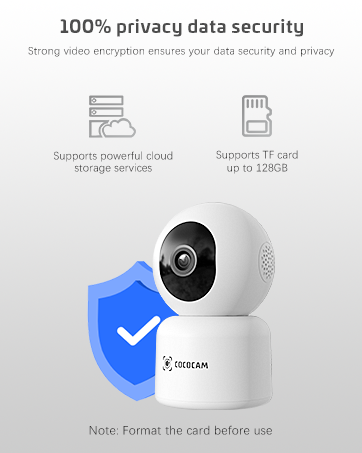
Image: A smiling customer service representative wearing a headset, symbolizing COCOCAM's commitment to customer support.

Image: An illustration emphasizing 100% privacy data security with strong video encryption, supported by powerful cloud storage services and TF card storage up to 128GB.


