1. Pendahuluan
This user manual provides comprehensive instructions for setting up, operating, and maintaining your THOMSON 10.1-inch WiFi Digital Photo Frame. Please read this manual carefully before using the device to ensure proper functionality and longevity.
2. Produk Lebihview
The THOMSON Digital Photo Frame is designed to display your cherished memories with ease. It features a high-definition IPS touchscreen and WiFi connectivity for convenient photo sharing.
Fitur Utama:
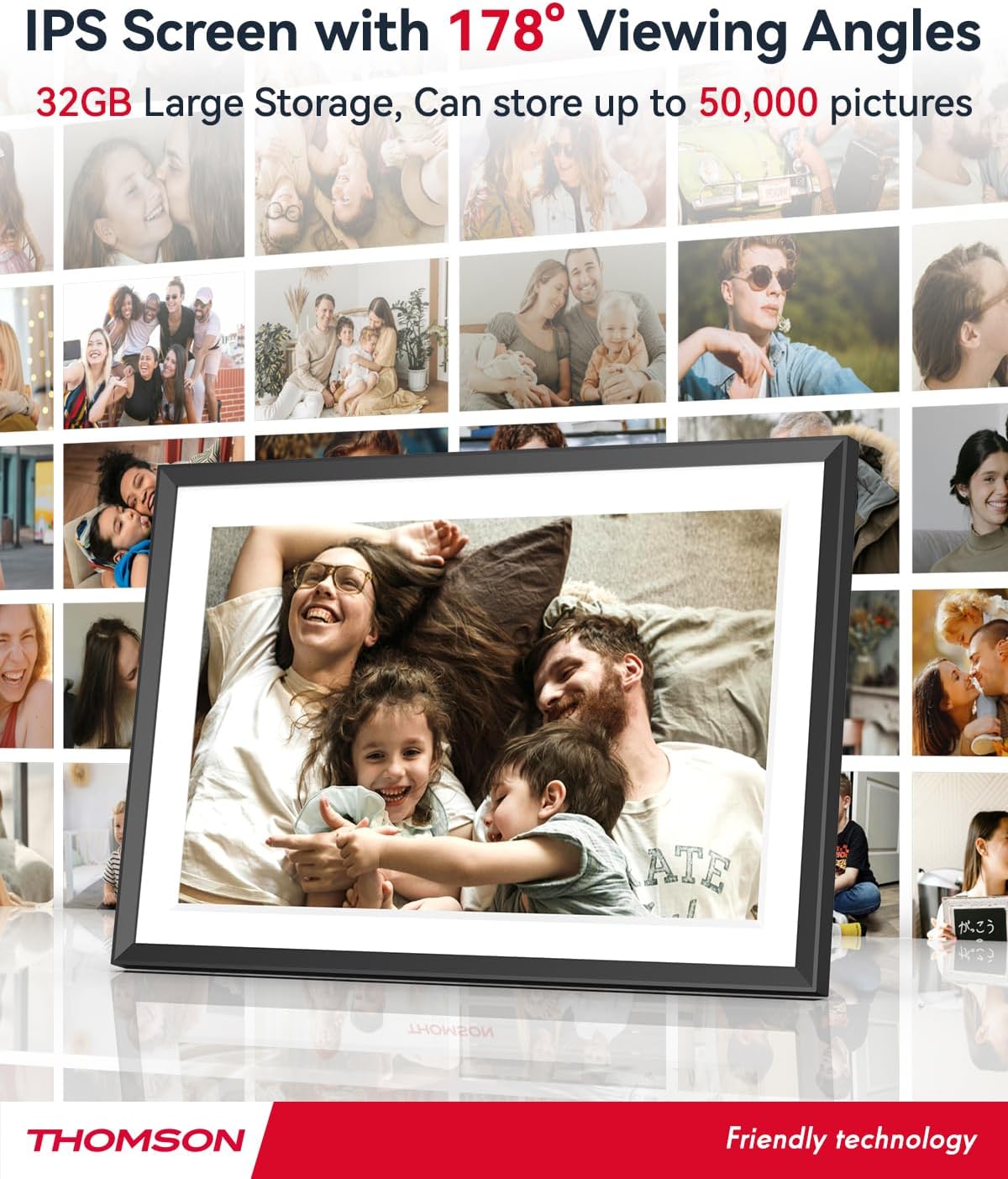
- Memori Internal 32GB: Stores approximately 50,000 photos. Supports SD Card/SDHC Card/MMC Card/USB Drive expansion up to 256GB.
- Pengaturan Sederhana: Connects to WiFi, automatically sets local date and time.
- 10.1-inch 1280x800 HD IPS Screen: Provides clear image viewing with a 180° viewsudut.
- Beberapa Antarmuka: Supports DC-4.0, Type-C, SD, 3.5mm Jack, and USB.
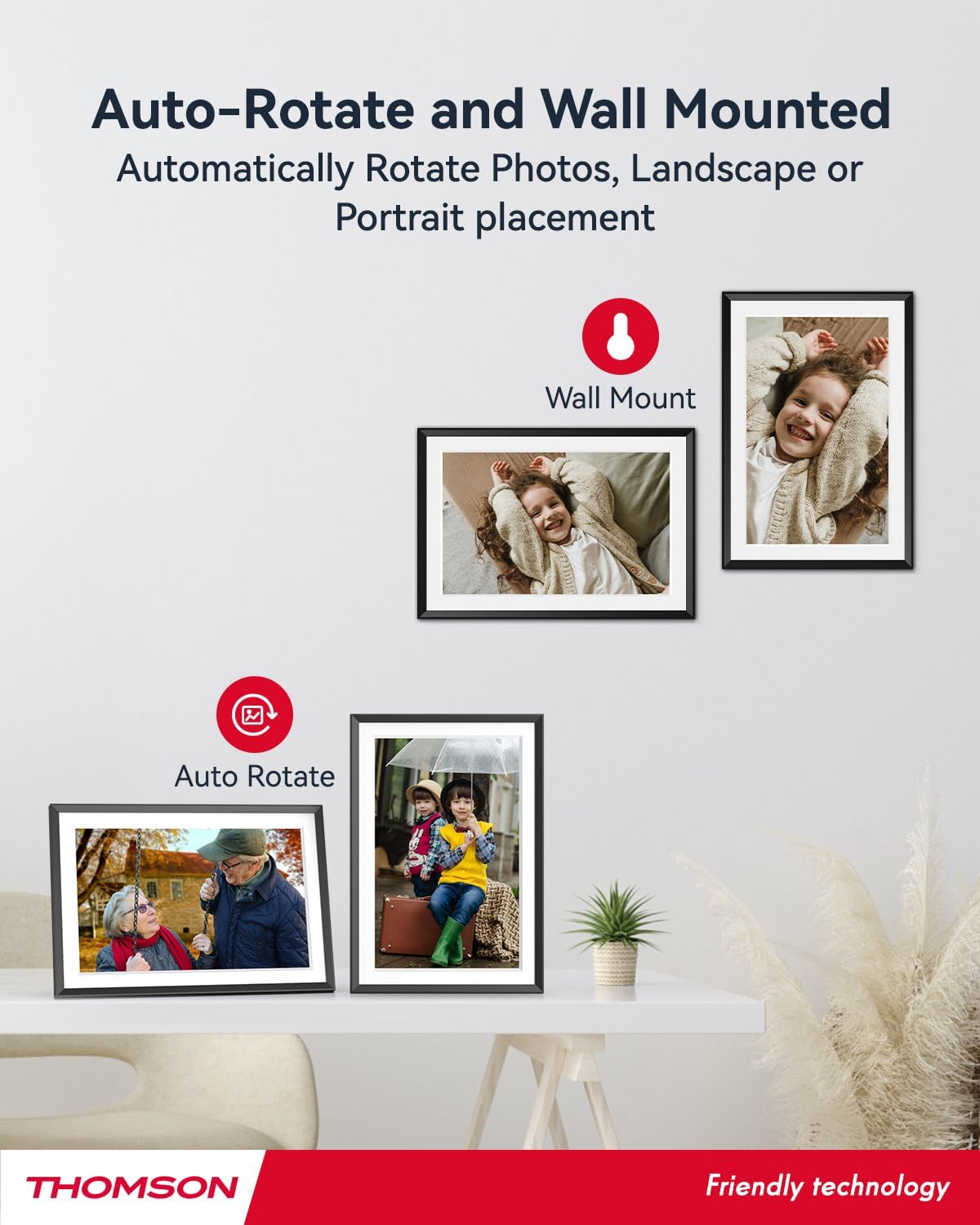
- Rotasi Otomatis: Displays photos correctly in any orientation.
- Musik Latar: Play music during slideshows.
- Google Photo Support: Send photos directly from Google Photos.




3. Pengaturan
3.1 Pembongkaran dan Pemeriksaan Awal
- Keluarkan semua komponen dari kemasannya dengan hati-hati.
- Verify that all items listed in the 'Product OverviewBagian ' tersebut ada.
- Inspect the frame for any signs of damage. If damaged, do not proceed and contact customer support.
3.2 Sambungan Daya
- Connect the power adapter to the DC-4.0 port on the back of the photo frame.
- Colokkan adaptor daya ke stopkontak standar.
- The frame will power on automatically.
3.3 Koneksi Jaringan (Wi-Fi)
- On the frame's touchscreen, navigate to 'Settings' or 'Wi-Fi Settings'.
- Pilih jaringan Wi-Fi yang Anda inginkan dari daftar jaringan yang tersedia.
- Masukkan kata sandi Wi-Fi menggunakan papan ketik di layar.
- Confirm the connection. Once connected, the frame will automatically synchronize the date and time.
3.4 App Installation (Thomson Smart Frame)
To share photos wirelessly from your smartphone, download the 'Thomson Smart Frame' app:
- For Android devices, search for 'Thomson Smart Frame' on the Toko Google Play.
- For iOS devices, search for 'Thomson Smart Frame' on the Toko Aplikasi Apple.
- Follow the on-screen instructions within the app to pair it with your digital photo frame.
4. Petunjuk Pengoperasian
4.1 Menambahkan Foto dan Video
- Via Thomson Smart Frame App: Use the paired smartphone app to wirelessly send photos and videos to the frame.
- Via SD Card/USB Drive: Insert a compatible SD card or USB drive into the respective slot. The frame will detect the media, and you can import files to the internal memory or play directly.
- Via Google Photos: The frame supports integration with Google Photos for direct photo sharing. Refer to the frame's on-screen instructions for linking your Google Photos account.
4.2 Navigasi Layar Sentuh
The frame features an intuitive touchscreen interface. Tap to select, swipe to scroll, and pinch to zoom (if supported by the specific function).
4.3 Slideshow Settings
Customize your photo slideshow experience:
- Kecepatan Tayangan Slide: Sesuaikan durasi tampilan setiap foto.
- Efek Transisi: Choose from various transition styles between photos.
- Musik Latar: Pilih audio files to play during the slideshow.
4.4 Rotasi Otomatis
The frame automatically detects its orientation (landscape or portrait) and adjusts the displayed photos accordingly. Ensure the auto-rotate function is enabled in the settings if you wish to utilize this feature.
4.5 Koneksi Multi-Pengguna
Multiple users can connect to the same frame via the Thomson Smart Frame app, allowing family and friends to share their photos to your frame from different locations.
5. Pemeliharaan
5.1 Membersihkan Layar
- Turn off the photo frame and unplug it from the power source.
- Gunakan kain lembut dan bebas serat (misalnya, kain mikrofiber) untuk menyeka layar dengan lembut.
- Untuk noda membandel, sedikit dampen the cloth with water or a screen-cleaning solution specifically designed for electronic displays. Do not spray liquid directly onto the screen.
5.2 Perawatan Umum
- Avoid exposing the frame to extreme temperatures, direct sunlight, or high humidity.
- Keep the frame away from water and other liquids.
- Do not block the ventilation openings on the frame.
- Handle the frame with care to prevent drops or impacts.
6. Penyelesaian masalah
| Masalah | Kemungkinan Penyebab | Larutan |
|---|---|---|
| Frame tidak menyala. | Adaptor daya tidak tersambung atau stopkontak rusak. | Pastikan adaptor daya terhubung dengan aman ke rangka dan stopkontak yang berfungsi. Coba stopkontak lain. |
| Tidak dapat terhubung ke Wi-Fi. | Kata sandi salah, sinyal lemah, atau masalah jaringan. | Double-check Wi-Fi password. Move frame closer to router. Restart router and frame. |
| Photos not displaying. | Tidak didukung file format, no photos loaded, or storage issue. | Ensure photos are in supported formats (e.g., JPEG, PNG). Verify photos are loaded onto the frame's internal memory or connected storage. Check storage space. |
| Layar sentuh tidak responsif. | Gangguan perangkat lunak sementara. | Nyalakan ulang bingkai dengan mencabut dan memasang kembali adaptor daya. |
7. Spesifikasi
| Fitur | Detil |
|---|---|
| Merek | Bahasa Indonesia: Thomson |
| Nomor Model | TDF-1001P |
| Ukuran Layar | 10.1 inci |
| Resolusi Tampilan | Resolusi 1280x800 |
| Jenis Tampilan | Layar Sentuh IPS |
| Memori Internal | 32 GB |
| Memori yang Dapat Diperluas | SD Card/SDHC Card/MMC Card/USB Drive (up to 256GB) |
| Teknologi Konektivitas | Wifi gratis |
| Perangkat yang Kompatibel | Android and iOS Smartphones |
| Sumber Daya | Listrik Kabel |
| Rasio Aspek | 16:10 |
| Bahan Bingkai | Plastik |
| Dimensi Produk (P x L x T) | Ukuran 26.5x18.4x2.51 cm |
| Berat Produk | 530 gram |
8. Garansi dan Dukungan
For warranty information or technical support, please refer to the documentation included with your purchase or visit the official Thomson website. You may also contact Thomson customer service directly for assistance with product issues or inquiries.