Perkenalan
Thank you for choosing the THOMSON 10.1 Inch Digital Picture Frame. This device allows you to effortlessly display and share your cherished photos and videos with family and friends from anywhere in the world. Featuring a high-definition IPS touch screen, Wi-Fi connectivity, and ample storage, this frame is designed for ease of use and a vibrant viewing experience. Please read this manual carefully to ensure proper setup and operation of your digital picture frame.
Isi Paket
- THOMSON 10.1 Inch Digital Picture Frame
- Adaptor Daya
- User Manual (dokumen ini)
- Stand Piece
Produk Selesaiview

Image: The THOMSON 10.1 Inch Digital Picture Frame showcasing a family photo, accompanied by a smartphone displaying the photo sharing application. This illustrates the frame's primary function and connectivity.
The THOMSON 10.1 Inch Digital Picture Frame features a 1280x800 HD IPS touch screen for clear, vibrant image display. It supports Wi-Fi connectivity for instant photo and video sharing via a dedicated app. The frame includes 32 GB of built-in memory and a slot for an SD card (up to 128 GB, not included) for expanded storage. Key features include auto-rotate, slideshow functionality, adjustable brightness, and a sleep mode.
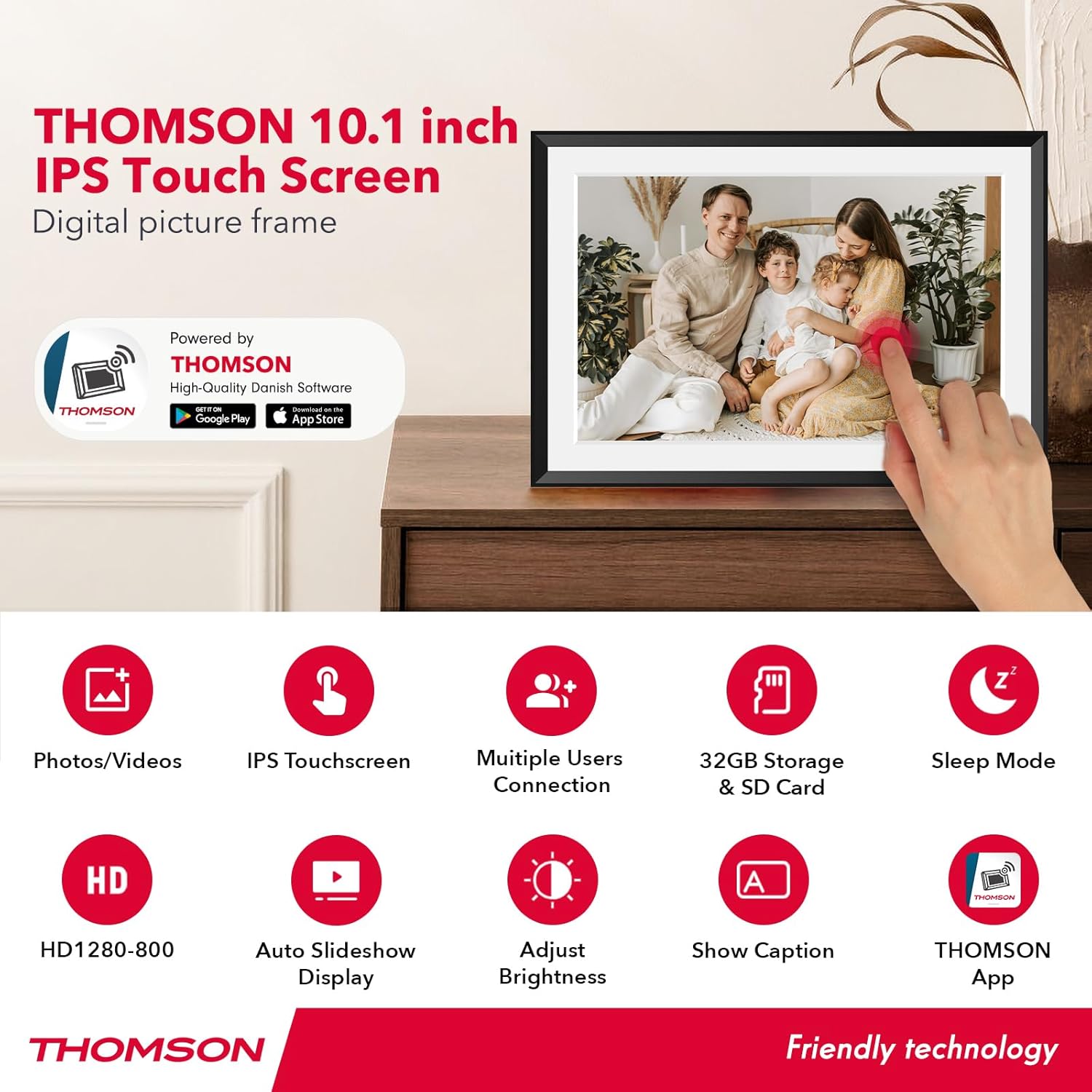
Image: An infographic highlighting the main features of the THOMSON digital picture frame, including photos/videos support, IPS touchscreen, multiple user connection, 32GB storage & SD card slot, sleep mode, HD 1280x800 resolution, auto slideshow, brightness adjustment, caption display, and the THOMSON App.
Panduan Pengaturan
1. Daya Awal Menyala
- Connect the power adapter to the frame's power port and plug it into a wall outlet.
- The frame will automatically power on.
- Ikuti petunjuk di layar untuk memilih bahasa dan zona waktu Anda.
2. Koneksi Wi-Fi
- On the frame's touch screen, navigate to the Wi-Fi settings.
- Pilih jaringan Wi-Fi yang Anda inginkan dari daftar.
- Masukkan kata sandi Wi-Fi menggunakan papan ketik di layar.
- Confirm the connection. A stable Wi-Fi connection is essential for sharing photos and videos remotely.
3. Unduh dan Pasangkan Aplikasi

Image: A visual guide demonstrating how to find and use the THOMSON app for sharing photos and videos instantly from anywhere. It shows the app download icons for Google Play and App Store, and screenshots of the app interface.
- Download the free "THOMSON" app from the Google Play Store (for Android) or Apple App Store (for iOS).
- Buka aplikasi dan buat akun atau masuk.
- Follow the app's instructions to pair your smartphone with the digital picture frame. This typically involves scanning a QR code displayed on the frame or entering a unique device code.
- Once paired, you can begin sharing photos and videos.
Petunjuk Pengoperasian
1. Sharing Photos and Videos

Image: A depiction of how multiple users can privately, instantly, and securely share photos and videos to the digital picture frame from various mobile phones.
- Melalui Aplikasi: Open the THOMSON app on your smartphone. Select the photos or short videos you wish to share and send them directly to your paired frame. You can also invite family and friends to share to your frame.
- Via SD Card: Insert an SD card (max. 128 GB, not included) containing your media files into the frame's SD card slot. The frame will detect the card, and you can import fileke memori internal.
- Melalui Email: The frame is assigned a unique email address during setup. You can send photos or short videos as attachments to this email address, and they will appear on the frame.
2. Navigasi Layar Sentuh
The frame features an intuitive touch screen. Tap to select options, swipe to navigate through photos, and pinch to zoom (if supported by the software).
3. Pengaturan dan Fitur
- Putar Otomatis: The frame automatically adjusts the orientation of photos to portrait or landscape mode.
- Tampilan slide: Configure slideshow intervals, transition effects, and playback order through the settings menu.
- Kecerahan: Adjust screen brightness to suit your environment.
- Volume: Control the volume for videos. Note: The frame may beep upon receiving new media; this can be muted in settings.
- Mode tidur: Set a schedule for the frame to automatically turn off and on, conserving energy.
- React Feature: Use the "React" feature within the app to send emoticons back to loved ones in real-time, acknowledging photos they've sent.

Image: This visual demonstrates the frame's versatility, showing it can be placed in landscape or portrait orientation, and highlighting the wall hanging hole for mounting.
Pemeliharaan
- Pembersihan: Gunakan kain lembut, kering, dan bebas serat untuk membersihkan layar dan bingkai. Jangan gunakan cairan pembersih atau semprotan langsung pada layar.
- Penempatan: Place the frame on a stable, flat surface or mount it securely on a wall. Avoid direct sunlight or extreme temperatures.
- Penyimpanan: If storing the frame for an extended period, power it off and disconnect the power adapter.
Penyelesaian Masalah
| Masalah | Kemungkinan Penyebab / Solusi |
|---|---|
| Frame tidak menyala. | Pastikan adaptor daya terhubung dengan aman ke rangka dan stopkontak yang berfungsi. Coba stopkontak lain. |
| Tidak dapat terhubung ke Wi-Fi. |
|
| Foto/Video tidak muncul di bingkai. |
|
| Layar tidak responsif. | Restart the frame by disconnecting and reconnecting the power. If the issue persists, contact customer support. |
| Frame makes a beeping sound. | This is likely the notification sound for new media. You can disable this in the frame's settings menu. |
Spesifikasi
| Fitur | Detil |
|---|---|
| Ukuran Layar | 10.11 inci |
| Resolusi | 1280x800 HD IPS |
| Penyimpanan Internal | 32 GB |
| Penyimpanan Eksternal | SD Card (max. 128 GB, not included) |
| Konektivitas | Akses internet nirkabel (2.4 GHz) |
| Dimensi Produk | 16x10x0.99 inci |
| Berat Barang | 1.5 pon |
| Nomor Model | 1001W |
| Pabrikan | Bahasa Indonesia: TOMSON |
Garansi dan Dukungan
THOMSON stands behind the quality of its products. Your digital picture frame comes with a Garansi 24 bulan from the date of purchase. This warranty covers manufacturing defects and ensures the product performs as described.
For any technical assistance, questions, or warranty claims, please contact THOMSON customer support. We offer dukungan teknis seumur hidup to ensure you have the best experience with your product. Please refer to the contact information provided on the product packaging or the official THOMSON weblokasi.


