1. Pendahuluan
This manual provides essential information for the safe and efficient use of your Acer SA270G0bi 27-inch IPS Full HD Monitor. Please read it thoroughly before operating the device and keep it for future reference.
2. Informasi Keselamatan
- Sumber Daya: Gunakan hanya adaptor daya yang disertakan dengan monitor. Pastikan stopkontak terhubung ke ground dengan benar.
- Penempatan: Place the monitor on a stable, flat surface. Avoid direct sunlight, heat sources, and areas with high humidity or dust.
- Ventilasi: Jangan menghalangi lubang ventilasi. Berikan ruang yang cukup di sekitar monitor agar aliran udara lancar.
- Pembersihan: Cabut kabel daya sebelum membersihkan. Gunakan kain lembut dan kering. Hindari penggunaan cairan pembersih atau semprotan aerosol.
- Cairan dan Benda Asing: Do not allow liquids or foreign objects to enter the monitor. If this occurs, immediately unplug the monitor and contact service personnel.
- Kenyamanan Mata: Take regular breaks to reduce eye strain. Adjust screen brightness and contrast to a comfortable level.
3. Isi Paket
Verifikasi bahwa semua item ada dalam paket Anda:
- Acer SA270G0bi Monitor
- Monitor Stand (Round Base)
- Kabel Listrik
- Kabel HDMI
- Mini D-Sub (VGA) Cable
- User Manual (dokumen ini)
4. Pengaturan
4.1 Merakit Dudukan Monitor
- Keluarkan komponen monitor dan dudukan secara hati-hati dari kemasannya.
- Pasang leher penyangga ke panel monitor. Pastikan terpasang dengan aman dan berbunyi klik.
- Attach the round base to the stand neck. Tighten the screw at the bottom of the base to secure it.
4.2 Menghubungkan Kabel
Hubungkan kabel-kabel yang diperlukan ke monitor dan komputer Anda:
- Kabel listrik: Hubungkan kabel daya ke input daya monitor, lalu ke stopkontak listrik yang memiliki ground.
- Kabel Video: Connect either an HDMI cable or a Mini D-Sub (VGA) cable from your computer's video output to the corresponding input on the monitor.

Gambar: Belakang view of the Acer SA270G0bi monitor showing dimensions and available ports. It features one HDMI 1.4 port and one Mini D-Sub 15-pin port. The monitor has a tilt angle of 15 degrees up and 5 degrees down. Please note that this model does not include built-in speakers or a headphone jack.
4.3 Menghidupkan
Press the power button located on the monitor to turn it on. The monitor will automatically detect the active input source.
5. Mengoperasikan Monitor
5.1 Menu Tampilan di Layar (OSD)
The OSD menu allows you to adjust various monitor settings. Use the buttons on the monitor (usually located on the bottom right or rear) to navigate the menu.
Pengaturan OSD Umum:
- Kecerahan/Kontras: Sesuaikan pencahayaan dan kontras tampilan secara keseluruhan.
- Pengaturan Warna: Ubah suhu warna, gamma, dan level RGB individual.
- Sumber Masukan: Manually select between HDMI and Mini D-Sub inputs.
- Mode Gambar: Select predefined display modes (e.g., Standard, ECO, Game, Movie).
5.2 Fitur Utama
- Panel IPS: Nikmati warna-warna cerah dan luas. viewing angles (178° horizontal/vertical) with the Full HD (1920x1080) IPS panel. The non-glare surface reduces reflections.
- 120Hz Refresh Rate & 1ms VRB: Experience smoother visuals with a 120Hz refresh rate and a rapid 1ms Visual Response Boost (VRB) to reduce motion blur and ghosting.
- Sinkronisasi Adaptif: Menyelaraskan kecepatan refresh monitor dengan kecepatan frame kartu grafis Anda untuk menghilangkan screen tearing dan stuttering.
- Desain Bingkai Nol: The ultra-thin bezel design maximizes screen space and is ideal for multi-monitor setups.
- Acer VisionCare™: Technologies like Flicker-less, Blue Light Shield, and Low Dimming are integrated to help reduce eye fatigue during prolonged use.

Image: The Acer SA270G0bi monitor highlighting its IPS display technology, Full HD (1920x1080) resolution, wide 178-degree viewing angles, and non-glare panel for comfortable viewing.
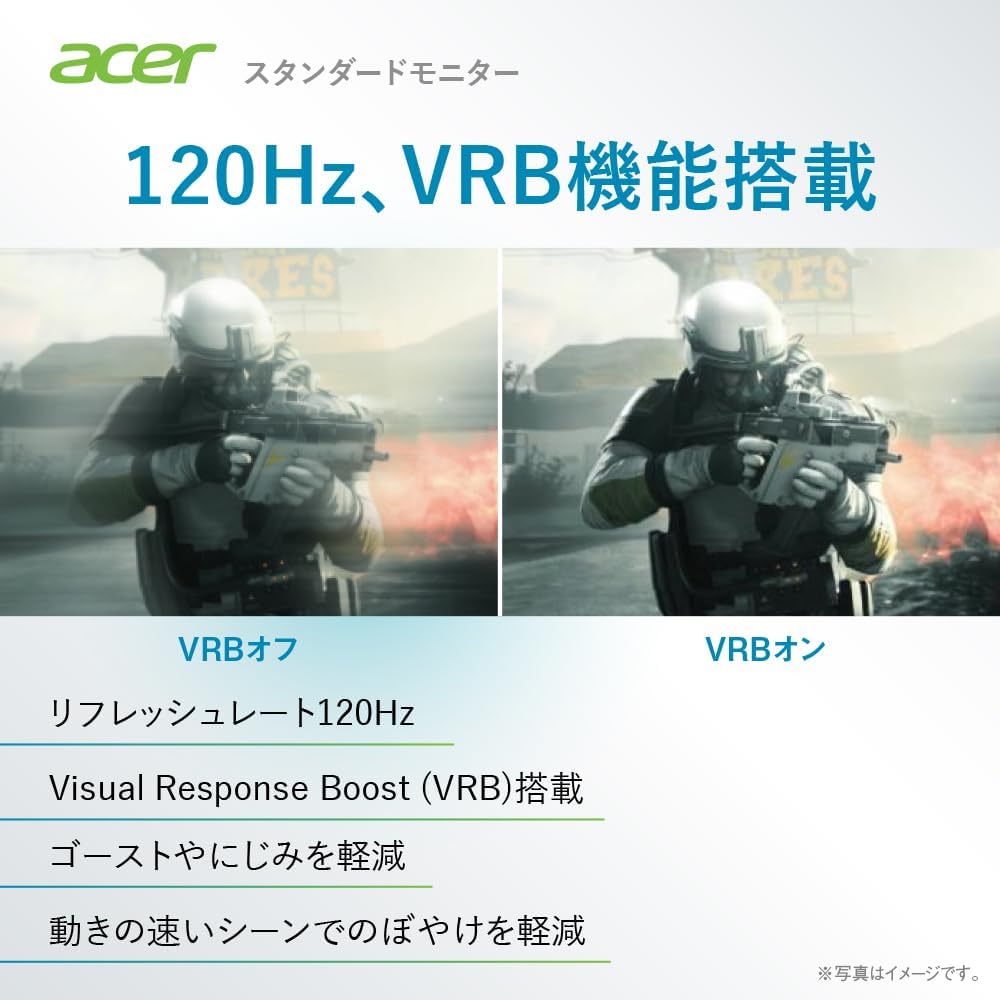
Image: A comparison demonstrating the effect of Visual Response Boost (VRB) on the Acer SA270G0bi monitor. The left side shows VRB off with more motion blur, while the right side shows VRB on, resulting in clearer images during fast-moving scenes.

Image: Side and front view of the Acer SA270G0bi monitor, illustrating its ultra-thin profile and Zero Frame design, which minimizes the bezel for an expansive viewpengalaman ing.

Image: The Acer SA270G0bi monitor displaying a city skyline, with an overlay indicating Acer VisionCare™ technology. This feature includes Flicker-less, Blue Light Shield, and Acer Low Dimming technologies designed to reduce eye strain.
5.3 Acer Display Widget
The Acer Display Widget software allows for intuitive control of monitor settings directly from your PC. Download and install the application to access various display modes and split-screen functions.

Image: Screenshot of the Acer Display Widget interface, showing options for Visual Modes (sRGB, Reading, Darkroom, User, Standard, ECO, Graphic, Movie), Visual Sync, and Split Screen settings, allowing PC-based control of the monitor.
6. Pemeliharaan
6.1 Membersihkan Monitor
- Selalu cabut monitor dari stopkontak sebelum membersihkan.
- Gunakan kain lembut dan bebas serat untuk sedikit membersihkannya.ampened with water to clean the screen. Avoid using alcohol-based cleaners, solvents, or abrasive materials.
- Untuk monitor casing, gunakan kain yang lembut dan kering.
7. Penyelesaian masalah
| Masalah | Solusi yang mungkin |
|---|---|
| Tidak ada gambar di layar | Ensure the power cable is securely connected. Check if the video cable (HDMI/D-Sub) is properly connected to both the monitor and the computer. Press the monitor's power button. Select the correct input source via the OSD menu. |
| Gambarnya buram atau terdistorsi | Check the video cable connection. Ensure the display resolution and refresh rate are set correctly in your computer's display settings. For D-Sub connections, use the OSD's auto-adjust function. |
| Warna salah | Sesuaikan pengaturan warna (kecerahan, kontras, suhu warna) di menu OSD. Atur ulang monitor ke pengaturan default pabrik. |
| Monitor berkedip | Ensure the refresh rate is set correctly. Enable Acer VisionCare's Flicker-less feature if available. Check for external interference. |
8. Spesifikasi
| Fitur | Detil |
|---|---|
| Nama Model | SA270G0bi |
| Ukuran Panel | 27 inci |
| Jenis Panel | IPS, Non-glare |
| Resolusi | Full HD (1920 x 1080 piksel) |
| Rasio Aspek | 16:9 |
| Tingkat Penyegaran | 120Hz (HDMI), 56-75Hz (Mini D-Sub) |
| Waktu Respon | 1 ms (VRB) |
| Viewsudut ing | 178° (T) / 178° (V) |
| Tampilan Warna | kira-kira 16.77 juta warna |
| Terminal Input | 1 x HDMI 1.4, 1 x Mini D-Sub 15-pin |
| Pembicara | Tidak dilengkapi |
| Soket Headphone | Tidak dilengkapi |
| Dimensi (L x D x T) | Ukuran 61.2x21.2x44.7 cm |
| Berat | 3.5 kg |
| Sudut Kemiringan | Naik 15°, Turun 5° |
9. Garansi dan Dukungan
For product support, warranty information, and frequently asked questions, please visit the official Acer support page:
Support business hours: 10:00 - 19:00, 365 days a year (excluding company-designated holidays).


