1. Pendahuluan
Thank you for choosing the Acer B277UD6b monitor. This manual provides essential information for setting up, operating, and maintaining your monitor. Please read this manual thoroughly before using the product to ensure proper installation and optimal performance. Keep this manual for future reference.

Gambar 1.1: Depan view of the Acer B277UD6b monitor, showcasinberkat desainnya yang ramping dan area tampilannya.
2. Informasi Keselamatan
Perhatikan langkah-langkah keselamatan berikut untuk mencegah kerusakan pada monitor dan memastikan keselamatan Anda:
- Jangan letakkan monitor di atas troli, dudukan, atau meja yang tidak stabil.
- Jangan halangi lubang ventilasi.
- Do not use near water or in high humidity environments.
- Use only the power cord and adapter supplied by the manufacturer.
- Serahkan semua servis kepada teknisi servis yang berkualifikasi.
- Unplug the monitor from the wall outlet before cleaning.
3. Isi Paket
Pastikan semua barang ada di dalam paket Anda. Jika ada barang yang hilang atau rusak, hubungi pengecer Anda.
- Acer B277UD6b Monitor
- Dudukan Monitor (Alas dan Leher)
- Power Cord (AC-In C14)
- Kabel DisplayPort
- Kabel HDMI
- Kabel VGA
- Panduan Pengguna dan Dokumentasi
4. Pengaturan
4.1. Merakit Dudukan Monitor
- Keluarkan komponen monitor dan dudukan secara hati-hati dari kemasannya.
- Pasang leher penyangga ke panel monitor. Pastikan terpasang dengan aman hingga berbunyi klik atau dikencangkan dengan sekrup jika tersedia.
- Pasang alas penyangga ke leher penyangga. Kencangkan sekrup pengunci di bagian bawah alas untuk mengamankannya.
- Letakkan monitor yang sudah dirakit pada permukaan yang stabil dan datar.

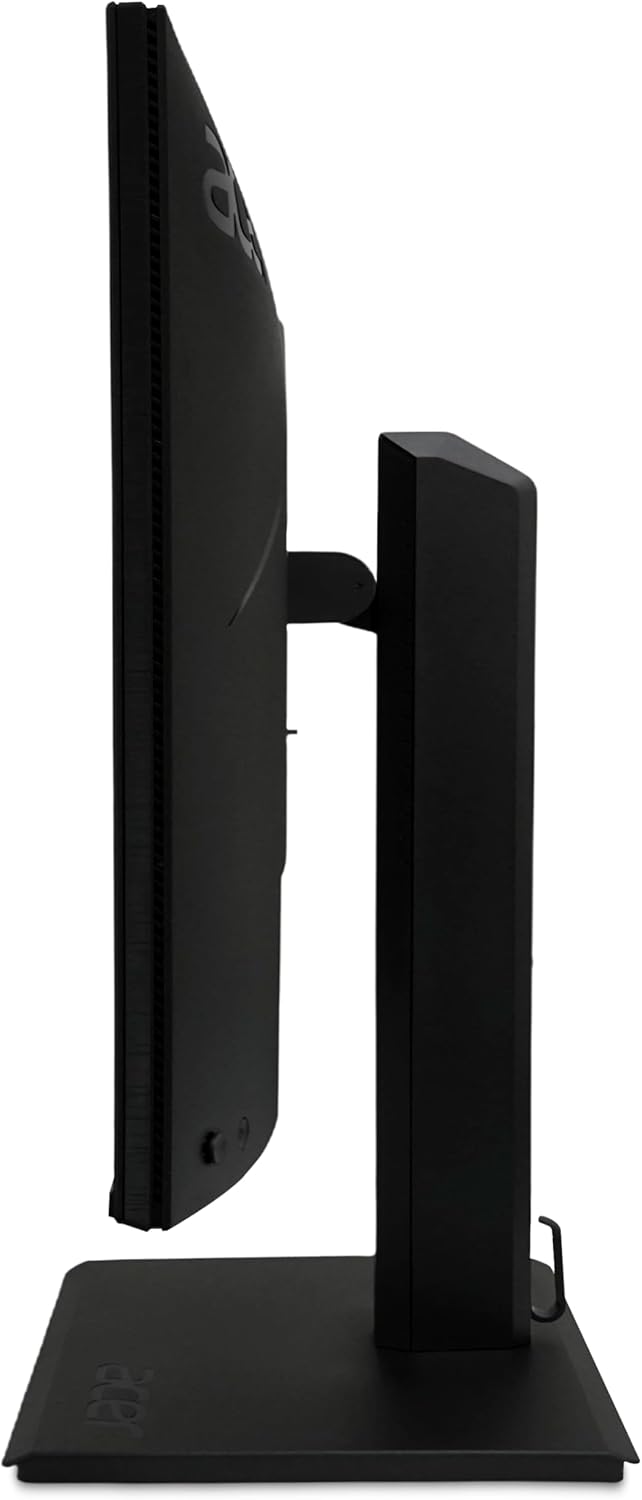
Gambar 4.1: Samping view of the Acer B277UD6b monitor, illustrating its profile dan titik pemasangan penyangga.
4.2. Menghubungkan Monitor
Hubungkan monitor ke komputer dan sumber daya listrik menggunakan kabel yang sesuai.
- Sambungan Daya: Connect the power cord to the AC-In C14 port on the monitor and then to a wall outlet.
- Koneksi Video: Pilih salah satu koneksi video berikut:
- DisplayPort: Hubungkan salah satu ujung kabel DisplayPort ke input DisplayPort monitor dan ujung lainnya ke output DisplayPort komputer Anda.
- HDMI: Connect one end of the HDMI cable to the monitor's HDMI 1.4 input and the other end to your computer's HDMI output.
- VGA: Connect one end of the VGA cable to the monitor's VGA input and the other end to your computer's VGA output.
- Pastikan semua koneksi aman.
Gambar 4.2: Belakang view of the Acer B277UD6b monitor, highlighting the various input ports including DisplayPort, HDMI, VGA, and AC-In.
5. Petunjuk Pengoperasian
5.1. Menghidupkan/Mematikan
Tekan tombol daya, yang biasanya terletak di bagian kanan bawah atau belakang monitor, untuk menghidupkan atau mematikan monitor. Lampu indikator daya akan menyala saat monitor aktif.
5.2. Menu Tampilan di Layar (OSD)
The OSD menu allows you to adjust various monitor settings such as brightness, contrast, color, input source, and more. Access the OSD menu using the buttons located on the monitor (typically on the back or bottom edge).
- Press an OSD button to activate the menu.
- Use the navigation buttons (up/down/left/right or joystick) to browse through menu options.
- Tekan tombol pilih/enter untuk mengkonfirmasi pilihan atau masuk ke submenu.
- Tekan tombol keluar untuk menutup menu OSD.
5.3. Pemilihan Sumber Input
If you have multiple devices connected to the monitor, you can switch between input sources using the OSD menu or a dedicated input select button.
6. Pemeliharaan
6.1. Membersihkan Monitor
Untuk membersihkan monitor, pastikan monitor dalam keadaan mati dan dicabut dari stopkontak.
- Layar: Usap layar secara perlahan dengan kain lembut bebas serat. Untuk noda membandel, usap layar dengan lembut.ampBasahi kain dengan air atau cairan pembersih layar tanpa amonia dan alkohol. Jangan menyemprotkan cairan pembersih langsung ke layar.
- Casing: Gunakan kain lembut dan kering untuk membersihkan monitor casing. Hindari pembersih abrasif.
6.2. Penyimpanan
If storing the monitor for an extended period, disconnect all cables and pack it in its original packaging to protect it from dust and physical damage.
7. Penyelesaian masalah
Jika Anda mengalami masalah dengan monitor Anda, ikuti langkah-langkah pemecahan masalah umum berikut:
| Masalah | Solusi yang mungkin |
|---|---|
| Tidak ada gambar di layar | Ensure the power cable is securely connected. Check if the monitor is powered on. Verify the video cable is connected to both the monitor and the computer. Select the correct input source via the OSD menu. |
| Gambarnya buram atau terdistorsi | Check the video cable connection. Ensure the display resolution and refresh rate are set correctly in your computer's display settings (2560x1440 at 120Hz recommended). |
| Tidak ada suara (jika ada) | Check audio cable connections (if external speakers are used). Adjust volume settings on the monitor and computer. |
| Monitor berkedip | Ensure the video cable is securely connected. Try a different video cable or port. Update your graphics card drivers. |
8. Spesifikasi
Detailed technical specifications for the Acer B277UD6b monitor:
- Nama Model: Vero B277UD6bmiiprczx
- Seri: B277UD6b
- Ukuran Layar: 27 inci (68.6 cm)
- Resolusi: Resolusi 2560x1440 (QHD)
- Rasio Aspek: 16:9
- Kecepatan Penyegaran: 120Hz
- Waktu Respon: 1 Milidetik
- Dukungan Warna: 8 bits (16.7 million colors, 6 bits + 2 bits FRC)
- Permukaan Tampilan: Anti-glare (Antirreflectores), Hardness 3H
- Konektivitas:
- 1x DisplayPort 1.2 (supports 75Hz@1920x1080)
- 1x HDMI 1.4 (supports 75Hz@1920x1080)
- 1x VGA (supports 60Hz@1920x1080)
- 1x AC-In C14 (Power Connection)
- Dimensi (L x D x T): Ukuran 57.1x61.1x36.5 cm
- Berat: 8 kg
- Warna: Hitam
9. Garansi dan Dukungan
Untuk informasi garansi dan dukungan teknis, silakan lihat kartu garansi yang disertakan dengan produk Anda atau kunjungi dukungan resmi Acer. website. You may need your product's serial number and proof of purchase when contacting support.
Dukungan Acer Weblokasi: www.acer.com/support


