1. Pendahuluan
This manual provides detailed instructions for the installation, operation, and maintenance of your CAMECHO 10.26" Wireless CarPlay Screen. This portable car stereo features a high-definition touchscreen, supporting wireless Apple CarPlay, Android Auto, backup camera integration, Super Link, voice control, mirror link, AUX, FM, and Bluetooth audio connectivity. Please read this manual thoroughly before use to ensure proper functionality and safety.
2. Isi Paket
Verifikasi bahwa semua item yang tercantum di bawah ini disertakan dalam paket Anda:
- 1 x 10.26-Inch Smart Screen Player
- 1 x Kamera Mundur 12 LED
- 1 x 3m AUX Cable
- 1 x Kabel Daya
- 1 x Basis Monitor
- 1 x Cangkir Hisap
- 1 x Stiker Penjepit Braket
- 1 x Panduan Pengguna

The image above illustrates the main components included in the product package, such as the 10.26-inch screen, backup camera, various cables, and mounting accessories.
3. Pengaturan
3.1 Pemasangan dan Instalasi
The CAMECHO 10.26" Wireless CarPlay Screen offers versatile installation options to suit various vehicle types (7-32V), including cars, trucks, campers, RVs, and vans. It can be mounted on the windshield or dashboard without modifying your vehicle's original structure.
- Pemasangan Dasbor: Use the provided monitor base and bracket fixing sticker to secure the screen to your dashboard.
- Dudukan Kaca Depan: Attach the suction cup bracket to your windshield for a secure hold.
Both bracket types allow for 360-degree rotation, enabling optimal viewsudut ing.

This image demonstrates the flexibility of mounting the device, showing it installed on a dashboard and a windshield, along with detailed views of the adjustable monitor base and suction cup bracket.
3.2 Sambungan Daya
Connect the provided power cord to the device's power input and then to your vehicle's 12V power outlet (cigarette lighter socket). Ensure the connection is secure.
4. Petunjuk Pengoperasian
4.1 Wireless CarPlay Connection (for iPhone)
- Buka "Pengaturan" di iPhone Anda.
- Aktifkan "Bluetooth".
- Select the Bluetooth device starting with "T86-XXX" from the available devices.
- Tunggu sekitar 20-30 detik, lalu pilih "Gunakan CarPlay" saat diminta.
- Perangkat akan memasuki mode CarPlay.

This image provides a visual guide for connecting your iPhone to the screen for Apple CarPlay functionality.
4.2 Wireless Android Auto Connection (for Android Phones)
- Install the Android Auto application from the Google Play Store on your phone.
- Open "Settings" on your Android phone.
- Aktifkan "Bluetooth".
- Find the monitor's Bluetooth name connection (e.g., "T86-XXXX") and select it.
- Allow contacts to make calls and select pairing when prompted.
- Perangkat akan memasuki mode Android Auto.

This image illustrates the process of connecting your Android phone to the screen for Android Auto functionality.
4.3 Wireless Apple AirPlay (for iPhone)
- Click the AirPlay icon on the screen.
- Buka "Pengaturan" di iPhone Anda.
- Aktifkan "Bluetooth".
- Select the Bluetooth device starting with "T86-XXX".
- Drop down the phone's control center and select the "Screen Mirroring" icon.
- Wait for approximately 20-30 seconds, then select "SmartScreen".
- Perangkat akan memasuki mode Android Cast (pencermian layar).

This image details the steps for mirroring your iPhone screen to the CAMECHO display using AirPlay.
4.4 Wireless Android Cast (for Android Phones)
- Install the Android Cast application from the Google Play Store on your phone.
- Scan the QR code displayed on the screen to download the application to your phone.
- Buka aplikasi di ponsel Anda.
- Turn on Bluetooth, locate and connect to the device.
- Perangkat akan memasuki mode Android Cast (pencermian layar).

This image outlines the procedure for mirroring your Android phone screen to the CAMECHO display using Android Cast.
4.5 Pengoperasian Kamera Mundur
When your vehicle is shifted into reverse gear, the wireless Apple CarPlay screen automatically displays a real-time image from the backup camera. This includes parking lines to assist with safe and effortless reversing and parking. The rear camera is designed to be waterproof, protecting against powerful jets of water from any direction.
This image demonstrates the backup camera's view on the screen, complete with parking assistance lines, and highlights the camera's waterproof design.
4.6 Mode Output Audio
The device offers multiple options for audio output:
- Speaker internal: The unit has an integrated speaker for direct audio playback.
- Audio Bluetooth: Connect to your car's existing audio system via Bluetooth for enhanced sound quality.
- Koneksi AUX: Use the provided 3.5mm AUX cable to connect the unit to your car's AUX input.
- Transmisi FM: Transmit audio wirelessly to your car's FM radio by setting both the unit and your car radio to the same FM frequency.

This image visually explains the different ways to output audio from the device to your car's sound system or directly through its built-in speaker.
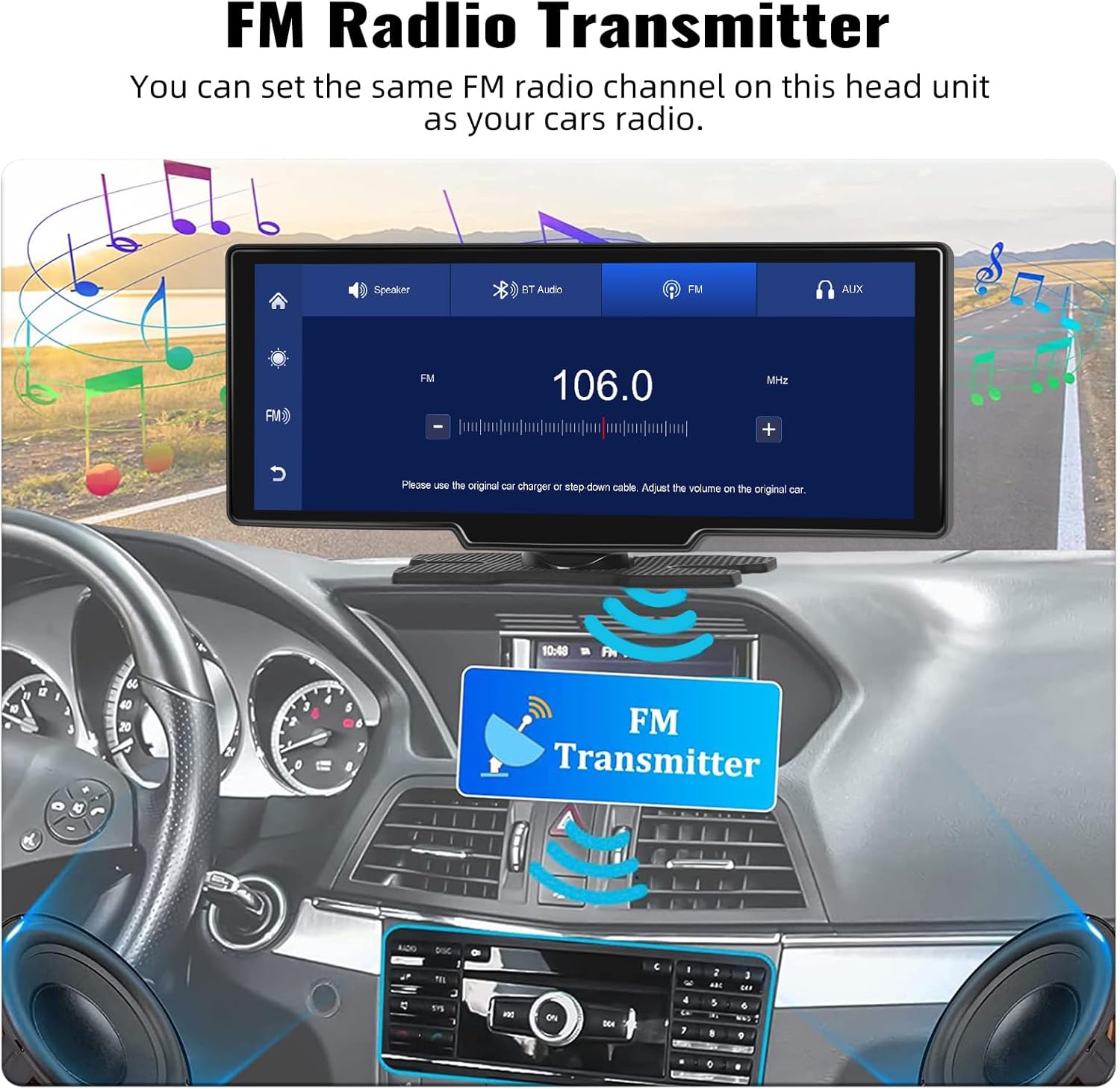
This image displays the FM transmitter function, showing how to select an FM frequency on the device to match your car's radio for audio playback.
4.7 Kontrol Suara
Utilize voice control to safely access functions like Siri or Google Assistant. This allows you to get directions, make phone calls, play music, and send messages without taking your eyes off the road, enhancing driving safety.

This image demonstrates the voice control feature, showing how to interact with Siri or Google Assistant for various tasks while driving.
4.8 Super Link for Video Playback
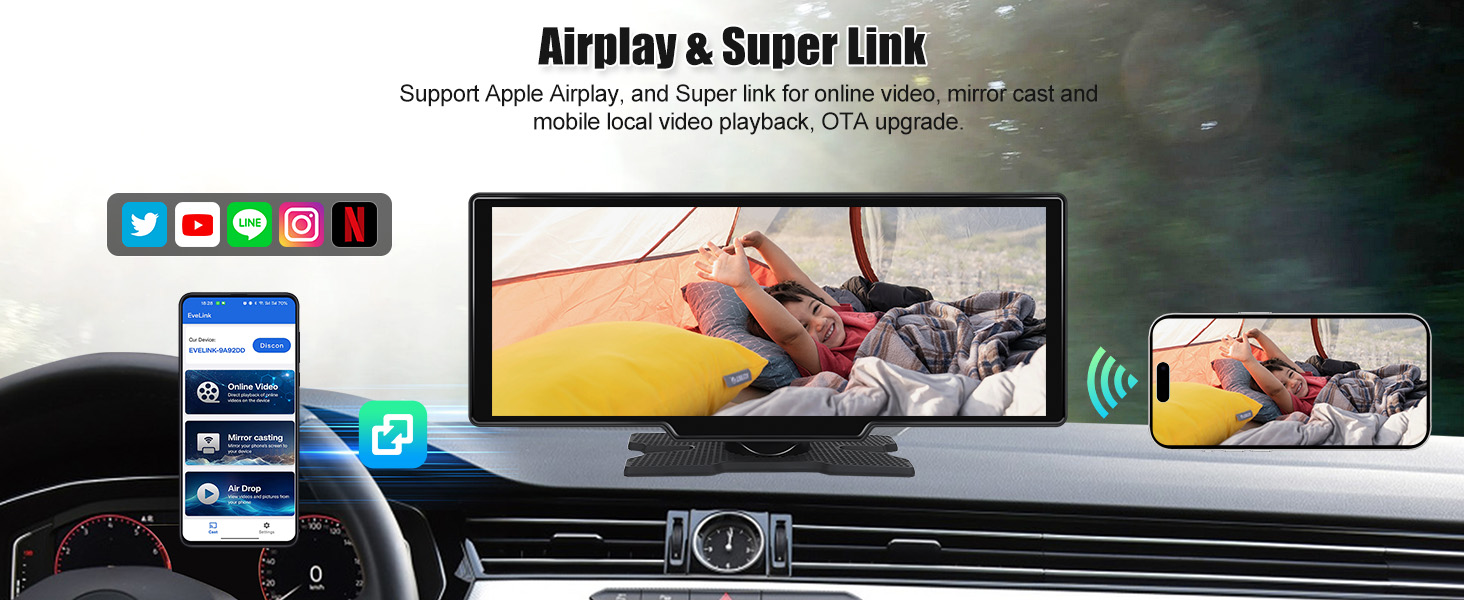
The Super Link feature allows for direct playback of online videos from platforms like YouTube, TikTok, and Twitch. It also supports mirror casting and Air Drop for mobile local video playback, enabling you to use your phone for other tasks while video content is displayed on the screen.

This image highlights the Super Link feature, demonstrating its capability to play online videos and mirror content from your phone.
TIDAK PERNAH Pengaturan Umum
The device allows adjustment of various settings:
- Volume: Sesuaikan level output audio.
- Kecerahan: Sesuaikan kecerahan layar untuk visibilitas optimal dalam berbagai kondisi pencahayaan.
- Bahasa: Pilih bahasa pilihan Anda untuk antarmuka pengguna.
This video demonstrates the process of connecting an Android phone to the device, using the voice assistant, and adjusting general settings such as volume and screen brightness.
5. Pemeliharaan
5.1 Pembersihan
To clean the screen, use a soft, lint-free cloth. For stubborn smudges, lightly dampen the cloth with water or a screen-safe cleaning solution. Avoid abrasive materials or harsh chemicals that could damage the screen surface.
5.2 Perawatan Umum
Avoid exposing the device to extreme temperatures, direct sunlight for prolonged periods, or excessive moisture. Ensure all cables are securely connected to prevent accidental disconnections. When not in use, consider detaching the screen if your mounting method allows, especially in extreme weather conditions.
6. Penyelesaian masalah
If you encounter issues with your CAMECHO 10.26" Wireless CarPlay Screen, refer to the following common problems and solutions:
- Tidak Ada Daya: Ensure the power cord is securely plugged into both the device and the vehicle's 12V power outlet. Check if the vehicle's power outlet is functioning.
- Masalah Konektivitas (CarPlay/Android Auto): Verify that Bluetooth is enabled on both your phone and the device. Ensure your phone's operating system is up to date. Try restarting both the phone and the device. For Android Auto, confirm the app is installed on your phone.
- Tidak Ada Keluaran Audio: Check the selected audio output mode (Built-in Speaker, Bluetooth, AUX, FM). If using FM transmission, ensure the frequency matches your car radio. Adjust the volume on both the device and your car's audio system.
- Pemasangan Tidak Stabil: If the adhesive for the monitor base is not sufficiently sticky, consider using stronger double-sided adhesive tape or an alternative mounting solution to ensure stability.
- Masalah Pencermian Layar: For Apple AirPlay, ensure both devices are on the same Wi-Fi network (if applicable) and Bluetooth is active. For Android Cast, confirm the specific app is installed and connected.
Jika langkah-langkah ini tidak menyelesaikan masalah, silakan hubungi dukungan pelanggan.
7. Spesifikasi
| Fitur | Spesifikasi |
|---|---|
| Dimensi Paket | 10.24x4.72x4.33 inci |
| Berat Barang | 1.98 pon |
| ASIN | B0F4QL8L6D |
| Nomor Model Barang | e0c6f1db-4002-463c-a666-6c71beb45753 |
| Merek | KAMESHO |
| Teknologi Konektivitas | Bahasa Indonesia: Bluetooth |
| Tipe Pengendali | Layar sentuh, Tombol tekan |
| Fitur Khusus | Wireless CarPlay, Android Auto, Voice Control, Super Link, Built-in Speaker |
| Perangkat yang Kompatibel | Telepon pintar |
| Jenis Konektor | 3.5mm Jack, Bluetooth |
| Mode Keluaran Audio | Stereo, Mengelilingi |
| Konfigurasi Saluran Suara Surround | 2.0 |
| Jumlah Saluran | 2 |
| Layanan Internet yang Didukung | YouTube, TikTok, Twitch |
8. Garansi & Dukungan
8.1 Kebijakan Pengembalian
This product is eligible for a 30-day refund or replacement policy from the date of purchase. Please refer to the retailer's specific return guidelines for detailed information.
8.2 Dukungan Pelanggan
For any questions, technical assistance, or support regarding your CAMECHO 10.26" Wireless CarPlay Screen, please contact our customer support team.
E-mail: CAMECHOVIP@126.com

The image above provides the email address for customer support, where you can seek assistance for your product.


