1. Pendahuluan
Thank you for choosing the Dierya x TMKB M1 Wireless Gaming Mouse. This manual provides detailed instructions on how to set up, operate, and maintain your new gaming mouse. The M1 mouse offers versatile connectivity, high-precision tracking, and customizable features to enhance your gaming and productivity experience.
2. Produk Lebihview
2.1 Komponen dan Kontrol
Familiarize yourself with the various buttons and features of your Dierya M1 mouse:
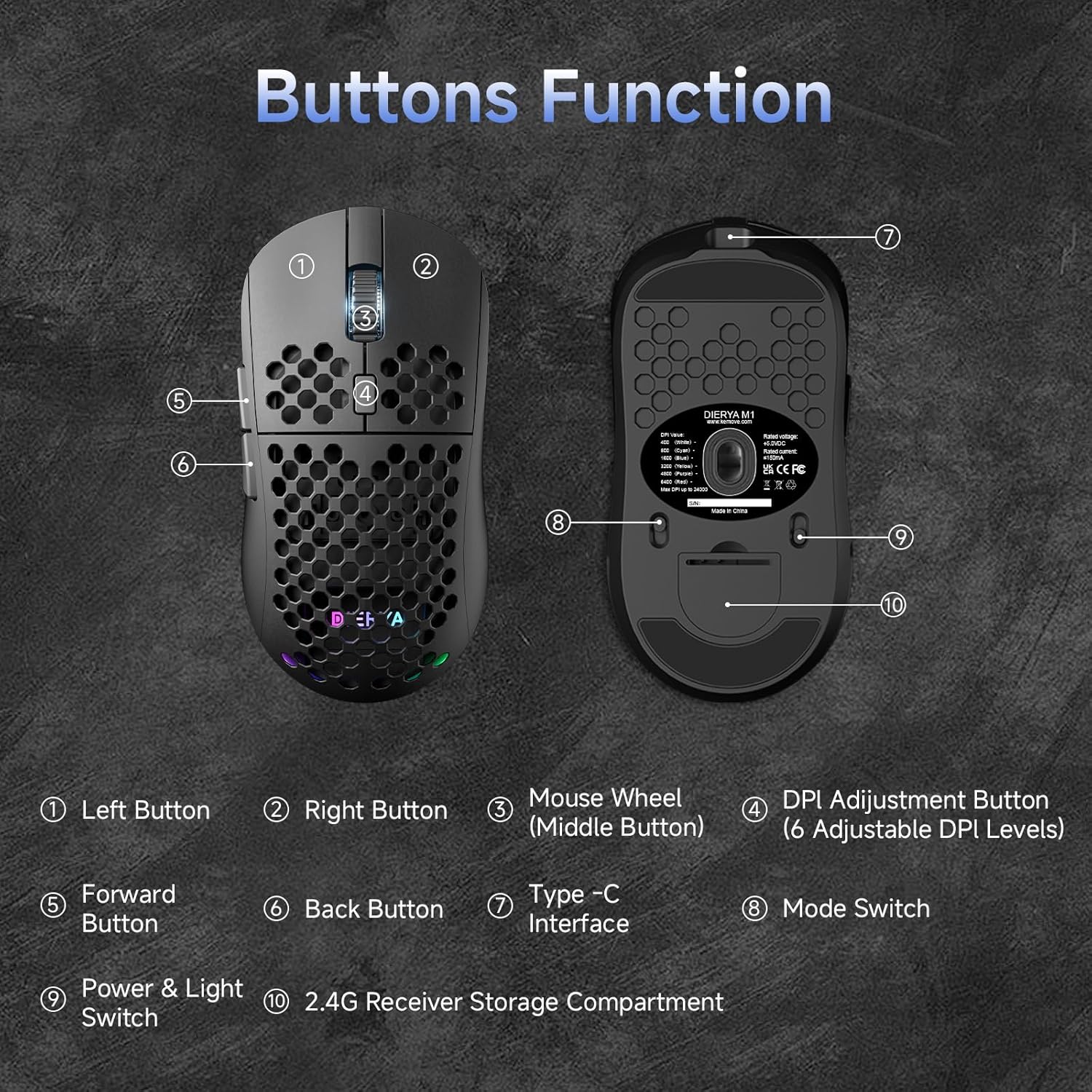
This diagram illustrates the various components of the Dierya M1 wireless gaming mouse. It highlights the Tombol Kiri (1), Tombol Kanan (2), Mouse Wheel (Middle Button) (3), DPI Adjustment Button (4) with 6 adjustable DPI levels, Tombol Maju (5), Tombol Kembali (6), Type-C Interface (7) for charging and wired connection, Sakelar Mode (8) for selecting connection type, Power & Light Switch (9), dan 2.4G Receiver Storage Compartment (10) located on the underside.
2.2 Fitur Utama
- Sensor Optik 24,000 DPI: Adjustable DPI range from 200 to 24,000, with 6 preset levels (400-6400 DPI).
- Konektivitas Tiga Mode: Supports ultra-fast 2.4GHz wireless, energy-efficient Bluetooth 5.2, and stable USB-C wired connections.
- Daya Tahan Baterai yang Lama: 1000mAh battery provides up to 180 hours in ECO mode or 48 hours with RGB lighting, with 1-hour fast charging.
- Desain Ringan & Ergonomis: Weighs only 90g with a honeycomb shell for breathability and a symmetrical design (125x63x41 mm).
- Tombol yang Dapat Diprogram: 6 customizable buttons via the M1 Driver software (Windows only).
- Pencahayaan RGB Dinamis: 13 integrated RGB lighting effects with 16.8 million customizable colors.
- Kinerja Tinggi: 125-1000 Hz polling rate, 300 IPS tracking speed, and 35G acceleration.
- Sakelar Tahan Lama: Equipped with Huano switches rated for 20 million clicks and 100% PTFE feet for smooth gliding.
3. Pengaturan
3.1 Mengisi Daya Mouse
Before first use, it is recommended to fully charge the mouse. Connect the provided USB-C cable to the Type-C Interface (7) on the mouse and the other end to a USB power source (e.g., computer USB port, USB wall adapter).
- The mouse charges in approximately 1 hour.
- The scroll wheel LED will indicate charging status (e.g., red for charging, green for fully charged).
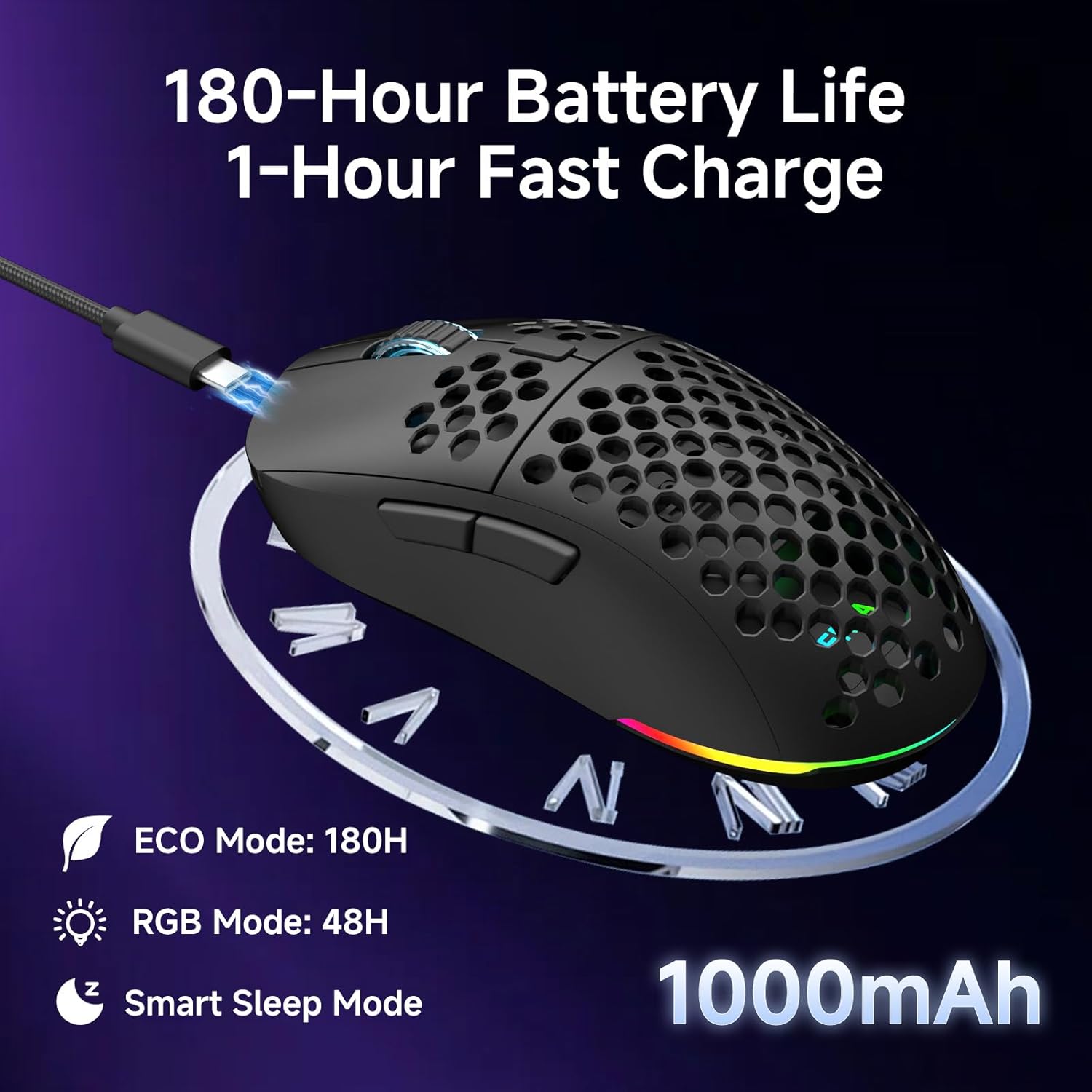
The Dierya M1 mouse features a 1000mAh battery, providing up to 180 hours of use in ECO mode or 48 hours with RGB lighting enabled. It supports fast charging, reaching full capacity in approximately 1 hour via the included USB-C cable. The mouse also includes a smart sleep mode to conserve power during inactivity.
3.2 Menghubungkan Mouse
The Dierya M1 mouse offers three connection modes: 2.4GHz Wireless, Bluetooth 5.2, and USB-C Wired.

The Dierya M1 mouse supports three flexible connection modes: Bluetooth 5.2 for energy-efficient pairing with up to two devices, 2.4GHz Wireless via a USB dongle for ultra-fast response, and a stable USB-C Wired connection for charging and direct use. Each mode offers a different polling rate, with 2.4GHz and wired modes providing 1000Hz, and Bluetooth offering 125Hz.
3.2.1 Koneksi Nirkabel 2.4GHz
- Locate the 2.4G receiver in the storage compartment (10) on the underside of the mouse.
- Hubungkan penerima 2.4G ke port USB yang tersedia di komputer Anda.
- Set the Mode Switch (8) on the underside of the mouse to the '2.4G' position.
- The mouse should connect automatically. The polling rate for this mode is 1000 Hz.
3.2.2 Koneksi Bluetooth 5.2
- Set the Mode Switch (8) on the underside of the mouse to the 'BT' position.
- Di komputer atau perangkat Anda, buka pengaturan Bluetooth dan cari perangkat baru.
- Select 'Dierya M1' from the list of available devices to pair.
- The mouse supports Bluetooth 5.2 and has a polling rate of 125 Hz in this mode.
3.2.3 Koneksi Kabel USB-C
- Connect the USB-C cable to the Type-C Interface (7) on the mouse.
- Hubungkan ujung lain kabel USB-C ke port USB yang tersedia di komputer Anda.
- The mouse will automatically switch to wired mode and begin charging. The polling rate for this mode is 1000 Hz.
4. Petunjuk Pengoperasian
4.1 Penyesuaian DPI
The Dierya M1 mouse features a dedicated DPI Adjustment Button (4) to cycle through preset DPI levels. The scroll wheel LED color indicates the current DPI setting.
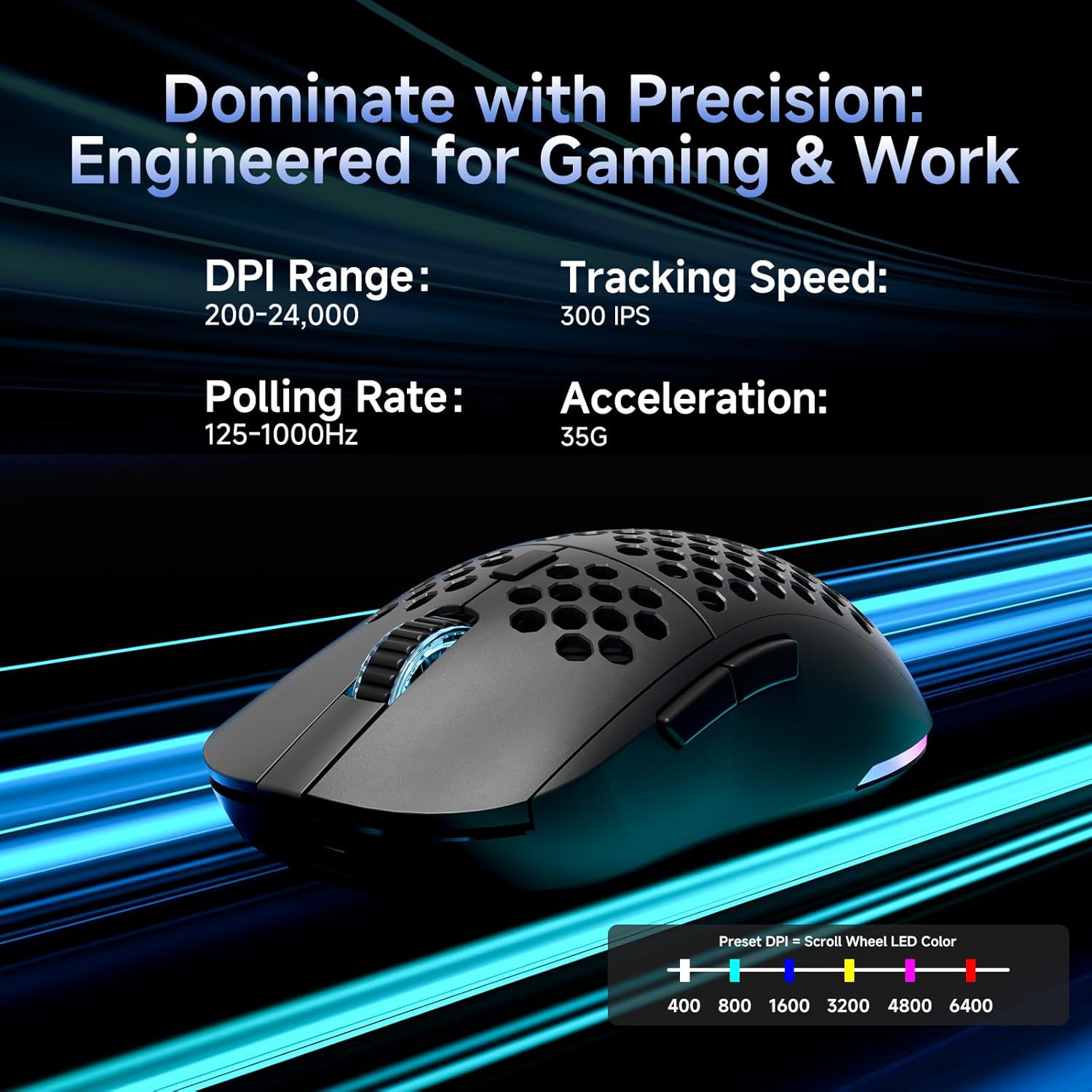
This image details the performance specifications of the Dierya M1 mouse, including a DPI range of 200-24,000, a tracking speed of 300 IPS, a polling rate of 125-1000Hz, and 35G acceleration. It also shows the preset DPI levels (400, 800, 1600, 3200, 4800, 6400) and the color indicators on the scroll wheel for each setting.
- Press the DPI Adjustment Button (4) to cycle through the 6 default DPI settings: 400, 800, 1600, 3200, 4800, and 6400 DPI.
- Each DPI level is indicated by a specific color on the scroll wheel LED.
- For custom DPI settings and a wider range (200-24,000 DPI), use the M1 Driver software.
4.2 Kontrol Pencahayaan RGB
The Dierya M1 mouse features dynamic RGB lighting. You can control the lighting effects and colors using the M1 Driver software.
- The mouse has 13 built-in RGB lighting effects.
- Use the M1 Driver software to customize colors (16.8 million options), brightness, and speed of the lighting effects.
- The Power & Light Switch (9) on the underside can be used to turn the lighting on or off.
4.3 Programmable Buttons and Software
The M1 mouse has 6 programmable buttons that can be customized using the dedicated M1 Driver software.

The Dierya M1 driver software, currently available for Windows, allows users to customize various aspects of the mouse. This includes reassigning the 6 programmable buttons, creating macros, adjusting DPI settings, modifying the polling rate, and personalizing the 13 dynamic RGB lighting effects with 16.8 million colors.
- Kompatibilitas Perangkat Lunak: The M1 Driver software is currently only available for Windows operating systems.
- Tugas Kunci: Reassign functions to any of the 6 programmable buttons (Left, Right, Middle, DPI, Forward, Back).
- Pembuatan Makro: Create and assign complex macros to streamline in-game actions or productivity tasks.
- DPI & Polling Rate: Fine-tune DPI settings beyond the presets and adjust the polling rate.
- Kustomisasi RGB: Personalize lighting effects, colors, and patterns.
- Profile Pengelolaan: Save and load different profileuntuk berbagai game atau aplikasi.
4.4 Mode Hemat Daya
The M1 mouse is designed with automatic power-saving features to extend battery life:
- The mouse will enter an automatic power-saving mode after 1-5 minutes of inactivity.
- This inactivity time can be adjusted via the M1 Driver software.
- Untuk mengaktifkan mouse, cukup gerakkan atau klik tombol apa pun.
5. Pemeliharaan
Proper maintenance ensures the longevity and optimal performance of your Dierya M1 mouse.
- Pembersihan: Gunakan kain lembut dan kering untuk menyeka permukaan mouse. Untuk kotoran yang membandel, gunakan kain yang sedikit kering.amp cloth can be used, but ensure no moisture enters the mouse. Avoid harsh chemicals or abrasive cleaners.
- Perawatan Sensor: Jaga agar sensor optik di bagian bawah mouse tetap bersih dan bebas dari debu atau kotoran untuk memastikan pelacakan yang akurat.
- Perawatan Baterai: Hindari menguras baterai sepenuhnya secara sering. Untuk penyimpanan jangka panjang, isi daya mouse hingga sekitar 50% dan simpan di tempat yang sejuk dan kering.
- Penyimpanan: Bila tidak digunakan, simpan mouse di lingkungan yang bersih dan kering, jauhkan dari suhu ekstrem.
6. Penyelesaian masalah
If you encounter issues with your Dierya M1 mouse, refer to the following common troubleshooting steps:
| Masalah | Kemungkinan Penyebab | Larutan |
|---|---|---|
| Mouse tidak merespons (2.4GHz) | Low battery, receiver unplugged, incorrect mode, interference. | Charge the mouse. Ensure 2.4G receiver is securely plugged in. Set Mode Switch to '2.4G'. Try a different USB port. Reduce distance to receiver. |
| Mouse tidak merespons (Bluetooth) | Low battery, incorrect mode, not paired, Bluetooth off on device. | Charge the mouse. Set Mode Switch to 'BT'. Ensure Bluetooth is enabled on your device. Re-pair the mouse in Bluetooth settings. |
| Mouse tidak merespons (Berkabel) | Cable not connected, faulty cable/port. | Ensure USB-C cable is securely connected to both mouse and computer. Try a different USB port or cable. |
| Pelacakan yang tidak akurat | Dirty sensor, unsuitable surface, incorrect DPI. | Clean the optical sensor. Use a mouse pad or a clean, non-reflective surface. Adjust DPI settings. |
| Pencahayaan RGB tidak berfungsi | Lighting switched off, low battery, software issue. | Check Power & Light Switch (9). Charge the mouse. Check settings in M1 Driver software. |
| Tombol tidak dapat diprogram | M1 Driver not installed/running, not on Windows. | Ensure M1 Driver software is installed and running (Windows only). Check software settings. |
7. Spesifikasi
| Nama Model | M1 |
| Merek | Dierya |
| Teknologi Konektivitas | Nirkabel 2.4GHz, Bluetooth 5.2, Kabel USB-C |
| Teknologi Deteksi Gerakan | Optik |
| Rentang DPI | 200 - 24,000 DPI (6 preset levels: 400, 800, 1600, 3200, 4800, 6400) |
| Tingkat Polling | Frekuensi 125-1000Hz |
| Kecepatan Pelacakan | 300 IPS |
| Percepatan | 35G |
| Jumlah Tombol | 6 (Dapat diprogram) |
| Kapasitas Baterai | 1000 mAh Lithium-ion |
| Daya Tahan Baterai | Up to 180 hours (ECO mode), 48 hours (RGB mode) |
| Waktu Pengisian Daya | Sekitar 1 jam |
| Berat | 90 gram |
| Ukuran | Ukuran 125x63x41 mm |
| Jenis Sakelar | Huano (20 million clicks) |
| Feet Material | 100% serat optik |
| Kompatibilitas Sistem Operasi | Windows, macOS, Linux, Chrome OS |
| Driver Software Compatibility | Hanya untuk Windows |
8. Garansi dan Dukungan
8.1 Garansi Produsen
The Dierya M1 Wireless Gaming Mouse comes with a Garansi produsen 1 tahunGaransi ini mencakup cacat material dan pengerjaan dalam penggunaan normal. Harap simpan bukti pembelian Anda untuk klaim garansi.
8.2 Dukungan Pelanggan
For further assistance, technical support, or warranty inquiries, please refer to the official Dierya website or contact your retailer. Ensure you have your product model (M1) and proof of purchase ready when seeking support.


