1. Produk Lebihview
This manual provides detailed instructions for the Gamrombo Wireless Controller, designed for use with Xbox One, Xbox Series X|S, PC, and Windows 10/11 operating systems. Please read this manual carefully before use.
1.1 Isi Paket
- Gamrombo Wireless Controller (x2)
- 2.4GHz USB Adapter (x2)
- Kabel Pengisian USB Tipe-C (x2)
- User Manual (dokumen ini)
1.2 Tata Letak Pengontrol
The Gamrombo Wireless Controller features a standard layout with responsive buttons, joysticks, and triggers for an enhanced gaming experience.

Gambar 1.1: Depan view of the Gamrombo Wireless Controllers and 2.4GHz USB Adapters.

Gambar 1.2: Detail view of controller buttons, joysticks, and triggers.
2. Pengaturan dan Koneksi
2.1 Connecting to Xbox Consoles (Xbox One, Xbox Series X|S)
- Pastikan konsol Xbox Anda dalam keadaan menyala.
- Insert the 2.4GHz USB adapter into an available USB port on your Xbox console.
- Press and hold the Home button on the controller for 3 seconds to power it on. The indicator light on the controller will flash rapidly.
- Once the controller connects to the adapter, the indicator light will become solid, indicating a successful connection.
2.2 Connecting to PC (Windows 10/11)
- Pastikan PC Anda dihidupkan.
- Insert the 2.4GHz USB adapter into an available USB port on your PC. The system will automatically install the necessary drivers.
- Press and hold the Home button on the controller for 3 seconds to power it on. The indicator light on the controller will flash rapidly.
- Once the controller connects to the adapter, the indicator light will become solid. You can now use the controller for PC games.

Image 2.1: Controller compatibility with various platforms.
2.3 Mengisi Daya Pengontrol
To charge the controller, connect the included USB Type-C cable to the charging port on the controller and the other end to a USB power source (e.g., console, PC, or USB wall adapter). The indicator light will show charging status and turn off when fully charged.
3. Petunjuk Pengoperasian
3.1 Daya Hidup/Mati
- Nyalakan: Tekan dan tahan tombol Rumah selama 3 detik.
- Matikan: Press and hold the Home button for 5-8 seconds. The controller will automatically power off after 5 minutes of inactivity.
3.2 Fungsi Turbo
The Turbo function allows for rapid, repeated input of a button press, which can be beneficial in certain games.
- Tekan dan tahan tombol Turbo.
- While holding the Turbo button, press the desired action button (e.g., A, B, X, Y, LB, RB, LT, RT). The Turbo function is now activated for that button.
- To deactivate Turbo for a specific button, repeat the process: press and hold the Turbo button, then press the action button again.

Image 3.1: Instructions for activating the Turbo function.
3.3 Getaran Ganda
The controller features dual motors for vibration feedback, providing an immersive gaming experience. Vibration intensity can vary based on game support and in-game settings.

Image 3.2: Dual-motor vibration feedback levels.
3.4 Audio Jack and Volume Control
The controller includes a standard 3.5mm stereo audio jack for connecting headsets. Volume can be adjusted directly on the controller.
- Volume Naik: Push the volume slider to the right (+).
- Volume Turun: Push the volume slider to the left (-).
- Bisu: Press and hold the middle of the volume slider to mute audio.

Image 3.3: Audio jack and volume control details.
4. Pemeliharaan
- Pembersihan: Gunakan kain lembut dan kering untuk membersihkan pengontrol. Hindari penggunaan bahan kimia keras atau bahan abrasif.
- Penyimpanan: Simpan pengontrol di tempat yang sejuk dan kering, jauhkan dari sinar matahari langsung dan suhu ekstrem.
- Perawatan Baterai: To prolong battery life, avoid fully discharging the controller frequently. Charge the controller regularly, even if not in active use.
5. Penyelesaian masalah
5.1 Masalah Koneksi
- Pengontrol tidak terhubung: Ensure the 2.4GHz USB adapter is securely plugged into the console/PC. Make sure the controller is charged. Try re-pairing by powering off and on the controller.
- Koneksi terputus-putus: Ensure there are no strong wireless interference sources nearby. Try moving closer to the console/PC.
5.2 Controller Firmware Upgrade
If you experience persistent connection issues, particularly with Xbox consoles, a firmware upgrade may be required. The upgrade process is performed on a Windows PC.

Image 5.1: Information regarding controller firmware upgrade for connection issues.
- Upgrade Program Download: we.tl/t-I78iIsdPhP
- Video Upgrade Steps: youtu.be/2Q_x2bhtcUU
- The upgrade typically takes 2-3 minutes and ensures continued compatibility with Xbox devices.
5.3 Masalah Lainnya
- Tombol tidak responsif: Ensure the controller is powered on and connected. Restart the controller and try again.
- Getaran tidak berfungsi: Periksa pengaturan dalam gim untuk memastikan getaran diaktifkan.
6. Spesifikasi
| Fitur | Detil |
|---|---|
| Konektivitas | Nirkabel 2.4GHz |
| Kesesuaian | Xbox One, Xbox Series X|S, PC (Windows 10/11) |
| Kapasitas Baterai | 650 mAh |
| Waktu Pengisian Daya | 2-3 jam |
| Waktu Operasional | 8-10 jam |
| Soket Audio | 3.5mm Stereo |
| Getaran | Motor Ganda |
| Sensor Gerak | 6-Axis (for supported games/platforms) |
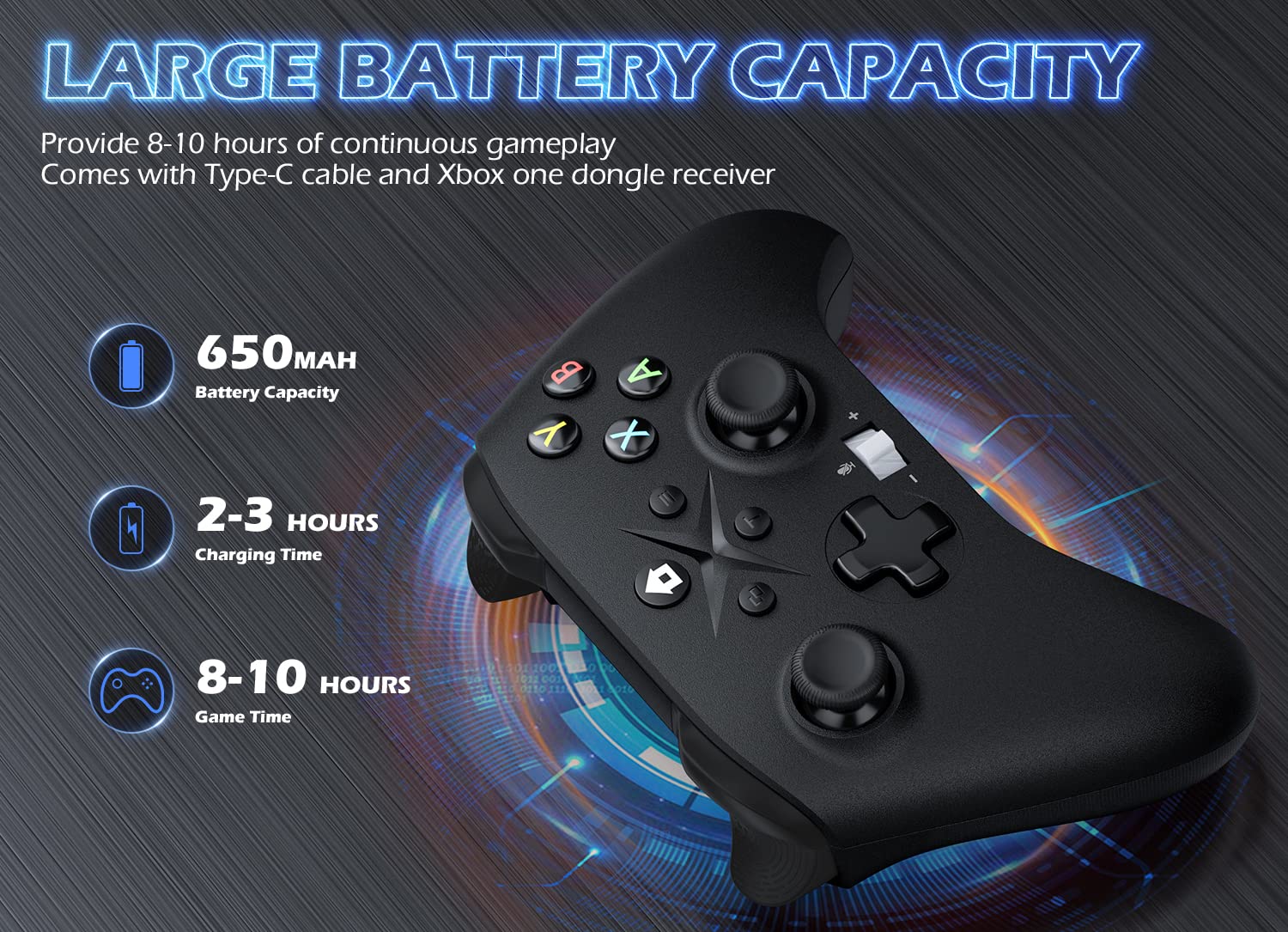
Image 6.1: Battery specifications.
7. Informasi Keselamatan Penting
- Jangan biarkan pengontrol terkena suhu ekstrem, kelembapan, atau sinar matahari langsung.
- Hindari menjatuhkan atau membiarkan kontroler terkena benturan keras.
- Jangan mencoba membongkar atau memodifikasi kontroler. Hal ini dapat membatalkan garansi dan menyebabkan kerusakan.
- Jauhkan pengontrol dan aksesorinya dari jangkauan anak-anak kecil.
- Gunakan hanya kabel pengisi daya yang disediakan atau kabel setara yang bersertifikat.
8. Dukungan Pelanggan
For further assistance or inquiries, please contact Gamrombo customer support through the retailer's platform or the official Gamrombo weblokasi.


