1. Pendahuluan
This manual provides essential information for setting up, operating, maintaining, and troubleshooting your Auusda 16-inch FHD Laptop T161N. Please read this manual thoroughly before using your device to ensure proper function and longevity.
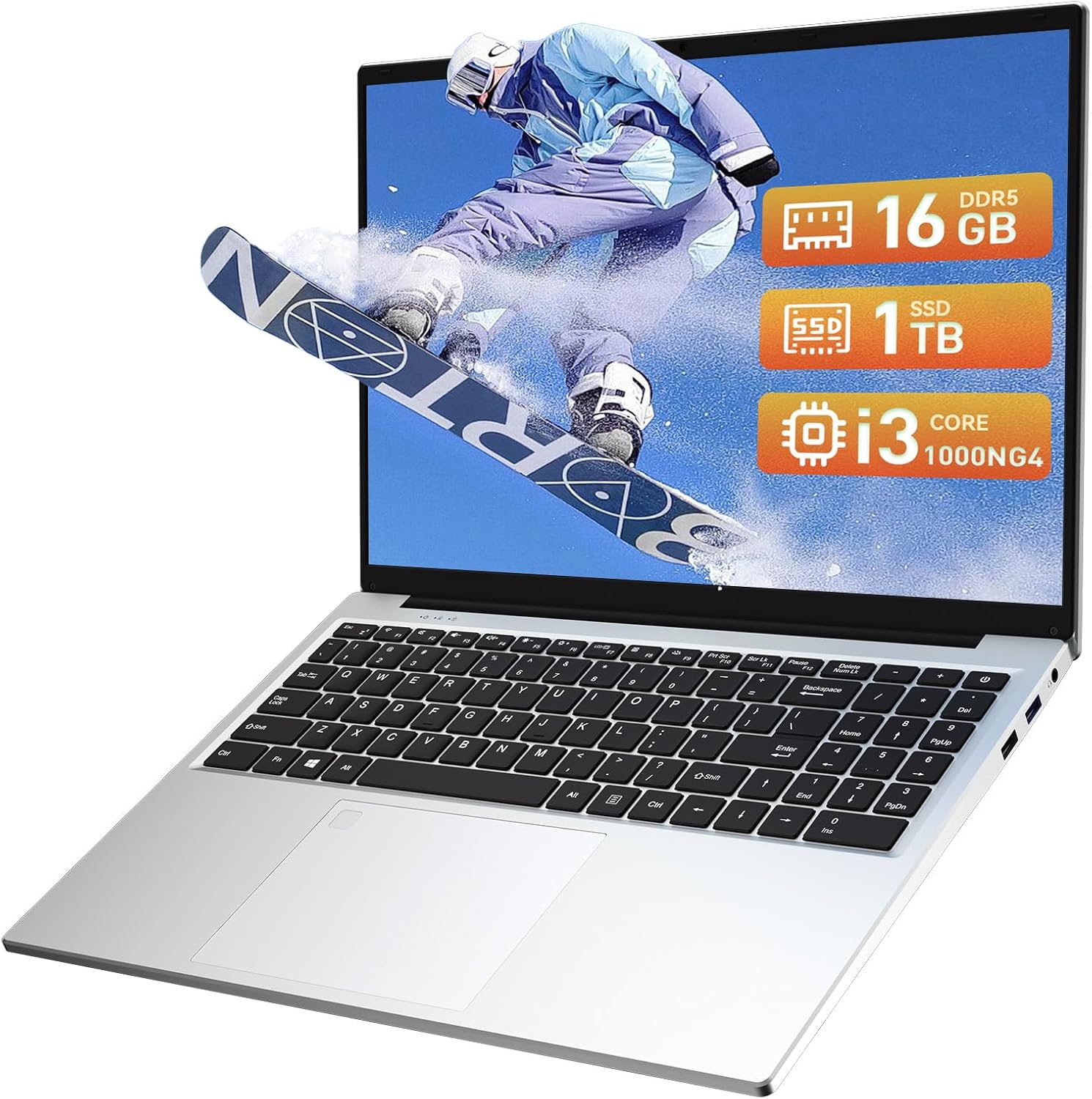
Image: The Auusda 16-inch FHD Laptop T161N, showcasing its sleek design and screen.
2. Apa yang ada di dalam kotak
Upon opening your Auusda T161N laptop package, verify that all the following items are included:
- Auusda 16-inch FHD Laptop T161N
- Adaptor Daya/Pengisi Daya
- Instruksi Manual (dokumen ini)
- Penutup Keyboard

Image: A visual representation of the items included in the Auusda T161N laptop packaging.
3. Produk Lebihview
3.1 Fitur Utama
- Menampilkan: 16-inch Full HD (1920x1080) IPS screen with 180° viewsudut.
- Prosesor: Intel Core i3-1000NG4 (up to 3.2GHz).
- Ingatan: RAM DDR4 16GB.
- Penyimpanan: 1TB PCIe SSD.
- Konektivitas: Wi-Fi 6, Bluetooth 5.3.
- Keamanan: Pembaca Sidik Jari.
- Masukan: Backlit Keyboard.
- Sistem Operasi: Windows 11 Pro.
3.2 Port dan Konektor
The Auusda T161N laptop is equipped with various ports for versatile connectivity:
- Port USB 3.0 (x2)
- Full-Function Type-C Port (x1) - Supports data transfer, screen mirroring, and charging.
- Pelabuhan USB 2.0 (x1)
- Mini HDMI Port (x1)
- 3.5mm Standard Headphone Jack (x1)
- Microphone Input (shared with headphone jack)
- Port Pengisian Daya

Image: A detailed diagram illustrating the location and type of ports on the Auusda T161N laptop.
3.3 Visual Lebih dariview
Video: Sebuah overview of the Auusda 16-inch FHD Laptop T161N, demonstrating its design and key features.
4. Pengaturan
4.1 Pengisian Awal
- Hubungkan adaptor daya ke port pengisian daya pada laptop.
- Hubungkan adaptor daya ke stopkontak di dinding.
- Biarkan laptop mengisi daya setidaknya selama 30 menit sebelum digunakan pertama kali, atau hingga indikator baterai menunjukkan daya yang cukup.
4.2 Powering On and Initial Windows Setup
- Tekan tombol daya yang terletak di keyboard untuk menghidupkan laptop.
- Follow the on-screen instructions to complete the Windows 11 Pro setup process. This includes selecting your region, language, connecting to a Wi-Fi network, and creating a user account.
- Ensure you have an active internet connection for Windows updates and driver installations during the setup.
5. Petunjuk Pengoperasian
5.1 Keyboard Functions (Fn + Function Keys)
The laptop features a full-size keyboard with dedicated function keys that can be accessed by pressing the Fn key in combination with the corresponding function key (F1-F12).
- Keyboard dengan lampu latar: Tekan Tombol Fn+F9 to cycle through 2 brightness levels. Pressing it a third time turns the backlight off.
- Kunci Angka: Tekan Fn + Num Lk to toggle the numeric keypad on or off.
- Kontrol Volume: Menggunakan Fn + Speaker keys (F1-F3) to mute, decrease, or increase volume.
- Kontrol Kecerahan: Menggunakan Fn + Sun keys (F4-F5) to decrease or increase screen brightness.

Image: A visual guide to using the Fn (Function) keys on the Auusda T161N keyboard for various controls.
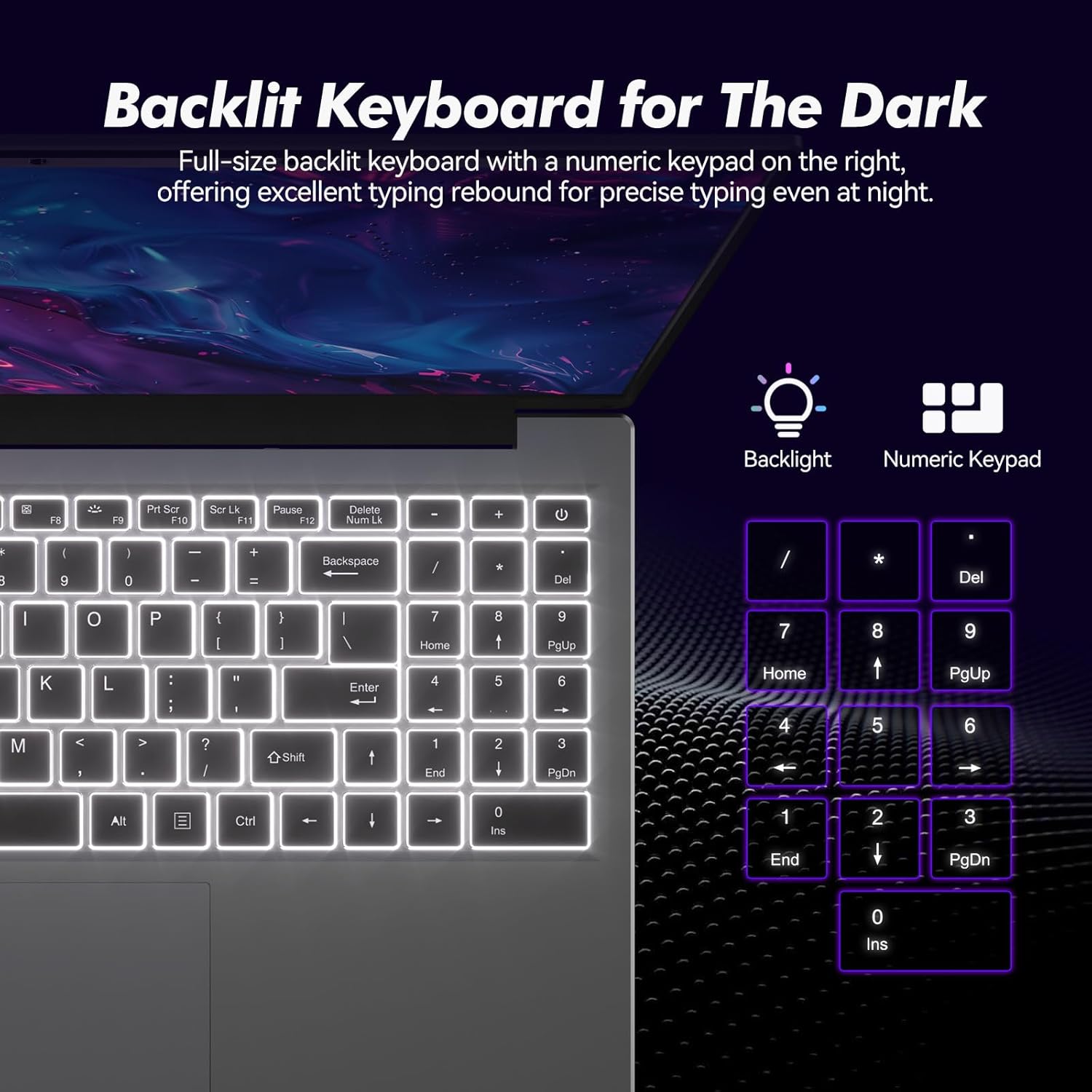
Gambar: Close-up view of the backlit keyboard and numeric keypad, highlighting their functionality.
Pembaca Sidik Jari 5.2
The integrated fingerprint reader provides a secure and fast way to unlock your laptop. To set up fingerprint recognition:
- Buka Pengaturan Windows > Akun > Opsi masuk.
- Under 'Windows Hello Fingerprint', click 'Set up'.
- Follow the on-screen prompts to register your fingerprint.
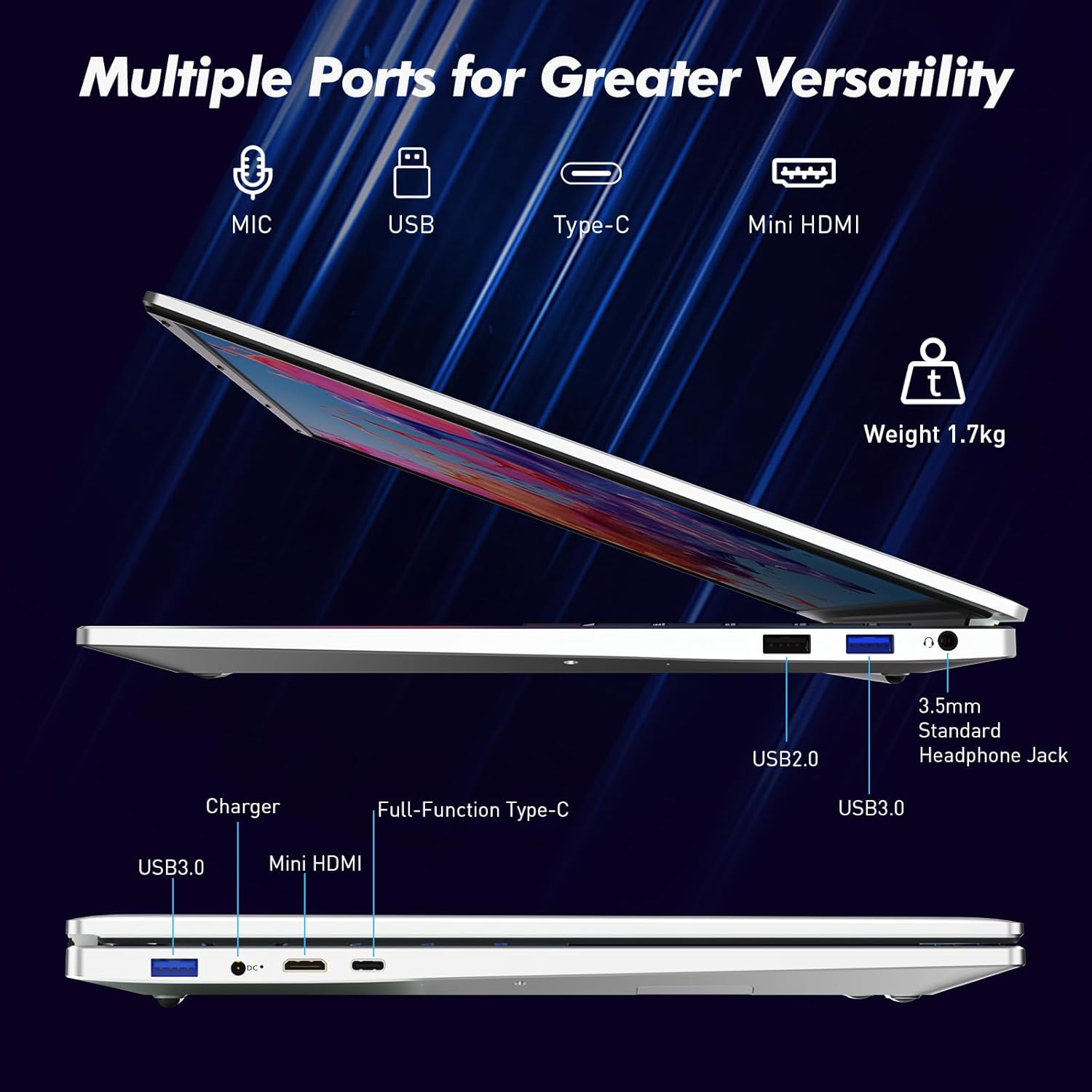
Image: A visual representation of the fingerprint reader location and its quick unlock capability.
5.3 Type-C Connectivity
The full-function Type-C port offers versatile connectivity options:
- Transfer Data: Connect compatible devices for high-speed data exchange.
- Pencerminan Layar: Output video to an external display using a compatible Type-C to HDMI/DisplayPort adapter (sold separately).
- Pengisian daya: Charge the laptop using a compatible Type-C power delivery charger.
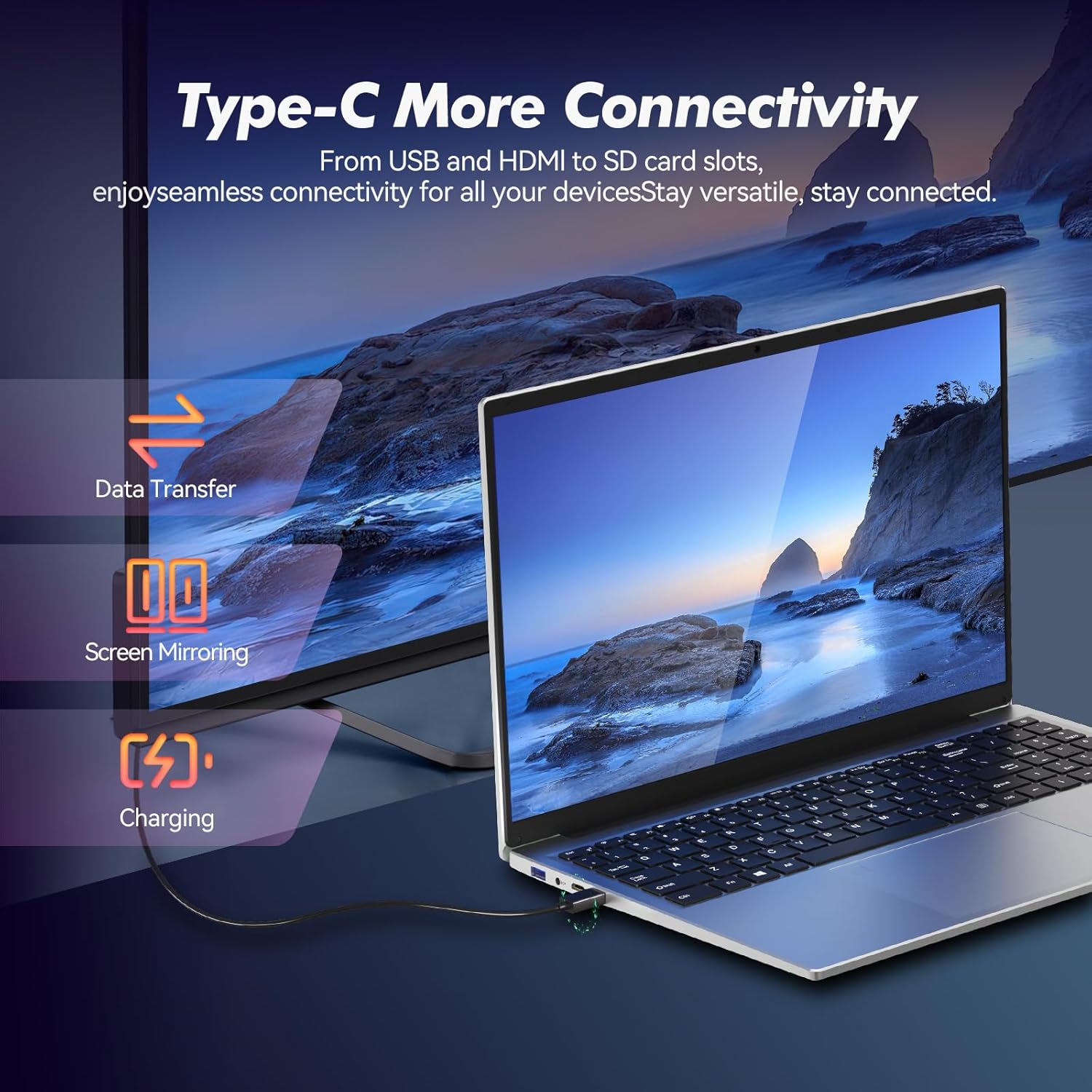
Image: Illustrates the multi-functional capabilities of the Type-C port, including data transfer, screen mirroring, and charging.
5.4 Wi-Fi 6 and Bluetooth 5.3
The laptop supports Wi-Fi 6 for faster and more stable wireless internet connections and Bluetooth 5.3 for connecting wireless peripherals.
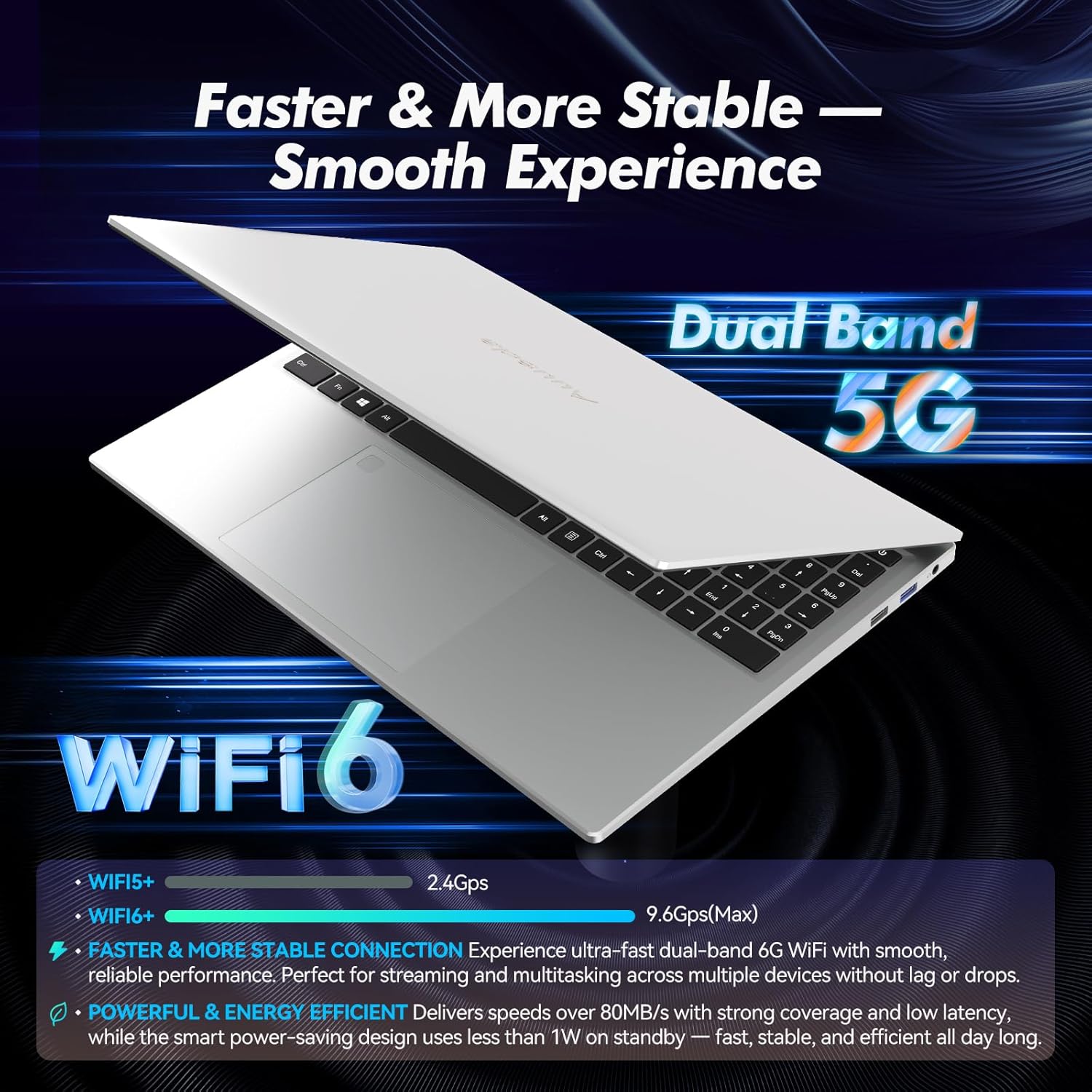
Image: Highlights the advanced wireless connectivity of the laptop, including Wi-Fi 6 and Dual Band 5G support.
6. Spesifikasi
Below are the detailed technical specifications for the Auusda 16-inch FHD Laptop T161N:
| Fitur | Spesifikasi |
|---|---|
| Nomor Model | T161N |
| Ukuran Layar | 16 inci |
| Resolusi Layar | 1920 x 1080 piksel (FHD) |
| Prosesor | Intel Core i3-1000NG4 (1.09 GHz, up to 3.2 GHz) |
| RAM | Memori DDR16 SDRAM 4 GB |
| Perangkat Keras | 1 TB SSD (PCIe) |
| Koprosesor Grafis | Iris Plus Graphics G4 48EUs (Integrated) |
| Sistem Operasi | Windows 11 Pro |
| Tipe Nirkabel | 802.11ax (Wi-Fi 6), Bluetooth 5.3 |
| Port USB 3.0 | 2 |
| Port USB 2.0 | 1 |
| Berat Barang | 5.21 pon |
| Dimensi Produk | 14.17x10.83x0.71 inci |
| Warna | Perak |
| Baterai | 1 baterai 12V (termasuk) |
7. Pemeliharaan
Regular maintenance helps ensure the optimal performance and longevity of your laptop.
7.1 Pembersihan
- Gunakan kain lembut dan bebas serat untuk membersihkan layar dan permukaan luar. Untuk noda membandel, sedikit gosok.ampBasahi kain dengan air atau cairan pembersih yang aman untuk layar.
- Hindari menyemprotkan cairan langsung ke laptop.
- Gunakan udara bertekanan untuk membersihkan debu dari tombol keyboard dan kisi-kisi ventilasi.
7.2 Pembaruan Perangkat Lunak
- Regularly check for and install Windows updates to ensure system stability and security. Go to Settings > Windows Update.
- Keep your drivers updated. Windows Update typically handles this, but you may occasionally need to check the Auusda support websitus untuk pembaruan driver tertentu.
7.3 Perawatan Baterai
- Hindari mengosongkan baterai sepenuhnya secara sering.
- Simpan laptop di tempat yang sejuk dan kering jika tidak digunakan dalam jangka waktu lama.
8. Penyelesaian masalah
Bagian ini membahas masalah umum yang mungkin Anda temui dengan laptop Anda.
8.1 Laptop Tidak Menyala
- Pastikan adaptor daya tersambung dengan aman ke laptop dan stopkontak yang berfungsi.
- Verifikasi apakah stopkontak berfungsi dengan mencolokkan perangkat lain.
- If the battery is completely drained, allow it to charge for at least 15-30 minutes before attempting to power on again.
8.2 Masalah Konektivitas Wi-Fi
- Check if Wi-Fi is enabled in Windows settings (Settings > Network & internet > Wi-Fi).
- Mulai ulang router dan modem Anda.
- Pastikan Anda berada dalam jangkauan jaringan Wi-Fi Anda.
- Update your Wi-Fi drivers if necessary.
8.3 Keyboard atau Touchpad Tidak Merespons
- Nyalakan ulang laptopnya.
- Check for any physical obstructions or debris under the keys or on the touchpad.
- Ensure the touchpad has not been accidentally disabled (some laptops have a function key or a setting to toggle the touchpad).
Untuk bantuan lebih lanjut, silakan lihat bagian dukungan di bawah ini.
9. Garansi dan Dukungan
Auusda provides customer support and warranty services for its products.
9.1 Informasi Garansi
Auusda laptops typically come with a two-year after-sales service period. Please retain your proof of purchase for warranty claims.
9.2 Dukungan Pelanggan
If you encounter issues or require technical assistance, please contact Auusda customer support:
- Dukungan Email: Send your order number and a video demonstrating the problem to Auusda.ltd@gmail.com.
- Akun Pembeli Amazon: Log in to your Amazon buyer account, find your order, and click "Get Help" or "Ask questions" for direct support.


